
Table of Contents
Introduction
uv has quickly become the go-to Python package manager, and for good reason. As I covered in Why UV Might Be All You Need, it’s fast, handles lockfiles, and manages virtual environments out of the box.
But data science and AI projects rarely stay pure Python. Many key packages depend on compiled C/C++ libraries that must be installed at the system level. uv can install the Python bindings, but not the system libraries underneath them.
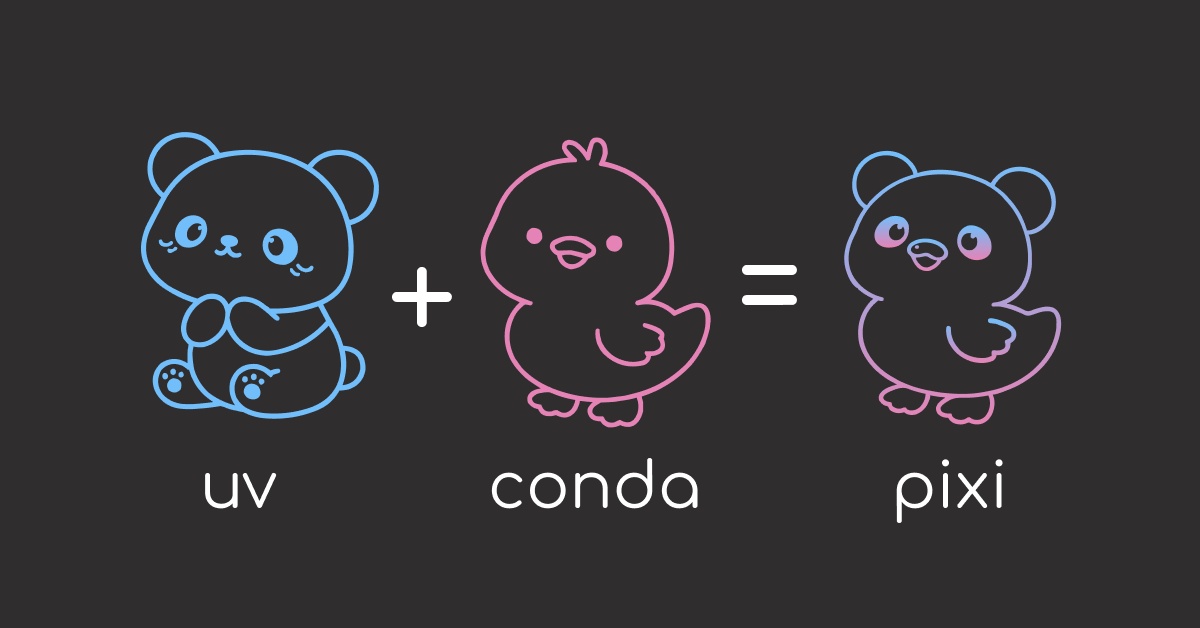
pixi solves this by managing both Python packages from PyPI and compiled system libraries from conda-forge in a single tool, with automatic lockfiles and fast dependency resolution.
In this article, we’ll compare how uv and pixi handle a real geospatial ML project and where each tool fits best.
📚 For a deeper dive into dependency management and production workflows, check out my book Production-Ready Data Science.
The Problem with uv
To make the comparison concrete, let’s set up the same geospatial ML project with each tool. Its dependencies come from two sources:
- conda-forge: geopandas and GDAL (compiled C/C++ geospatial libraries) and LightGBM (optimized compiled binaries)
- PyPI: scikit-learn (pure Python, uv handles it fine)
uv installs Python packages from PyPI, but it has no mechanism for installing compiled system libraries, header files, or non-Python dependencies.
This becomes a problem with packages like GDAL. uv add gdal only downloads Python bindings. If the underlying C/C++ library isn’t already installed, the build fails:
uv add gdal
× Failed to build `gdal==3.12.2`
├─▶ The build backend returned an error
╰─▶ Call to `setuptools.build_meta.build_wheel` failed (exit status: 1)

    gdal_config_error: [Errno 2] No such file or directory: 'gdal-config'

    Could not find gdal-config. Make sure you have installed
    the GDAL native library and development headers.
Fixing this means installing GDAL through your OS package manager, then matching the exact version to the Python package:
# Ubuntu/Debian: install system library + headers
sudo apt-get install -y libgdal-dev gdal-bin
export C_INCLUDE_PATH=/usr/include/gdal
uv add GDAL==$(gdal-config --version)

# macOS: install via Homebrew
brew install gdal
uv add GDAL==$(gdal-config --version)
This manual process means you’re now using two separate tools to manage one project’s dependencies: your OS package manager (apt, brew) and uv.
uv only tracks Python packages in pyproject.toml:
# pyproject.toml
[project]
dependencies = [
    "gdal>=3.12.2",
    "geopandas>=1.1.3",
    "scikit-learn>=1.4.2",
]
But the compiled C/C++ libraries those packages depend on (libgdal-core, proj, geos) aren’t recorded in any project file. They live only on your machine.
A new teammate cloning the repo won’t know which system packages to install or how the steps differ between Ubuntu and macOS. Even if the steps are documented in a README, they tend to go stale quickly.
Stay Current with CodeCut
Actionable Python tips, curated for busy data pros. Skim in under 2 minutes, three times a week.
pixi: Modern Environment Management
pixi, built in Rust by prefix-dev, manages both compiled system libraries and Python packages in a single tool. Think of it like conda but with lockfiles, fast resolution, and PyPI support built in.
Where uv needed brew install gdal plus uv add gdal with exact version matching, pixi handles it in one command:
pixi add gdal
Solving environment: done

The following NEW packages will be INSTALLED:
  gdal            3.11.4   # Python bindings
  libgdal-core    3.11.4   # compiled C/C++ library
  proj            9.7.1    # coordinate system library
  geos            3.10.6   # geometry engine
  geotiff         1.7.4    # GeoTIFF support
  libspatialite   5.1.0    # spatial SQL engine
  xerces-c        3.3.0    # XML parser
  ... and 50+ other compiled dependencies

Total: 72.2 MB
Both the Python bindings (gdal) and the compiled C/C++ library (libgdal-core) are installed in one step, along with all their dependencies.
Installation
Install pixi with the official install script:
curl -fsSL https://pixi.sh/install.sh | sh
See the pixi documentation for other installation methods.
Adding Dependencies
With uv, you can only install packages from PyPI. pixi handles both conda-forge and PyPI packages in one command.
Use conda-forge for packages that include compiled system libraries (GDAL, HDF5, CUDA toolkit) and PyPI for pure Python packages:
# conda-forge packages (includes compiled system libraries)
pixi add python geopandas gdal lightgbm

# PyPI packages
pixi add --pypi scikit-learn
Each command updates the pixi.toml manifest and regenerates the lockfile automatically. The resulting manifest looks like this:
[workspace]
authors = ["Khuyen Tran <khuyentran@codecut.ai>"]
channels = ["conda-forge"]
name = "geo-ml"
platforms = ["osx-arm64"]
version = "0.1.0"

[tasks]

[dependencies]
python = ">=3.14.3,<3.15"
geopandas = ">=1.1.3,<2"
gdal = ">=3.12.2,<4"
lightgbm = ">=4.6.0,<5"

[pypi-dependencies]
scikit-learn = "*"
Automatic Lockfiles
To install all dependencies from pixi.toml, run:
pixi install
Like uv, pixi generates a lockfile automatically. The difference is scope: uv.lock only pins Python packages, while pixi.lock also pins the compiled system libraries underneath them:
# pixi.lock (excerpt)
- conda: https://conda.anaconda.org/.../gdal-3.12.2.conda
  sha256: ac9a886dc1b4784da86c10946920031ccf85ebd97...
  md5: 61e0829c9528ca287918fa86e56dbca2
  depends:
  - __osx >=11.0
  - libcxx >=19
  - libgdal-core 3.12.2.*
  - numpy >=1.23,<3
  license: MIT
With uv, a teammate running uv sync gets the same Python packages but has to install system libraries separately. pixi tracks both in the lockfile.
To reproduce the full environment, a teammate just runs:
pixi install
Project-Level Environments
Like uv, pixi defines the environment inside the project directory. To start a new project, run pixi init:
# Create and enter project directory
mkdir geo-ml && cd geo-ml

# Initialize pixi project
pixi init
This creates a pixi.toml manifest, similar to uv’s pyproject.toml, that tracks dependencies and lives in version control with your code.
[workspace]
authors = ["Khuyen Tran <khuyentran@codecut.ai>"]
channels = ["conda-forge"]
name = "geo-ml"
platforms = ["osx-arm64"]
version = "0.1.0"

[tasks]

[dependencies]
pixi automatically detects your platform and sets conda-forge as the default channel. The [dependencies] section is empty, ready for you to add packages.
If your project already has a pyproject.toml, pixi init will add pixi sections to it automatically. No separate manifest needed.
For a complete guide to organizing your project beyond dependencies, see How to Structure a Data Science Project for Maintainability.
Environment Activation
Like uv’s uv run, pixi can run commands inside the project environment without manual activation:
pixi run python train.py
pixi also supports pixi shell for an interactive shell session, similar to activating a virtual environment:
pixi shell
Multi-Platform Support
uv’s lockfile is platform-independent, but only for Python packages. If your team develops on macOS and deploys to Linux, the system libraries still need to be installed separately on each platform.
pixi generates lockfile entries for every target platform, including system libraries:
pixi workspace platform add linux-64 win-64
This updates pixi.toml with the new platforms and regenerates the lockfile with entries for all of them:
[workspace]
channels = ["conda-forge"]
name = "geo-ml"
platforms = ["osx-arm64", "linux-64", "win-64"]
Multiple Environments
uv supports dependency groups in pyproject.toml for separating dev and production dependencies, but only for Python packages. pixi takes this further with features that can also include system libraries.
The workflow is similar to uv’s uv add --group dev, but pixi calls them features:
pixi add --feature dev pytest ruff
To use the feature, link it to a named environment:
pixi workspace environment add dev --feature dev
These two commands update pixi.toml with the new feature and environment:
[feature.dev.dependencies]
pytest = "*"
ruff = "*"

[environments]
dev = ["dev"]
dev = ["dev"] means the dev environment includes default dependencies plus everything under [feature.dev.dependencies].
To use the dev environment, pass -e dev to any pixi command:
pixi shell -e dev       # activate an interactive shell
pixi run -e dev pytest  # run a single command
Built-in Task Runner
uv doesn’t have a built-in task runner, so teams typically manage project commands with Makefiles, Just, or shell scripts. These commands can be hard to remember:
uv run python src/preprocess.py --input data/raw --output data/processed
uv run python src/train.py --config configs/experiment_3.yaml --epochs 100
uv run pytest tests/ -v --cov=src
pixi has a built-in task runner that stores these commands alongside your dependencies, so no one has to memorize them.
To define a task, use pixi task add:
pixi task add preprocess "python src/preprocess.py --input data/raw --output data/processed"
pixi task add train "python src/train.py"
pixi task add test "pytest tests/"
This adds three tasks to pixi.toml:
[tasks]
preprocess = "python src/preprocess.py --input data/raw --output data/processed"
train = "python src/train.py"
test = "pytest tests/"
To run any task, use pixi run followed by the task name:
pixi run train
pixi run test
Tasks run inside the project environment automatically, with no need to activate first.
To learn more about writing effective tests, see Pytest for Data Scientists.
Global Tool Installation
Both uv (uv tool install) and pixi support installing tools globally. These are tools like code formatters and linters that are useful everywhere but don’t belong in any specific project:
pixi global install ipython
pixi global install ruff
Once installed, they’re available from any directory:
ipython    # start interactive Python shell
ruff check .  # lint any project
Why Not conda?
conda was the original solution for managing system libraries in Python environments. But it has several limitations that pixi was designed to fix:
- Slow dependency resolution: Adding a single package to a large environment can take minutes. pixi’s Rust-based solver is 10-100x faster.
- No lockfiles: conda’s
environment.ymlonly lists packages you explicitly installed, not the dozens of sub-dependencies underneath them. Recreating the environment later may silently pull different versions. - conda and pip manage dependencies independently: Most projects need packages from both tools. Since neither checks what the other installed, conflicting versions can silently break your environment.
- Environments live outside projects: conda stores environments in a central directory (
~/miniconda3/envs/), not inside your project. There’s no way to tell which environment a project needs just by looking at its files.
pixi solves all four: fast resolution, automatic lockfiles, one tool for conda-forge and PyPI, and environments stored inside your project.
Summary
Here’s how the three tools compare:
| Feature | uv | conda | pixi |
|---|---|---|---|
| Compiled system libraries | No | Yes | Yes |
| Fast dependency resolution | Yes | No | Yes |
| Lockfiles | Yes | No | Yes |
| Project-based environments | Yes | No | Yes |
| PyPI + conda-forge support | No | Limited | Yes |
| Built-in task runner | No | No | Yes |
| Multi-platform lockfiles | No | No | Yes |
In short:
- Use uv for pure Python projects where all dependencies come from PyPI.
- Use pixi when your project needs compiled system libraries (GDAL, CUDA, C/C++ dependencies), multi-platform lockfiles, or a unified package manager that handles both conda-forge and PyPI.
For teams that need version history, sharing, and access control on top of pixi, see From uv to nebi: Reproducible Python Environments for Data Science Teams.
Stay Current with CodeCut
Actionable Python tips, curated for busy data pros. Skim in under 2 minutes, three times a week.