Generic selectors
Exact matches only
Search in title
Search in content
Post Type Selectors
Filter by Categories
About Article
Analyze Data
Archive
Best Practices
Better Outputs
Blog
Code Optimization
Code Quality
Command Line
Course
Daily tips
Dashboard
Data Analysis & Manipulation
Data Engineer
Data Visualization
DataFrame
Delta Lake
DevOps
DuckDB
Environment Management
Feature Engineer
Git
Jupyter Notebook
LLM
LLM Tools
Machine Learning
Machine Learning & AI
Machine Learning Tools
Manage Data
MLOps
Natural Language Processing
Newsletter Archive
NumPy
Pandas
Polars
PySpark
Python Helpers
Python Tips
Python Utilities
Scrape Data
SQL
Testing
Time Series
Tools
Visualization
Visualization & Reporting
Workflow & Automation
Workflow Automation

Command Line

Pet: A Command-line Snippet Tool That Allows you to Store your Favorite Commands

Knowing the command line can be immensely productive, but it can be difficult to remember all useful commands. You might try to search for Google every time you want to use a specific command, but it is time-consuming.
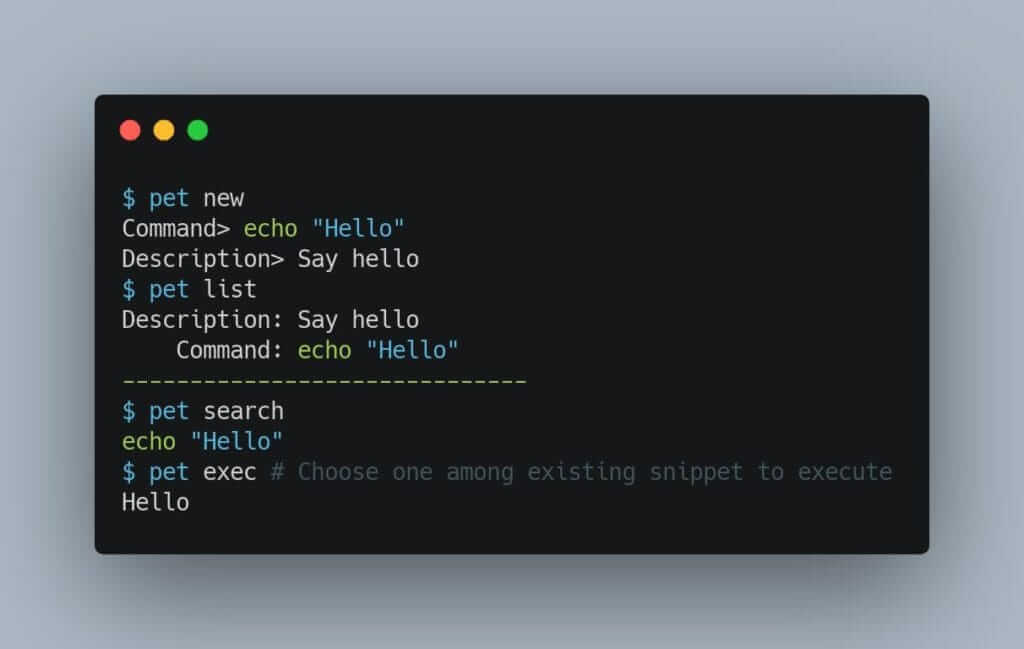
Is there a way that you can save your favorite command-line snippets and access them easily when needed? You can do that with pet.
Pet is a command-line snippet manager. To save a new snippet, use pet new. To find a snippet, simply use pet list to list all commands or pet exec to execute a snippet. Find an example above.
 
You can find how to install pet here.

Pet: A Command-line Snippet Tool That Allows you to Store your Favorite Commands Read More »
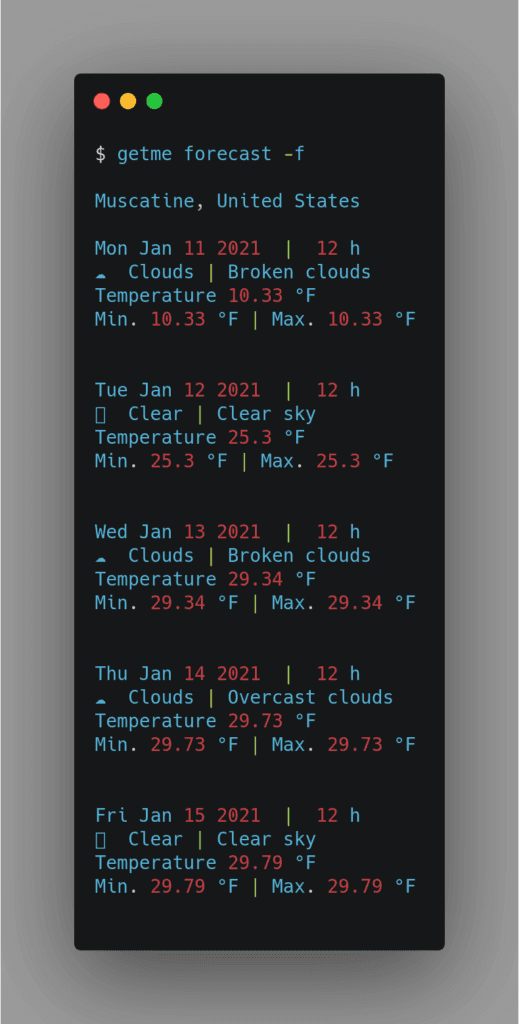
getme forecast: Get the Weather Forecast Through your Terminal

It is Sunday and you wonder how the weather in the next 5 days will be. Why not ask your terminal to give you the weather forecast?
getme is a handy command-line tool for this. Type getme forecast to get the forecast of five days ahead in celsius. Add -f to the weather in fahrenheit.
Better yet, getme can automatically detect your location and give you the weather forecast there. Above is my weather forecast for the next 5 days.
getme also allows you to get weather, forecast, upload files, IP address, internet speed, etc. Find getme here.

getme forecast: Get the Weather Forecast Through your Terminal Read More »

Understand CSV Files from your Terminal with XSV

Have you ever tried to have a general understanding of your CSV file by staring at it but ended up not understanding your file? You can open a Jupyter Notebook to analyze your CSV file, but it is time-consuming to open a notebook just to understand a CSV file, especially when you are working primarily with Python scripts and terminal.
xsv allows you to quickly analyze your CSV files from your terminal in 1 line of code.
To view the stats of a CSV file, type
xsv stats file.csv
Find my full article on how to use xsv here.

Understand CSV Files from your Terminal with XSV Read More »

argparse: Python Library to Parse Arguments from Command Line

You might find it convenient to use some Python libraries that allow you to specify the argument from the command line. Have you ever wondered how to create the same thing in your script?
The easiest way is to use argparse. With argparse, you can specify the argument’s name, the default value, data type, and description. Below is an example.
If you don’t know what options are available, type python test.py -h to view all options.
Argparse is especially useful when somebody else wants to run your script without digging into your code.
 

argparse: Python Library to Parse Arguments from Command Line Read More »

Sed Command: Replace a string with another string on the command line

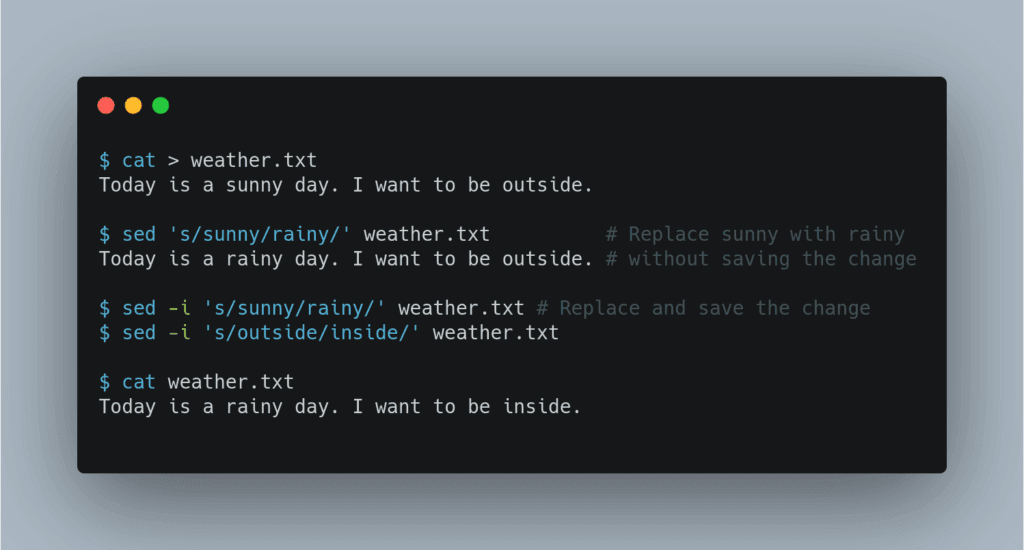
If you want to quickly replace a string with another string in a text file, try sed. Above is an example.
By using sed, I can change the string ‘sunny’ with ‘rainy’, ‘outside’ with ‘inside’. Pretty convenient isn’t it?
Use ‘s/sunny/rainy/g’ if you want to replace all occurrences of a string.

Sed Command: Replace a string with another string on the command line Read More »

Loop through a list of data on your terminal

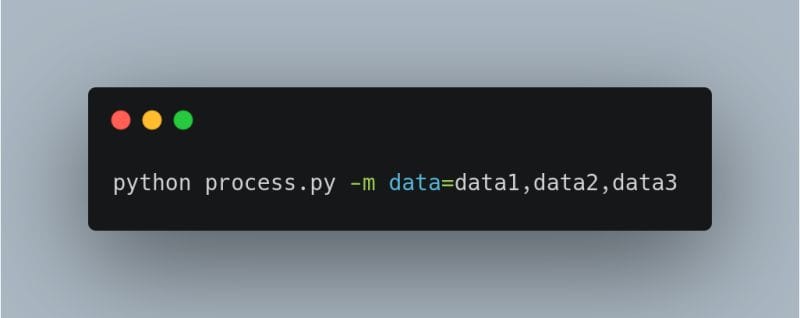
You can run the same notebook with different data using papermill. Better yet, create a loop through a list of data on your terminal. Now you can do something else while letting the program runs across the different notebook!
In the code below, I created a different output notebook for different data ($value.ipynb). You can alternatively run the same notebook but save the output somewhere else 🙂
This could be helpful when you want to use the same code to visualize different data but doesn’t want to manually rerun the notebook for every data.

Loop through a list of data on your terminal Read More »

Scroll to Top

Work with Khuyen Tran

Work with Khuyen Tran