Generic selectors
Exact matches only
Search in title
Search in content
Post Type Selectors
Filter by Categories
About Article
Analyze Data
Archive
Best Practices
Better Outputs
Blog
Code Optimization
Code Quality
Command Line
Course
Daily tips
Dashboard
Data Analysis & Manipulation
Data Engineer
Data Visualization
DataFrame
Delta Lake
DevOps
DuckDB
Environment Management
Feature Engineer
Git
Jupyter Notebook
LLM
LLM Tools
Machine Learning
Machine Learning & AI
Machine Learning Tools
Manage Data
MLOps
Natural Language Processing
Newsletter Archive
NumPy
Pandas
Polars
PySpark
Python Helpers
Python Tips
Python Utilities
Scrape Data
SQL
Testing
Time Series
Tools
Visualization
Visualization & Reporting
Workflow & Automation
Workflow Automation

langchain

Auto-created tag for langchain

5 Python Tools for Structured LLM Outputs: A Practical Comparison

Table of Contents

Introduction
Post-Generation Validation
Instructor: Simplest Integration
PydanticAI: Type-Safe Agents
LangChain: Ecosystem Integration

Pre-Generation Constraints
Outlines: Guaranteed Valid JSON
Guidance: Branching During Generation

Final Thoughts

Introduction
An LLM can give you exactly the information you need, just not in the shape you asked for. The content may be correct, but when the structure is off, it can break downstream systems that expect a specific format.
Consider these common structured output challenges:
Invalid JSON: LLMs often wrap JSON in conversational text, causing json.loads() to fail even when the data is correct.
Here's the task information you requested:
{"title": "Review report", "priority": "high"}
Let me know if you need anything else!

Missing fields: LLMs skip required properties like hours or completed, even when the schema requires them.
{"title": "Review report", "priority": "high"}
# Missing: hours, completed

Wrong types: LLMs may return strings like “four” instead of numeric values, causing type errors in downstream processing.
{"title": "Review report", "hours": "four"}
# Expected: "hours": 4.0

Schema violations: Output passes type checks but breaks business rules like maximum values or allowed ranges.
{"title": "Review report", "hours": 200}
# Constraint: hours must be <= 100

This article covers five tools that solve these problems using two different approaches:
Post-Generation Validation
The LLM generates output freely, then validation checks the result against your schema. If validation fails, the error is sent back to the LLM for self-correction.
Here are the pros and cons of this approach:

Pros: Works with any LLM provider (OpenAI, Anthropic, local models). No special setup required.
Cons: Retries cost extra API calls. Complex schemas may need multiple attempts.

LLM Output → Validate → Failed: "hours must be float"

Retry with error

LLM Output → Validate → Success: {"hours": 4.0}

Tools using this approach: Instructor, PydanticAI, LangChain
Pre-Generation Constraints
Instead of fixing errors after generation, invalid tokens are blocked during generation. The LLM can only output valid JSON because invalid choices are never available.
Here are the pros and cons of this approach:

Pros: 100% schema compliance. No wasted API calls on invalid outputs.
Cons: Requires local models or specific inference servers. More setup complexity.

Schema: "priority" must be "low", "medium", or "high"

LLM generates → Only valid tokens available → {"priority": "high"}

100% valid output (no retries)

Tools using this approach: Outlines, Guidance

💻 Get the Code: The complete source code and Jupyter notebook for this tutorial are available on GitHub. Clone it to follow along!

Stay Current with CodeCut
Actionable Python tips, curated for busy data pros. Skim in under 2 minutes, three times a week.

.codecut-subscribe-form .codecut-input {
background: #2F2D2E !important;
border: 1px solid #72BEFA !important;
color: #FFFFFF !important;
}
.codecut-subscribe-form .codecut-input::placeholder {
color: #999999 !important;
}
.codecut-subscribe-form .codecut-subscribe-btn {
background: #72BEFA !important;
color: #2F2D2E !important;
}
.codecut-subscribe-form .codecut-subscribe-btn:hover {
background: #5aa8e8 !important;
}

.codecut-subscribe-form {
max-width: 650px;
display: flex;
flex-direction: column;
gap: 8px;
}

.codecut-input {
-webkit-appearance: none;
-moz-appearance: none;
appearance: none;
background: #FFFFFF;
border-radius: 8px !important;
padding: 8px 12px;
font-family: ‘Comfortaa’, sans-serif !important;
font-size: 14px !important;
color: #333333;
border: none !important;
outline: none;
width: 100%;
box-sizing: border-box;
}

input[type=”email”].codecut-input {
border-radius: 8px !important;
}

.codecut-input::placeholder {
color: #666666;
}

.codecut-email-row {
display: flex;
align-items: stretch;
height: 36px;
gap: 8px;
}

.codecut-email-row .codecut-input {
flex: 1;
}

.codecut-subscribe-btn {
background: #72BEFA;
color: #2F2D2E;
border: none;
border-radius: 8px;
padding: 8px 14px;
font-family: ‘Comfortaa’, sans-serif;
font-size: 14px;
font-weight: 500;
cursor: pointer;
text-decoration: none;
display: flex;
align-items: center;
justify-content: center;
transition: background 0.3s ease;
}

.codecut-subscribe-btn:hover {
background: #5aa8e8;
}

.codecut-subscribe-btn:disabled {
background: #999;
cursor: not-allowed;
}

.codecut-message {
font-family: ‘Comfortaa’, sans-serif;
font-size: 12px;
padding: 8px;
border-radius: 6px;
display: none;
}

.codecut-message.success {
background: #d4edda;
color: #155724;
display: block;
}

/* Mobile responsive */
@media (max-width: 480px) {
.codecut-email-row {
flex-direction: column;
height: auto;
gap: 8px;
}

.codecut-input {
border-radius: 8px;
height: 36px;
}

.codecut-subscribe-btn {
width: 100%;
text-align: center;
border-radius: 8px;
height: 36px;
}
}

Subscribe

Post-Generation Validation
With these tools, the LLM generates freely without constraints. Validation happens afterward, and failed outputs can trigger retries.
Instructor: Simplest Integration
Instructor (12.3k stars) wraps any LLM client with Pydantic validation and automatic retry.
Unlike PydanticAI’s dependency injection or LangChain’s ecosystem complexity, Instructor stays focused on one thing: structured outputs with minimal code.
To install Instructor, run:
pip install instructor

This article uses instructor v1.14.4.
To use Instructor:

Define a Pydantic model with your desired fields
Wrap your LLM client (OpenAI, Anthropic, Ollama, etc.) with Instructor
Pass the model as response_model in your API call

The code below extracts sales lead information from an email:
import instructor
from openai import OpenAI
from pydantic import BaseModel
from typing import Literal

class SalesLead(BaseModel):
company_size: Literal["startup", "smb", "enterprise"]
priority: Literal["low", "medium", "high"]

client = instructor.from_openai(OpenAI())

email = "Hi, I'm the CTO of a 500-person company. We're interested in your enterprise plan. Can we schedule a demo?"

lead = client.chat.completions.create(
model="gpt-4o",
messages=[{"role": "user", "content": f"Extract sales lead info from this email: {email}"}],
response_model=SalesLead,
max_retries=3
)
print(lead)

Output:
company_size='enterprise' priority='high'

Each field matches the schema: company_size and priority are constrained to the allowed Literal values.
The first LLM response may return an invalid value like “large” instead of “enterprise”. When this happens, Instructor sends the validation error back for self-correction.
PydanticAI: Type-Safe Agents
PydanticAI (14.5k stars) brings FastAPI’s developer experience to AI agents.
While Instructor focuses on extraction, PydanticAI supports tools and dependency injection. Tools are functions the agent can call to fetch external dat.
To install PydanticAI, run:
pip install pydantic-ai

This article uses pydantic-ai v1.48.0.
PydanticAI uses async internally. If running in a Jupyter notebook, apply nest_asyncio to avoid event loop conflicts:
import nest_asyncio

nest_asyncio.apply()

For basic extraction, PydanticAI takes a different approach with an Agent abstraction, but the output resembles Instructor.
from pydantic_ai import Agent
from pydantic import BaseModel
from typing import Literal

class SalesLead(BaseModel):
company_size: Literal["startup", "smb", "enterprise"]
priority: Literal["low", "medium", "high"]

agent = Agent("openai:gpt-4o", output_type=SalesLead)

email = "Hi, I'm the CTO of a 500-person company. We're interested in your enterprise plan. Can we schedule a demo?"

result = agent.run_sync(f"Extract sales lead info from this email: {email}")
print(result.output)

company_size='enterprise' priority='high'

Where PydanticAI stands out is tools and dependency injection. Tools are functions the agent can call during generation to fetch external data. Dependency injection passes data into those tools without hardcoding values.
To use PydanticAI with tools and dependency injection:

Create a dataclass for external data (e.g., pricing table)
Add deps_type to the agent to specify the dependency class
Decorate functions with @agent.tool to make them callable
Provide dependencies when calling run_sync()

from pydantic_ai import Agent, RunContext
from pydantic import BaseModel
from dataclasses import dataclass
from typing import Literal

class SalesLead(BaseModel):
company_size: Literal["startup", "smb", "enterprise"]
priority: Literal["low", "medium", "high"]
monthly_price: int

@dataclass
class PricingTable:
prices: dict[str, int]

agent = Agent(
"openai:gpt-4o",
deps_type=PricingTable,
output_type=SalesLead
)

@agent.tool
def get_price(ctx: RunContext[PricingTable], company_size: str) -> str:
"""Get monthly price for a company size tier."""
price = ctx.deps.prices.get(company_size.lower(), 0)
return f"Monthly price for {company_size}: ${price}"

email = "Hi, I'm the CTO of a 500-person company. We're interested in your enterprise plan."

result = agent.run_sync(
f"Extract sales lead info from this email: {email}",
deps=PricingTable(prices={"startup": 99, "smb": 499, "enterprise": 1999})
)
print(result.output)

company_size='enterprise' priority='high' monthly_price=1999

The output shows monthly_price=1999, which matches the enterprise tier in the PricingTable. The LLM called get_price("enterprise") to retrieve this value.
For a deeper dive into PydanticAI’s capabilities, see Enforce Structured Outputs from LLMs with PydanticAI.
LangChain: Ecosystem Integration
LangChain (125k stars) offers structured outputs as part of a comprehensive framework.
While Instructor and PydanticAI focus on extraction, LangChain provides structured outputs as part of a larger ecosystem. This includes integrations with vector stores, tools, and monitoring.
To install LangChain, run:
pip install langchain langchain-openai

This article uses langchain v1.2.7 and langchain-openai v1.1.7.
To use LangChain for structured outputs:

Create a chat model (OpenAI, Anthropic, Google, etc.)
Call .with_structured_output(YourModel) to add schema enforcement
Use .invoke() with your prompt

The code below extracts sales lead information from an email:
from langchain_openai import ChatOpenAI
from pydantic import BaseModel
from typing import Literal

class SalesLead(BaseModel):
company_size: Literal["startup", "smb", "enterprise"]
priority: Literal["low", "medium", "high"]

model = ChatOpenAI(model="gpt-4o")
structured = model.with_structured_output(SalesLead)

email = "Hi, I'm the CTO of a 500-person company. We're interested in your enterprise plan. Can we schedule a demo?"

lead = structured.invoke(f"Extract sales lead info from this email: {email}")
print(lead)

Output:
company_size='enterprise' priority='high'

The output resembles Instructor and PydanticAI since all three use Pydantic models for schema enforcement.
LangChain’s value is ecosystem integration. You can combine structured outputs with:

Vector stores for RAG pipelines
Document loaders for PDFs, web pages, and databases
Memory for conversation history
LangSmith for monitoring and tracing
And many more integrations

When to Use Each Tool
LangChain covers the most features, but I find the simpler tools easier to maintain when you don’t need the full ecosystem.

Instructor: One pip install, zero framework concepts. Choose when extraction is your only need.
PydanticAI: Adds tools without the full LangChain ecosystem. Choose when you need external data but not RAG or memory.
LangChain: Full ecosystem with learning curve. Choose when you’re already using LangChain or need its integrations.

For production patterns like PII filtering and human approval workflows, see Build Production-Ready LLM Agents with LangChain 1.0 Middleware.
Pre-Generation Constraints
Unlike post-generation validation tools that check output after generation, these tools guide the LLM character-by-character. Invalid characters are blocked before they’re generated. This guarantees 100% schema compliance. No wasted API calls on invalid outputs.
Outlines: Guaranteed Valid JSON
Outlines (13.3k stars) guarantees valid output by constraining token sampling during generation.
Among pre-generation constraint tools, Outlines is the simplest.
To install Outlines, run:
pip install outlines

This article uses outlines v1.2.9.
The code resembles Instructor, but works differently. At each generation step, Outlines checks which tokens would keep the output valid and blocks all others. The model can only choose from schema-compliant tokens:
import outlines
from transformers import AutoModelForCausalLM, AutoTokenizer
from pydantic import BaseModel
from typing import Literal

class SalesLead(BaseModel):
company_size: Literal["startup", "smb", "enterprise"]
priority: Literal["low", "medium", "high"]

# Load local model for direct token control
model = outlines.from_transformers(
AutoModelForCausalLM.from_pretrained("Qwen/Qwen2.5-1.5B"),
AutoTokenizer.from_pretrained("Qwen/Qwen2.5-1.5B")
)

email = "Hi, I'm the CTO of a 500-person company. We're interested in your enterprise plan."

result = model(
f"Extract sales lead info from this email: {email}",
SalesLead,
max_new_tokens=100
)
print(result)

Output:
company_size='enterprise' priority='high'

The company_size and priority fields contain valid Literal values. Invalid values are impossible because Outlines blocks those tokens during generation.
Beyond schema validation, Outlines supports regex and choice constraints that block invalid tokens during generation.
For example, this regex enforces a phone number format:
result = model("New York office phone number:", output_type=Regex(r"\(\d{3}\) \d{3}-\d{4}"))
print(result)

Output:
(212) 555-0147

Similarly, a Literal type restricts output to predefined values:
Sentiment = Literal["positive", "negative", "neutral"]
result = model("The product exceeded expectations! Sentiment:", output_type=Sentiment)
print(result)

Output:
positive

These constraints work at the token level: the model cannot generate invalid characters because they are blocked before generation.
Guidance: Branching During Generation
Guidance (19k stars) lets you run Python control flow during generation.
Like Outlines, Guidance uses token masking to enforce schema compliance. Guidance goes further by letting Python if/else statements run as the model generates. The model’s output becomes a variable you can check, then generation continues down the chosen branch.
To install Guidance, run:
pip install guidance

This article uses guidance v0.3.0.
The @guidance decorator creates reusable functions that combine branching with constrained output:

select() constrains the model to choose from a fixed list of options
Python if/else runs during generation based on the model’s choice
gen_json() constrains output to match different schemas per branch

from guidance import models, system, user, assistant, select, guidance
from guidance import json as gen_json
from pydantic import BaseModel
from typing import Literal

class SalesLead(BaseModel):
model_config = dict(extra="forbid")
company_size: Literal["startup", "smb", "enterprise"]
priority: Literal["low", "medium", "high"]

class SupportTicket(BaseModel):
model_config = dict(extra="forbid")
issue_type: Literal["billing", "technical", "account"]
urgency: Literal["low", "medium", "high"]

lm = models.Transformers("Qwen/Qwen2.5-1.5B")

@guidance
def classify_email(lm, email):
with system():
lm += "You classify emails and extract structured data."
with user():
lm += f"Classify and extract info from: {email}"
with assistant():
lm += f"Category: {select(['sales', 'support'], name='category')}\n"
if lm["category"] == "sales":
lm += gen_json(name="result", schema=SalesLead)
else:
lm += gen_json(name="result", schema=SupportTicket)
return lm

email1 = "Hi, I'm the CTO of a 500-person company. We're interested in your enterprise plan."
result1 = lm + classify_email(email1)
print(f"Category: {result1['category']}, Result: {result1['result']}")

Output:
Category: sales, Result: {"company_size": "enterprise", "priority": "high"}

The model classified this as “sales” and generated a SalesLead with enterprise company size and high priority.
The @guidance decorator makes the function reusable. Calling it with a different email runs the same branching logic:
email2 = "URGENT: My account is locked and I can't log in. Please help!"
result2 = lm + classify_email(email2)
print(f"Category: {result2['category']}, Result: {result2['result']}")

Output:
Category: support, Result: {"issue_type": "account", "urgency": "high"}

This time the model classified the email as “support” and generated a SupportTicket instead. The branching logic automatically selected the correct schema based on the classification.
When to Use Each Tool

Outlines: Choose when you need guaranteed schema compliance with straightforward extraction. Simpler API, easier to get started.
Guidance: Choose when you need branching logic during generation. Python if/else runs as the model generates, enabling different schemas per branch.

Final Thoughts
This article covered two approaches to structured LLM outputs:

Post-generation validation (Instructor, PydanticAI, LangChain): Works with any provider. Instructor and PydanticAI automatically retry on validation failure; LangChain requires explicit retry configuration.
Pre-generation constraints (Outlines, Guidance): Blocks invalid tokens during generation, guarantees valid output

I recommend starting with post-generation tools for their simplicity and provider flexibility. Switch to pre-generation tools when you want to eliminate retry costs or need constraints like regex patterns.
Did I miss a tool you use for structured outputs? Let me know in the comments.

📚 Want to go deeper? My book shows you how to build data science projects that actually make it to production. Get the book →

Stay Current with CodeCut
Actionable Python tips, curated for busy data pros. Skim in under 2 minutes, three times a week.

.codecut-subscribe-form .codecut-input {
background: #2F2D2E !important;
border: 1px solid #72BEFA !important;
color: #FFFFFF !important;
}
.codecut-subscribe-form .codecut-input::placeholder {
color: #999999 !important;
}
.codecut-subscribe-form .codecut-subscribe-btn {
background: #72BEFA !important;
color: #2F2D2E !important;
}
.codecut-subscribe-form .codecut-subscribe-btn:hover {
background: #5aa8e8 !important;
}

.codecut-subscribe-form {
max-width: 650px;
display: flex;
flex-direction: column;
gap: 8px;
}

.codecut-input {
-webkit-appearance: none;
-moz-appearance: none;
appearance: none;
background: #FFFFFF;
border-radius: 8px !important;
padding: 8px 12px;
font-family: ‘Comfortaa’, sans-serif !important;
font-size: 14px !important;
color: #333333;
border: none !important;
outline: none;
width: 100%;
box-sizing: border-box;
}

input[type=”email”].codecut-input {
border-radius: 8px !important;
}

.codecut-input::placeholder {
color: #666666;
}

.codecut-email-row {
display: flex;
align-items: stretch;
height: 36px;
gap: 8px;
}

.codecut-email-row .codecut-input {
flex: 1;
}

.codecut-subscribe-btn {
background: #72BEFA;
color: #2F2D2E;
border: none;
border-radius: 8px;
padding: 8px 14px;
font-family: ‘Comfortaa’, sans-serif;
font-size: 14px;
font-weight: 500;
cursor: pointer;
text-decoration: none;
display: flex;
align-items: center;
justify-content: center;
transition: background 0.3s ease;
}

.codecut-subscribe-btn:hover {
background: #5aa8e8;
}

.codecut-subscribe-btn:disabled {
background: #999;
cursor: not-allowed;
}

.codecut-message {
font-family: ‘Comfortaa’, sans-serif;
font-size: 12px;
padding: 8px;
border-radius: 6px;
display: none;
}

.codecut-message.success {
background: #d4edda;
color: #155724;
display: block;
}

/* Mobile responsive */
@media (max-width: 480px) {
.codecut-email-row {
flex-direction: column;
height: auto;
gap: 8px;
}

.codecut-input {
border-radius: 8px;
height: 36px;
}

.codecut-subscribe-btn {
width: 100%;
text-align: center;
border-radius: 8px;
height: 36px;
}
}

Subscribe

5 Python Tools for Structured LLM Outputs: A Practical Comparison Read More »
Build Production-Ready LLM Agents with LangChain 1.0 Middleware

Table of Contents

Introduction
Introduction to Middleware Pattern
Installation
Message Summarization
PII Detection and Filtering
Human-in-the-Loop
Task Planning
Intelligent Tool Selection
Building a Production Agent with Multiple Middleware
Final Thoughts

Introduction
Have you ever wanted to extend your LLM agent with custom behaviors like:

Summarizing messages to manage context windows
Filtering PII to protect sensitive data
Requesting human approval for critical actions

…but weren’t sure how to build them?
If you’ve tried this in LangChain v0.x, you probably ran into complex pre/post hooks that were hard to scale or test.
LangChain 1.0 introduces a composable middleware architecture that solves these problems by providing reusable, testable components that follow web server middleware patterns.

💻 Get the Code: The complete source code and Jupyter notebook for this tutorial are available on GitHub. Clone it to follow along!

Stay Current with CodeCut
Actionable Python tips, curated for busy data pros. Skim in under 2 minutes, three times a week.

.codecut-subscribe-form .codecut-input {
background: #2F2D2E !important;
border: 1px solid #72BEFA !important;
color: #FFFFFF !important;
}
.codecut-subscribe-form .codecut-input::placeholder {
color: #999999 !important;
}
.codecut-subscribe-form .codecut-subscribe-btn {
background: #72BEFA !important;
color: #2F2D2E !important;
}
.codecut-subscribe-form .codecut-subscribe-btn:hover {
background: #5aa8e8 !important;
}

.codecut-subscribe-form {
max-width: 650px;
display: flex;
flex-direction: column;
gap: 8px;
}

.codecut-input {
-webkit-appearance: none;
-moz-appearance: none;
appearance: none;
background: #FFFFFF;
border-radius: 8px !important;
padding: 8px 12px;
font-family: ‘Comfortaa’, sans-serif !important;
font-size: 14px !important;
color: #333333;
border: none !important;
outline: none;
width: 100%;
box-sizing: border-box;
}

input[type=”email”].codecut-input {
border-radius: 8px !important;
}

.codecut-input::placeholder {
color: #666666;
}

.codecut-email-row {
display: flex;
align-items: stretch;
height: 36px;
gap: 8px;
}

.codecut-email-row .codecut-input {
flex: 1;
}

.codecut-subscribe-btn {
background: #72BEFA;
color: #2F2D2E;
border: none;
border-radius: 8px;
padding: 8px 14px;
font-family: ‘Comfortaa’, sans-serif;
font-size: 14px;
font-weight: 500;
cursor: pointer;
text-decoration: none;
display: flex;
align-items: center;
justify-content: center;
transition: background 0.3s ease;
}

.codecut-subscribe-btn:hover {
background: #5aa8e8;
}

.codecut-subscribe-btn:disabled {
background: #999;
cursor: not-allowed;
}

.codecut-message {
font-family: ‘Comfortaa’, sans-serif;
font-size: 12px;
padding: 8px;
border-radius: 6px;
display: none;
}

.codecut-message.success {
background: #d4edda;
color: #155724;
display: block;
}

/* Mobile responsive */
@media (max-width: 480px) {
.codecut-email-row {
flex-direction: column;
height: auto;
gap: 8px;
}

.codecut-input {
border-radius: 8px;
height: 36px;
}

.codecut-subscribe-btn {
width: 100%;
text-align: center;
border-radius: 8px;
height: 36px;
}
}

Subscribe

Introduction to Middleware Pattern
Building on the LangChain fundamentals we covered earlier, LangChain 1.0 introduces middleware components that give you fine-grained control over agent execution. Each middleware is a self-contained component that:

Focuses on a single responsibility (monitor, modify, control, or enforce)
Can be tested independently
Composes with other middleware through a standard interface

The four middleware categories are:

Monitor: Track agent behavior with logging, analytics, and debugging
Modify: Transform prompts, tool selection, and output formatting
Control: Add retries, fallbacks, and early termination logic
Enforce: Apply rate limits, guardrails, and PII detection

This article covers five essential middleware components:

Message summarization (modify): Manage context windows by condensing long conversations
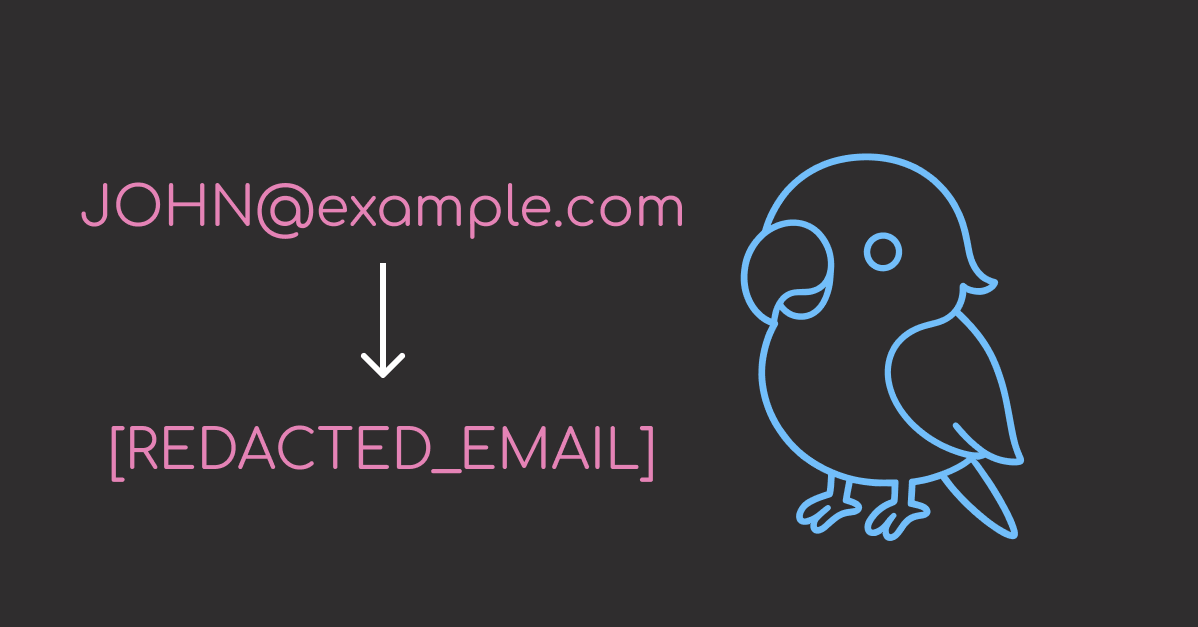
PII filtering (enforce): Protect sensitive data by redacting emails and phone numbers
Human-in-the-loop (control): Pause execution for critical actions requiring approval
Task planning (modify): Structure complex requests into manageable subtasks
Intelligent tool selection (modify): Pre-filter tools to reduce costs and improve accuracy

Let’s explore how each middleware component improves production agent workflows.
Installation
Install LangChain 1.0 and the OpenAI integration:
# Option 1: pip
pip install langchain langchain-openai

# Option 2: uv (faster alternative to pip)
uv add langchain langchain-openai

Note: If you’re upgrading from LangChain v0.x, add the –U flag: pip install –U langchain langchain-openai

You’ll also need an OpenAI API key:
export OPENAI_API_KEY="your-api-key-here"

Message Summarization
When building conversational agents, message history grows with each turn. Long conversations quickly exceed model context windows, causing API errors or degraded performance.
SummarizationMiddleware automates this by:

Monitoring token count across the conversation
Condensing older messages when thresholds are exceeded
Preserving recent context for immediate relevance

The benefits:

Reduced API costs from sending fewer tokens per request
Faster responses with smaller context windows
Complete context through summaries plus full recent history

Here’s how to use SummarizationMiddleware as part of an agent:
from langchain.agents import create_agent
from langchain.agents.middleware import SummarizationMiddleware

agent = create_agent(
model="openai:gpt-4o",
tools=[],
middleware=[
SummarizationMiddleware(
model="openai:gpt-4o-mini",
max_tokens_before_summary=400,
messages_to_keep=5
)
]
)

This configuration sets up automatic conversation management:

model="openai:gpt-4o" – The primary model for agent responses
max_tokens_before_summary=400 – Triggers summarization when conversation exceeds 400 tokens
messages_to_keep=5 – Preserves the 5 most recent messages in full
model="openai:gpt-4o-mini" – Uses a faster, cheaper model for creating summaries

Note: These configuration values are set low for demonstration purposes to quickly show summarization behavior. Production applications typically use max_tokens_before_summary=4000 and messages_to_keep=20 (the recommended defaults).

Let’s use this agent to simulate a customer support conversation and track token usage.
First, let’s set up a realistic customer support conversation with multiple turns:
# Simulate a customer support conversation
conversation_turns = [
"I ordered a laptop last week but haven't received it yet. Order #12345.",
"Can you check the shipping status? I need it for work next Monday.",
"Also, I originally wanted the 16GB RAM model but ordered 8GB by mistake.",
"Is it too late to change the order? Or should I return and reorder?",
"What's your return policy on laptops? Do I need the original packaging?",
"If I return it, how long does the refund take to process?",
"Can I get expedited shipping on the replacement 16GB model?",
"Does the 16GB version come with the same warranty as the 8GB?",
"Are there any promotional codes I can use for the new order?",
"What if the new laptop arrives damaged? What's the process?",
]

Next, define helper functions to track token usage and verify summarization:

estimate_token_count(): Calculates approximate tokens by counting words in all messages
get_actual_tokens(): Extracts the actual token count from the model’s response metadata
print_token_comparison(): Displays estimated vs actual tokens to show when summarization occurs

def estimate_token_count(messages):
"""Estimate total tokens in message history."""
return sum(len(msg.content.split()) * 1.3 for msg in messages)

def get_actual_tokens(response):
"""Extract actual token count from response metadata."""
last_ai_message = response["messages"][-1]
if hasattr(last_ai_message, 'usage_metadata') and last_ai_message.usage_metadata:
return last_ai_message.usage_metadata.get("input_tokens", 0)
return None

def print_token_comparison(turn_number, estimated, actual):
"""Print token count comparison for a conversation turn."""
if actual is not None:
print(f"Turn {turn_number}: ~{int(estimated)} tokens (estimated) → {actual} tokens (actual)")
else:
print(f"Turn {turn_number}: ~{int(estimated)} tokens (estimated)")

Finally, run the conversation and observe token usage across turns:
messages = []
for i, question in enumerate(conversation_turns, 1):
messages.append(HumanMessage(content=question))

estimated_tokens = estimate_token_count(messages)
response = agent.invoke({"messages": messages})
messages.extend(response["messages"][len(messages):])

actual_tokens = get_actual_tokens(response)
print_token_comparison(i, estimated_tokens, actual_tokens)

Output:
Turn 1: ~16 tokens (estimated) → 24 tokens (actual)
Turn 2: ~221 tokens (estimated) → 221 tokens (actual)
Turn 3: ~408 tokens (estimated) → 415 tokens (actual)
Turn 4: ~646 tokens (estimated) → 509 tokens (actual)
Turn 5: ~661 tokens (estimated) → 524 tokens (actual)
Turn 6: ~677 tokens (estimated) → 379 tokens (actual)
Turn 7: ~690 tokens (estimated) → 347 tokens (actual)
Turn 8: ~705 tokens (estimated) → 184 tokens (actual)
Turn 9: ~721 tokens (estimated) → 204 tokens (actual)
Turn 10: ~734 tokens (estimated) → 195 tokens (actual)

Notice the pattern in the token counts:

Turns 1-3: Tokens grow steadily (24 → 221 → 415) as the conversation builds
Turn 4: Summarization kicks in with actual tokens dropping to 509 despite 646 estimated
Turn 8: Most dramatic reduction with only 184 actual tokens sent vs 705 estimated (74% reduction!)

Once past the 400-token threshold, the middleware automatically condenses older messages while preserving the 5 most recent turns. This keeps token usage low even as the conversation continues.
PII Detection and Filtering
Customer support conversations often contain sensitive information like email addresses, phone numbers, and account IDs. Logging or storing this data without redaction creates compliance and security risks.
PIIMiddleware automatically protects personally identifiable information (PII) by:

Built-in detectors for common PII types (email, credit cards, IP addresses)
Custom regex patterns for domain-specific sensitive data
Multiple protection strategies: redact, mask, hash, or block
Automatic application to all messages before model processing

First, configure the agent with multiple PII detectors:
Each detector in this example demonstrates a different protection strategy:

Email detector: Uses built-in pattern with redact strategy (complete replacement)
Phone detector: Uses custom regex \b\d{3}-\d{3}-\d{4}\b with mask strategy (partial visibility)
Account ID detector: Uses custom pattern \b[A-Z]{2}\d{8}\b with redact strategy (complete removal)

from langchain.agents import create_agent
from langchain.agents.middleware import PIIMiddleware
from langchain_core.messages import HumanMessage

agent = create_agent(
model="openai:gpt-4o",
tools=[],
middleware=[
# Built-in email detector – replaces emails with [REDACTED_EMAIL]
PIIMiddleware("email", strategy="redact", apply_to_input=True),
# Custom phone number pattern – shows only last 4 digits
PIIMiddleware(
"phone",
detector=r"\b\d{3}-\d{3}-\d{4}\b",
strategy="mask",
apply_to_input=True,
),
# Custom regex pattern for account IDs (e.g., AB12345678)
PIIMiddleware(
"account_id",
detector=r"\b[A-Z]{2}\d{8}\b",
strategy="redact",
apply_to_input=True,
),
],
)

Next, create a message containing sensitive information and invoke the agent:
# Create a message with PII
original_message = HumanMessage(content="My email is john@example.com, phone is 555-123-4567, and account is AB12345678")
print(f"Original message: {original_message.content}")

# Invoke the agent
response = agent.invoke({"messages": [original_message]})

Output:
Original message: My email is john@example.com, phone is 555-123-4567, and account is AB12345678

Finally, inspect the message that was actually sent to the model to verify redaction:
# Check what was actually sent to the model (after PII redaction)
input_message = response["messages"][0]
print(f"Message sent to model: {input_message.content}")

Output:
Message sent to model: My email is [REDACTED_EMAIL], phone is ****4567, and account is [REDACTED_ACCOUNT_ID]

The middleware successfully processed all three types of sensitive information:

Email: Completely redacted to [REDACTED_EMAIL]
Phone: Masked to show only last 4 digits (****4567)
Account ID: Completely redacted to [REDACTED_ACCOUNT_ID]

Human-in-the-Loop
Autonomous agents can perform sensitive actions like processing refunds or modifying account settings. Executing these without human oversight creates risk of errors or abuse.
HumanInTheLoopMiddleware automates approval workflows by pausing execution and waiting for approval before proceeding:
from langchain.agents import create_agent
from langchain.agents.middleware import HumanInTheLoopMiddleware
from langchain_core.tools import tool
from langgraph.checkpoint.memory import MemorySaver

@tool
def process_refund(amount: float, reason: str) -> str:
"""Process a customer refund. Use this when a customer requests a refund."""
return f"Refund of ${amount} processed for reason: {reason}"

# Create memory checkpointer for state persistence
memory = MemorySaver()

agent = create_agent(
model="openai:gpt-4o",
tools=[process_refund],
middleware=[HumanInTheLoopMiddleware(interrupt_on={"process_refund": True})],
checkpointer=memory, # Required for state persistence
system_prompt="You are a customer support agent. Use the available tools to help customers. When a customer asks for a refund, use the process_refund tool.",
)

This configuration sets up an agent that:

Uses HumanInTheLoopMiddleware to pause execution before calling process_refund
Uses a checkpointer (MemorySaver) to save agent state during interruptions, allowing execution to resume after approval

Now let’s invoke the agent with a refund request:
# Agent pauses before executing sensitive tools
response = agent.invoke(
{"messages": [("user", "I need a refund of $100 for my damaged laptop")]},
config={"configurable": {"thread_id": "user-123"}},
)

The agent will pause when it tries to process the refund. To verify this happened, let’s define helper functions for interrupt detection.
def has_interrupt(response):
"""Check if response contains an interrupt."""
return "__interrupt__" in response

def display_action(action):
"""Display pending action details."""
print(f"Pending action: {action['name']}")
print(f"Arguments: {action['args']}")
print()

def get_user_approval():
"""Prompt user for approval and return decision."""
approval = input("Approve this action? (yes/no): ")
if approval.lower() == "yes":
print("✓ Action approved")
return True
else:
print("✗ Action rejected")
return False

Now use these helpers to check for interrupts and process approval:
if has_interrupt(response):
print("Execution interrupted – waiting for approval\n")

interrupts = response["__interrupt__"]
for interrupt in interrupts:
for action in interrupt.value["action_requests"]:
display_action(action)
approved = get_user_approval()

Output:
Execution interrupted – waiting for approval

Pending action: process_refund
Arguments: {'amount': 100, 'reason': 'Damaged Laptop'}

Approve this action? (yes/no): yes
✓ Action approved

The middleware successfully intercepted the process_refund tool call before execution, displaying all necessary details (action name and arguments) for human review. Only after explicit approval does the agent proceed with the sensitive operation.
Task Planning
Complex tasks like “refactor my codebase” or “analyze this dataset” require breaking down into smaller, manageable steps. Without explicit planning, agents often might jump between subtasks randomly or skip critical steps entirely.
TodoListMiddleware enables structured task management by:

Automatically providing a write_todos tool for task planning
Tracking completion status across multi-step workflows
Returning structured todo items in agent results

The benefits:

Better task decomposition through explicit step-by-step planning
Progress tracking to monitor complex workflow completion
Reduced errors from skipped or forgotten subtasks

Here’s how to enable planning for an agent:
from langchain.agents import create_agent
from langchain.agents.middleware import TodoListMiddleware
from langchain_core.tools import tool

@tool
def analyze_code(file_path: str) -> str:
"""Analyze code quality and find issues."""
return f"Analyzed {file_path}: Found 3 code smells, 2 security issues"

@tool
def refactor_code(file_path: str, changes: str) -> str:
"""Refactor code with specified changes."""
return f"Refactored {file_path}: {changes}"

agent = create_agent(
model="openai:gpt-4o",
tools=[analyze_code, refactor_code],
middleware=[TodoListMiddleware()]
)

This configuration automatically injects planning capabilities into the agent.
Now let’s ask the agent to perform a multi-step refactoring task:
from langchain_core.messages import HumanMessage

response = agent.invoke({
"messages": [HumanMessage("I need to refactor my authentication module. First analyze it, then suggest improvements, and finally implement the changes.")]
})

Check the agent’s todo list to see how it planned the work:
# Access the structured todo list from the response
if "todos" in response:
print("Agent's Task Plan:")
for i, todo in enumerate(response["todos"], 1):
status = todo.get("status", "pending")
print(f"{i}. [{status}] {todo['content']}")

Output:
Agent's Task Plan:
1. [in_progress] Analyze the authentication module code to identify quality issues and areas for improvement.
2. [pending] Suggest improvements based on the analysis of the authentication module.
3. [pending] Implement the suggested improvements in the authentication module code.

Nice! The agent automatically decomposed the multi-step refactoring request into 3 distinct tasks, with 1 in progress and 2 pending. This structured approach ensures systematic execution without skipping critical steps.
Intelligent Tool Selection
Agents with many tools (10+) face a scaling problem: sending all tool descriptions with every request wastes tokens and degrades performance. The model must process irrelevant options, increasing latency and cost.
LLMToolSelectorMiddleware solves this by using a smaller model to pre-filter relevant tools:

Uses a secondary LLM (separate from the main agent model) to pre-filter and limit tools sent to main model
Allows critical tools to always be included in selection
Analyzes queries to select only relevant tools

The benefits:

Lower costs from sending fewer tool descriptions per request
Faster responses with smaller tool context
Better accuracy when model isn’t distracted by irrelevant options

Let’s create an agent with many tools for a customer support scenario:
from langchain.agents import create_agent
from langchain.agents.middleware import LLMToolSelectorMiddleware
from langchain_core.tools import tool

# Define multiple tools for different support scenarios
@tool
def lookup_order(order_id: str) -> str:
"""Look up order details and shipping status."""
return f"Order {order_id}: Shipped on 2025-01-15"

@tool
def process_refund(order_id: str, amount: float) -> str:
"""Process a customer refund."""
return f"Refund of ${amount} processed for order {order_id}"

@tool
def check_inventory(product_id: str) -> str:
"""Check product inventory levels."""
return f"Product {product_id}: 42 units in stock"

@tool
def update_address(order_id: str, new_address: str) -> str:
"""Update shipping address for an order."""
return f"Address updated for order {order_id}"

@tool
def cancel_order(order_id: str) -> str:
"""Cancel an existing order."""
return f"Order {order_id} cancelled"

@tool
def track_shipment(tracking_number: str) -> str:
"""Track package location."""
return f"Package {tracking_number}: Out for delivery"

@tool
def apply_discount(order_id: str, code: str) -> str:
"""Apply discount code to order."""
return f"Discount {code} applied to order {order_id}"

@tool
def schedule_delivery(order_id: str, date: str) -> str:
"""Schedule delivery for specific date."""
return f"Delivery scheduled for {date}"

Configure the agent with intelligent tool selection:
agent = create_agent(
model="openai:gpt-4o",
tools=[
lookup_order, process_refund, check_inventory,
update_address, cancel_order, track_shipment,
apply_discount, schedule_delivery
],
middleware=[
LLMToolSelectorMiddleware(
model="openai:gpt-4o-mini", # Use cheaper model for selection
max_tools=3, # Limit to 3 most relevant tools
always_include=["lookup_order"], # Always include order lookup
)
]
)

This configuration creates an efficient filtering system:

model="openai:gpt-4o-mini" – Uses a smaller, faster model for tool selection
max_tools=3 – Limits to 3 most relevant tools per query
always_include=["lookup_order"] – Ensures order lookup is always available

Now test the agent with different customer requests:
First, define a helper function to display tool usage:
def show_tools_used(response):
"""Display which tools were called during agent execution."""
tools_used = []
for msg in response["messages"]:
if hasattr(msg, "tool_calls") and msg.tool_calls:
for tool_call in msg.tool_calls:
tools_used.append(tool_call["name"])

if tools_used:
print(f"Tools used: {', '.join(tools_used)}")
print(f"Response: {response['messages'][-1].content}\n")

Test with a package tracking query:
# Example 1: Package tracking query
response = agent.invoke({
"messages": [HumanMessage("Where is my package? Tracking number is 1Z999AA10123456784")]
})
show_tools_used(response)

Output:
Tools used: track_shipment
Response: Your package with tracking number 1Z999AA10123456784 is currently out for delivery.

Test with a refund request:
# Example 2: Refund request
response = agent.invoke({
"messages": [HumanMessage("I need a refund of $50 for order ORD-12345")]
})
show_tools_used(response)

Output:
Tools used: lookup_order, process_refund
Response: The refund of $50 for order ORD-12345 has been successfully processed.

Test with an inventory check:
# Example 3: Inventory check
response = agent.invoke({
"messages": [HumanMessage("Do you have product SKU-789 in stock?")]
})
show_tools_used(response)

Output:
Tools used: check_inventory
Response: Yes, we currently have 42 units of product SKU-789 in stock.

The middleware demonstrated precise tool selection across different query types:

track_shipment for tracking numbers
lookup_order + process_refund for refund requests
check_inventory for stock queries

Each request filtered out 5+ irrelevant tools, sending only what was needed to the main model.
Building a Production Agent with Multiple Middleware
Let’s combine three middleware components to build a production-ready customer support agent that handles a realistic scenario: a customer with a long conversation history requesting a refund and sharing their email address.
from langchain.agents import create_agent
from langchain.agents.middleware import (
SummarizationMiddleware,
PIIMiddleware,
HumanInTheLoopMiddleware
)
from langchain_core.tools import tool
from langgraph.checkpoint.memory import MemorySaver

@tool
def process_refund(amount: float, reason: str) -> str:
"""Process a customer refund."""
return f"Refund of ${amount} processed for reason: {reason}"

# Create agent with three middleware components
agent = create_agent(
model="openai:gpt-4o",
tools=[process_refund],
middleware=[
SummarizationMiddleware(
model="openai:gpt-4o-mini",
max_tokens_before_summary=400,
messages_to_keep=5
),
PIIMiddleware("email", strategy="redact", apply_to_input=True),
HumanInTheLoopMiddleware(interrupt_on={"process_refund": True})
],
checkpointer=MemorySaver()
)

Now test with a realistic customer interaction, processing each message to show how middleware handles them.
First, define a helper function to track middleware behavior using the helper functions defined earlier:
def process_message_with_tracking(agent, messages, thread_id, turn_num):
"""Process messages and show middleware behavior."""
print(f"\n— Turn {turn_num} —")
print(f"User: {messages[-1][1]}")

response = agent.invoke(
{"messages": messages},
config={"configurable": {"thread_id": thread_id}}
)

# Check for interrupts (human-in-the-loop)
if has_interrupt(response):
print("⏸ Execution paused for approval")
else:
# Show agent response
agent_message = response["messages"][-1].content
print(f"Agent: {agent_message}")

# Check for PII redaction
full_response = str(response["messages"])
if "[REDACTED_EMAIL]" in full_response:
print("🔒 PII detected and redacted")

return response

Now simulate a customer conversation that demonstrates all three middleware components:

Turns 1-3: Normal conversation flow about a damaged laptop
Turn 4: Customer shares email and asks for confirmation (tests PIIMiddleware redaction)
Turn 5: Customer requests $1200 refund (triggers HumanInTheLoopMiddleware approval)

messages = []

# Turn 1: Initial complaint
messages.append(("user", "I ordered a laptop but it arrived damaged."))
process_message_with_tracking(agent, messages, "customer-456", 1)

# Turn 2: Additional details
messages.append(("user", "I already tried troubleshooting but it won't turn on."))
process_message_with_tracking(agent, messages, "customer-456", 2)

# Turn 3: More context
messages.append(("user", "The screen is cracked and there's a dent on the corner."))
process_message_with_tracking(agent, messages, "customer-456", 3)

# Turn 4: PII exposure – test if middleware hides email from model
messages.append(("user", "My email is customer@example.com. Can you confirm my email address?"))
response = process_message_with_tracking(agent, messages, "customer-456", 4)

# Turn 5: Sensitive action request – triggers human approval
messages.append(("user", "Can I get a full refund of $1200?"))
response = process_message_with_tracking(agent, messages, "customer-456", 5)

# If interrupted, show approval flow
if has_interrupt(response):
interrupts = response["__interrupt__"]
for interrupt in interrupts:
for action in interrupt.value["action_requests"]:
display_action(action)
approved = get_user_approval()

Output:
— Turn 1 —
User: I ordered a laptop but it arrived damaged.
Agent: I'm sorry to hear that your laptop arrived damaged. To resolve this issue, I can assist you in processing a refund. Could you please provide the amount of the purchase and any specific reason you would like to include for the refund?

— Turn 2 —
User: I already tried troubleshooting but it won't turn on.
Agent: Thank you for sharing that information. I'll proceed with processing a refund for the damaged laptop. Could you please provide the purchase amount, so I can include it in the refund request?

— Turn 3 —
User: The screen is cracked and there's a dent on the corner.
Agent: I'm sorry to hear about the condition of your laptop. I will help you process a refund. Could you please let me know the purchase amount, so I can proceed with the refund request?

— Turn 4 —
User: My email is customer@example.com. Can you confirm my email address?
Agent: I'm sorry, but I'm unable to confirm or access email addresses for privacy and security reasons. However, I can assist you with processing a refund. Could you please provide the amount you paid for the laptop so that I can proceed with the refund request?
🔒 PII detected and redacted

— Turn 5 —
User: Can I get a full refund of $1200?
⏸ Execution paused for approval

Pending action: process_refund
Arguments: {'amount': 1200, 'reason': 'Laptop arrived damaged with a cracked screen and dent on the corner, and it will not turn on after troubleshooting.'}

Approve this action? (yes/no): yes
✓ Action approved

The output demonstrates proper security controls:

Turn 4: Agent states it “cannot confirm or access email addresses,” confirming PIIMiddleware successfully redacted customer@example.com to [REDACTED_EMAIL]
Email protection: Model never saw the actual address, preventing data leaks or logging
Refund approval: $1200 transaction didn’t execute until human approval was granted

For coordinating multiple agents with shared state and workflows, explore our LangGraph tutorial.

Final Thoughts
Building production LLM agents with LangChain 1.0 middleware requires minimal infrastructure code. Each component handles one concern: managing context windows, protecting sensitive data, controlling execution flow, or structuring complex tasks.
The best approach is incremental. Add one middleware at a time, test its behavior, then combine it with others. This modular design lets you start simple and expand as your agent’s requirements evolve.
Related Tutorials

Structured Outputs: Enforce Structured Outputs from LLMs with PydanticAI for type-safe agent responses
RAG Implementation: Build a Complete RAG System with 5 Open-Source Tools for question-answering agents
Vector Storage: Implement Semantic Search in Postgres Using pgvector and Ollama for production-grade embedding storage

📚 Want to go deeper? Learning new techniques is the easy part. Knowing how to structure, test, and deploy them is what separates side projects from real work. My book shows you how to build data science projects that actually make it to production. Get the book →

Stay Current with CodeCut
Actionable Python tips, curated for busy data pros. Skim in under 2 minutes, three times a week.

.codecut-subscribe-form .codecut-input {
background: #2F2D2E !important;
border: 1px solid #72BEFA !important;
color: #FFFFFF !important;
}
.codecut-subscribe-form .codecut-input::placeholder {
color: #999999 !important;
}
.codecut-subscribe-form .codecut-subscribe-btn {
background: #72BEFA !important;
color: #2F2D2E !important;
}
.codecut-subscribe-form .codecut-subscribe-btn:hover {
background: #5aa8e8 !important;
}

.codecut-subscribe-form {
max-width: 650px;
display: flex;
flex-direction: column;
gap: 8px;
}

.codecut-input {
-webkit-appearance: none;
-moz-appearance: none;
appearance: none;
background: #FFFFFF;
border-radius: 8px !important;
padding: 8px 12px;
font-family: ‘Comfortaa’, sans-serif !important;
font-size: 14px !important;
color: #333333;
border: none !important;
outline: none;
width: 100%;
box-sizing: border-box;
}

input[type=”email”].codecut-input {
border-radius: 8px !important;
}

.codecut-input::placeholder {
color: #666666;
}

.codecut-email-row {
display: flex;
align-items: stretch;
height: 36px;
gap: 8px;
}

.codecut-email-row .codecut-input {
flex: 1;
}

.codecut-subscribe-btn {
background: #72BEFA;
color: #2F2D2E;
border: none;
border-radius: 8px;
padding: 8px 14px;
font-family: ‘Comfortaa’, sans-serif;
font-size: 14px;
font-weight: 500;
cursor: pointer;
text-decoration: none;
display: flex;
align-items: center;
justify-content: center;
transition: background 0.3s ease;
}

.codecut-subscribe-btn:hover {
background: #5aa8e8;
}

.codecut-subscribe-btn:disabled {
background: #999;
cursor: not-allowed;
}

.codecut-message {
font-family: ‘Comfortaa’, sans-serif;
font-size: 12px;
padding: 8px;
border-radius: 6px;
display: none;
}

.codecut-message.success {
background: #d4edda;
color: #155724;
display: block;
}

/* Mobile responsive */
@media (max-width: 480px) {
.codecut-email-row {
flex-direction: column;
height: auto;
gap: 8px;
}

.codecut-input {
border-radius: 8px;
height: 36px;
}

.codecut-subscribe-btn {
width: 100%;
text-align: center;
border-radius: 8px;
height: 36px;
}
}

Subscribe

Build Production-Ready LLM Agents with LangChain 1.0 Middleware Read More »

Build a Complete RAG System with 5 Open-Source Tools

Table of Contents

Introduction to RAG Systems
Document Ingestion with MarkItDown
Intelligent Chunking with LangChain
Creating Searchable Embeddings with SentenceTransformers
Building Your Knowledge Database with ChromaDB
Enhanced Answer Generation with Open-Source LLMs
Building a Simple Application with Gradio
Conclusion

Introduction
Have you ever spent 30 minutes searching through Slack threads, email attachments, and shared drives just to find that one technical specification your colleague mentioned last week?
It is a common scenario that repeats daily across organizations worldwide. Knowledge workers spend valuable time searching for information that should be instantly accessible, leading to decreased productivity.
Retrieval-Augmented Generation (RAG) systems solve this problem by transforming your documents into an intelligent, queryable knowledge base. Ask questions in natural language and receive instant answers with source citations, eliminating time-consuming manual searches.
In this article, we’ll build a complete RAG pipeline that turns document collections into an AI-powered question-answering system.

Stay Current with CodeCut
Actionable Python tips, curated for busy data pros. Skim in under 2 minutes, three times a week.

.codecut-subscribe-form .codecut-input {
background: #2F2D2E !important;
border: 1px solid #72BEFA !important;
color: #FFFFFF !important;
}
.codecut-subscribe-form .codecut-input::placeholder {
color: #999999 !important;
}
.codecut-subscribe-form .codecut-subscribe-btn {
background: #72BEFA !important;
color: #2F2D2E !important;
}
.codecut-subscribe-form .codecut-subscribe-btn:hover {
background: #5aa8e8 !important;
}

.codecut-subscribe-form {
max-width: 650px;
display: flex;
flex-direction: column;
gap: 8px;
}

.codecut-input {
-webkit-appearance: none;
-moz-appearance: none;
appearance: none;
background: #FFFFFF;
border-radius: 8px !important;
padding: 8px 12px;
font-family: ‘Comfortaa’, sans-serif !important;
font-size: 14px !important;
color: #333333;
border: none !important;
outline: none;
width: 100%;
box-sizing: border-box;
}

input[type=”email”].codecut-input {
border-radius: 8px !important;
}

.codecut-input::placeholder {
color: #666666;
}

.codecut-email-row {
display: flex;
align-items: stretch;
height: 36px;
gap: 8px;
}

.codecut-email-row .codecut-input {
flex: 1;
}

.codecut-subscribe-btn {
background: #72BEFA;
color: #2F2D2E;
border: none;
border-radius: 8px;
padding: 8px 14px;
font-family: ‘Comfortaa’, sans-serif;
font-size: 14px;
font-weight: 500;
cursor: pointer;
text-decoration: none;
display: flex;
align-items: center;
justify-content: center;
transition: background 0.3s ease;
}

.codecut-subscribe-btn:hover {
background: #5aa8e8;
}

.codecut-subscribe-btn:disabled {
background: #999;
cursor: not-allowed;
}

.codecut-message {
font-family: ‘Comfortaa’, sans-serif;
font-size: 12px;
padding: 8px;
border-radius: 6px;
display: none;
}

.codecut-message.success {
background: #d4edda;
color: #155724;
display: block;
}

/* Mobile responsive */
@media (max-width: 480px) {
.codecut-email-row {
flex-direction: column;
height: auto;
gap: 8px;
}

.codecut-input {
border-radius: 8px;
height: 36px;
}

.codecut-subscribe-btn {
width: 100%;
text-align: center;
border-radius: 8px;
height: 36px;
}
}

Subscribe

Key Takeaways
Here’s what you’ll learn:

Convert documents with MarkItDown in 3 lines
Chunk text intelligently using LangChain RecursiveCharacterTextSplitter
Generate embeddings locally with SentenceTransformers model
Store vectors in ChromaDB persistent database
Generate answers using Ollama local LLMs
Deploy web interface with Gradio streaming

💻 Get the Code: The complete source code and Jupyter notebook for this tutorial are available on GitHub. Clone it to follow along!

Introduction to RAG Systems
RAG (Retrieval-Augmented Generation) combines document retrieval with language generation to create intelligent Q&A systems. Instead of relying solely on training data, RAG systems search through your documents to find relevant information, then use that context to generate accurate, source-backed responses.
Environment Setup
Install the required libraries for building your RAG pipeline:
pip install markitdown[pdf] sentence-transformers langchain-text-splitters chromadb gradio langchain-ollama ollama

These libraries provide:

markitdown: Microsoft’s document conversion tool that transforms PDFs, Word docs, and other formats into clean markdown
sentence-transformers: Local embedding generation for converting text into searchable vectors
langchain-text-splitters: Intelligent text chunking that preserves semantic meaning
chromadb: Self-hosted vector database for storing and querying document embeddings
gradio: Web interface builder for creating user-friendly Q&A applications
langchain-ollama: LangChain integration for local LLM inference

Install Ollama and download a model:
curl -fsSL https://ollama.com/install.sh | sh
ollama pull llama3.2

Next, create a project directory structure to organize your files:
mkdir processed_docs documents

These directories organize your project:

processed_docs: Stores converted markdown files
documents: Contains original source files (PDFs, Word docs, etc.)

Create these directories in your current working path with appropriate read/write permissions.
Dataset Setup: Python Technical Documentation
To demonstrate the RAG pipeline, we’ll use “Think Python” by Allen Downey, a comprehensive programming guide freely available under Creative Commons.
We’ll download the Python guide and save it in the documents directory.
import requests
from pathlib import Path

# Get the file path
output_folder = "documents"
filename = "think_python_guide.pdf"
url = "https://greenteapress.com/thinkpython/thinkpython.pdf"
file_path = Path(output_folder) / filename

def download_file(url: str, file_path: Path):
response = requests.get(url, stream=True, timeout=30)
response.raise_for_status()
file_path.write_bytes(response.content)

# Download the file if it doesn't exist
if not file_path.exists():
download_file(
url=url,
file_path=file_path,
)

Next, let’s convert this PDF into a format that our RAG system can process and search through.
Document Ingestion with MarkItDown
RAG systems need documents in a structured format that AI models can understand and process effectively.
MarkItDown solves this challenge by converting any document format into clean markdown while preserving the original structure and meaning.
Converting Your Python Guide
Start by converting the Python guide to understand how MarkItDown works:
from markitdown import MarkItDown

# Initialize the converter
md = MarkItDown()

# Convert the Python guide to markdown
result = md.convert(file_path)
python_guide_content = result.text_content

# Display the conversion results
print("First 300 characters:")
print(python_guide_content[:300] + "…")

In this code:

MarkItDown() creates a document converter that handles multiple file formats automatically
convert() processes the PDF and returns a result object containing the extracted text
text_content provides the clean markdown text ready for processing

Output:
First 300 characters:
Think Python

How to Think Like a Computer Scientist

Version 2.0.17

Think Python

How to Think Like a Computer Scientist

Version 2.0.17

Allen Downey

Green Tea Press

Needham, Massachusetts

Copyright © 2012 Allen Downey.

Green Tea Press
9 Washburn Ave
Needham MA 02492

Permission is granted…

MarkItDown automatically detects the PDF format and extracts clean text while preserving the book’s structure, including chapters, sections, and code examples.
Preparing Document for Processing
Now that you understand the basic conversion, let’s prepare the document content for processing. We’ll store the guide’s content with source information for later use in chunking and retrieval:
# Organize the converted document
processed_document = {
'source': file_path,
'content': python_guide_content
}

# Create a list containing our single document for consistency with downstream processing
documents = [processed_document]

# Document is now ready for chunking and embedding
print(f"Document ready: {len(processed_document['content']):,} characters")

Output:
Document ready: 460,251 characters

With our document successfully converted to markdown, the next step is breaking it into smaller, searchable pieces.
Intelligent Chunking with LangChain
AI models can’t process entire documents due to limited context windows. Chunking breaks documents into smaller, searchable pieces while preserving semantic meaning.
Understanding Text Chunking with a Simple Example
Let’s see how text chunking works with a simple document:
from langchain_text_splitters import RecursiveCharacterTextSplitter

# Create a simple example that will be split
sample_text = """
Machine learning transforms data processing. It enables pattern recognition without explicit programming.

Deep learning uses neural networks with multiple layers. These networks discover complex patterns automatically.

Natural language processing combines ML with linguistics. It helps computers understand human language effectively.
"""

# Apply chunking with smaller size to demonstrate splitting
demo_splitter = RecursiveCharacterTextSplitter(
chunk_size=150, # Small size to force splitting
chunk_overlap=30,
separators=["\n\n", "\n", ". ", " ", ""], # Split hierarchy
)

sample_chunks = demo_splitter.split_text(sample_text.strip())

print(f"Original: {len(sample_text.strip())} chars → {len(sample_chunks)} chunks")

# Show chunks
for i, chunk in enumerate(sample_chunks):
print(f"Chunk {i+1}: {chunk}")

Output:
Original: 336 chars → 3 chunks
Chunk 1: Machine learning transforms data processing. It enables pattern recognition without explicit programming.
Chunk 2: Deep learning uses neural networks with multiple layers. These networks discover complex patterns automatically.
Chunk 3: Natural language processing combines ML with linguistics. It helps computers understand human language effectively.

Notice how the text splitter:

Split the 336-character text into 3 chunks, each under the 150-character limit
Applied 30-character overlap between adjacent chunks
Separators prioritize semantic boundaries: paragraphs (\n\n) → sentences (.) → words () → characters

Processing Multiple Documents at Scale
Now let’s a text splitter with larger chunks and apply it to all our converted documents:
# Configure the text splitter with Q&A-optimized settings
text_splitter = RecursiveCharacterTextSplitter(
chunk_size=600, # Optimal chunk size for Q&A scenarios
chunk_overlap=120, # 20% overlap to preserve context
separators=["\n\n", "\n", ". ", " ", ""] # Split hierarchy
)

Next, use the text splitter to process all our documents:
def process_document(doc, text_splitter):
"""Process a single document into chunks."""
doc_chunks = text_splitter.split_text(doc["content"])
return [{"content": chunk, "source": doc["source"]} for chunk in doc_chunks]

# Process all documents and create chunks
all_chunks = []
for doc in documents:
doc_chunks = process_document(doc, text_splitter)
all_chunks.extend(doc_chunks)

Examine how the chunking process distributed content across our documents:
from collections import Counter

source_counts = Counter(chunk["source"] for chunk in all_chunks)
chunk_lengths = [len(chunk["content"]) for chunk in all_chunks]

print(f"Total chunks created: {len(all_chunks)}")
print(f"Chunk length: {min(chunk_lengths)}-{max(chunk_lengths)} characters")
print(f"Source document: {Path(documents[0]['source']).name}")

Output:
Total chunks created: 1007
Chunk length: 68-598 characters
Source document: think_python_guide.pdf

Our text chunks are ready. Next, we’ll transform them into a format that enables intelligent similarity search.
Creating Searchable Embeddings with SentenceTransformers
RAG systems need to understand text meaning, not just match keywords. SentenceTransformers converts your text into numerical vectors that capture semantic relationships, allowing the system to find truly relevant information even when exact words don’t match.
Generate Embeddings
Let’s generate embeddings for our text chunks:
from sentence_transformers import SentenceTransformer

# Load Q&A-optimized embedding model (downloads automatically on first use)
model = SentenceTransformer('multi-qa-mpnet-base-dot-v1')

# Extract documents and create embeddings
documents = [chunk["content"] for chunk in all_chunks]
embeddings = model.encode(documents)

print(f"Embedding generation results:")
print(f" – Embeddings shape: {embeddings.shape}")
print(f" – Vector dimensions: {embeddings.shape[1]}")

In this code:

SentenceTransformer() loads the Q&A-optimized model that converts text to 768-dimensional vectors
multi-qa-mpnet-base-dot-v1 is specifically trained on 215M question-answer pairs for superior Q&A performance
model.encode() transforms all text chunks into numerical embeddings in a single batch operation

The output shows 1007 chunks converted to 768-dimensional vectors:
Embedding generation results:
– Embeddings shape: (1007, 768)
– Vector dimensions: 768

Test Semantic Similarity
Let’s test semantic similarity by querying for Python programming concepts:
# Test how one query finds relevant Python programming content
from sentence_transformers import util

query = "How do you define functions in Python?"
document_chunks = [
"Variables store data values that can be used later in your program.",
"A function is a block of code that performs a specific task when called.",
"Loops allow you to repeat code multiple times efficiently.",
"Functions can accept parameters and return values to the calling code."
]

# Encode query and documents
query_embedding = model.encode(query)
doc_embeddings = model.encode(document_chunks)

Now we’ll calculate similarity scores and rank the results. The util.cos_sim() function computes cosine similarity between vectors, returning values from 0 (no similarity) to 1 (identical meaning):
# Calculate similarities using SentenceTransformers util
similarities = util.cos_sim(query_embedding, doc_embeddings)[0]

# Create ranked results
ranked_results = sorted(
zip(document_chunks, similarities),
key=lambda x: x[1],
reverse=True
)

print(f"Query: '{query}'")
print("Document chunks ranked by relevance:")
for i, (chunk, score) in enumerate(ranked_results, 1):
print(f"{i}. ({score:.3f}): '{chunk}'")

Output:
Query: 'How do you define functions in Python?'
Document chunks ranked by relevance:
1. (0.674): 'A function is a block of code that performs a specific task when called.'
2. (0.607): 'Functions can accept parameters and return values to the calling code.'
3. (0.461): 'Loops allow you to repeat code multiple times efficiently.'
4. (0.448): 'Variables store data values that can be used later in your program.'

The similarity scores demonstrate semantic understanding: function-related chunks achieve high scores (0.7+) while unrelated programming concepts score much lower (0.2-).
Building Your Knowledge Database with ChromaDB
These embeddings demonstrate semantic search capability, but memory storage has scalability limitations. Large vector collections quickly exhaust system resources.
Vector databases provide essential production capabilities:

Persistent storage: Data survives system restarts and crashes
Optimized indexing: Fast similarity search using HNSW algorithms
Memory efficiency: Handles millions of vectors without RAM exhaustion
Concurrent access: Multiple users query simultaneously
Metadata filtering: Search by document properties and attributes

ChromaDB delivers these features with a Python-native API that integrates seamlessly into your existing data pipeline.
Initialize Vector Database
First, we’ll set up the ChromaDB client and create a collection to store our document vectors.
import chromadb

# Create persistent client for data storage
client = chromadb.PersistentClient(path="./chroma_db")

# Create collection for business documents (or get existing)
collection = client.get_or_create_collection(
name="python_guide",
metadata={"description": "Python programming guide"}
)

print(f"Created collection: {collection.name}")
print(f"Collection ID: {collection.id}")

Created collection: python_guide
Collection ID: 42d23900-6c2a-47b0-8253-0a9b6dad4f41

In this code:

PersistentClient(path="./chroma_db") creates a local vector database that persists data to disk
get_or_create_collection() creates a new collection or returns an existing one with the same name

Store Documents with Metadata
Now we’ll store our document chunks with basic metadata in ChromaDB with the add() method.
# Prepare metadata and add documents to collection
metadatas = [{"document": Path(chunk["source"]).name} for chunk in all_chunks]

collection.add(
documents=documents,
embeddings=embeddings.tolist(), # Convert numpy array to list
metadatas=metadatas, # Metadata for each document
ids=[f"doc_{i}" for i in range(len(documents))], # Unique identifiers for each document
)

print(f"Collection count: {collection.count()}")

Output:
Collection count: 1007

The database now contains 1007 searchable document chunks with their vector embeddings. ChromaDB persists this data to disk, enabling instant queries without reprocessing documents on restart.
Query the Knowledge Base
Let’s search the vector database using natural language questions and retrieve relevant document chunks.
def format_query_results(question, query_embedding, documents, metadatas):
"""Format and print the search results with similarity scores"""
from sentence_transformers import util

print(f"Question: {question}\n")

for i, doc in enumerate(documents):
# Calculate accurate similarity using sentence-transformers util
doc_embedding = model.encode([doc])
similarity = util.cos_sim(query_embedding, doc_embedding)[0][0].item()
source = metadatas[i].get("document", "Unknown")

print(f"Result {i+1} (similarity: {similarity:.3f}):")
print(f"Document: {source}")
print(f"Content: {doc[:300]}…")
print()

def query_knowledge_base(question, n_results=2):
"""Query the knowledge base with natural language"""
# Encode the query using our SentenceTransformer model
query_embedding = model.encode([question])

results = collection.query(
query_embeddings=query_embedding.tolist(),
n_results=n_results,
include=["documents", "metadatas", "distances"],
)

# Extract results and format them
documents = results["documents"][0]
metadatas = results["metadatas"][0]

format_query_results(question, query_embedding, documents, metadatas)

In this code:

collection.query() performs vector similarity search using the question text as input
query_texts accepts a list of natural language questions for batch processing
n_results limits the number of most similar documents returned
include specifies which data to return: document text, metadata, and similarity distances

Let’s test the query function with a question:
query_knowledge_base("How do if-else statements work in Python?")

Output:
Question: How do if-else statements work in Python?

Result 1 (similarity: 0.636):
Document: think_python_guide.pdf
Content: 5.6 Chained conditionals

Sometimes there are more than two possibilities and we need more than two branches.
One way to express a computation like that is a chained conditional:

if x < y:
print

elif x > y:

print

x is less than y

x is greater than y

else:

print

x and y are equa…

Result 2 (similarity: 0.605):
Document: think_python_guide.pdf
Content: 5. An unclosed opening operator ((, {, or [) makes Python continue with the next line
as part of the current statement. Generally, an error occurs almost immediately in the
next line.

6. Check for the classic = instead of == inside a conditional.

7. Check the indentation to make sure it lines up the…

The search finds relevant content with strong similarity scores (0.636 and 0.605).
Enhanced Answer Generation with Open-Source LLMs
Vector similarity search retrieves related content, but the results may be scattered across multiple chunks without forming a complete answer.
LLMs solve this by weaving retrieved context into unified responses that directly address user questions.
In this section, we’ll integrate Ollama‘s local LLMs with our vector search to generate coherent answers from retrieved chunks.
Answer Generation Implementation
First, set up the components for LLM-powered answer generation:
from langchain_ollama import OllamaLLM
from langchain.prompts import PromptTemplate

# Initialize the local LLM
llm = OllamaLLM(model="llama3.2:latest", temperature=0.1)

Next, create a focused prompt template for technical documentation queries:
prompt_template = PromptTemplate(
input_variables=["context", "question"],
template="""You are a Python programming expert. Based on the provided documentation, answer the question clearly and accurately.

Documentation:
{context}

Question: {question}

Answer (be specific about syntax, keywords, and provide examples when helpful):"""
)

# Create the processing chain
chain = prompt_template | llm

Create a function to retrieve relevant context given a question:
def retrieve_context(question, n_results=5):
"""Retrieve relevant context using embeddings"""
query_embedding = model.encode([question])
results = collection.query(
query_embeddings=query_embedding.tolist(),
n_results=n_results,
include=["documents", "metadatas", "distances"],
)

documents = results["documents"][0]
context = "\n\n—SECTION—\n\n".join(documents)
return context, documents

def get_llm_answer(question, context):
"""Generate answer using retrieved context"""
answer = chain.invoke(
{
"context": context[:2000],
"question": question,
}
)
return answer

def format_response(question, answer, source_chunks):
"""Format the final response with sources"""
response = f"**Question:** {question}\n\n"
response += f"**Answer:** {answer}\n\n"
response += "**Sources:**\n"

for i, chunk in enumerate(source_chunks[:3], 1):
preview = chunk[:100].replace("\n", " ") + "…"
response += f"{i}. {preview}\n"

return response

def enhanced_query_with_llm(question, n_results=5):
"""Query function combining retrieval with LLM generation"""
context, documents = retrieve_context(question, n_results)
answer = get_llm_answer(question, context)
return format_response(question, answer, documents)

Testing Enhanced Answer Generation
Let’s test the enhanced system with our challenging question:
# Test the enhanced query system
enhanced_response = enhanced_query_with_llm("How do if-else statements work in Python?")
print(enhanced_response)

Output:
**Question:** How do if-else statements work in Python?

**Answer:** If-else statements in Python are used for conditional execution of code. Here's a breakdown of how they work:

**Syntax**

The basic syntax of an if-else statement is as follows:
“`text
if condition:
# code to execute if condition is true
elif condition2:
# code to execute if condition1 is false and condition2 is true
else:
# code to execute if both conditions are false
“`text
**Keywords**

The keywords used in an if-else statement are:

* `if`: used to check a condition
* `elif` (short for "else if"): used to check another condition if the first one is false
* `else`: used to specify code to execute if all conditions are false

**How it works**

Here's how an if-else statement works:

1. The interpreter evaluates the condition inside the `if` block.
2. If the condition is true, the code inside the `if` block is executed.
3. If the condition is false, the interpreter moves on to the next line and checks the condition in the `elif` block.
4. If the condition in the `elif` block is true, the code inside that block is executed.
5. If both conditions are false, the interpreter executes the code inside the `else` block.

**Sources:**
1. 5.6 Chained conditionals Sometimes there are more than two possibilities and we need more than two …
2. 5. An unclosed opening operator ((, {, or [) makes Python continue with the next line as part of the c…
3. if x == y: print else: ’ x and y are equal ’ if x < y: 44 Chapter 5. Conditionals and recur…

Notice how the LLM organizes multiple chunks into logical sections with syntax examples and step-by-step explanations. This transformation turns raw retrieval into actionable programming guidance.
Streaming Interface Implementation
Users now expect the real-time streaming experience from ChatGPT and Claude. Static responses that appear all at once feel outdated and create an impression of poor performance.
Token-by-token streaming bridges this gap by creating the familiar typing effect that signals active processing.
To implement a streaming interface, we’ll use the chain.stream() method to generate tokens one at a time.
def stream_llm_answer(question, context):
"""Stream LLM answer generation token by token"""
for chunk in chain.stream({
"context": context[:2000],
"question": question,
}):
yield getattr(chunk, "content", str(chunk))

Let’s see how streaming works by combining our modular functions:
import time

# Test the streaming functionality
question = "What are Python loops?"
context, documents = retrieve_context(question, n_results=3)

print("Question:", question)
print("Answer: ", end="", flush=True)

# Stream the answer token by token
for token in stream_llm_answer(question, context):
print(token, end="", flush=True)
time.sleep(0.05) # Simulate real-time typing effect

Output:
Question: What are Python loops?
Answer: Python → loops → are → structures → that → repeat → code…

[Each token appears with typing animation]
Final: "Python loops are structures that repeat code blocks."

This creates the familiar ChatGPT-style typing animation where tokens appear progressively.
Building a Simple Application with Gradio
Now that we have a complete RAG system with enhanced answer generation, let’s make it accessible through a web interface.
Your RAG system needs an intuitive interface that non-technical users can access easily. Gradio provides this solution with:

Zero web development required: Create interfaces directly from Python functions
Automatic UI generation: Input fields and buttons generated automatically
Instant deployment: Launch web apps with a single line of code

Interface Function
Let’s create the complete Gradio interface that combines the functions we’ve built into a streaming RAG system:
import gradio as gr

def rag_interface(question):
"""Gradio interface reusing existing format_response function"""
if not question.strip():
yield "Please enter a question."
return

# Use modular retrieval and streaming
context, documents = retrieve_context(question, n_results=5)

response_start = f"**Question:** {question}\n\n**Answer:** "
answer = ""

# Stream the answer progressively
for token in stream_llm_answer(question, context):
answer += token
yield response_start + answer

# Use existing formatting function for final response
yield format_response(question, answer, documents)

Application Setup and Launch
Now, we’ll configure the Gradio web interface with sample questions and launch the application for user access.
# Create Gradio interface with streaming support
demo = gr.Interface(
fn=rag_interface,
inputs=gr.Textbox(
label="Ask a question about Python programming",
placeholder="How do if-else statements work in Python?",
lines=2,
),
outputs=gr.Markdown(label="Answer"),
title="Intelligent Document Q&A System",
description="Ask questions about Python programming concepts and get instant answers with source citations.",
examples=[
"How do if-else statements work in Python?",
"What are the different types of loops in Python?",
"How do you handle errors in Python?",
],
allow_flagging="never",
)

# Launch the interface with queue enabled for streaming
if __name__ == "__main__":
demo.queue().launch(share=True)

In this code:

gr.Interface() creates a clean web application with automatic UI generation
fn specifies the function called when users submit questions (includes streaming output)
inputs/outputs define UI components (textbox for questions, markdown for formatted answers)
examples provides clickable sample questions that demonstrate system capabilities
demo.queue().launch(share=True) enables streaming output and creates both local and public URLs

Running the application produces the following output:
* Running on local URL: http://127.0.0.1:7861
* Running on public URL: https://bb9a9fc06531d49927.gradio.live

Test the interface locally or share the public URL to demonstrate your RAG system’s capabilities.

The public URL expires in 72 hours. For persistent access, deploy to Hugging Face Spaces:
gradio deploy

You now have a complete, streaming-enabled RAG system ready for production use with real-time token generation and source citations.
Conclusion
In this article, we’ve built a complete RAG pipeline that turns your documents into an AI-powered question-answering system.
We’ve used the following tools:

MarkItDown for document conversion
LangChain for text chunking and embedding generation
ChromaDB for vector storage
Ollama for local LLM inference
Gradio for web interface

Since all of these tools are open-source, you can easily deploy this system in your own infrastructure.

📚 For comprehensive production deployment practices including configuration management, logging, and data validation, check out Production-Ready Data Science.

The best way to learn is to build, so go ahead and try it out!
Related Tutorials

Alternative Vector Database: Implement Semantic Search in Postgres Using pgvector and Ollama for PostgreSQL-based vector storage
Advanced Document Processing: Transform Any PDF into Searchable AI Data with Docling for specialized PDF parsing and RAG optimization
LangChain Fundamentals: Run Private AI Workflows with LangChain and Ollama for comprehensive LangChain and Ollama integration guide

📚 Want to go deeper? Learning new techniques is the easy part. Knowing how to structure, test, and deploy them is what separates side projects from real work. My book shows you how to build data science projects that actually make it to production. Get the book →

Stay Current with CodeCut
Actionable Python tips, curated for busy data pros. Skim in under 2 minutes, three times a week.

.codecut-subscribe-form .codecut-input {
background: #2F2D2E !important;
border: 1px solid #72BEFA !important;
color: #FFFFFF !important;
}
.codecut-subscribe-form .codecut-input::placeholder {
color: #999999 !important;
}
.codecut-subscribe-form .codecut-subscribe-btn {
background: #72BEFA !important;
color: #2F2D2E !important;
}
.codecut-subscribe-form .codecut-subscribe-btn:hover {
background: #5aa8e8 !important;
}

.codecut-subscribe-form {
max-width: 650px;
display: flex;
flex-direction: column;
gap: 8px;
}

.codecut-input {
-webkit-appearance: none;
-moz-appearance: none;
appearance: none;
background: #FFFFFF;
border-radius: 8px !important;
padding: 8px 12px;
font-family: ‘Comfortaa’, sans-serif !important;
font-size: 14px !important;
color: #333333;
border: none !important;
outline: none;
width: 100%;
box-sizing: border-box;
}

input[type=”email”].codecut-input {
border-radius: 8px !important;
}

.codecut-input::placeholder {
color: #666666;
}

.codecut-email-row {
display: flex;
align-items: stretch;
height: 36px;
gap: 8px;
}

.codecut-email-row .codecut-input {
flex: 1;
}

.codecut-subscribe-btn {
background: #72BEFA;
color: #2F2D2E;
border: none;
border-radius: 8px;
padding: 8px 14px;
font-family: ‘Comfortaa’, sans-serif;
font-size: 14px;
font-weight: 500;
cursor: pointer;
text-decoration: none;
display: flex;
align-items: center;
justify-content: center;
transition: background 0.3s ease;
}

.codecut-subscribe-btn:hover {
background: #5aa8e8;
}

.codecut-subscribe-btn:disabled {
background: #999;
cursor: not-allowed;
}

.codecut-message {
font-family: ‘Comfortaa’, sans-serif;
font-size: 12px;
padding: 8px;
border-radius: 6px;
display: none;
}

.codecut-message.success {
background: #d4edda;
color: #155724;
display: block;
}

/* Mobile responsive */
@media (max-width: 480px) {
.codecut-email-row {
flex-direction: column;
height: auto;
gap: 8px;
}

.codecut-input {
border-radius: 8px;
height: 36px;
}

.codecut-subscribe-btn {
width: 100%;
text-align: center;
border-radius: 8px;
height: 36px;
}
}

Subscribe

Build a Complete RAG System with 5 Open-Source Tools Read More »

Transform Any PDF into Searchable AI Data with Docling

Table of Contents

Setting Up Your Document Processing Pipeline
What is Docling?
What is RAG?

Quick Start: Your First Document Conversion
Export Options for Different Use Cases
Configuring PdfPipelineOptions for Advanced Processing
Enable Image Extraction
Table Recognition Enhancement
AI-Powered Content Understanding
Performance and Memory Management

Building Your RAG Pipeline
Tools for RAG Pipelines
Document Processing
Chunking
Creating a Vector Store

Conclusion

What if complex research papers could be transformed into AI-searchable data using fewer than 10 lines of Python?
Financial reports, research documents, and analytical papers often contain vital tables and formulas that traditional PDF tools fail to extract properly. This results in the loss of structured data that could inform key decisions.
Docling, developed by IBM Research, is an AI-first document processing tool that preserves the relationships between text, tables, and formulas. With just three lines of code, you can convert any document into structured data.
Key Takeaways
Here’s what you’ll learn:

Convert any PDF into structured data with just 3 lines of Python code
Extract tables, formulas, and text while preserving relationships between elements
Build complete RAG pipelines that process 50 chunks in under 60 seconds
Use AI-powered image descriptions to make diagrams searchable
Optimize processing speed by 10x with parallel processing and selective extraction

Stay Current with CodeCut
Actionable Python tips, curated for busy data pros. Skim in under 2 minutes, three times a week.

.codecut-subscribe-form .codecut-input {
background: #2F2D2E !important;
border: 1px solid #72BEFA !important;
color: #FFFFFF !important;
}
.codecut-subscribe-form .codecut-input::placeholder {
color: #999999 !important;
}
.codecut-subscribe-form .codecut-subscribe-btn {
background: #72BEFA !important;
color: #2F2D2E !important;
}
.codecut-subscribe-form .codecut-subscribe-btn:hover {
background: #5aa8e8 !important;
}

.codecut-subscribe-form {
max-width: 650px;
display: flex;
flex-direction: column;
gap: 8px;
}

.codecut-input {
-webkit-appearance: none;
-moz-appearance: none;
appearance: none;
background: #FFFFFF;
border-radius: 8px !important;
padding: 8px 12px;
font-family: ‘Comfortaa’, sans-serif !important;
font-size: 14px !important;
color: #333333;
border: none !important;
outline: none;
width: 100%;
box-sizing: border-box;
}

input[type=”email”].codecut-input {
border-radius: 8px !important;
}

.codecut-input::placeholder {
color: #666666;
}

.codecut-email-row {
display: flex;
align-items: stretch;
height: 36px;
gap: 8px;
}

.codecut-email-row .codecut-input {
flex: 1;
}

.codecut-subscribe-btn {
background: #72BEFA;
color: #2F2D2E;
border: none;
border-radius: 8px;
padding: 8px 14px;
font-family: ‘Comfortaa’, sans-serif;
font-size: 14px;
font-weight: 500;
cursor: pointer;
text-decoration: none;
display: flex;
align-items: center;
justify-content: center;
transition: background 0.3s ease;
}

.codecut-subscribe-btn:hover {
background: #5aa8e8;
}

.codecut-subscribe-btn:disabled {
background: #999;
cursor: not-allowed;
}

.codecut-message {
font-family: ‘Comfortaa’, sans-serif;
font-size: 12px;
padding: 8px;
border-radius: 6px;
display: none;
}

.codecut-message.success {
background: #d4edda;
color: #155724;
display: block;
}

/* Mobile responsive */
@media (max-width: 480px) {
.codecut-email-row {
flex-direction: column;
height: auto;
gap: 8px;
}

.codecut-input {
border-radius: 8px;
height: 36px;
}

.codecut-subscribe-btn {
width: 100%;
text-align: center;
border-radius: 8px;
height: 36px;
}
}

Subscribe

Setting Up Your Document Processing Pipeline
What is Docling?
Docling is an AI-first document processing tool developed by IBM Research. It transforms complex documents (like PDFs, Excel spreadsheets, and Word files) into structured data while preserving their original structure, including text, tables, and formulas.
To install Docling, run the following command:
pip install docling

What is RAG?
RAG (Retrieval-Augmented Generation) is an AI technique that combines document retrieval with language generation. Instead of relying solely on training data, RAG systems search through external documents to find relevant information, then use that context to generate accurate, up-to-date responses.
This process requires converting documents into structured, searchable chunks. Docling handles this conversion seamlessly.
Quick Start: Your First Document Conversion
Docling transforms any document into structured data with just three lines of code. Let’s see this in action by converting a PDF document – specifically, Docling’s own technical report from arXiv. This is a good example because it contains a lot of different types of elements, including tables, formulas, and text.
from docling.document_converter import DocumentConverter
import pandas as pd

# Initialize converter with default settings
converter = DocumentConverter()

# Convert any document format – we'll use the Docling technical report itself
source_url = "https://arxiv.org/pdf/2408.09869"
result = converter.convert(source_url)

# Access structured data immediately
doc = result.document
print(f"Successfully processed document from: {source_url}")

To iterate through each document element, we will use the doc.iterate_items() method. This method returns tuples of (item, level). For example:

(TextItem(label='paragraph', text='Introduction text…'), 0) – top-level paragraph
(TableItem(label='table', text='| Col1 | Col2 |…'), 1) – table at depth 1
(TextItem(label='heading', text='Section 2'), 0) – section heading

from collections import defaultdict

# Create a dictionary to categorize all document elements by type
element_types = defaultdict(list)

# Iterate through all document elements and group them by label
for item, _ in doc.iterate_items():
element_type = item.label
element_types[element_type].append(item)

# Display the breakdown of document structure
print("Document structure breakdown:")
for element_type, items in element_types.items():
print(f" {element_type}: {len(items)} elements")

The output shows the different types of elements Docling extracted from the document.
Document structure breakdown:
picture: 13 elements
section_header: 31 elements
text: 102 elements
list_item: 22 elements
code: 2 elements
footnote: 1 elements
caption: 3 elements
table: 5 elements

Let’s look specifically for structured elements like tables and formulas that are crucial for RAG applications:
first_table = element_types["table"][0]
print(first_table.export_to_dataframe(doc=doc).to_markdown())

CPU.
Thread budget.
native backend.TTS
native backend.Pages/s
native backend.Mem
pypdfium backend.TTS
pypdfium backend.Pages/s
pypdfium backend.Mem

0
Apple M3 Max
4
177 s 167 s
1.27 1.34
6.20 GB
103 s 92 s
2.18 2.45
2.56 GB

1
(16 cores) Intel(R) E5-2690
16 4 16
375 s 244 s
0.60 0.92
6.16 GB
239 s 143 s
0.94 1.57
2.42 GB

Here is how the table looks in the original PDF:

The extracted table shows Docling’s accuracy and structural differences from the original PDF. Docling captured all numerical data and text perfectly but flattened the merged cell structure into separate columns.
While this loses visual formatting, it benefits RAG applications since each row contains complete information without complex cell merging logic.
Next, look at the first list item element:
first_list_items = element_types["list_item"][0:6]
for list_item in first_list_items:
print(list_item.text)

· Converts PDF documents to JSON or Markdown format, stable and lightning fast
· Understands detailed page layout, reading order, locates figures and recovers table structures
· Extracts metadata from the document, such as title, authors, references and language
· Optionally applies OCR, e.g. for scanned PDFs
· Can be configured to be optimal for batch-mode (i.e high throughput, low time-to-solution) or interactive mode (compromise on efficiency, low time-to-solution)
· Can leverage different accelerators (GPU, MPS, etc).

This matches the original PDF list item.

Look at the first caption element:
first_caption = element_types["caption"][0]
print(first_caption.text)

This matches the image caption in the original PDF.

This matches the image caption in the original PDF.
Export Options for Different Use Cases
Docling provides multiple ways to export the document data, including Markdown, JSON, and dictionary formats.
For human review and documentation, Markdown format preserves the document structure beautifully.
# Human-readable markdown for review
markdown_content = doc.export_to_markdown()
print(markdown_content[:500] + "…")

<!– image –>

## Docling Technical Report

Version 1.0

Christoph Auer Maksym Lysak Ahmed Nassar Michele Dolfi Nikolaos Livathinos Panos Vagenas Cesar Berrospi Ramis Matteo Omenetti Fabian Lindlbauer Kasper Dinkla Lokesh Mishra Yusik Kim Shubham Gupta Rafael Teixeira de Lima Valery Weber Lucas Morin Ingmar Meijer Viktor Kuropiatnyk Peter W. J. Staar

AI4K Group, IBM Research R¨ uschlikon, Switzerland

## Abstract

This technical report introduces Docling , an easy to use, self-contained, MITli…

Compare this to the original PDF:

Docling preserves all original content while converting complex PDF formatting into clean markdown. Every author name, title, and abstract text remains intact, creating searchable structure perfect for RAG applications.
For programmatic processing and API integrations, JSON format provides structured access to all document elements:
import json

# JSON for programmatic processing
json_dict = doc.export_to_dict()

print('JSON keys:', json_dict.keys())

JSON keys: dict_keys(['schema_name', 'version', 'name', 'origin', 'furniture', 'body', 'groups', 'texts', 'pictures', 'tables', 'key_value_items', 'form_items', 'pages'])

The JSON structure reveals Docling’s comprehensive document analysis. Key sections include texts for paragraphs, tables for structured data, pictures for images, and pages for layout information.
For Python development workflows, the dictionary format enables immediate access to all document elements.
# Python dictionary for immediate use
dict_repr = doc.export_to_dict()

# Preview the structure
num_texts = len(dict_repr['texts'])
num_tables = len(dict_repr['tables'])

print(f"Text elements: {num_texts}")
print(f"Table elements: {num_tables}")

Text elements: 985
Table elements: 5

Configuring PdfPipelineOptions for Advanced Processing
The default Docling configuration works well for most documents, but PdfPipelineOptions unlocks advanced processing capabilities. These options control OCR engines, table recognition, AI enrichments, and performance settings.
PdfPipelineOptions becomes essential when working with scanned documents, complex layouts, or specialized content requiring AI-powered understanding.
Enable Image Extraction
By default, Docling does not extract images from the document. However, you can enable image extraction by setting the generate_picture_images option to True.
from docling.datamodel.pipeline_options import PdfPipelineOptions
from docling.document_converter import PdfFormatOption

pipeline_options = PdfPipelineOptions(generate_picture_images=True)

# Create converter with enhanced table processing
converter_enhanced = DocumentConverter(
format_options={
InputFormat.PDF: PdfFormatOption(pipeline_options=pipeline_options)
}
)

result_enhanced = converter_enhanced.convert("https://arxiv.org/pdf/2408.09869")
doc_enhanced = result_enhanced.document

Display the first image:
# Extract and display the first image
from IPython.display import Image, display

for item, _ in doc_enhanced.iterate_items():
if item.label == "picture":
image_data = item.image

# Get the image URI
uri = str(image_data.uri)

# Display the image using IPython
display(Image(url=uri))
break

The output image matches the first image of the PDF.
Table Recognition Enhancement
To use the more sophisticated AI model for table extraction instead of the default fast model, you can set the table_structure_options.mode to TableFormerMode.ACCURATE.
from docling.datamodel.pipeline_options import PdfPipelineOptions, TableFormerMode
from docling.datamodel.base_models import InputFormat
from docling.document_converter import PdfFormatOption

# Enhanced table processing for complex layouts
pipeline_options = PdfPipelineOptions()
pipeline_options.table_structure_options.mode = TableFormerMode.ACCURATE

# Create converter with enhanced table processing
converter_enhanced = DocumentConverter(
format_options={
InputFormat.PDF: PdfFormatOption(pipeline_options=pipeline_options)
}
)

result_enhanced = converter_enhanced.convert("https://arxiv.org/pdf/2408.09869")
doc_enhanced = result_enhanced.document

AI-Powered Content Understanding
AI enrichments enhance extracted content with semantic understanding. Picture descriptions, formula detection, and code parsing improve RAG accuracy by adding crucial context.
In the code below, we:

Set the do_picture_description option to True to enable picture description extraction
Set the picture_description_options option to use the SmolVLM-256M-Instruct model from Hugging Face.

from docling.datamodel.pipeline_options import PictureDescriptionVlmOptions

# AI-powered content enrichment
pipeline_options = PdfPipelineOptions(
do_picture_description=True, # AI-generated image descriptions
picture_description_options=PictureDescriptionVlmOptions(
repo_id="HuggingFaceTB/SmolVLM-256M-Instruct",
prompt="Describe this picture. Be precise and concise.",
),
generate_picture_images=True,
)

converter_enhanced = DocumentConverter(
format_options={
InputFormat.PDF: PdfFormatOption(pipeline_options=pipeline_options)
}
)

result_enhanced = converter_enhanced.convert("https://arxiv.org/pdf/2408.09869")
doc_enhanced = result_enhanced.document

Extract the picture description from the second picture:
second_picture = doc_enhanced.pictures[1]

print(f"Caption: {second_picture.caption_text(doc=doc_enhanced)}")

# Check for annotations
for annotation in second_picture.annotations:
print(annotation.text)

Caption: Figure 1: Sketch of Docling's default processing pipeline. The inner part of the model pipeline is easily customizable and extensible.
### Image Description

The image is a flowchart that depicts a sequence of steps from a document, likely a report or a document. The flowchart is structured with various elements such as text, icons, and arrows. Here is a detailed description of the flowchart:

#### Step 1: Parse
– **Description:** The first step in the process is to parse the document. This involves converting the text into a format that can be easily understood by the user.

#### Step 2: Ocr
– **Description:** The second step is to perform OCR (Optical Character Recognition) on the document. This involves converting the text into a format that can be easily read by the OCR software.

#### Step 3: Layout Analysis
– **Description:** The third step is to analyze the document's layout. This involves examining the document's structure, including the layout of the text, the alignment of the text, and the alignment of the document's content

Here is the original image:

The detailed description shows how Docling’s picture analysis transforms visual content into text that can be indexed and searched, making diagrams accessible to RAG systems.
Performance and Memory Management
Processing a large document can be time-consuming. To speed up the process, we can use:

The page_range option to process only a specific page range.
The max_num_pages option to limit the number of pages to process.
The images_scale option to reduce the image resolution for speed.
The generate_page_images option to skip page images to save memory.
The do_table_structure option to skip table structure extraction.
The enable_parallel_processing option to use multiple cores.

# Optimized for large documents
pipeline_options = PdfPipelineOptions(
max_num_pages=4, # Limit processing to first 4 pages
page_range=[1, 3], # Process specific page range
generate_page_images=False, # Skip page images to save memory
do_table_structure=False, # Skip table structure extraction
enable_parallel_processing=True # Use multiple cores
)

Building Your RAG Pipeline
We’ll build our RAG pipeline in five steps:

Document Processing: Use Docling to convert documents into structured data
Chunking: Break documents into smaller, searchable pieces
Create Embeddings: Convert text chunks into vector representations
Store in Vector Database: Save embeddings in FAISS for fast similarity search
Query: Retrieve relevant chunks and generate contextual responses

Tools for RAG Pipelines
Building RAG pipelines requires four essential tools:

Docling: converts documents into structured data
LangChain: manages document workflows, chain orchestration, and provides embedding models
FAISS: stores and retrieves document chunks

These tools work together to create complete RAG pipelines that can process, store, and retrieve document content intelligently.
LangChain
LangChain simplifies building AI applications by providing components for document loading, text processing, and chain orchestration. It integrates seamlessly with vector stores and language models.
For a comprehensive introduction to LangChain fundamentals and local AI workflows, see our LangChain and Ollama guide.
FAISS
FAISS (Facebook AI Similarity Search) is a library for efficient similarity search in high-dimensional spaces. It enables fast retrieval of the most relevant document chunks based on embedding similarity.
For production use cases requiring robust database integration, consider implementing semantic search with pgvector in PostgreSQL or using Pinecone for cloud-based vector search as alternatives to FAISS.
Let’s install the additional packages for RAG functionality:
# Install additional packages for RAG functionality
pip install docling sentence-transformers langchain-community langchain-huggingface faiss-cpu
# Note: Use faiss-gpu if you have CUDA support

Document Processing
Convert the document into structured data using Docling.
from docling.document_converter import DocumentConverter

# Initialize converter with default settings
converter = DocumentConverter()

# Convert the document into structured data
source_url = "https://arxiv.org/pdf/2408.09869"
result = converter.convert(source_url)

# Access structured data immediately
doc = result.document

Chunking
AI models have limited context windows that can’t process entire documents at once. Chunking solves this by breaking documents into smaller, searchable pieces that fit within these constraints. This improves retrieval accuracy by finding the most relevant sections rather than entire documents.
Docling provides two main chunking strategies:

HierarchicalChunker: Focuses purely on document structure, creating chunks based on headings and sections
HybridChunker: Combines structure-aware chunking with token-based limits, preserving document hierarchy while respecting model constraints

Let’s compare how these chunkers process the same document.
First, create a helper function to print the chunk content:
def print_chunk(chunk):
print(f"Chunk length: {len(chunk.text)} characters")
if len(chunk.text) > 30:
print(f"Chunk content: {chunk.text[:30]}…{chunk.text[-30:]}")
else:
print(f"Chunk content: {chunk.text}")
print("-" * 50)

Next, process the document with the HierarchicalChunker:
from docling.chunking import HierarchicalChunker

# Process with HierarchicalChunker (structure-based)
hierarchical_chunker = HierarchicalChunker()
hierarchical_chunks = list(hierarchical_chunker.chunk(doc))

print(f"HierarchicalChunker: {len(hierarchical_chunks)} chunks")

# Print the first 3 chunks
for chunk in hierarchical_chunks[:5]:
print_chunk(chunk)

HierarchicalChunker: 114 chunks
Chunk length: 11 characters
Chunk content: Version 1.0
————————————————–
Chunk length: 295 characters
Chunk content: Christoph Auer Maksym Lysak Ah… Kuropiatnyk Peter W. J. Staar
————————————————–
Chunk length: 50 characters
Chunk content: AI4K Group, IBM Research R¨ us…arch R¨ uschlikon, Switzerland
————————————————–
Chunk length: 431 characters
Chunk content: This technical report introduc…on of new features and models.
————————————————–
Chunk length: 792 characters
Chunk content: Converting PDF documents back … gap to proprietary solutions.
————————————————–

Compare this to the HybridChunker:
from docling.chunking import HybridChunker

# Process with HybridChunker (token-aware)
hybrid_chunker = HybridChunker(max_tokens=512, overlap_tokens=50)
hybrid_chunks = list(hybrid_chunker.chunk(doc))

print(f"HybridChunker: {len(hybrid_chunks)} chunks")

# Print the first 3 chunks
for chunk in hybrid_chunks[:5]:
print_chunk(chunk)

HybridChunker: 50 chunks
Chunk length: 358 characters
Chunk content: Version 1.0
Christoph Auer Mak…arch R¨ uschlikon, Switzerland
————————————————–
Chunk length: 431 characters
Chunk content: This technical report introduc…on of new features and models.
————————————————–
Chunk length: 1858 characters
Chunk content: Converting PDF documents back … accelerators (GPU, MPS, etc).
————————————————–
Chunk length: 1436 characters
Chunk content: To use Docling, you can simply…and run it inside a container.
————————————————–
Chunk length: 796 characters
Chunk content: Docling implements a linear pi…erialized to JSON or Markdown.
————————————————–

The comparison shows key differences:

HierarchicalChunker: Creates many small chunks by splitting at every section boundary
HybridChunker: Creates fewer, larger chunks by combining related sections within token limits

We will use HybridChunker because it respects document boundaries (won’t split tables inappropriately) while ensuring chunks fit within embedding model constraints.
from docling.chunking import HybridChunker

# Initialize the chunker
chunker = HybridChunker(max_tokens=512, overlap_tokens=50)

# Create the chunks
rag_chunks = list(chunker.chunk(doc))

print(f"Created {len(rag_chunks)} intelligent chunks")

Created 50 intelligent chunks

Creating a Vector Store
A vector store is a database that converts text into numerical vectors called embeddings. These vectors capture semantic meaning, allowing the system to find related content even when different words are used.
When you search for “document processing,” the vector store finds chunks about “PDF parsing” or “text extraction” because their embeddings are mathematically close. This enables semantic search beyond exact keyword matching.
Create the vector store for semantic search across your document chunks:
from langchain_community.vectorstores import FAISS
from langchain_huggingface import HuggingFaceEmbeddings

# Create embeddings
embeddings = HuggingFaceEmbeddings(model_name="all-MiniLM-L6-v2")

# Create the vector store
texts = [chunk.text for chunk in rag_chunks]
vectorstore = FAISS.from_texts(texts, embeddings)

print(f"Built vector store with {len(texts)} chunks")

Built vector store with 50 chunks

Now you can search your knowledge base with semantic similarity:
# Search the knowledge base
query = "How does document processing work?"
relevant_docs = vectorstore.similarity_search(query, k=3)

print(f"Query: '{query}'")
print(f"Found {len(relevant_docs)} relevant chunks:")

for i, doc in enumerate(relevant_docs, 1):
print(f"\nResult {i}:")
print(f"Content: {doc.page_content[:150]}…")

Query: 'How does document processing work?'
Found 3 relevant chunks:

Result 1:
Content: Docling implements a linear pipeline of operations, which execute sequentially on each given document (see Fig. 1). Each document is first parsed by a…

Result 2:
Content: In the final pipeline stage, Docling assembles all prediction results produced on each page into a well-defined datatype that encapsulates a converted…

Result 3:
Content: Docling is designed to allow easy extension of the model library and pipelines. In the future, we plan to extend Docling with several more models, suc…

The search results show effective semantic retrieval. The vector store found relevant chunks about Docling’s architecture and design when searching for “document processing” – demonstrating how RAG systems match meaning, not just keywords.
Conclusion
This tutorial demonstrated building a robust document processing pipeline that handles complex, real-world documents. Your pipeline preserves critical elements like tables, mathematical formulas, and document structure while generating semantically meaningful chunks for retrieval-augmented generation systems.
The capability to transform any document format into AI-ready data using minimal code at no cost represents a significant advancement in document processing workflows. For enhanced reasoning capabilities in your RAG workflows, explore our guide on building data science workflows with DeepSeek and LangChain which combines advanced language models with document processing pipelines.

📚 Want to go deeper? Learning new techniques is the easy part. Knowing how to structure, test, and deploy them is what separates side projects from real work. My book shows you how to build data science projects that actually make it to production. Get the book →

Stay Current with CodeCut
Actionable Python tips, curated for busy data pros. Skim in under 2 minutes, three times a week.

.codecut-subscribe-form .codecut-input {
background: #2F2D2E !important;
border: 1px solid #72BEFA !important;
color: #FFFFFF !important;
}
.codecut-subscribe-form .codecut-input::placeholder {
color: #999999 !important;
}
.codecut-subscribe-form .codecut-subscribe-btn {
background: #72BEFA !important;
color: #2F2D2E !important;
}
.codecut-subscribe-form .codecut-subscribe-btn:hover {
background: #5aa8e8 !important;
}

.codecut-subscribe-form {
max-width: 650px;
display: flex;
flex-direction: column;
gap: 8px;
}

.codecut-input {
-webkit-appearance: none;
-moz-appearance: none;
appearance: none;
background: #FFFFFF;
border-radius: 8px !important;
padding: 8px 12px;
font-family: ‘Comfortaa’, sans-serif !important;
font-size: 14px !important;
color: #333333;
border: none !important;
outline: none;
width: 100%;
box-sizing: border-box;
}

input[type=”email”].codecut-input {
border-radius: 8px !important;
}

.codecut-input::placeholder {
color: #666666;
}

.codecut-email-row {
display: flex;
align-items: stretch;
height: 36px;
gap: 8px;
}

.codecut-email-row .codecut-input {
flex: 1;
}

.codecut-subscribe-btn {
background: #72BEFA;
color: #2F2D2E;
border: none;
border-radius: 8px;
padding: 8px 14px;
font-family: ‘Comfortaa’, sans-serif;
font-size: 14px;
font-weight: 500;
cursor: pointer;
text-decoration: none;
display: flex;
align-items: center;
justify-content: center;
transition: background 0.3s ease;
}

.codecut-subscribe-btn:hover {
background: #5aa8e8;
}

.codecut-subscribe-btn:disabled {
background: #999;
cursor: not-allowed;
}

.codecut-message {
font-family: ‘Comfortaa’, sans-serif;
font-size: 12px;
padding: 8px;
border-radius: 6px;
display: none;
}

.codecut-message.success {
background: #d4edda;
color: #155724;
display: block;
}

/* Mobile responsive */
@media (max-width: 480px) {
.codecut-email-row {
flex-direction: column;
height: auto;
gap: 8px;
}

.codecut-input {
border-radius: 8px;
height: 36px;
}

.codecut-subscribe-btn {
width: 100%;
text-align: center;
border-radius: 8px;
height: 36px;
}
}

Subscribe

Transform Any PDF into Searchable AI Data with Docling Read More »

Scroll to Top

Work with Khuyen Tran

Work with Khuyen Tran