Generic selectors
Exact matches only
Search in title
Search in content
Post Type Selectors
Filter by Categories
About Article
Analyze Data
Archive
Best Practices
Better Outputs
Blog
Code Optimization
Code Quality
Command Line
Course
Daily tips
Dashboard
Data Analysis & Manipulation
Data Engineer
Data Visualization
DataFrame
Delta Lake
DevOps
DuckDB
Environment Management
Feature Engineer
Git
Jupyter Notebook
LLM
LLM Tools
Machine Learning
Machine Learning & AI
Machine Learning Tools
Manage Data
MLOps
Natural Language Processing
Newsletter Archive
NumPy
Pandas
Polars
PySpark
Python Helpers
Python Tips
Python Utilities
Scrape Data
SQL
Testing
Time Series
Tools
Visualization
Visualization & Reporting
Workflow & Automation
Workflow Automation

nlp

Auto-created tag for nlp

langextract vs spaCy: AI-Powered vs Rule-Based Entity Extraction

Table of Contents

Introduction
Tool Selection Criteria
Regular Expressions: Pattern-Based Recognition
spaCy: Production-Grade NER
GLiNER: Zero-Shot Entity Extraction
langextract: AI-Powered Extraction with Source Grounding
Conclusion

Introduction
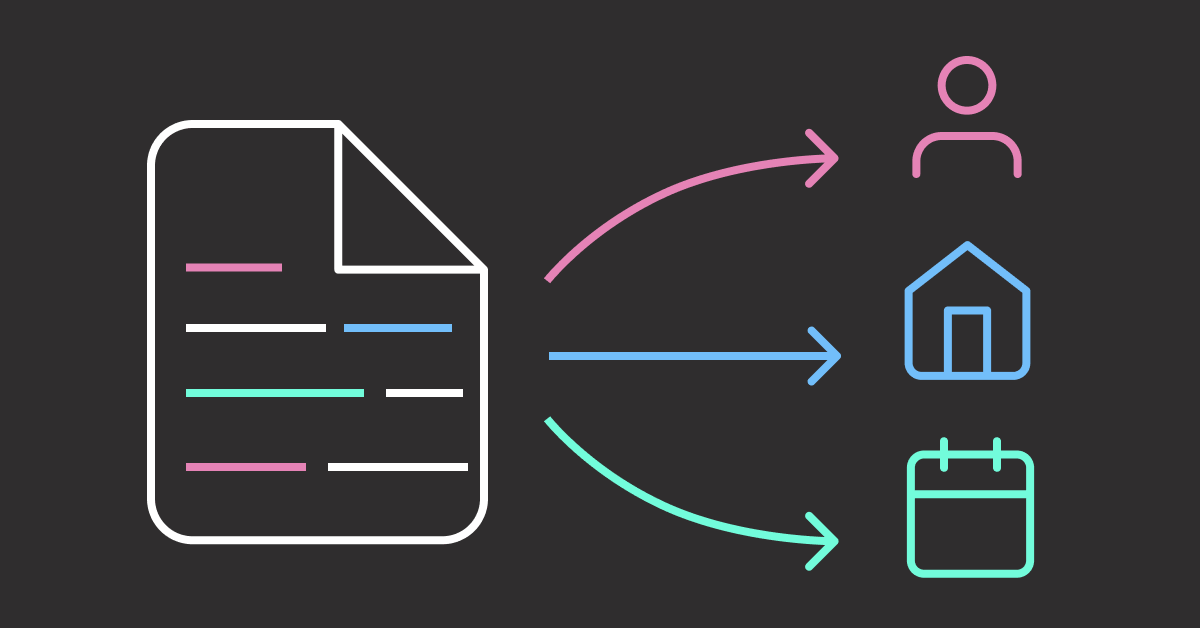
Unstructured text often hides rich structured information. For instance, financial reports contain company names, monetary figures, executives, dates, and locations used for competitive analysis and executive tracking.
However, extracting these entities manually is time-consuming and error-prone.
A better approach is to use an automated approach to extract the entities. There are several tools that can be used to extract the entities. In this article, we will compare four tools: regular expressions, spaCy, GLiNER, and langextract.
We will start with a straightforward approach then gradually move to more advanced approaches depending on the complexity of the entities.

Interactive Course: Master entity extraction with spaCy and LLMs through hands-on exercises in our interactive entity extraction course.

Tool Selection Criteria
Select your entity extraction method based on these core differentiators:
Regular Expressions: Pattern Matching

Strength: Microsecond latency with zero dependencies
Best for: Structured data with consistent formats (dates, IDs, phone numbers)

spaCy: Production-Ready NER

Strength: 10,000+ entities/second with enterprise reliability
Best for: Standard business entities in high-volume production systems

GLiNER: Custom Entity Flexibility

Strength: Zero-shot custom entity recognition without training data
Best for: Dynamic entity requirements and specialized domains

langextract: Context-Aware AI

Strength: Finds entity relationships (CEO → company) with source citations for verification
Best for: Document analysis requiring transparent, traceable entity extraction

Regular Expressions: Pattern-Based Recognition
Regular expressions excel at extracting entities with consistent formats. Financial documents contain structured patterns perfect for regex recognition. Let’s see how regular expressions can extract these entities.

💡 Tip: While regex is powerful for structured patterns, complex expressions can be hard to read and maintain. For a more intuitive approach, check out PRegEx: Write Human-Readable Regular Expressions in Python to build regex patterns with readable Python syntax.

First, let’s define the earnings report that we will use for extraction:
import re
from pathlib import Path

# Define the earnings report locally for this section
earning_report = """
Apple Inc. (NASDAQ: AAPL) reported third quarter revenue of $81.4 billion,
up 2% year over year. CEO Tim Cook stated that Services revenue reached
a new all-time high of $21.2 billion. The company's board of directors
declared a cash dividend of $0.24 per share.

CFO Luca Maestri mentioned that iPhone revenue was $39.3 billion for
the quarter ending June 30, 2023. The company expects total revenue
between $89 billion and $93 billion for the fourth quarter.

Apple's Cupertino headquarters announced the acquisition of AI startup
WaveOne for an undisclosed amount. The deal is expected to close in
Q4 2023, pending regulatory approval from the SEC.
"""

Define the extraction functions, including:

Financial amounts ($1.2 billion, $39.3 million)
Dates (June 30, 2023)
Stock symbols (NASDAQ: AAPL, NYSE: MSFT)
Percentages (2%, 15%)
Quarters (Q3 2023, Q4 2023)

def extract_financial_amounts(text):
"""Extract financial amounts like $1.2 billion, $39.3 million."""
financial_pattern = r"\$(?:\d{1,3}(?:,\d{3})+|\d+)(?:\.[0-9]+)?(?:\s*(?:billion|million|trillion))?"
return re.findall(financial_pattern, text, re.IGNORECASE)

def extract_dates(text):
"""Extract formatted dates like June 30, 2023."""
date_pattern = r"\b(?:January|February|March|April|May|June|July|August|September|October|November|December)\s+\d{1,2},\s+\d{4}"
return re.findall(date_pattern, text)

def extract_stock_symbols(text):
"""Extract stock symbols like NASDAQ: AAPL, NYSE: MSFT."""
stock_pattern = r"\b(?:NASDAQ|NYSE|NYSEARCA):\s*[A-Z]{2,5}\b"
return re.findall(stock_pattern, text)

def extract_percentages(text):
"""Extract percentage values like 2%, 15.5%."""
percentage_pattern = r"\b\d+(?:\.\d+)?%"
return re.findall(percentage_pattern, text)

def extract_quarters(text):
"""Extract quarterly periods like Q1 2023, Q4 2024."""
quarter_pattern = r"\b(Q[1-4]\s+\d{4})\b"
return re.findall(quarter_pattern, text)

def extract_entities_regex(text):
"""Extract business entities using regular expressions."""
entities = {
"financial_amounts": extract_financial_amounts(text),
"dates": extract_dates(text),
"stock_symbols": extract_stock_symbols(text),
"percentages": extract_percentages(text),
"quarters": extract_quarters(text),
}
return entities

Extract entities:
# Extract entities
regex_entities = extract_entities_regex(earning_report)

print("Regular Expression Entity Extraction:")
for entity_type, values in regex_entities.items():
if values:
print(f" {entity_type}: {values}")

Output:
Regular Expression Entity Extraction:
financial_amounts: ['$81.4 billion', '$21.2 billion', '$39.3 billion', '$89 billion', '$93 billion']
dates: ['June 30, 2023']
stock_symbols: ['AAPL']
percentages: ['2%']
quarters: ['Q4 2023']

Regex reliably captures structured patterns such as financial amounts, dates, stock symbols, percentages, and quarters. However, it only matches numeric quarter formats like “Q4 2023” and misses textual forms such as “third quarter” unless additional exact-match patterns are added.
spaCy: Production-Grade NER
Regex handles fixed formats, but for context-driven entities we use spaCy. With pretrained pipelines, spaCy’s NER identifies and labels types such as PERSON, ORG, MONEY, DATE, and PERCENT.
Let’s start by installing spaCy and downloading a pre-trained English model:
pip install spacy
python -m spacy download en_core_web_sm

First, let’s see how spaCy processes text and identifies entities:
import spacy

# Load the English language model
nlp = spacy.load("en_core_web_sm")

# Process a simple sentence to see how spaCy works
sample_text = "Apple Inc. reported revenue of $81.4 billion with CEO Tim Cook."
doc = nlp(sample_text)

print("Entities found in sample text:")
for ent in doc.ents:
print(f"'{ent.text}' -> {ent.label_} ({ent.label_})")

Output:
Entities found in sample text:
'Apple Inc.' -> ORG (ORG)
'$81.4 billion' -> MONEY (MONEY)
'Tim Cook' -> PERSON (PERSON)

spaCy automatically identified three different entity types from context alone:

Apple Inc. (ORG): Recognized as an organization based on the company suffix and context (subject of “reported”).
$81.4 billion (MONEY): Identified as a monetary value from the currency symbol, number, and magnitude word.
Tim Cook (PERSON): Labeled as a person using proper name patterns, reinforced by nearby role noun “CEO”.

Now let’s build a comprehensive extraction function for our full business document:
from collections import defaultdict

def extract_entities_spacy(text):
"""Extract business entities using spaCy NER with detailed information."""
doc = nlp(text)
entities = defaultdict(list)
for ent in doc.ents:
entities[ent.label_].append(ent.text)
return dict(entities)

Now let’s apply this to our complete business document:
# Define the earnings report locally for this section
earning_report = """
Apple Inc. (NASDAQ: AAPL) reported third quarter revenue of $81.4 billion,
up 2% year over year. CEO Tim Cook stated that Services revenue reached
a new all-time high of $21.2 billion. The company's board of directors
declared a cash dividend of $0.24 per share.

CFO Luca Maestri mentioned that iPhone revenue was $39.3 billion for
the quarter ending June 30, 2023. The company expects total revenue
between $89 billion and $93 billion for the fourth quarter.

Apple's Cupertino headquarters announced the acquisition of AI startup
WaveOne for an undisclosed amount. The deal is expected to close in
Q4 2023, pending regulatory approval from the SEC.
"""

# Extract entities from the full text
spacy_entities = extract_entities_spacy(earning_report)

print("spaCy NER Entity Extraction:")
for entity_type, entities_list in spacy_entities.items():
print(f"\n{entity_type} ({len(entities_list)} found):")
for entity in entities_list:
print(f" {entity}")

Output:
spaCy NER Entity Extraction:

ORG (7 found):
Apple Inc.
NASDAQ
Services
iPhone
Apple
WaveOne
SEC

DATE (4 found):
third quarter
the quarter ending June 30, 2023
the fourth quarter
Q4 2023

MONEY (5 found):
$81.4 billion
$21.2 billion
0.24
$39.3 billion
between $89 billion and $93 billion

PERCENT (1 found):
2%

PERSON (1 found):
Tim Cook

GPE (2 found):
Cupertino
AI

The model correctly identifies key financial entities like revenue figures and dates, but misclassifies some technical terms:

“AI” as GPE (Geopolitical Entity): In the phrase “AI startup WaveOne,” the model treats “AI” as a modifier that could resemble a geographic descriptor, similar to how “Silicon Valley startup” would be parsed
“Services” as ORG: Appearing in “Services revenue reached,” the model lacks context that this refers to Apple’s services division and interprets the capitalized “Services” as a standalone company name
“iPhone” as ORG: Should be classified as a product, but the model sees a capitalized term in a financial context and defaults to organization classification
“WaveOne” as ORG: While technically correct as a startup company, this could also be considered a misclassification if we expect more specific entity types for acquisition targets or startups

These limitations highlight a fundamental challenge: pre-trained models are constrained by their fixed entity categories and training data.
Business documents require more nuanced classifications, distinguishing between products and companies, or identifying specific business roles like “startup” or “regulatory body.”

📚 For taking your data science projects from prototype to production, check out Production-Ready Data Science.

GLiNER: Zero-Shot Entity Extraction
GLiNER (Generalist and Lightweight Named Entity Recognition) addresses these exact limitations through zero-shot learning. Instead of being locked into predetermined categories like ORG or GPE, GLiNER interprets natural language descriptions.
You can define custom entity types like “startup_company” or “product_name” and GLiNER will find them without any training examples.
Let’s install GLiNER and see how zero-shot entity extraction works:
pip install gliner

First, let’s load the GLiNER model and test it with a simple custom entity type:
from gliner import GLiNER

# Load the pre-trained GLiNER model from Hugging Face
model = GLiNER.from_pretrained("urchade/gliner_mediumv2.1")

# Test with a simple example to understand zero-shot capabilities
test_text = "Apple Inc. CEO Tim Cook announced quarterly revenue of $81.4 billion."
simple_entities = ["technology_company", "executive_role"]

# Extract entities using custom descriptions
entities = model.predict_entities(test_text, simple_entities)

for entity in entities:
print(f"'{entity['text']}' -> {entity['label']} (confidence: {entity['score']:.3f})")

Output:
'Apple Inc.' -> technology_company (confidence: 0.959)
'Tim Cook' -> executive_role (confidence: 0.884)

GLiNER excels at zero-shot extraction by understanding descriptive label names like “technology_company” and “executive_role” without additional training. Next, we define a helper to group results by label with offsets and confidence.
from collections import defaultdict

def extract_entities_gliner(text, entity_types):
"""Extract custom business entities using GLiNER zero-shot learning."""
entities = model.predict_entities(text, entity_types)

grouped_entities = defaultdict(list)
for entity in entities:
grouped_entities[entity['label']].append({
'text': entity['text'],
'start': entity['start'],
'end': entity['end'],
'confidence': round(entity['score'], 3)
})

return dict(grouped_entities)

Now declare the custom business entity types and the input text used for extraction.
business_entities = [
"company",
"executive",
"financial_figure",
"product",
"startup",
"regulatory_body",
"quarter",
"location",
"percentage",
"stock_symbol",
"market_reaction",
]

earning_report = """
Apple Inc. (NASDAQ: AAPL) reported third quarter revenue of $81.4 billion,
up 2% year over year. CEO Tim Cook stated that Services revenue reached
a new all-time high of $21.2 billion. The company's board of directors
declared a cash dividend of $0.24 per share.

CFO Luca Maestri mentioned that iPhone revenue was $39.3 billion for
the quarter ending June 30, 2023. The company expects total revenue
between $89 billion and $93 billion for the fourth quarter.

Apple's Cupertino headquarters announced the acquisition of AI startup
WaveOne for an undisclosed amount. The deal is expected to close in
Q4 2023, pending regulatory approval from the SEC.
"""

Finally, run the extraction and print the grouped results with confidence scores.
gliner_entities = extract_entities_gliner(earning_report, business_entities)

print("GLiNER Zero-Shot Entity Extraction:")
for entity_type, entities_list in gliner_entities.items():
if entities_list:
print(f"\n{entity_type.upper()} ({len(entities_list)} found):")
for entity in entities_list:
print(f" '{entity['text']}' (confidence: {entity['confidence']})")

Output:
GLiNER Zero-Shot Entity Extraction:

COMPANY (2 found):
'Apple Inc.' (confidence: 0.94)
'Apple' (confidence: 0.62)

QUARTER (3 found):
'third quarter' (confidence: 0.929)
'fourth quarter' (confidence: 0.948)
'Q4 2023' (confidence: 0.569)

FINANCIAL_FIGURE (5 found):
'$81.4 billion' (confidence: 0.908)
'$21.2 billion' (confidence: 0.827)
'$39.3 billion' (confidence: 0.875)
'$89 billion' (confidence: 0.827)
'$93 billion' (confidence: 0.817)

PERCENTAGE (1 found):
'2%' (confidence: 0.807)

EXECUTIVE (3 found):
'CEO' (confidence: 0.606)
'Tim Cook' (confidence: 0.933)
'Luca Maestri' (confidence: 0.813)

PRODUCT (1 found):
'iPhone' (confidence: 0.697)

LOCATION (1 found):
'Cupertino headquarters' (confidence: 0.657)

STARTUP (1 found):
'WaveOne' (confidence: 0.767)

REGULATORY_BODY (1 found):
'SEC' (confidence: 0.878)

GLiNER outperformed standard NER through zero-shot learning:

Extraction coverage: 18 entities vs spaCy’s mixed-category results
Classification accuracy: correctly distinguished companies from products/services/agencies
Domain adaptation: business-specific categories (startup, regulatory_body) vs generic classifications
Label flexibility: custom entity types defined through natural language descriptions

However, GLiNER missed some complex financial entities that span multiple words:

Stock symbols: Failed to recognize “NASDAQ: AAPL” as a structured financial identifier
Market trends: Captured “2%” but missed the complete context “up 2% year over year” as market_reaction

langextract: AI-Powered Extraction with Source Grounding
GLiNER’s limitations with complex financial entities highlight the need for more sophisticated approaches. langextract addresses these exact challenges by using advanced AI models to understand entity relationships and provide transparent source attribution.
Unlike pattern-based extraction, langextract leverages modern LLMs (Gemini, GPT, or Vertex AI) to capture multi-token entities like “NASDAQ: AAPL” and contextual relationships like “up 2% year over year.”
Setup Instructions
First, install langextract and python-dotenv for environment management:
pip install langextract python-dotenv

Next, get an API key from one of these providers:

AI Studio for Gemini models (recommended for most users)
Vertex AI for enterprise use
OpenAI Platform for OpenAI models

Save your API key in a .env file in your project directory:
# .env file
LANGEXTRACT_API_KEY=your-api-key-here

Now let’s load our API key and define the extraction schema:
import os
from dotenv import load_dotenv
import langextract as lx
from langextract import extract

# Load environment variables from .env file
load_dotenv()

# Load API key
api_key = os.getenv('LANGEXTRACT_API_KEY')

Now we’ll create the extraction function using the real langextract API:
def extract_entities_langextract(text):
"""Extract entities using langextract with proper API usage."""
# Brief prompt – let examples guide the extraction
prompt_description = """Extract business entities: companies, executives, financial figures, quarters, locations, percentages, products, startups, regulatory bodies, stock_symbols, market_reaction. Use exact text."""

# Provide example data to guide extraction with all entity types
examples = [
lx.data.ExampleData(
text="Microsoft Corp. (NYSE: MSFT) CEO Satya Nadella reported Q2 2024 revenue of $65B, down 5% quarter-over-quarter. The Seattle campus announced Azure cloud grew $28B. The firm bought ML startup NeuralFlow pending FTC review.",
extractions=[
lx.data.Extraction(extraction_class="company", extraction_text="Microsoft Corp."),
lx.data.Extraction(extraction_class="executive", extraction_text="CEO Satya Nadella"),
lx.data.Extraction(extraction_class="quarter", extraction_text="Q2 2024"),
lx.data.Extraction(extraction_class="financial_figure", extraction_text="$65B"),
lx.data.Extraction(extraction_class="percentage", extraction_text="5%"),
lx.data.Extraction(extraction_class="market_reaction", extraction_text="down 5% quarter-over-quarter"),
lx.data.Extraction(extraction_class="location", extraction_text="Seattle campus"),
lx.data.Extraction(extraction_class="product", extraction_text="Azure cloud"),
lx.data.Extraction(extraction_class="financial_figure", extraction_text="$28B"),
lx.data.Extraction(extraction_class="startup", extraction_text="NeuralFlow"),
lx.data.Extraction(extraction_class="regulatory_body", extraction_text="FTC"),
lx.data.Extraction(extraction_class="stock_symbol", extraction_text="NYSE: MSFT")
]
)
]

# Extract using proper API
result = extract(
text_or_documents=text,
prompt_description=prompt_description,
examples=examples,
model_id="gemini-2.5-flash"
)
return result

The extract() function takes three key inputs:

text_or_documents: The text or documents to analyze
prompt_description: Brief instruction listing entity types to extract
examples: Training data showing the model exactly what each entity type looks like
model_id: Specifies which AI model to use (Gemini 2.5 Flash)

The function returns a result object containing:

extractions: List of found entities with their text and classification
char_interval: Character positions for each entity in the source text
Source grounding data for verification and visualization

Finally, let’s extract entities from our business document:
# Define the earnings report locally for this section
earning_report = """
Apple Inc. (NASDAQ: AAPL) reported third quarter revenue of $81.4 billion,
up 2% year over year. CEO Tim Cook stated that Services revenue reached
a new all-time high of $21.2 billion. The company's board of directors
declared a cash dividend of $0.24 per share.

CFO Luca Maestri mentioned that iPhone revenue was $39.3 billion for
the quarter ending June 30, 2023. The company expects total revenue
between $89 billion and $93 billion for the fourth quarter.

Apple's Cupertino headquarters announced the acquisition of AI startup
WaveOne for an undisclosed amount. The deal is expected to close in
Q4 2023, pending regulatory approval from the SEC.
"""

# Extract entities with langextract
langextract_entities = extract_entities_langextract(earning_report)

print(f"Extracted {len(langextract_entities.extractions)} entities:")

# Group extractions by class using defaultdict
grouped_extractions = defaultdict(list)
for extraction in langextract_entities.extractions:
grouped_extractions[extraction.extraction_class].append(extraction)

# Display grouped results
for entity_class, extractions in grouped_extractions.items():
print(f"\n{entity_class.upper()} ({len(extractions)} found):")
for extraction in extractions:
print(f" '{extraction.extraction_text}'")

Output:
Extracted 21 entities:

COMPANY (1 found):
'Apple Inc.'

STOCK_SYMBOL (1 found):
'NASDAQ: AAPL'

QUARTER (4 found):
'third quarter'
'quarter ending June 30, 2023'
'fourth quarter'
'Q4 2023'

FINANCIAL_FIGURE (6 found):
'$81.4 billion'
'$21.2 billion'
'$0.24 per share'
'$39.3 billion'
'$89 billion'
'$93 billion'

PERCENTAGE (1 found):
'2%'

MARKET_REACTION (1 found):
'up 2% year over year'

EXECUTIVE (2 found):
'CEO Tim Cook'
'CFO Luca Maestri'

PRODUCT (2 found):
'Services'
'iPhone'

LOCATION (1 found):
'Cupertino headquarters'

STARTUP (1 found):
'WaveOne'

REGULATORY_BODY (1 found):
'SEC'

langextract’s AI-powered approach delivered superior extraction results:

Entity count: 21 entities vs GLiNER’s 17, with richer contextual detail
Sophisticated parsing: Extracted “quarter ending June 30, 2023” for precise temporal context
Business semantics: Understood stock_symbol format and market trend relationships requiring domain knowledge

For visual business documents like charts and graphs, consider multimodal AI approaches that can extract structured data directly from images.
However, GLiNER offers practical advantages for certain use cases:

Local processing: No API calls or internet dependency required
Cost efficiency: Zero usage costs after model download vs API pricing per request
Speed: Faster inference for high-volume document processing
Privacy: Sensitive documents never leave your infrastructure

Conclusion
This article demonstrated four progressive approaches to entity extraction from business documents, each building upon the limitations of the previous method:

Regex: Handles structured patterns (dates, amounts) but fails with variable text formats
spaCy: Processes standard entities reliably but misclassifies business-specific terms
GLiNER: Enables custom entity types without training but misses multi-token relationships
langextract: Captures complex business context and relationships through AI understanding

I recommend starting with regex for simple extraction, spaCy for standard entities, GLiNER for custom categories, and langextract when business context and relationships matter most.

💻 Get the Code: The complete source code and Jupyter notebook for this tutorial are available on GitHub. Clone it to follow along!

Related Tutorials

Text Matching: Build Text Matching That Actually Works (4 Tools Compared) for fuzzy string matching when business entities have variations
Document Processing: Transform Any PDF into Searchable AI Data with Docling for preprocessing PDF business documents before extraction

📚 Want to go deeper? Learning new techniques is the easy part. Knowing how to structure, test, and deploy them is what separates side projects from real work. My book shows you how to build data science projects that actually make it to production. Get the book →

Stay Current with CodeCut
Actionable Python tips, curated for busy data pros. Skim in under 2 minutes, three times a week.

.codecut-subscribe-form .codecut-input {
background: #2F2D2E !important;
border: 1px solid #72BEFA !important;
color: #FFFFFF !important;
}
.codecut-subscribe-form .codecut-input::placeholder {
color: #999999 !important;
}
.codecut-subscribe-form .codecut-subscribe-btn {
background: #72BEFA !important;
color: #2F2D2E !important;
}
.codecut-subscribe-form .codecut-subscribe-btn:hover {
background: #5aa8e8 !important;
}

.codecut-subscribe-form {
max-width: 650px;
display: flex;
flex-direction: column;
gap: 8px;
}

.codecut-input {
-webkit-appearance: none;
-moz-appearance: none;
appearance: none;
background: #FFFFFF;
border-radius: 8px !important;
padding: 8px 12px;
font-family: ‘Comfortaa’, sans-serif !important;
font-size: 14px !important;
color: #333333;
border: none !important;
outline: none;
width: 100%;
box-sizing: border-box;
}

input[type=”email”].codecut-input {
border-radius: 8px !important;
}

.codecut-input::placeholder {
color: #666666;
}

.codecut-email-row {
display: flex;
align-items: stretch;
height: 36px;
gap: 8px;
}

.codecut-email-row .codecut-input {
flex: 1;
}

.codecut-subscribe-btn {
background: #72BEFA;
color: #2F2D2E;
border: none;
border-radius: 8px;
padding: 8px 14px;
font-family: ‘Comfortaa’, sans-serif;
font-size: 14px;
font-weight: 500;
cursor: pointer;
text-decoration: none;
display: flex;
align-items: center;
justify-content: center;
transition: background 0.3s ease;
}

.codecut-subscribe-btn:hover {
background: #5aa8e8;
}

.codecut-subscribe-btn:disabled {
background: #999;
cursor: not-allowed;
}

.codecut-message {
font-family: ‘Comfortaa’, sans-serif;
font-size: 12px;
padding: 8px;
border-radius: 6px;
display: none;
}

.codecut-message.success {
background: #d4edda;
color: #155724;
display: block;
}

/* Mobile responsive */
@media (max-width: 480px) {
.codecut-email-row {
flex-direction: column;
height: auto;
gap: 8px;
}

.codecut-input {
border-radius: 8px;
height: 36px;
}

.codecut-subscribe-btn {
width: 100%;
text-align: center;
border-radius: 8px;
height: 36px;
}
}

Subscribe

langextract vs spaCy: AI-Powered vs Rule-Based Entity Extraction Read More »

Build a Complete RAG System with 5 Open-Source Tools

Table of Contents

Introduction to RAG Systems
Document Ingestion with MarkItDown
Intelligent Chunking with LangChain
Creating Searchable Embeddings with SentenceTransformers
Building Your Knowledge Database with ChromaDB
Enhanced Answer Generation with Open-Source LLMs
Building a Simple Application with Gradio
Conclusion

Introduction
Have you ever spent 30 minutes searching through Slack threads, email attachments, and shared drives just to find that one technical specification your colleague mentioned last week?
It is a common scenario that repeats daily across organizations worldwide. Knowledge workers spend valuable time searching for information that should be instantly accessible, leading to decreased productivity.
Retrieval-Augmented Generation (RAG) systems solve this problem by transforming your documents into an intelligent, queryable knowledge base. Ask questions in natural language and receive instant answers with source citations, eliminating time-consuming manual searches.
In this article, we’ll build a complete RAG pipeline that turns document collections into an AI-powered question-answering system.

Stay Current with CodeCut
Actionable Python tips, curated for busy data pros. Skim in under 2 minutes, three times a week.

.codecut-subscribe-form .codecut-input {
background: #2F2D2E !important;
border: 1px solid #72BEFA !important;
color: #FFFFFF !important;
}
.codecut-subscribe-form .codecut-input::placeholder {
color: #999999 !important;
}
.codecut-subscribe-form .codecut-subscribe-btn {
background: #72BEFA !important;
color: #2F2D2E !important;
}
.codecut-subscribe-form .codecut-subscribe-btn:hover {
background: #5aa8e8 !important;
}

.codecut-subscribe-form {
max-width: 650px;
display: flex;
flex-direction: column;
gap: 8px;
}

.codecut-input {
-webkit-appearance: none;
-moz-appearance: none;
appearance: none;
background: #FFFFFF;
border-radius: 8px !important;
padding: 8px 12px;
font-family: ‘Comfortaa’, sans-serif !important;
font-size: 14px !important;
color: #333333;
border: none !important;
outline: none;
width: 100%;
box-sizing: border-box;
}

input[type=”email”].codecut-input {
border-radius: 8px !important;
}

.codecut-input::placeholder {
color: #666666;
}

.codecut-email-row {
display: flex;
align-items: stretch;
height: 36px;
gap: 8px;
}

.codecut-email-row .codecut-input {
flex: 1;
}

.codecut-subscribe-btn {
background: #72BEFA;
color: #2F2D2E;
border: none;
border-radius: 8px;
padding: 8px 14px;
font-family: ‘Comfortaa’, sans-serif;
font-size: 14px;
font-weight: 500;
cursor: pointer;
text-decoration: none;
display: flex;
align-items: center;
justify-content: center;
transition: background 0.3s ease;
}

.codecut-subscribe-btn:hover {
background: #5aa8e8;
}

.codecut-subscribe-btn:disabled {
background: #999;
cursor: not-allowed;
}

.codecut-message {
font-family: ‘Comfortaa’, sans-serif;
font-size: 12px;
padding: 8px;
border-radius: 6px;
display: none;
}

.codecut-message.success {
background: #d4edda;
color: #155724;
display: block;
}

/* Mobile responsive */
@media (max-width: 480px) {
.codecut-email-row {
flex-direction: column;
height: auto;
gap: 8px;
}

.codecut-input {
border-radius: 8px;
height: 36px;
}

.codecut-subscribe-btn {
width: 100%;
text-align: center;
border-radius: 8px;
height: 36px;
}
}

Subscribe

Key Takeaways
Here’s what you’ll learn:

Convert documents with MarkItDown in 3 lines
Chunk text intelligently using LangChain RecursiveCharacterTextSplitter
Generate embeddings locally with SentenceTransformers model
Store vectors in ChromaDB persistent database
Generate answers using Ollama local LLMs
Deploy web interface with Gradio streaming

💻 Get the Code: The complete source code and Jupyter notebook for this tutorial are available on GitHub. Clone it to follow along!

Introduction to RAG Systems
RAG (Retrieval-Augmented Generation) combines document retrieval with language generation to create intelligent Q&A systems. Instead of relying solely on training data, RAG systems search through your documents to find relevant information, then use that context to generate accurate, source-backed responses.
Environment Setup
Install the required libraries for building your RAG pipeline:
pip install markitdown[pdf] sentence-transformers langchain-text-splitters chromadb gradio langchain-ollama ollama

These libraries provide:

markitdown: Microsoft’s document conversion tool that transforms PDFs, Word docs, and other formats into clean markdown
sentence-transformers: Local embedding generation for converting text into searchable vectors
langchain-text-splitters: Intelligent text chunking that preserves semantic meaning
chromadb: Self-hosted vector database for storing and querying document embeddings
gradio: Web interface builder for creating user-friendly Q&A applications
langchain-ollama: LangChain integration for local LLM inference

Install Ollama and download a model:
curl -fsSL https://ollama.com/install.sh | sh
ollama pull llama3.2

Next, create a project directory structure to organize your files:
mkdir processed_docs documents

These directories organize your project:

processed_docs: Stores converted markdown files
documents: Contains original source files (PDFs, Word docs, etc.)

Create these directories in your current working path with appropriate read/write permissions.
Dataset Setup: Python Technical Documentation
To demonstrate the RAG pipeline, we’ll use “Think Python” by Allen Downey, a comprehensive programming guide freely available under Creative Commons.
We’ll download the Python guide and save it in the documents directory.
import requests
from pathlib import Path

# Get the file path
output_folder = "documents"
filename = "think_python_guide.pdf"
url = "https://greenteapress.com/thinkpython/thinkpython.pdf"
file_path = Path(output_folder) / filename

def download_file(url: str, file_path: Path):
response = requests.get(url, stream=True, timeout=30)
response.raise_for_status()
file_path.write_bytes(response.content)

# Download the file if it doesn't exist
if not file_path.exists():
download_file(
url=url,
file_path=file_path,
)

Next, let’s convert this PDF into a format that our RAG system can process and search through.
Document Ingestion with MarkItDown
RAG systems need documents in a structured format that AI models can understand and process effectively.
MarkItDown solves this challenge by converting any document format into clean markdown while preserving the original structure and meaning.
Converting Your Python Guide
Start by converting the Python guide to understand how MarkItDown works:
from markitdown import MarkItDown

# Initialize the converter
md = MarkItDown()

# Convert the Python guide to markdown
result = md.convert(file_path)
python_guide_content = result.text_content

# Display the conversion results
print("First 300 characters:")
print(python_guide_content[:300] + "…")

In this code:

MarkItDown() creates a document converter that handles multiple file formats automatically
convert() processes the PDF and returns a result object containing the extracted text
text_content provides the clean markdown text ready for processing

Output:
First 300 characters:
Think Python

How to Think Like a Computer Scientist

Version 2.0.17

Think Python

How to Think Like a Computer Scientist

Version 2.0.17

Allen Downey

Green Tea Press

Needham, Massachusetts

Copyright © 2012 Allen Downey.

Green Tea Press
9 Washburn Ave
Needham MA 02492

Permission is granted…

MarkItDown automatically detects the PDF format and extracts clean text while preserving the book’s structure, including chapters, sections, and code examples.
Preparing Document for Processing
Now that you understand the basic conversion, let’s prepare the document content for processing. We’ll store the guide’s content with source information for later use in chunking and retrieval:
# Organize the converted document
processed_document = {
'source': file_path,
'content': python_guide_content
}

# Create a list containing our single document for consistency with downstream processing
documents = [processed_document]

# Document is now ready for chunking and embedding
print(f"Document ready: {len(processed_document['content']):,} characters")

Output:
Document ready: 460,251 characters

With our document successfully converted to markdown, the next step is breaking it into smaller, searchable pieces.
Intelligent Chunking with LangChain
AI models can’t process entire documents due to limited context windows. Chunking breaks documents into smaller, searchable pieces while preserving semantic meaning.
Understanding Text Chunking with a Simple Example
Let’s see how text chunking works with a simple document:
from langchain_text_splitters import RecursiveCharacterTextSplitter

# Create a simple example that will be split
sample_text = """
Machine learning transforms data processing. It enables pattern recognition without explicit programming.

Deep learning uses neural networks with multiple layers. These networks discover complex patterns automatically.

Natural language processing combines ML with linguistics. It helps computers understand human language effectively.
"""

# Apply chunking with smaller size to demonstrate splitting
demo_splitter = RecursiveCharacterTextSplitter(
chunk_size=150, # Small size to force splitting
chunk_overlap=30,
separators=["\n\n", "\n", ". ", " ", ""], # Split hierarchy
)

sample_chunks = demo_splitter.split_text(sample_text.strip())

print(f"Original: {len(sample_text.strip())} chars → {len(sample_chunks)} chunks")

# Show chunks
for i, chunk in enumerate(sample_chunks):
print(f"Chunk {i+1}: {chunk}")

Output:
Original: 336 chars → 3 chunks
Chunk 1: Machine learning transforms data processing. It enables pattern recognition without explicit programming.
Chunk 2: Deep learning uses neural networks with multiple layers. These networks discover complex patterns automatically.
Chunk 3: Natural language processing combines ML with linguistics. It helps computers understand human language effectively.

Notice how the text splitter:

Split the 336-character text into 3 chunks, each under the 150-character limit
Applied 30-character overlap between adjacent chunks
Separators prioritize semantic boundaries: paragraphs (\n\n) → sentences (.) → words () → characters

Processing Multiple Documents at Scale
Now let’s a text splitter with larger chunks and apply it to all our converted documents:
# Configure the text splitter with Q&A-optimized settings
text_splitter = RecursiveCharacterTextSplitter(
chunk_size=600, # Optimal chunk size for Q&A scenarios
chunk_overlap=120, # 20% overlap to preserve context
separators=["\n\n", "\n", ". ", " ", ""] # Split hierarchy
)

Next, use the text splitter to process all our documents:
def process_document(doc, text_splitter):
"""Process a single document into chunks."""
doc_chunks = text_splitter.split_text(doc["content"])
return [{"content": chunk, "source": doc["source"]} for chunk in doc_chunks]

# Process all documents and create chunks
all_chunks = []
for doc in documents:
doc_chunks = process_document(doc, text_splitter)
all_chunks.extend(doc_chunks)

Examine how the chunking process distributed content across our documents:
from collections import Counter

source_counts = Counter(chunk["source"] for chunk in all_chunks)
chunk_lengths = [len(chunk["content"]) for chunk in all_chunks]

print(f"Total chunks created: {len(all_chunks)}")
print(f"Chunk length: {min(chunk_lengths)}-{max(chunk_lengths)} characters")
print(f"Source document: {Path(documents[0]['source']).name}")

Output:
Total chunks created: 1007
Chunk length: 68-598 characters
Source document: think_python_guide.pdf

Our text chunks are ready. Next, we’ll transform them into a format that enables intelligent similarity search.
Creating Searchable Embeddings with SentenceTransformers
RAG systems need to understand text meaning, not just match keywords. SentenceTransformers converts your text into numerical vectors that capture semantic relationships, allowing the system to find truly relevant information even when exact words don’t match.
Generate Embeddings
Let’s generate embeddings for our text chunks:
from sentence_transformers import SentenceTransformer

# Load Q&A-optimized embedding model (downloads automatically on first use)
model = SentenceTransformer('multi-qa-mpnet-base-dot-v1')

# Extract documents and create embeddings
documents = [chunk["content"] for chunk in all_chunks]
embeddings = model.encode(documents)

print(f"Embedding generation results:")
print(f" – Embeddings shape: {embeddings.shape}")
print(f" – Vector dimensions: {embeddings.shape[1]}")

In this code:

SentenceTransformer() loads the Q&A-optimized model that converts text to 768-dimensional vectors
multi-qa-mpnet-base-dot-v1 is specifically trained on 215M question-answer pairs for superior Q&A performance
model.encode() transforms all text chunks into numerical embeddings in a single batch operation

The output shows 1007 chunks converted to 768-dimensional vectors:
Embedding generation results:
– Embeddings shape: (1007, 768)
– Vector dimensions: 768

Test Semantic Similarity
Let’s test semantic similarity by querying for Python programming concepts:
# Test how one query finds relevant Python programming content
from sentence_transformers import util

query = "How do you define functions in Python?"
document_chunks = [
"Variables store data values that can be used later in your program.",
"A function is a block of code that performs a specific task when called.",
"Loops allow you to repeat code multiple times efficiently.",
"Functions can accept parameters and return values to the calling code."
]

# Encode query and documents
query_embedding = model.encode(query)
doc_embeddings = model.encode(document_chunks)

Now we’ll calculate similarity scores and rank the results. The util.cos_sim() function computes cosine similarity between vectors, returning values from 0 (no similarity) to 1 (identical meaning):
# Calculate similarities using SentenceTransformers util
similarities = util.cos_sim(query_embedding, doc_embeddings)[0]

# Create ranked results
ranked_results = sorted(
zip(document_chunks, similarities),
key=lambda x: x[1],
reverse=True
)

print(f"Query: '{query}'")
print("Document chunks ranked by relevance:")
for i, (chunk, score) in enumerate(ranked_results, 1):
print(f"{i}. ({score:.3f}): '{chunk}'")

Output:
Query: 'How do you define functions in Python?'
Document chunks ranked by relevance:
1. (0.674): 'A function is a block of code that performs a specific task when called.'
2. (0.607): 'Functions can accept parameters and return values to the calling code.'
3. (0.461): 'Loops allow you to repeat code multiple times efficiently.'
4. (0.448): 'Variables store data values that can be used later in your program.'

The similarity scores demonstrate semantic understanding: function-related chunks achieve high scores (0.7+) while unrelated programming concepts score much lower (0.2-).
Building Your Knowledge Database with ChromaDB
These embeddings demonstrate semantic search capability, but memory storage has scalability limitations. Large vector collections quickly exhaust system resources.
Vector databases provide essential production capabilities:

Persistent storage: Data survives system restarts and crashes
Optimized indexing: Fast similarity search using HNSW algorithms
Memory efficiency: Handles millions of vectors without RAM exhaustion
Concurrent access: Multiple users query simultaneously
Metadata filtering: Search by document properties and attributes

ChromaDB delivers these features with a Python-native API that integrates seamlessly into your existing data pipeline.
Initialize Vector Database
First, we’ll set up the ChromaDB client and create a collection to store our document vectors.
import chromadb

# Create persistent client for data storage
client = chromadb.PersistentClient(path="./chroma_db")

# Create collection for business documents (or get existing)
collection = client.get_or_create_collection(
name="python_guide",
metadata={"description": "Python programming guide"}
)

print(f"Created collection: {collection.name}")
print(f"Collection ID: {collection.id}")

Created collection: python_guide
Collection ID: 42d23900-6c2a-47b0-8253-0a9b6dad4f41

In this code:

PersistentClient(path="./chroma_db") creates a local vector database that persists data to disk
get_or_create_collection() creates a new collection or returns an existing one with the same name

Store Documents with Metadata
Now we’ll store our document chunks with basic metadata in ChromaDB with the add() method.
# Prepare metadata and add documents to collection
metadatas = [{"document": Path(chunk["source"]).name} for chunk in all_chunks]

collection.add(
documents=documents,
embeddings=embeddings.tolist(), # Convert numpy array to list
metadatas=metadatas, # Metadata for each document
ids=[f"doc_{i}" for i in range(len(documents))], # Unique identifiers for each document
)

print(f"Collection count: {collection.count()}")

Output:
Collection count: 1007

The database now contains 1007 searchable document chunks with their vector embeddings. ChromaDB persists this data to disk, enabling instant queries without reprocessing documents on restart.
Query the Knowledge Base
Let’s search the vector database using natural language questions and retrieve relevant document chunks.
def format_query_results(question, query_embedding, documents, metadatas):
"""Format and print the search results with similarity scores"""
from sentence_transformers import util

print(f"Question: {question}\n")

for i, doc in enumerate(documents):
# Calculate accurate similarity using sentence-transformers util
doc_embedding = model.encode([doc])
similarity = util.cos_sim(query_embedding, doc_embedding)[0][0].item()
source = metadatas[i].get("document", "Unknown")

print(f"Result {i+1} (similarity: {similarity:.3f}):")
print(f"Document: {source}")
print(f"Content: {doc[:300]}…")
print()

def query_knowledge_base(question, n_results=2):
"""Query the knowledge base with natural language"""
# Encode the query using our SentenceTransformer model
query_embedding = model.encode([question])

results = collection.query(
query_embeddings=query_embedding.tolist(),
n_results=n_results,
include=["documents", "metadatas", "distances"],
)

# Extract results and format them
documents = results["documents"][0]
metadatas = results["metadatas"][0]

format_query_results(question, query_embedding, documents, metadatas)

In this code:

collection.query() performs vector similarity search using the question text as input
query_texts accepts a list of natural language questions for batch processing
n_results limits the number of most similar documents returned
include specifies which data to return: document text, metadata, and similarity distances

Let’s test the query function with a question:
query_knowledge_base("How do if-else statements work in Python?")

Output:
Question: How do if-else statements work in Python?

Result 1 (similarity: 0.636):
Document: think_python_guide.pdf
Content: 5.6 Chained conditionals

Sometimes there are more than two possibilities and we need more than two branches.
One way to express a computation like that is a chained conditional:

if x < y:
print

elif x > y:

print

x is less than y

x is greater than y

else:

print

x and y are equa…

Result 2 (similarity: 0.605):
Document: think_python_guide.pdf
Content: 5. An unclosed opening operator ((, {, or [) makes Python continue with the next line
as part of the current statement. Generally, an error occurs almost immediately in the
next line.

6. Check for the classic = instead of == inside a conditional.

7. Check the indentation to make sure it lines up the…

The search finds relevant content with strong similarity scores (0.636 and 0.605).
Enhanced Answer Generation with Open-Source LLMs
Vector similarity search retrieves related content, but the results may be scattered across multiple chunks without forming a complete answer.
LLMs solve this by weaving retrieved context into unified responses that directly address user questions.
In this section, we’ll integrate Ollama‘s local LLMs with our vector search to generate coherent answers from retrieved chunks.
Answer Generation Implementation
First, set up the components for LLM-powered answer generation:
from langchain_ollama import OllamaLLM
from langchain.prompts import PromptTemplate

# Initialize the local LLM
llm = OllamaLLM(model="llama3.2:latest", temperature=0.1)

Next, create a focused prompt template for technical documentation queries:
prompt_template = PromptTemplate(
input_variables=["context", "question"],
template="""You are a Python programming expert. Based on the provided documentation, answer the question clearly and accurately.

Documentation:
{context}

Question: {question}

Answer (be specific about syntax, keywords, and provide examples when helpful):"""
)

# Create the processing chain
chain = prompt_template | llm

Create a function to retrieve relevant context given a question:
def retrieve_context(question, n_results=5):
"""Retrieve relevant context using embeddings"""
query_embedding = model.encode([question])
results = collection.query(
query_embeddings=query_embedding.tolist(),
n_results=n_results,
include=["documents", "metadatas", "distances"],
)

documents = results["documents"][0]
context = "\n\n—SECTION—\n\n".join(documents)
return context, documents

def get_llm_answer(question, context):
"""Generate answer using retrieved context"""
answer = chain.invoke(
{
"context": context[:2000],
"question": question,
}
)
return answer

def format_response(question, answer, source_chunks):
"""Format the final response with sources"""
response = f"**Question:** {question}\n\n"
response += f"**Answer:** {answer}\n\n"
response += "**Sources:**\n"

for i, chunk in enumerate(source_chunks[:3], 1):
preview = chunk[:100].replace("\n", " ") + "…"
response += f"{i}. {preview}\n"

return response

def enhanced_query_with_llm(question, n_results=5):
"""Query function combining retrieval with LLM generation"""
context, documents = retrieve_context(question, n_results)
answer = get_llm_answer(question, context)
return format_response(question, answer, documents)

Testing Enhanced Answer Generation
Let’s test the enhanced system with our challenging question:
# Test the enhanced query system
enhanced_response = enhanced_query_with_llm("How do if-else statements work in Python?")
print(enhanced_response)

Output:
**Question:** How do if-else statements work in Python?

**Answer:** If-else statements in Python are used for conditional execution of code. Here's a breakdown of how they work:

**Syntax**

The basic syntax of an if-else statement is as follows:
“`text
if condition:
# code to execute if condition is true
elif condition2:
# code to execute if condition1 is false and condition2 is true
else:
# code to execute if both conditions are false
“`text
**Keywords**

The keywords used in an if-else statement are:

* `if`: used to check a condition
* `elif` (short for "else if"): used to check another condition if the first one is false
* `else`: used to specify code to execute if all conditions are false

**How it works**

Here's how an if-else statement works:

1. The interpreter evaluates the condition inside the `if` block.
2. If the condition is true, the code inside the `if` block is executed.
3. If the condition is false, the interpreter moves on to the next line and checks the condition in the `elif` block.
4. If the condition in the `elif` block is true, the code inside that block is executed.
5. If both conditions are false, the interpreter executes the code inside the `else` block.

**Sources:**
1. 5.6 Chained conditionals Sometimes there are more than two possibilities and we need more than two …
2. 5. An unclosed opening operator ((, {, or [) makes Python continue with the next line as part of the c…
3. if x == y: print else: ’ x and y are equal ’ if x < y: 44 Chapter 5. Conditionals and recur…

Notice how the LLM organizes multiple chunks into logical sections with syntax examples and step-by-step explanations. This transformation turns raw retrieval into actionable programming guidance.
Streaming Interface Implementation
Users now expect the real-time streaming experience from ChatGPT and Claude. Static responses that appear all at once feel outdated and create an impression of poor performance.
Token-by-token streaming bridges this gap by creating the familiar typing effect that signals active processing.
To implement a streaming interface, we’ll use the chain.stream() method to generate tokens one at a time.
def stream_llm_answer(question, context):
"""Stream LLM answer generation token by token"""
for chunk in chain.stream({
"context": context[:2000],
"question": question,
}):
yield getattr(chunk, "content", str(chunk))

Let’s see how streaming works by combining our modular functions:
import time

# Test the streaming functionality
question = "What are Python loops?"
context, documents = retrieve_context(question, n_results=3)

print("Question:", question)
print("Answer: ", end="", flush=True)

# Stream the answer token by token
for token in stream_llm_answer(question, context):
print(token, end="", flush=True)
time.sleep(0.05) # Simulate real-time typing effect

Output:
Question: What are Python loops?
Answer: Python → loops → are → structures → that → repeat → code…

[Each token appears with typing animation]
Final: "Python loops are structures that repeat code blocks."

This creates the familiar ChatGPT-style typing animation where tokens appear progressively.
Building a Simple Application with Gradio
Now that we have a complete RAG system with enhanced answer generation, let’s make it accessible through a web interface.
Your RAG system needs an intuitive interface that non-technical users can access easily. Gradio provides this solution with:

Zero web development required: Create interfaces directly from Python functions
Automatic UI generation: Input fields and buttons generated automatically
Instant deployment: Launch web apps with a single line of code

Interface Function
Let’s create the complete Gradio interface that combines the functions we’ve built into a streaming RAG system:
import gradio as gr

def rag_interface(question):
"""Gradio interface reusing existing format_response function"""
if not question.strip():
yield "Please enter a question."
return

# Use modular retrieval and streaming
context, documents = retrieve_context(question, n_results=5)

response_start = f"**Question:** {question}\n\n**Answer:** "
answer = ""

# Stream the answer progressively
for token in stream_llm_answer(question, context):
answer += token
yield response_start + answer

# Use existing formatting function for final response
yield format_response(question, answer, documents)

Application Setup and Launch
Now, we’ll configure the Gradio web interface with sample questions and launch the application for user access.
# Create Gradio interface with streaming support
demo = gr.Interface(
fn=rag_interface,
inputs=gr.Textbox(
label="Ask a question about Python programming",
placeholder="How do if-else statements work in Python?",
lines=2,
),
outputs=gr.Markdown(label="Answer"),
title="Intelligent Document Q&A System",
description="Ask questions about Python programming concepts and get instant answers with source citations.",
examples=[
"How do if-else statements work in Python?",
"What are the different types of loops in Python?",
"How do you handle errors in Python?",
],
allow_flagging="never",
)

# Launch the interface with queue enabled for streaming
if __name__ == "__main__":
demo.queue().launch(share=True)

In this code:

gr.Interface() creates a clean web application with automatic UI generation
fn specifies the function called when users submit questions (includes streaming output)
inputs/outputs define UI components (textbox for questions, markdown for formatted answers)
examples provides clickable sample questions that demonstrate system capabilities
demo.queue().launch(share=True) enables streaming output and creates both local and public URLs

Running the application produces the following output:
* Running on local URL: http://127.0.0.1:7861
* Running on public URL: https://bb9a9fc06531d49927.gradio.live

Test the interface locally or share the public URL to demonstrate your RAG system’s capabilities.

The public URL expires in 72 hours. For persistent access, deploy to Hugging Face Spaces:
gradio deploy

You now have a complete, streaming-enabled RAG system ready for production use with real-time token generation and source citations.
Conclusion
In this article, we’ve built a complete RAG pipeline that turns your documents into an AI-powered question-answering system.
We’ve used the following tools:

MarkItDown for document conversion
LangChain for text chunking and embedding generation
ChromaDB for vector storage
Ollama for local LLM inference
Gradio for web interface

Since all of these tools are open-source, you can easily deploy this system in your own infrastructure.

📚 For comprehensive production deployment practices including configuration management, logging, and data validation, check out Production-Ready Data Science.

The best way to learn is to build, so go ahead and try it out!
Related Tutorials

Alternative Vector Database: Implement Semantic Search in Postgres Using pgvector and Ollama for PostgreSQL-based vector storage
Advanced Document Processing: Transform Any PDF into Searchable AI Data with Docling for specialized PDF parsing and RAG optimization
LangChain Fundamentals: Run Private AI Workflows with LangChain and Ollama for comprehensive LangChain and Ollama integration guide

📚 Want to go deeper? Learning new techniques is the easy part. Knowing how to structure, test, and deploy them is what separates side projects from real work. My book shows you how to build data science projects that actually make it to production. Get the book →

Stay Current with CodeCut
Actionable Python tips, curated for busy data pros. Skim in under 2 minutes, three times a week.

.codecut-subscribe-form .codecut-input {
background: #2F2D2E !important;
border: 1px solid #72BEFA !important;
color: #FFFFFF !important;
}
.codecut-subscribe-form .codecut-input::placeholder {
color: #999999 !important;
}
.codecut-subscribe-form .codecut-subscribe-btn {
background: #72BEFA !important;
color: #2F2D2E !important;
}
.codecut-subscribe-form .codecut-subscribe-btn:hover {
background: #5aa8e8 !important;
}

.codecut-subscribe-form {
max-width: 650px;
display: flex;
flex-direction: column;
gap: 8px;
}

.codecut-input {
-webkit-appearance: none;
-moz-appearance: none;
appearance: none;
background: #FFFFFF;
border-radius: 8px !important;
padding: 8px 12px;
font-family: ‘Comfortaa’, sans-serif !important;
font-size: 14px !important;
color: #333333;
border: none !important;
outline: none;
width: 100%;
box-sizing: border-box;
}

input[type=”email”].codecut-input {
border-radius: 8px !important;
}

.codecut-input::placeholder {
color: #666666;
}

.codecut-email-row {
display: flex;
align-items: stretch;
height: 36px;
gap: 8px;
}

.codecut-email-row .codecut-input {
flex: 1;
}

.codecut-subscribe-btn {
background: #72BEFA;
color: #2F2D2E;
border: none;
border-radius: 8px;
padding: 8px 14px;
font-family: ‘Comfortaa’, sans-serif;
font-size: 14px;
font-weight: 500;
cursor: pointer;
text-decoration: none;
display: flex;
align-items: center;
justify-content: center;
transition: background 0.3s ease;
}

.codecut-subscribe-btn:hover {
background: #5aa8e8;
}

.codecut-subscribe-btn:disabled {
background: #999;
cursor: not-allowed;
}

.codecut-message {
font-family: ‘Comfortaa’, sans-serif;
font-size: 12px;
padding: 8px;
border-radius: 6px;
display: none;
}

.codecut-message.success {
background: #d4edda;
color: #155724;
display: block;
}

/* Mobile responsive */
@media (max-width: 480px) {
.codecut-email-row {
flex-direction: column;
height: auto;
gap: 8px;
}

.codecut-input {
border-radius: 8px;
height: 36px;
}

.codecut-subscribe-btn {
width: 100%;
text-align: center;
border-radius: 8px;
height: 36px;
}
}

Subscribe

Build a Complete RAG System with 5 Open-Source Tools Read More »

4 Text Similarity Tools: When Regex Isn’t Enough

Table of Contents

Introduction
Text Preprocessing with regex
difflib: Python’s Built-in Sequence Matching
RapidFuzz: High-Performance Fuzzy String Matching
Sentence Transformers: AI-Powered Semantic Similarity
When to Use Each Tool
Final Thoughts

Introduction
Text similarity is a fundamental challenge in data science. Whether you’re detecting duplicates, clustering content, or building search systems, the core question remains: how do you determine when different text strings represent the same concept?
Traditional exact matching fails with real-world data. Consider these common text similarity challenges:

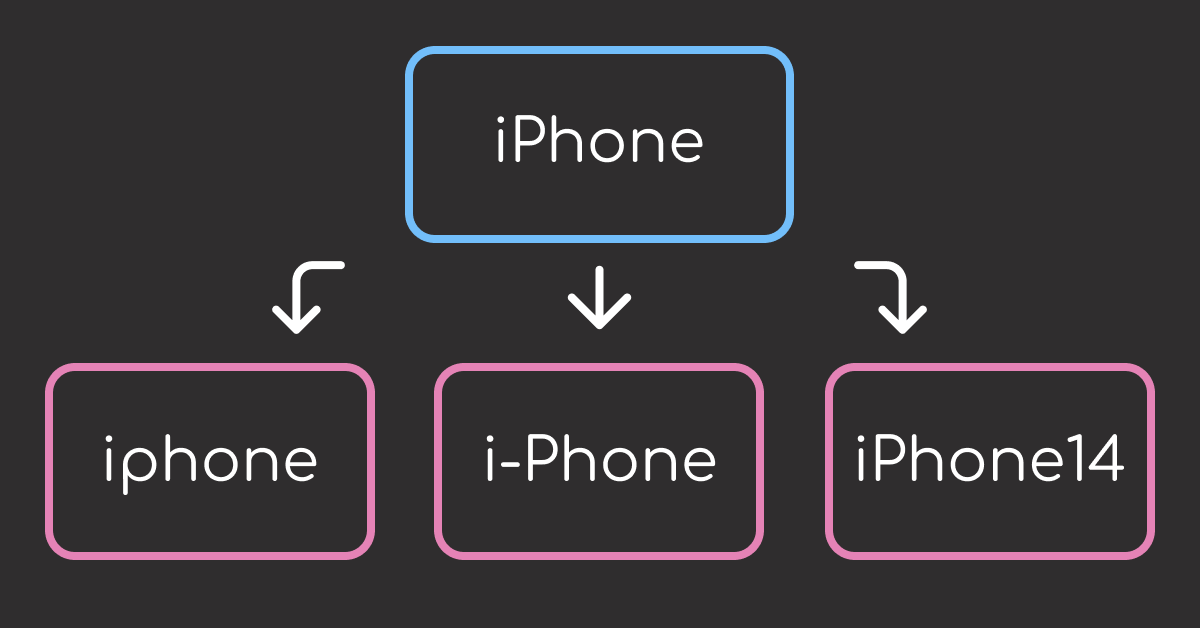
Formatting variations: “iPhone® 14 Pro Max” vs “IPHONE 14 pro max” – identical products with different capitalization and symbols.
Missing spaces: “iPhone14ProMax” vs “iPhone 14 Pro Max” – same product name, completely different character sequences.
Extra information: “Apple iPhone 14 Pro Max 256GB” vs “iPhone 14 Pro Max” – additional details that obscure the core product.
Semantic equivalence: “wireless headphones” vs “bluetooth earbuds” – different words describing similar concepts.

These challenges require different approaches:

Regex preprocessing cleans formatting inconsistencies
difflib provides character-level similarity scoring
RapidFuzz handles fuzzy matching at scale
Sentence Transformers understands semantic relationships

Stay Current with CodeCut
Actionable Python tips, curated for busy data pros. Skim in under 2 minutes, three times a week.

.codecut-subscribe-form .codecut-input {
background: #2F2D2E !important;
border: 1px solid #72BEFA !important;
color: #FFFFFF !important;
}
.codecut-subscribe-form .codecut-input::placeholder {
color: #999999 !important;
}
.codecut-subscribe-form .codecut-subscribe-btn {
background: #72BEFA !important;
color: #2F2D2E !important;
}
.codecut-subscribe-form .codecut-subscribe-btn:hover {
background: #5aa8e8 !important;
}

.codecut-subscribe-form {
max-width: 650px;
display: flex;
flex-direction: column;
gap: 8px;
}

.codecut-input {
-webkit-appearance: none;
-moz-appearance: none;
appearance: none;
background: #FFFFFF;
border-radius: 8px !important;
padding: 8px 12px;
font-family: ‘Comfortaa’, sans-serif !important;
font-size: 14px !important;
color: #333333;
border: none !important;
outline: none;
width: 100%;
box-sizing: border-box;
}

input[type=”email”].codecut-input {
border-radius: 8px !important;
}

.codecut-input::placeholder {
color: #666666;
}

.codecut-email-row {
display: flex;
align-items: stretch;
height: 36px;
gap: 8px;
}

.codecut-email-row .codecut-input {
flex: 1;
}

.codecut-subscribe-btn {
background: #72BEFA;
color: #2F2D2E;
border: none;
border-radius: 8px;
padding: 8px 14px;
font-family: ‘Comfortaa’, sans-serif;
font-size: 14px;
font-weight: 500;
cursor: pointer;
text-decoration: none;
display: flex;
align-items: center;
justify-content: center;
transition: background 0.3s ease;
}

.codecut-subscribe-btn:hover {
background: #5aa8e8;
}

.codecut-subscribe-btn:disabled {
background: #999;
cursor: not-allowed;
}

.codecut-message {
font-family: ‘Comfortaa’, sans-serif;
font-size: 12px;
padding: 8px;
border-radius: 6px;
display: none;
}

.codecut-message.success {
background: #d4edda;
color: #155724;
display: block;
}

/* Mobile responsive */
@media (max-width: 480px) {
.codecut-email-row {
flex-direction: column;
height: auto;
gap: 8px;
}

.codecut-input {
border-radius: 8px;
height: 36px;
}

.codecut-subscribe-btn {
width: 100%;
text-align: center;
border-radius: 8px;
height: 36px;
}
}

Subscribe

Key Takeaways
Here’s what you’ll learn:

Handle 90% of text variations with regex preprocessing and RapidFuzz matching
Achieve 5× faster fuzzy matching compared to difflib with production-grade algorithms
Unlock semantic understanding with Sentence Transformers for conceptual similarity
Navigate decision trees from simple string matching to AI-powered text analysis
Implement scalable text similarity pipelines for real-world data challenges

Text Preprocessing with regex
Raw text data contains special characters, inconsistent capitalization, and formatting variations. Regular expressions provide the first line of defense by normalizing text.
These pattern-matching tools, accessed through Python’s re module, excel at finding and replacing text patterns like symbols, whitespace, and formatting inconsistencies.
Let’s start with a realistic dataset that demonstrates common text similarity challenges:
import re

# Sample messy text data
messy_products = [
"iPhone® 14 Pro Max",
"IPHONE 14 pro max",
"Apple iPhone 14 Pro Max 256GB",
"iPhone14ProMax",
"i-Phone 14 Pro Max",
"Samsung Galaxy S23 Ultra",
"SAMSUNG Galaxy S23 Ultra 5G",
"Galaxy S23 Ultra (512GB)",
"Samsung S23 Ultra",
"wireless headphones",
"bluetooth earbuds",
"Sony WH-1000XM4 Headphones",
"WH-1000XM4 Wireless Headphones",
]

With our test data established, we can build a comprehensive preprocessing function to handle these variations:
def preprocess_product_name(text):
"""Clean product names for better similarity matching."""
# Convert to lowercase
text = text.lower()

# Remove special characters and symbols
text = re.sub(r"[®™©]", "", text)
text = re.sub(r"[^\w\s-]", " ", text)

# Normalize spaces and hyphens
text = re.sub(r"[-_]+", " ", text)
text = re.sub(r"\s+", " ", text)

# Remove size/capacity info in parentheses
text = re.sub(r"\([^)]*\)", "", text)

return text.strip()

> 📖 **Related**: These regex patterns use traditional syntax for maximum compatibility. For more readable pattern construction, explore [PRegEx for human-friendly regex syntax](https://codecut.ai/pregex-write-human-readable-regular-expressions-in-python-2/).

# Apply preprocessing to sample data
print("Before and after preprocessing:")
print("-" * 50)
for product in messy_products[:8]:
cleaned = preprocess_product_name(product)
print(f"Original: {product}")
print(f"Cleaned: {cleaned}")
print()

Output:
Before and after preprocessing:
————————————————–
Original: iPhone® 14 Pro Max
Cleaned: iphone 14 pro max

Original: IPHONE 14 pro max
Cleaned: iphone 14 pro max

Original: Apple iPhone 14 Pro Max 256GB
Cleaned: apple iphone 14 pro max 256gb

Original: iPhone14ProMax
Cleaned: iphone14promax

Original: i-Phone 14 Pro Max
Cleaned: i phone 14 pro max

Original: Samsung Galaxy S23 Ultra
Cleaned: samsung galaxy s23 ultra

Original: SAMSUNG Galaxy S23 Ultra 5G
Cleaned: samsung galaxy s23 ultra 5g

Original: Galaxy S23 Ultra (512GB)
Cleaned: galaxy s23 ultra

Perfect matches emerge after cleaning formatting inconsistencies. Products 1 and 2 now match exactly, demonstrating regex’s power for standardization.
However, regex preprocessing fails with critical variations. Let’s test exact matching after preprocessing:
# Test exact matching after regex preprocessing
test_cases = [
("iPhone® 14 Pro Max", "IPHONE 14 pro max", "Case + symbols"),
("iPhone® 14 Pro Max", "Apple iPhone 14 Pro Max 256GB", "Extra words"),
("iPhone® 14 Pro Max", "iPhone14ProMax", "Missing spaces"),
("Apple iPhone 14 Pro Max", "iPhone 14 Pro Max Apple", "Word order"),
("wireless headphones", "bluetooth earbuds", "Semantic gap")
]

# Test each case
for product1, product2, issue_type in test_cases:
cleaned1 = preprocess_product_name(product1)
cleaned2 = preprocess_product_name(product2)
is_match = cleaned1 == cleaned2
result = "✓" if is_match else "✗"
print(f"{result} {issue_type}: {is_match}")

Output:
✓ Case + symbols: True
✗ Extra words: False
✗ Missing spaces: False
✗ Word order: False
✗ Semantic gap: False

Regex achieves only 1/5 exact matches despite preprocessing. Success: case and symbol standardization. Failures:

Extra words: “apple iphone” vs “iphone” remain different
Missing spaces: “iphone14promax” vs “iphone 14 pro max” fail matching
Word reordering: Different arrangements of identical words don’t match
Semantic gaps: No shared text patterns between conceptually similar products

These limitations require character-level similarity measurement instead of exact matching. Python’s built-in difflib module provides the solution by analyzing character sequences and calculating similarity ratios.
difflib: Python’s Built-in Sequence Matching
difflib is a Python built-in module that provides similarity ratios. It analyzes character sequences to calculate similarity scores between text strings.
from difflib import SequenceMatcher

def calculate_similarity(text1, text2):
"""Calculate similarity ratio between two strings."""
return SequenceMatcher(None, text1, text2).ratio()

# Test difflib on key similarity challenges
test_cases = [
("iphone 14 pro max", "iphone 14 pro max", "Exact match"),
("iphone 14 pro max", "i phone 14 pro max", "Spacing variation"),
("iphone 14 pro max", "apple iphone 14 pro max 256gb", "Extra words"),
("iphone 14 pro max", "iphone14promax", "Missing spaces"),
("iphone 14 pro max", "iphone 14 prro max", "Typo"),
("apple iphone 14 pro max", "iphone 14 pro max apple", "Word order"),
("wireless headphones", "bluetooth earbuds", "Semantic gap")
]

for text1, text2, test_type in test_cases:
score = calculate_similarity(text1, text2)
result = "✓" if score >= 0.85 else "✗"
print(f"{result} {test_type}: {score:.3f}")

Output:
✓ Exact match: 1.000
✓ Spacing variation: 0.971
✗ Extra words: 0.739
✓ Missing spaces: 0.903
✓ Typo: 0.971
✗ Word order: 0.739
✗ Semantic gap: 0.333

difflib achieves 4/7 successful matches (≥0.85 threshold). Successes: exact matches, spacing variations, typos, and missing spaces. Failures:

Word reordering: “Apple iPhone” vs “iPhone Apple” drops to 0.739
Extra content: Additional words reduce scores to 0.739
Semantic gaps: Different words for same concept score only 0.333

These results highlight difflib’s core limitation: sensitivity to word order and poor handling of extra content. RapidFuzz tackles word reordering and extra content issues with sophisticated matching algorithms that understand token relationships beyond simple character comparison.
RapidFuzz: High-Performance Fuzzy String Matching
RapidFuzz is a high-performance fuzzy string matching library with C++ optimization. It addresses word reordering and complex text variations that difflib cannot handle effectively.
To install RapidFuzz, run:
pip install rapidfuzz

Let’s test RapidFuzz on the same test cases:
from rapidfuzz import fuzz

# Test RapidFuzz using WRatio algorithm
test_cases = [
("iphone 14 pro max", "iphone 14 pro max", "Exact match"),
("iphone 14 pro max", "i phone 14 pro max", "Spacing variation"),
("iphone 14 pro max", "apple iphone 14 pro max 256gb", "Extra words"),
("iphone 14 pro max", "iphone14promax", "Missing spaces"),
("iphone 14 pro max", "iphone 14 prro max", "Typo"),
("apple iphone 14 pro max", "iphone 14 pro max apple", "Word order"),
("wireless headphones", "bluetooth earbuds", "Semantic gap"),
("macbook pro", "laptop computer", "Conceptual gap")
]

for text1, text2, test_type in test_cases:
score = fuzz.WRatio(text1, text2) / 100 # Convert to 0-1 scale
result = "✓" if score >= 0.85 else "✗"
print(f"{result} {test_type}: {score:.3f}")

Output:
✓ Exact match: 1.000
✓ Spacing variation: 0.971
✓ Extra words: 0.900
✓ Missing spaces: 0.903
✓ Typo: 0.971
✓ Word order: 0.950
✗ Semantic gap: 0.389
✗ Conceptual gap: 0.385

RapidFuzz achieves 6/8 successful matches (≥0.85 threshold). Successes: exact matches, spacing, extra words, missing spaces, typos, and word order. Failures:

Semantic gaps: “wireless headphones” vs “bluetooth earbuds” scores only 0.389
Conceptual relationships: “macbook pro” vs “laptop computer” achieves just 0.385
Pattern-only matching: Cannot understand that different words describe same products

These failures reveal RapidFuzz’s fundamental limitation: it excels at text-level variations but cannot understand meaning. When products serve identical purposes using different terminology, we need semantic understanding rather than pattern matching.
Sentence Transformers addresses this gap through neural language models that comprehend conceptual relationships.
Sentence Transformers: AI-Powered Semantic Similarity
Surface-level text matching misses semantic relationships. Sentence Transformers, a library built on transformer neural networks, can understand that “wireless headphones” and “bluetooth earbuds” serve identical purposes by analyzing meaning rather than just character patterns.
To install Sentence Transformers, run:
pip install sentence-transformers

Let’s test Sentence Transformers on the same test cases:
from sentence_transformers import SentenceTransformer
from sklearn.metrics.pairwise import cosine_similarity

# Test semantic understanding capabilities
model = SentenceTransformer('all-MiniLM-L6-v2')

test_cases = [
("iphone 14 pro max", "iphone 14 pro max", "Exact match"),
("iphone 14 pro max", "i phone 14 pro max", "Spacing variation"),
("iphone 14 pro max", "apple iphone 14 pro max 256gb", "Extra words"),
("apple iphone 14 pro max", "iphone 14 pro max apple", "Word order"),
("wireless headphones", "bluetooth earbuds", "Semantic match"),
("macbook pro", "laptop computer", "Conceptual match"),
("gaming console", "video game system", "Synonym match"),
("smartphone", "feature phone", "Related concepts")
]

for text1, text2, test_type in test_cases:
embeddings = model.encode([text1, text2])
score = cosine_similarity([embeddings[0]], [embeddings[1]])[0][0]
result = "✓" if score >= 0.65 else "✗"
print(f"{result} {test_type}: {score:.3f}")

Output:
✓ Exact match: 1.000
✓ Spacing variation: 0.867
✓ Extra words: 0.818
✓ Word order: 0.988
✗ Semantic match: 0.618
✓ Conceptual match: 0.652
✓ Synonym match: 0.651
✗ Related concepts: 0.600

Sentence Transformers achieves 7/8 successful matches (≥0.65 threshold). Successes: all text variations plus semantic relationships. Failures:

Edge case semantics: “smartphone” vs “feature phone” scores only 0.600
Processing overhead: Neural inference requires significantly more computation than string algorithms
Memory requirements: Models need substantial RAM (100MB+ for basic models, GBs for advanced ones)
Resource scaling: Large datasets may require GPU acceleration for reasonable performance

Sentence Transformers unlocks semantic understanding at computational cost. The decision depends on whether conceptual relationships provide sufficient business value to justify resource overhead.
For implementing semantic search at production scale, see our pgvector and Ollama integration guide.
When to Use Each Tool
Data Preprocessing (Always Start Here)
Use regex for:

Removing special characters and symbols
Standardizing case and formatting
Cleaning messy product names
Preparing text for similarity analysis

Character-Level Similarity
Use difflib when:

Learning text similarity concepts
Working with small datasets (<1000 records)
External dependencies not allowed
Simple typo detection is sufficient

Production Fuzzy Matching
Use RapidFuzz when:

Processing thousands of records
Need fast approximate matching
Handling abbreviations and variations
Text-level similarity is sufficient

Semantic Understanding
Use Sentence Transformers when:

Conceptual relationships matter
“wireless headphones” should match “bluetooth earbuds”
Building recommendation systems
Multilingual content similarity
Compute resources are available

Performance vs Accuracy Tradeoff

Requirement
Recommended Tool

Speed > Accuracy
RapidFuzz

Accuracy > Speed
Sentence Transformers

No Dependencies
difflib

Preprocessing Only
regex

Decision Tree
When facing a new text similarity project, use this visual guide to navigate from problem requirements to the optimal tool selection:

Final Thoughts
When facing complex challenges, start with the most basic solution first, identify where it fails through testing, then strategically upgrade the failing component. This article demonstrates exactly this progression – from simple regex preprocessing to sophisticated semantic understanding.
Build complexity incrementally based on real limitations, not anticipated ones.

📚 For comprehensive production-ready data science practices, check out Production-Ready Data Science.

📚 Want to go deeper? Learning new techniques is the easy part. Knowing how to structure, test, and deploy them is what separates side projects from real work. My book shows you how to build data science projects that actually make it to production. Get the book →

Stay Current with CodeCut
Actionable Python tips, curated for busy data pros. Skim in under 2 minutes, three times a week.

.codecut-subscribe-form .codecut-input {
background: #2F2D2E !important;
border: 1px solid #72BEFA !important;
color: #FFFFFF !important;
}
.codecut-subscribe-form .codecut-input::placeholder {
color: #999999 !important;
}
.codecut-subscribe-form .codecut-subscribe-btn {
background: #72BEFA !important;
color: #2F2D2E !important;
}
.codecut-subscribe-form .codecut-subscribe-btn:hover {
background: #5aa8e8 !important;
}

.codecut-subscribe-form {
max-width: 650px;
display: flex;
flex-direction: column;
gap: 8px;
}

.codecut-input {
-webkit-appearance: none;
-moz-appearance: none;
appearance: none;
background: #FFFFFF;
border-radius: 8px !important;
padding: 8px 12px;
font-family: ‘Comfortaa’, sans-serif !important;
font-size: 14px !important;
color: #333333;
border: none !important;
outline: none;
width: 100%;
box-sizing: border-box;
}

input[type=”email”].codecut-input {
border-radius: 8px !important;
}

.codecut-input::placeholder {
color: #666666;
}

.codecut-email-row {
display: flex;
align-items: stretch;
height: 36px;
gap: 8px;
}

.codecut-email-row .codecut-input {
flex: 1;
}

.codecut-subscribe-btn {
background: #72BEFA;
color: #2F2D2E;
border: none;
border-radius: 8px;
padding: 8px 14px;
font-family: ‘Comfortaa’, sans-serif;
font-size: 14px;
font-weight: 500;
cursor: pointer;
text-decoration: none;
display: flex;
align-items: center;
justify-content: center;
transition: background 0.3s ease;
}

.codecut-subscribe-btn:hover {
background: #5aa8e8;
}

.codecut-subscribe-btn:disabled {
background: #999;
cursor: not-allowed;
}

.codecut-message {
font-family: ‘Comfortaa’, sans-serif;
font-size: 12px;
padding: 8px;
border-radius: 6px;
display: none;
}

.codecut-message.success {
background: #d4edda;
color: #155724;
display: block;
}

/* Mobile responsive */
@media (max-width: 480px) {
.codecut-email-row {
flex-direction: column;
height: auto;
gap: 8px;
}

.codecut-input {
border-radius: 8px;
height: 36px;
}

.codecut-subscribe-btn {
width: 100%;
text-align: center;
border-radius: 8px;
height: 36px;
}
}

Subscribe

4 Text Similarity Tools: When Regex Isn’t Enough Read More »

Scroll to Top

Work with Khuyen Tran

Work with Khuyen Tran