Generic selectors
Exact matches only
Search in title
Search in content
Post Type Selectors
Filter by Categories
About Article
Analyze Data
Archive
Best Practices
Better Outputs
Blog
Code Optimization
Code Quality
Command Line
Daily tips
Dashboard
Data Analysis & Manipulation
Data Engineer
Data Visualization
DataFrame
Delta Lake
DevOps
DuckDB
Environment Management
Feature Engineer
Git
Jupyter Notebook
LLM
LLM Tools
Machine Learning
Machine Learning & AI
Machine Learning Tools
Manage Data
MLOps
Natural Language Processing
Newsletter Archive
NumPy
Pandas
Polars
PySpark
Python Helpers
Python Tips
Python Utilities
Scrape Data
SQL
Testing
Time Series
Tools
Visualization
Visualization & Reporting
Workflow & Automation
Workflow Automation

tutorial

Auto-created tag for tutorial

Visualize Machine Learning Results with Yellowbrick

Table of Contents

Introduction
What is Yellowbrick
Visualize the Data

Rank Features
Class Balance

Visualize the Results of the Model

Confusion Matrix
Classification Report
ROCAUC
Discrimination Threshold

How to Improve the Model

Validation Curve
Learning Curve
Feature Importances

Conclusion

Introduction
Imagine you’re a building manager deploying an occupancy detection system. Sensors throughout the building measure temperature, humidity, light, and CO2 levels.
Your model predicts room occupancy with an f1-score of 98%. This score reflects how well the model balances accurate predictions with catching all occupied rooms. But a single score hides important details.
When the system thinks a room is occupied, how often is it wrong? When people are actually in a room, how often does the system miss them? One wastes energy; the other frustrates occupants.
To improve, you need to see which error your model makes more often. This is where visualization helps. Charts and plots reveal patterns that raw numbers hide. Yellowbrick makes it easy to create these diagnostic plots.

For general-purpose plotting beyond ML diagnostics, see Top 6 Python Libraries for Visualization.
💻 Get the Code: The complete source code and Jupyter notebook for this tutorial are available on GitHub. Clone it to follow along!

What is Yellowbrick
Yellowbrick is a machine learning visualization library. Essentially, Yellowbrick makes it easier for you to:

Select features
Tune hyperparameters
Interpret the score of your models
Visualize text data

Visualizing your data and model helps you understand what’s working, what’s not, and what to fix next.
To install Yellowbrick, type:
pip install yellowbrick

We’ll use a room occupancy dataset to explore Yellowbrick’s classification tools. Sensors recorded temperature, humidity, light, and CO2 levels, while cameras captured ground-truth occupancy every minute.
from sklearn.model_selection import train_test_split
from sklearn.tree import DecisionTreeClassifier
from yellowbrick.datasets.loaders import load_occupancy
import warnings
warnings.filterwarnings('ignore')

X, y = load_occupancy()

# Create train/test split
X_train, X_test, y_train, y_test = train_test_split(X, y, random_state=42)

Visualize the Data
Rank Features
Correlated features can hurt your model by adding redundancy without new information. The Rank2D visualizer scores each pair of features using Pearson correlation, helping you spot which ones overlap.
from yellowbrick.features import Rank2D

visualizer = Rank2D(algorithm='pearson')
visualizer.fit(X, y)
visualizer.transform(X)
visualizer.show()

Two feature pairs show strong correlation (dark red cells):

Humidity and relative humidity: The darkest red in the heatmap. Both capture air moisture, one as an absolute measure, the other adjusted for temperature. This likely explains the overlap.
Light and temperature: Also dark red. This may be because daytime brings both sunlight and warmth. Occupied rooms possibly have lights on and more body heat.

Since correlated features carry redundant information, you could potentially drop one from each pair without losing predictive power.
Class Balance
Class imbalance distorts your metrics. When one class dominates the data, a model can score high by always guessing the majority class. A 98% f1-score means little if the model never correctly predicts the minority class.
The ClassBalance visualizer reveals whether your data has this problem:
from yellowbrick.target import ClassBalance

visualizer = ClassBalance(labels=["unoccupied", "occupied"])

visualizer.fit(y) # Fit the data to the visualizer
visualizer.show() # Finalize and render the figure

The chart shows a 3:1 imbalance: roughly 16,000 unoccupied samples versus 5,000 occupied. A model could achieve 75% accuracy by always predicting “unoccupied.”
To address this, consider:

Stratified sampling: Split your data so both train and test sets maintain the same class ratio. This prevents the test set from accidentally having too few minority samples.
Class weighting: Tell the model to penalize mistakes on the minority class more heavily. A missed occupied room costs more than a missed unoccupied one.
Oversampling: Duplicate or synthetically generate more minority class samples to balance the dataset before training.

Visualize the Results of the Model
A single f1-score doesn’t tell you where your model succeeds or fails. These Yellowbrick visualizers break down your model’s performance so you can see exactly what’s happening.
Confusion Matrix
When the model predicts “occupied,” how often is it wrong? When a room is actually occupied, how often does the model miss it? The confusion matrix answers both questions at a glance.
from yellowbrick.classifier import ConfusionMatrix

# Specify the target classes
classes = ["unoccupied", "occupied"]

# Initialize the model
model = DecisionTreeClassifier()

# Fit and score the data
cm = ConfusionMatrix(model, classes=classes, percent=True)
cm.fit(X_train, y_train)
cm.score(X_test, y_test)
cm.show()

The model correctly identifies 99% of unoccupied rooms and 98% of occupied ones. The occupied class has slightly more errors (2% missed vs 1% false alarms).
To improve, focus on reducing missed occupied rooms since leaving people in the dark is worse than wasting a bit of energy.
Classification Report
The classification report answers four questions about your model’s predictions:

Precision: When the model predicts “occupied,” how often is it right?
Recall: Of all the actual “occupied” rooms, how many did the model find?
F1: How well does the model balance precision and recall?
Support: How many test samples are in each class?

from yellowbrick.classifier import ClassificationReport

visualizer = ClassificationReport(model, classes=classes, support=True)
visualizer.fit(X_train, y_train)
visualizer.score(X_test, y_test)
visualizer.show()

The heatmap reveals several insights:

Both classes achieve perfect scores (1.0) for precision, recall, and F1
The support column shows class imbalance: 3,958 unoccupied vs 1,182 occupied samples
Darker cells indicate higher values, making underperforming metrics easy to spot

ROCAUC
Every classifier faces a tradeoff: catch more occupied rooms but risk more false alarms, or reduce false alarms but miss more occupied rooms. The ROC AUC curve shows this tradeoff across all possible thresholds.
The Y-axis shows the true positive rate; the X-axis shows the false positive rate. A model that hugs the top-left corner handles this tradeoff well.
from yellowbrick.classifier import ROCAUC

visualizer = ROCAUC(model, classes=classes)
visualizer.fit(X_train, y_train)
visualizer.score(X_test, y_test)
visualizer.show()

Both curves hug the top-left corner with AUC scores of 0.99. This means the model achieves near-perfect separation between classes with minimal false alarms.
The dotted diagonal represents random guessing (AUC = 0.5). Our curves are far from it, confirming strong performance. When comparing models, choose the one with curves closer to the top-left.
Discrimination Threshold
What if you want to catch every occupied room, even at the cost of some false alarms? Or minimize false alarms, even if you miss a few? The DiscriminationThreshold visualizer shows how each threshold affects precision, recall, and F1 score.
from yellowbrick.classifier import DiscriminationThreshold

visualizer = DiscriminationThreshold(model)
visualizer.fit(X, y)
visualizer.show()

Key observations:

The default threshold (0.50) achieves near-perfect precision and recall for this model
F1 score remains high between thresholds 0.3-0.6, giving flexibility in threshold selection
If minimizing false positives matters more, increase the threshold; if catching all positives matters more, decrease it

How to Improve the Model
Our model performs well, but can we do better? The next visualizers help you:

Detect underfitting or overfitting
Identify which features matter most

Validation Curve
How deep should your decision tree be? The answer depends on two failure modes:

Too shallow (underfitting): The model is too simple to capture patterns. It performs poorly on both training and test data.
Too deep (overfitting): The model memorizes training data instead of learning patterns. It performs well on training data but poorly on new data.

The ValidationCurve visualizer plots scores across different values, helping you find the sweet spot.
from yellowbrick.model_selection import ValidationCurve
import numpy as np

model = DecisionTreeClassifier()
viz = ValidationCurve(
model,
param_name="max_depth",
param_range=np.arange(1, 11),
cv=10,
scoring="f1_weighted",
)
viz.fit(X, y)
viz.show()

Training score improves with depth, but cross-validation score peaks at depth 1 and declines afterward. The growing gap means the model performs well on data it has seen but poorly on new data. This is the definition of overfitting.
Set max_depth=3 or max_depth=4 for good generalization with minimal overfitting.
Learning Curve
More data doesn’t always mean better performance. The LearningCurve shows how training and test scores change as you add more samples. Use it to decide whether collecting more data is worth the effort.
from yellowbrick.model_selection import LearningCurve

model = DecisionTreeClassifier()
viz = LearningCurve(model, cv=10, scoring="f1_weighted")
viz.fit(X, y)
viz.show()

Training score stays flat at 1.0 regardless of sample size. Cross-validation score rises from 0.86 to a peak around 0.94 at ~10,000 samples, then slightly drops and plateaus.
This suggests the model benefits from more data up to a point, but beyond ~10,000 samples, additional data doesn’t improve generalization.
Feature Importances
Not all features contribute equally. Some add noise without improving predictions. The FeatureImportances visualizer ranks features by their contribution to the model, helping you identify which ones to keep and which to drop.
from yellowbrick.model_selection import FeatureImportances

model = DecisionTreeClassifier()
viz = FeatureImportances(model)
viz.fit(X, y)
viz.show()

Light dominates with nearly 100% relative importance. CO2 and temperature contribute minimally, while humidity and relative humidity barely register.
Several factors could explain light’s dominance:

Lights are typically switched on when rooms are occupied
Natural daylight patterns may correlate with occupancy schedules
Light sensors may have less noise than other sensors

For this dataset, you could likely drop humidity features with little impact on performance.
Conclusion
Yellowbrick turns model evaluation from numbers into visuals. You’ve seen how to:

Spot data issues with Rank2D and ClassBalance
Diagnose model errors with confusion matrices and ROC curves
Tune hyperparameters with validation and learning curves
Identify important features to simplify your model

Explore more visualizers in the Yellowbrick documentation.
Related Tutorials

Testing: Pytest for Data Scientists to verify model behavior programmatically
Presentation: Great Tables to present model metrics in publication-ready tables

📚 Want to go deeper? Learning new techniques is the easy part. Knowing how to structure, test, and deploy them is what separates side projects from real work. My book shows you how to build data science projects that actually make it to production. Get the book →

Favorite

Visualize Machine Learning Results with Yellowbrick Read More »

Great Tables: Publication-Ready Tables from Polars and Pandas DataFrames

Table of Contents

Introduction
Introduction to Great Tables
Setup
Value Formatting
Table Structure
Data Coloring
Nanoplots
Conditional Styling
Conclusion

Introduction
Data scientists spend significant time analyzing data, but presenting results professionally remains a challenge.
Raw DataFrames with unformatted numbers, ISO dates, and no visual hierarchy make reports hard to read.
The common workaround is exporting to CSV and formatting in Excel. This is slow, error-prone, and breaks with every data update.
Great Tables solves this problem by letting you create publication-ready tables directly in Python with a single, reproducible script.

💻 Get the Code: The complete source code and Jupyter notebook for this tutorial are available on GitHub. Clone it to follow along!

Introduction to Great Tables
Great Tables is a Python library for creating publication-quality tables from pandas or Polars DataFrames. It provides:

Value formatting: Transform raw numbers into currencies, percentages, dates, and more
Table structure: Add headers, column spanners, row labels, and source notes
Data-driven coloring: Apply color scales based on cell values
Inline visualizations: Embed sparklines (nanoplots) directly in table cells
Conditional styling: Style cells based on data conditions

Let’s dive deeper into each of these features in the next sections.
Setup
Great Tables works with both pandas and Polars DataFrames. We’ll use Polars in this tutorial:
pip install great_tables polars selenium

Selenium is required for exporting tables as PNG images.

New to Polars? See our Polars vs. Pandas comparison for an introduction.

Great Tables includes built-in sample datasets. We’ll use the sp500 dataset containing historical S&P 500 stock data:
from great_tables import GT
from great_tables.data import sp500
import polars as pl

# Preview the raw data
sp500_df = pl.from_pandas(sp500)
print(sp500_df.head(5))

date
open
high
low
close
volume
adj_close

2015-12-31
2060.5901
2062.54
2043.62
2043.9399
2.6553e9
2043.9399

2015-12-30
2077.3401
2077.3401
2061.97
2063.3601
2.3674e9
2063.3601

2015-12-29
2060.54
2081.5601
2060.54
2078.3601
2.5420e9
2078.3601

2015-12-28
2057.77
2057.77
2044.2
2056.5
2.4925e9
2056.5

2015-12-24
2063.52
2067.3601
2058.73
2060.99
1.4119e9
2060.99

The raw output shows:

Unformatted decimals (e.g., 2060.5901)
Large integers without separators (e.g., 2.6553e9)
Dates as plain strings (e.g., “2015-12-31”)

Let’s transform this into a readable table.
Value Formatting
Great Tables provides fmt_* methods to format values. Here’s how to format currencies, numbers, and dates:
from great_tables import GT
from great_tables.data import sp500

# Filter to a specific date range
start_date = "2010-06-07"
end_date = "2010-06-14"
sp500_mini = sp500[(sp500["date"] >= start_date) & (sp500["date"] <= end_date)]

stock_price_table = (
GT(sp500_mini)
.fmt_currency(columns=["open", "high", "low", "close"])
.fmt_date(columns="date", date_style="wd_m_day_year")
.fmt_number(columns="volume", compact=True)
.cols_hide(columns="adj_close")
)
stock_price_table

In this example:

fmt_currency() adds dollar signs and formats decimals (e.g., $1,065.84)
fmt_date() converts date strings to readable format (e.g., “Mon, Jun 7, 2010”)
fmt_number() with compact=True converts large numbers to compact format (e.g., 5.47B)
cols_hide() removes the redundant adj_close column

To export the table for reports, use the save() method:
stock_price_table.save("stock_price_table.png") # Supports .png, .bmp, .pdf

Formatting Percentages
Use fmt_percent() to display decimal values as percentages. Here’s some sample data with decimal values:
import polars as pl
from great_tables import GT

performance_data = pl.DataFrame({
"metric": ["Revenue Growth", "Profit Margin", "Market Share"],
"q1": [0.12, 0.08, 0.23],
"q2": [0.15, 0.09, 0.25],
"q3": [0.11, 0.07, 0.24]
})
performance_data

The raw decimals are hard to read at a glance. Let’s format them as percentages:
percent_table = (
GT(performance_data, rowname_col="metric")
.fmt_percent(columns=["q1", "q2", "q3"], decimals=1)
)
percent_table

The percentages are now much more readable! Values like 0.12 become “12.0%” automatically.
Table Structure
Professional tables need clear headers, grouped columns, and source attribution. Great Tables provides methods for each structural component.
Adding Headers and Source Notes
Use tab_header() for titles and tab_source_note() for attribution. Let’s start with our S&P 500 data:
from great_tables import GT, md
from great_tables.data import sp500
import polars as pl

sp500_pl = pl.from_pandas(sp500)
sp500_mini = sp500_pl.filter(
(pl.col("date") >= "2010-06-07") & (pl.col("date") <= "2010-06-14")
)
print(sp500_mini)

date
open
high
low
close
volume
adj_close

2010-06-14
1095.0
1105.91
1089.03
1089.63
4.4258e9
1089.63

2010-06-11
1082.65
1092.25
1077.12
1091.6
4.0593e9
1091.6

2010-06-10
1058.77
1087.85
1058.77
1086.84
5.1448e9
1086.84

2010-06-09
1062.75
1077.74
1052.25
1055.6899
5.9832e9
1055.6899

2010-06-08
1050.8101
1063.15
1042.17
1062.0
6.1928e9
1062.0

2010-06-07
1065.84
1071.36
1049.86
1050.47
5.4676e9
1050.47

The table lacks context about what the data represents. Let’s add a title and source:
header_table = (
GT(sp500_mini)
.tab_header(
title="S&P 500 Daily Performance",
subtitle="June 7-14, 2010"
)
.fmt_currency(columns=["open", "high", "low", "close"])
.fmt_date(columns="date", date_style="wd_m_day_year")
.fmt_number(columns="volume", compact=True)
.cols_hide(columns="adj_close")
.tab_source_note(source_note=md("**Source**: Historical market data"))
)
header_table

In this example:

tab_header() adds “S&P 500 Daily Performance” as the title and “June 7-14, 2010” as the subtitle
tab_source_note() adds “Source: Historical market data” at the bottom
md() enables markdown formatting for bold text

Grouping Columns with Spanners
Column spanners group related columns under a shared label. Here’s some quarterly sales data:
import polars as pl
from great_tables import GT

sales_data = pl.DataFrame({
"product": ["Laptop", "Phone", "Tablet"],
"q1_rev": [125000, 89000, 45000],
"q2_rev": [132000, 95000, 48000],
"q1_units": [450, 1200, 380],
"q2_units": [475, 1350, 410]
})
print(sales_data)

product
q1_rev
q2_rev
q1_units
q2_units

Laptop
125000
132000
450
475

Phone
89000
95000
1200
1350

Tablet
45000
48000
380
410

The column names like q1_rev and q1_units don’t clearly show their relationship. Let’s group them with spanners:
spanner_table = (
GT(sales_data, rowname_col="product")
.tab_header(title="Quarterly Sales Report")
.tab_spanner(label="Revenue ($)", columns=["q1_rev", "q2_rev"])
.tab_spanner(label="Units Sold", columns=["q1_units", "q2_units"])
.fmt_currency(columns=["q1_rev", "q2_rev"], decimals=0)
.fmt_number(columns=["q1_units", "q2_units"], use_seps=True)
.cols_label(
q1_rev="Q1",
q2_rev="Q2",
q1_units="Q1",
q2_units="Q2"
)
.tab_stubhead(label="Product")
)
spanner_table

In this example:

tab_spanner() creates “Revenue ($)” and “Units Sold” headers that span multiple columns
cols_label() renames columns like q1_rev to “Q1”
tab_stubhead() labels the row name column as “Product”

Data Coloring
The data_color() method applies color scales to cells based on their values, creating heatmap-style visualizations. Here’s some regional performance data:
import polars as pl
from great_tables import GT

performance = pl.DataFrame({
"region": ["North", "South", "East", "West"],
"revenue": [125000, 98000, 145000, 112000],
"growth": [0.15, -0.05, 0.22, 0.08]
})
print(performance)

region
revenue
growth

North
125000
0.15

South
98000
-0.05

East
145000
0.22

West
112000
0.08

The raw numbers make it hard to spot which regions are performing well. Let’s add color scales:
color_table = (
GT(performance, rowname_col="region")
.fmt_currency(columns="revenue", decimals=0)
.fmt_percent(columns="growth", decimals=1)
.data_color(
columns="revenue",
palette="Blues"
)
.data_color(
columns="growth",
palette=["red", "white", "green"],
domain=[-0.1, 0.25]
)
)
color_table

Now high performers stand out immediately! In this example:

palette="Blues" applies a blue gradient to revenue (darker = higher values like $145,000)
palette=["red", "white", "green"] creates a diverging scale for growth (red for -5.0%, green for 22.0%)
domain=[-0.1, 0.25] sets the min/max range for the color scale

Nanoplots
Nanoplots embed small visualizations directly in table cells. They’re useful for showing trends without creating separate charts.
Creating Line Nanoplots
To use nanoplots, your data column must contain space-separated numeric values:
import polars as pl
from great_tables import GT

# Create data with trend values as space-separated strings
kpi_data = pl.DataFrame({
"metric": ["Revenue", "Users", "Conversion Rate"],
"current": [125000.0, 45000.0, 3.2],
"trend": [
"95 102 98 115 125",
"38 40 42 43 45",
"2.8 2.9 3.0 3.1 3.2"
]
})

kpi_table = (
GT(kpi_data, rowname_col="metric")
.fmt_nanoplot(columns="trend", plot_type="line")
.fmt_number(columns="current", compact=True)
.tab_header(title="Weekly KPI Dashboard")
)
kpi_table

The sparklines make trends instantly visible! fmt_nanoplot() transforms space-separated values like “95 102 98 115 125” into inline charts.
Hover over the chart to see individual data points.
Adding Reference Lines
Reference lines provide context by showing averages, medians, or custom thresholds:
import polars as pl
from great_tables import GT

trend_data = pl.DataFrame({
"stock": ["AAPL", "GOOGL", "MSFT"],
"prices": [
"150 155 148 160 165 158 170",
"120 118 122 125 128 130 127",
"280 285 275 290 295 288 300"
]
})

stock_trend_table = (
GT(trend_data, rowname_col="stock")
.fmt_nanoplot(
columns="prices",
plot_type="line",
reference_line="mean"
)
.tab_header(title="Weekly Stock Prices")
)
stock_trend_table

The reference_line="mean" parameter adds a horizontal line at the average value. Other options include "median", "min", "max", "q1", and "q3".
Bar Nanoplots
Use plot_type="bar" for comparing discrete values:
import polars as pl
from great_tables import GT

monthly_data = pl.DataFrame({
"category": ["Electronics", "Clothing", "Food"],
"sales": [
"45 52 48 55 60 58",
"30 28 35 32 38 40",
"20 22 21 25 24 26"
]
})

bar_chart_table = (
GT(monthly_data, rowname_col="category")
.fmt_nanoplot(columns="sales", plot_type="bar")
.tab_header(title="Monthly Sales by Category")
)
bar_chart_table

Customizing Nanoplot Appearance
Pass styling options via nanoplot_options():

Line: data_line_stroke_color (e.g., “steelblue”)
Points: data_point_fill_color, data_point_stroke_color
Area: data_area_fill_color (e.g., “lightblue”)

from great_tables import GT, nanoplot_options
import polars as pl

trend_data = pl.DataFrame({
"metric": ["Growth", "Engagement"],
"values": ["10 15 12 18 22 20", "5 8 6 9 11 10"]
})

styled_nanoplot_table = (
GT(trend_data, rowname_col="metric")
.fmt_nanoplot(
columns="values",
plot_type="line",
reference_line="mean",
options=nanoplot_options(
data_line_stroke_color="steelblue",
data_point_fill_color="white",
data_point_stroke_color="steelblue",
data_area_fill_color="lightblue"
)
)
)
styled_nanoplot_table

Conditional Styling
The tab_style() method applies formatting to cells based on conditions. Combined with Polars expressions, you can create data-driven styling rules.
Basic Conditional Styling
Here’s some product sales data with mixed growth values:
from great_tables import GT, style, loc
import polars as pl

sales = pl.DataFrame({
"product": ["Laptop", "Phone", "Tablet", "Monitor"],
"revenue": [125000, 89000, 45000, 32000],
"growth": [0.15, -0.05, 0.22, -0.08]
})
print(sales)

product
revenue
growth

Laptop
125000
0.15

Phone
89000
-0.05

Tablet
45000
0.22

Monitor
32000
-0.08

Some products have positive growth, others negative. Let’s use tab_style() with Polars expressions to apply conditional colors:
conditional_table = (
GT(sales, rowname_col="product")
.fmt_currency(columns="revenue", decimals=0)
.fmt_percent(columns="growth", decimals=1)
.tab_style(
style=[
style.fill(color="lightgreen"),
style.text(weight="bold")
],
locations=loc.body(
columns="growth",
rows=pl.col("growth") > 0
)
)
.tab_style(
style=[
style.fill(color="lightcoral"),
style.text(weight="bold")
],
locations=loc.body(
columns="growth",
rows=pl.col("growth") < 0
)
)
)
conditional_table

The styling makes values immediately visible:

pl.col("growth") > 0 – selects rows with positive growth
pl.col("growth") < 0 – selects rows with negative growth

Conclusion
Great Tables transforms how data scientists present tabular data. Instead of manual formatting in spreadsheets, you can:

Format currencies, percentages, and dates automatically
Structure tables with headers, column groups, and source notes
Highlight patterns with automatic color scales
Show trends with inline sparkline charts
Apply conditional styling based on data values

The key advantage is reproducibility. When your data updates, you can re-run the script to regenerate the formatted table with consistent styling.

📚 For comprehensive guidance on building reproducible data workflows, check out Production-Ready Data Science.

Great Tables is particularly useful for:

Financial reports with currency and percentage formatting
Performance dashboards with trend indicators
Research papers requiring publication-quality tables
Automated reporting pipelines

For more features including custom themes, image embedding, and interactive outputs, see the Great Tables documentation.
Related Tutorials

Top 6 Python Libraries for Visualization for interactive and static data visualizations
Marimo: A Modern Notebook for Reproducible Data Science for reproducible notebook workflows

📚 Want to go deeper? Learning new techniques is the easy part. Knowing how to structure, test, and deploy them is what separates side projects from real work. My book shows you how to build data science projects that actually make it to production. Get the book →

Favorite

Great Tables: Publication-Ready Tables from Polars and Pandas DataFrames Read More »

Coiled: Scale Python Data Pipeline to the Cloud in Minutes

Table of Contents

Introduction
What is Coiled?
Setup
Serverless Functions: Process Data with Any Framework
When You Need More: Distributed Clusters with Dask
Cost Optimization
Environment Synchronization
Conclusion

Introduction
A common challenge data scientists face is that local machines simply can’t handle large-scale datasets. Once your analysis reaches the 50GB+ range, you’re pushed into difficult choices:

Sample your data and hope patterns hold
Buy more RAM or rent expensive cloud VMs
Learn Kubernetes and spend days configuring clusters
Build Docker images and manage container registries

Each option adds complexity, cost, or compromises your analysis quality.
Coiled eliminates these tradeoffs. It provisions emphemeral compute clusters on AWS, GCP, or Azure using simple Python APIs. You get distributed computing power without DevOps expertise, automatic environment synchronization without Docker, and 70% cost savings through smart spot instance management.
In this article, you’ll learn how to scale Python data workflows to the cloud with Coiled:

Serverless functions: Run pandas, Polars, or DuckDB code on cloud VMs with a simple decorator
Parallel processing: Process multiple files simultaneously across cloud machines
Distributed clusters: Aggregate data across files using managed Dask clusters
Environment sync: Replicate your local packages to the cloud without Docker
Cost optimization: Reduce cloud spending with spot instances and auto-scaling

💻 Get the Code: The complete source code and Jupyter notebook for this tutorial are available on GitHub. Clone it to follow along!

What is Coiled?
Coiled is a lightweight cloud platform that runs Python code on powerful cloud infrastructure without requiring Docker or Kubernetes knowledge. It supports four main capabilities:

Batch Jobs: Submit and run Python scripts asynchronously on cloud infrastructure
Serverless Functions: Execute Python functions (Pandas, Polars, PyTorch) on cloud VMs with decorators
Dask Clusters: Provision multi-worker clusters for distributed computing
Jupyter Notebooks: Launch interactive Jupyter servers directly on cluster schedulers

Key features across both:

Framework-Agnostic: Works with Pandas, Polars, Dask, or any Python library
Automatic Package Sync: Local packages replicate to cloud workers without Docker
Cost Optimization: Spot instances, adaptive scaling, and auto-shutdown reduce spending
Simple APIs: Decorate functions or create clusters with 2-3 lines of code

To install Coiled and Dask, run:
pip install coiled dask[complete]

Setup
First, create a free Coiled account by running this command in your terminal:
coiled login

This creates a free Coiled Hosted account with 200 CPU-hours per month. Your code runs on Coiled’s cloud infrastructure with no AWS/GCP/Azure account needed.
Note: For production workloads with your own cloud account, run coiled setup PROVIDER (setup guide).
Serverless Functions: Process Data with Any Framework
The simplest way to scale Python code to the cloud is with serverless functions. Decorate any function with @coiled.function, and Coiled handles provisioning cloud VMs, installing packages, and executing your code.
Scale Beyond Laptop Memory with Cloud VMs
Imagine you need to process a NYCTaxi dataset with 12GB compressed files (50GB+ expanded) on a laptop with only 16GB of RAM. Your machine simply doesn’t have enough memory to handle this workload.
With Coiled, you can run the exact same code on a cloud VM with 64GB of RAM by simply adding the @coiled.function decorator.
import coiled
import pandas as pd

@coiled.function(
memory="64 GiB",
region="us-east-1"
)
def process_month_with_pandas(month):
# Read 12GB file directly into pandas
df = pd.read_parquet(
f"https://d37ci6vzurychx.cloudfront.net/trip-data/yellow_tripdata_2024-{month:02d}.parquet"
)

# Compute tipping patterns by hour
df["hour"] = df["tpep_pickup_datetime"].dt.hour
result = df.groupby("hour")["tip_amount"].mean()

return result

# Run on cloud VM with 64GB RAM
january_tips = process_month_with_pandas(1)
print(january_tips)

Output:
hour
0 3.326543
1 2.933899
2 2.768246
3 2.816333
4 3.132973

Name: tip_amount, dtype: float64

This function runs on a cloud VM with 64GB RAM, processes the entire month in memory, and returns just the aggregated result to your laptop.
You can view the function’s execution progress and resource usage in the Coiled dashboard.

Parallel Processing with .map()
By default Coiled Functions will run sequentially, just like normal Python functions. However, they can also easily run in parallel by using the .map() method.
Process all 12 months in parallel using .map():
import coiled
import pandas as pd

@coiled.function(memory="64 GiB", region="us-east-1")
def process_month(month):
df = pd.read_parquet(
f"https://d37ci6vzurychx.cloudfront.net/trip-data/yellow_tripdata_2024-{month:02d}.parquet"
)
return df["tip_amount"].mean()

# Process 12 months in parallel on 12 cloud VMs
months = range(1, 13)
monthly_tips = list(process_month.map(months))

print("Average tips by month:", monthly_tips)

Output:
Average tips by month: [2.65, 2.58, 2.72, 2.68, 2.75, 2.81, 2.79, 2.73, 2.69, 2.71, 2.66, 2.62]

When you call .map() with 12 months, Coiled spins up 12 cloud VMs simultaneously, runs process_month() on each VM with a different month, then returns all results.
The execution flow:
VM 1: yellow_tripdata_2024-01.parquet → compute mean → 2.65
VM 2: yellow_tripdata_2024-02.parquet → compute mean → 2.58
VM 3: yellow_tripdata_2024-03.parquet → compute mean → 2.72
… (all running in parallel)
VM 12: yellow_tripdata_2024-12.parquet → compute mean → 2.62

Coiled collects: [2.65, 2.58, 2.72, …, 2.62]

Each VM works in complete isolation with no data sharing or coordination between them.

The dashboard confirms 12 tasks were executed, matching the 12 months we passed to .map().
Framework-Agnostic: Use Any Python Library
Coiled Functions aren’t limited to pandas. You can use any Python library (Polars, DuckDB, PyTorch, scikit-learn) without any additional configuration. The automatic package synchronization works for all dependencies.
Example with Polars:
Polars is a fast DataFrame library optimized for performance. It works seamlessly with Coiled:
import coiled
import polars as pl

@coiled.function(memory="64 GiB", region="us-east-1")
def process_with_polars(month):
df = pl.read_parquet(
f"https://d37ci6vzurychx.cloudfront.net/trip-data/yellow_tripdata_2024-{month:02d}.parquet"
)
return (
df
.filter(pl.col("tip_amount") > 0)
.group_by("PULocationID")
.agg(pl.col("tip_amount").mean())
.sort("tip_amount", descending=True)
.head(5)
)

result = process_with_polars(1)
print(result)

Output:
shape: (5, 2)
┌──────────────┬────────────┐
│ PULocationID ┆ tip_amount │
│ — ┆ — │
│ i64 ┆ f64 │
╞══════════════╪════════════╡
│ 138 ┆ 4.52 │
│ 230 ┆ 4.23 │
│ 161 ┆ 4.15 │
│ 234 ┆ 3.98 │
│ 162 ┆ 3.87 │
└──────────────┴────────────┘

Example with DuckDB:
DuckDB provides fast SQL analytics directly on Parquet files:
import coiled
import duckdb

@coiled.function(memory="64 GiB", region="us-east-1")
def query_with_duckdb(month):
con = duckdb.connect()
result = con.execute(f"""
SELECT
DATE_TRUNC('hour', tpep_pickup_datetime) as pickup_hour,
AVG(tip_amount) as avg_tip,
COUNT(*) as trip_count
FROM 'https://d37ci6vzurychx.cloudfront.net/trip-data/yellow_tripdata_2024-{month:02d}.parquet'
WHERE tip_amount > 0
GROUP BY pickup_hour
ORDER BY avg_tip DESC
LIMIT 5
""").fetchdf()
return result

result = query_with_duckdb(1)
print(result)

Output:
pickup_hour avg_tip trip_count
0 2024-01-15 14:00:00 4.23 15234
1 2024-01-20 18:00:00 4.15 18456
2 2024-01-08 12:00:00 3.98 12789
3 2024-01-25 16:00:00 3.87 14567
4 2024-01-12 20:00:00 3.76 16234

Coiled automatically detects your local Polars and DuckDB installations and replicates them to cloud VMs. No manual configuration needed.
When You Need More: Distributed Clusters with Dask
Serverless functions work great for independent file processing. However, when you need to combine and aggregate data across all your files into a single result, you need a Dask cluster.
For example, suppose you want to calculate total revenue by pickup location across all 12 months of data. With Coiled Functions, each VM processes one month independently:
@coiled.function(memory="64 GiB", region="us-east-1")
def get_monthly_revenue_by_location(month):
df = pd.read_parquet(
f"https://d37ci6vzurychx.cloudfront.net/trip-data/yellow_tripdata_2024-{month:02d}.parquet"
)
return df.groupby("PULocationID")["total_amount"].sum()

# This returns 12 separate DataFrames, one per month
results = list(get_monthly_revenue_by_location.map(range(1, 13)))
print(f'Number of DataFrames: {len(results)}')

Output:
Number of DataFrames: 12

The problem is that you get 12 separate DataFrames that you need to manually combine.
Here’s what happens: VM 1 processes January and returns a DataFrame like:
PULocationID total_amount
138 15000
230 22000

VM 2 processes February and returns:
PULocationID total_amount
138 18000
230 19000

Each VM works independently and has no knowledge of the other months’ data. To get yearly totals per location, you’d need to write code to merge these 12 DataFrames and sum the revenue for each location.
With a Dask cluster, workers coordinate to give you one global result:
import coiled
import dask.dataframe as dd

# For production workloads, you can scale to 50+ workers
cluster = coiled.Cluster(n_workers=3, region="us-east-1")

# Read all 12 months of 2024 data
files = [
f"https://d37ci6vzurychx.cloudfront.net/trip-data/yellow_tripdata_2024-{month:02d}.parquet"
for month in range(1, 13)
]
df = dd.read_parquet(files) # Lazy: builds a plan, doesn't load data yet

# This returns ONE DataFrame with total revenue per location across all months
total_revenue = (
df.groupby("PULocationID")["total_amount"].sum().compute()
) # Executes the plan

total_revenue.head()

Output:
PULocationID
1 563645.70
2 3585.80
3 67261.41
4 1687265.08
5 602.98
Name: total_amount, dtype: float64

You can see that we got a single DataFrame with the total revenue per location across all months.
Here is what happens under the hood:
When you call .compute(), Dask executes the plan in four steps:
Step 1: Data Distribution
├─ Worker 1: [Jan partitions 1-3, Apr partitions 1-2, Jul partitions 1-3]
├─ Worker 2: [Feb partitions 1-4, May partitions 1-3, Aug partitions 1-2]
└─ Worker 3: [Mar partitions 1-3, Jun partitions 1-2, Sep-Dec partitions]

Step 2: Local Aggregation (each worker groups its data)
├─ Worker 1: {location_138: $45,000, location_230: $63,000}
├─ Worker 2: {location_138: $38,000, location_230: $55,000}
└─ Worker 3: {location_138: $50,000, location_230: $62,000}

Step 3: Shuffle (redistribute so each location lives on one worker)
├─ Worker 1: All location_230 data → $63,000 + $55,000 + $62,000
├─ Worker 2: All location_138 data → $45,000 + $38,000 + $50,000
└─ Worker 3: All other locations…

Step 4: Final Result
location_138: $133,000 (yearly total)
location_230: $180,000 (yearly total)

This shuffle-and-combine process is what makes Dask different from Coiled Functions. Workers actively coordinate and share data to produce one unified result.
Cost Optimization
Cloud costs can spiral quickly. Coiled provides three mechanisms to reduce spending:
1. Spot Instances
You can reduce cloud costs by 60-90% using spot instances. These are discounted servers that cloud providers can reclaim when demand increases. When an interruption occurs, Coiled:

Gracefully shuts down the affected worker
Redistributes its work to healthy workers
Automatically launches a replacement worker

cluster = coiled.Cluster(
n_workers=50,
spot_policy="spot_with_fallback", # Use spot instances with on-demand backup
region="us-east-1"
)

Cost comparison for m5.xlarge instances:

On-demand: $0.192/hour
Spot: $0.05/hour
Savings: 74%

For a 100-worker cluster:

On-demand: $19.20/hour = $460/day
Spot: $5.00/hour = $120/day

2. Adaptive Scaling
Adaptive scaling automatically adds workers when you have more work and removes them when idle, so you only pay for what you need. Coiled enables this with the adapt() method:
cluster = coiled.Cluster(region="us-east-1")
cluster.adapt(minimum=10, maximum=50) # Scale between 10-50 workers

Serverless functions also support auto-scaling by specifying a worker range:
@coiled.function(n_workers=[10, 300])
def process_data(files):
return results

This saves money during light workloads while delivering performance during heavy computation. No manual monitoring required.
3. Automatic Shutdown
To prevent paying for unused resources, Coiled automatically shuts down clusters after 20 minutes of inactivity by default. You can customize this with the idle_timeout parameter:
cluster = coiled.Cluster(
n_workers=20,
region="us-east-1",
idle_timeout="1 hour" # Keep cluster alive for longer workloads
)

This prevents the common mistake of leaving clusters running overnight.
Environment Synchronization
The “Works on My Machine” Problem When Scaling to Cloud
Imagine this scenario: your pandas code works locally but fails on a cloud VM because the environment has different package versions or missing dependencies.
Docker solves this by packaging your environment into a container that runs identically on your laptop and cloud VMs. However, getting it running on cloud infrastructure involves a complex workflow:

Write a Dockerfile listing all dependencies and versions
Build the Docker image (wait 5-10 minutes)
Push to cloud container registry (AWS ECR, Google Container Registry)
Configure cloud VMs (EC2/GCE instances with proper networking and security)
Pull and run the image on cloud machines (3-5 minutes per VM)
Rebuild and redeploy every time you add a package (repeat steps 2-5)

This Docker + cloud workflow slows down development and requires expertise in both containerization and cloud infrastructure management.
Coiled’s Solution: Automatic Package Synchronization
Coiled eliminates Docker entirely through automatic package synchronization. Your local environment replicates to cloud workers with no Dockerfile required.
Instead of managing Docker images and cloud infrastructure, you simply add a decorator to your function:
import coiled
import pandas as pd

@coiled.function(memory="64 GiB", region="us-east-1")
def process_data():
df = pd.read_parquet("s3://my-bucket/data.parquet")
# Your analysis code here
return df.describe()

result = process_data() # Runs on cloud VM with your exact package versions

What Coiled does automatically:

Scans your local environment (pip, conda packages with exact versions)
Creates a dependency manifest (a list of all packages and their versions)
Installs packages on cloud workers with matching versions
Reuses built environments when your dependencies haven’t changed

This is faster than Docker builds in most cases thanks to intelligent caching, and requires zero configuration.
Conclusion
Coiled transforms cloud computing from a multi-day DevOps project into simple Python operations. Whether you’re processing a single large file with Pandas, querying multiple files with Polars, or running distributed aggregations with Dask clusters, Coiled provides the right scaling approach for your needs.
I recommend starting simple with serverless functions for single-file processing, then scale to Dask clusters when you need truly distributed computing. Coiled removes the infrastructure burden from data science workflows, letting you focus on analysis instead of operations.
Related Tutorials

Polars vs Pandas: Performance Benchmarks and When to Switch – Choose the right DataFrame library for your workloads
DuckDB: Fast SQL Analytics on Parquet Files – Master SQL techniques for processing data with DuckDB
PySpark Pandas API: Familiar Syntax at Scale – Explore Spark as an alternative to Dask for distributed processing

📚 Want to go deeper? Learning new techniques is the easy part. Knowing how to structure, test, and deploy them is what separates side projects from real work. My book shows you how to build data science projects that actually make it to production. Get the book →

Favorite

Coiled: Scale Python Data Pipeline to the Cloud in Minutes Read More »

Build Production-Ready LLM Agents with LangChain 1.0 Middleware

Table of Contents

Introduction
Introduction to Middleware Pattern
Installation
Message Summarization
PII Detection and Filtering
Human-in-the-Loop
Task Planning
Intelligent Tool Selection
Building a Production Agent with Multiple Middleware
Final Thoughts

Introduction
Have you ever wanted to extend your LLM agent with custom behaviors like:

Summarizing messages to manage context windows
Filtering PII to protect sensitive data
Requesting human approval for critical actions

…but weren’t sure how to build them?
If you’ve tried this in LangChain v0.x, you probably ran into complex pre/post hooks that were hard to scale or test.
LangChain 1.0 introduces a composable middleware architecture that solves these problems by providing reusable, testable components that follow web server middleware patterns.

💻 Get the Code: The complete source code and Jupyter notebook for this tutorial are available on GitHub. Clone it to follow along!

Introduction to Middleware Pattern
Building on the LangChain fundamentals we covered earlier, LangChain 1.0 introduces middleware components that give you fine-grained control over agent execution. Each middleware is a self-contained component that:

Focuses on a single responsibility (monitor, modify, control, or enforce)
Can be tested independently
Composes with other middleware through a standard interface

The four middleware categories are:

Monitor: Track agent behavior with logging, analytics, and debugging
Modify: Transform prompts, tool selection, and output formatting
Control: Add retries, fallbacks, and early termination logic
Enforce: Apply rate limits, guardrails, and PII detection

This article covers five essential middleware components:

Message summarization (modify): Manage context windows by condensing long conversations
PII filtering (enforce): Protect sensitive data by redacting emails and phone numbers
Human-in-the-loop (control): Pause execution for critical actions requiring approval
Task planning (modify): Structure complex requests into manageable subtasks
Intelligent tool selection (modify): Pre-filter tools to reduce costs and improve accuracy

Let’s explore how each middleware component improves production agent workflows.
Installation
Install LangChain 1.0 and the OpenAI integration:
# Option 1: pip
pip install langchain langchain-openai

# Option 2: uv (faster alternative to pip)
uv add langchain langchain-openai

Note: If you’re upgrading from LangChain v0.x, add the –U flag: pip install –U langchain langchain-openai

You’ll also need an OpenAI API key:
export OPENAI_API_KEY="your-api-key-here"

Message Summarization
When building conversational agents, message history grows with each turn. Long conversations quickly exceed model context windows, causing API errors or degraded performance.
SummarizationMiddleware automates this by:

Monitoring token count across the conversation
Condensing older messages when thresholds are exceeded
Preserving recent context for immediate relevance

The benefits:

Reduced API costs from sending fewer tokens per request
Faster responses with smaller context windows
Complete context through summaries plus full recent history

Here’s how to use SummarizationMiddleware as part of an agent:
from langchain.agents import create_agent
from langchain.agents.middleware import SummarizationMiddleware

agent = create_agent(
model="openai:gpt-4o",
tools=[],
middleware=[
SummarizationMiddleware(
model="openai:gpt-4o-mini",
max_tokens_before_summary=400,
messages_to_keep=5
)
]
)

This configuration sets up automatic conversation management:

model="openai:gpt-4o" – The primary model for agent responses
max_tokens_before_summary=400 – Triggers summarization when conversation exceeds 400 tokens
messages_to_keep=5 – Preserves the 5 most recent messages in full
model="openai:gpt-4o-mini" – Uses a faster, cheaper model for creating summaries

Note: These configuration values are set low for demonstration purposes to quickly show summarization behavior. Production applications typically use max_tokens_before_summary=4000 and messages_to_keep=20 (the recommended defaults).

Let’s use this agent to simulate a customer support conversation and track token usage.
First, let’s set up a realistic customer support conversation with multiple turns:
# Simulate a customer support conversation
conversation_turns = [
"I ordered a laptop last week but haven't received it yet. Order #12345.",
"Can you check the shipping status? I need it for work next Monday.",
"Also, I originally wanted the 16GB RAM model but ordered 8GB by mistake.",
"Is it too late to change the order? Or should I return and reorder?",
"What's your return policy on laptops? Do I need the original packaging?",
"If I return it, how long does the refund take to process?",
"Can I get expedited shipping on the replacement 16GB model?",
"Does the 16GB version come with the same warranty as the 8GB?",
"Are there any promotional codes I can use for the new order?",
"What if the new laptop arrives damaged? What's the process?",
]

Next, define helper functions to track token usage and verify summarization:

estimate_token_count(): Calculates approximate tokens by counting words in all messages
get_actual_tokens(): Extracts the actual token count from the model’s response metadata
print_token_comparison(): Displays estimated vs actual tokens to show when summarization occurs

def estimate_token_count(messages):
"""Estimate total tokens in message history."""
return sum(len(msg.content.split()) * 1.3 for msg in messages)

def get_actual_tokens(response):
"""Extract actual token count from response metadata."""
last_ai_message = response["messages"][-1]
if hasattr(last_ai_message, 'usage_metadata') and last_ai_message.usage_metadata:
return last_ai_message.usage_metadata.get("input_tokens", 0)
return None

def print_token_comparison(turn_number, estimated, actual):
"""Print token count comparison for a conversation turn."""
if actual is not None:
print(f"Turn {turn_number}: ~{int(estimated)} tokens (estimated) → {actual} tokens (actual)")
else:
print(f"Turn {turn_number}: ~{int(estimated)} tokens (estimated)")

Finally, run the conversation and observe token usage across turns:
messages = []
for i, question in enumerate(conversation_turns, 1):
messages.append(HumanMessage(content=question))

estimated_tokens = estimate_token_count(messages)
response = agent.invoke({"messages": messages})
messages.extend(response["messages"][len(messages):])

actual_tokens = get_actual_tokens(response)
print_token_comparison(i, estimated_tokens, actual_tokens)

Output:
Turn 1: ~16 tokens (estimated) → 24 tokens (actual)
Turn 2: ~221 tokens (estimated) → 221 tokens (actual)
Turn 3: ~408 tokens (estimated) → 415 tokens (actual)
Turn 4: ~646 tokens (estimated) → 509 tokens (actual)
Turn 5: ~661 tokens (estimated) → 524 tokens (actual)
Turn 6: ~677 tokens (estimated) → 379 tokens (actual)
Turn 7: ~690 tokens (estimated) → 347 tokens (actual)
Turn 8: ~705 tokens (estimated) → 184 tokens (actual)
Turn 9: ~721 tokens (estimated) → 204 tokens (actual)
Turn 10: ~734 tokens (estimated) → 195 tokens (actual)

Notice the pattern in the token counts:

Turns 1-3: Tokens grow steadily (24 → 221 → 415) as the conversation builds
Turn 4: Summarization kicks in with actual tokens dropping to 509 despite 646 estimated
Turn 8: Most dramatic reduction with only 184 actual tokens sent vs 705 estimated (74% reduction!)

Once past the 400-token threshold, the middleware automatically condenses older messages while preserving the 5 most recent turns. This keeps token usage low even as the conversation continues.
PII Detection and Filtering
Customer support conversations often contain sensitive information like email addresses, phone numbers, and account IDs. Logging or storing this data without redaction creates compliance and security risks.
PIIMiddleware automatically protects personally identifiable information (PII) by:

Built-in detectors for common PII types (email, credit cards, IP addresses)
Custom regex patterns for domain-specific sensitive data
Multiple protection strategies: redact, mask, hash, or block
Automatic application to all messages before model processing

First, configure the agent with multiple PII detectors:
Each detector in this example demonstrates a different protection strategy:

Email detector: Uses built-in pattern with redact strategy (complete replacement)
Phone detector: Uses custom regex \b\d{3}-\d{3}-\d{4}\b with mask strategy (partial visibility)
Account ID detector: Uses custom pattern \b[A-Z]{2}\d{8}\b with redact strategy (complete removal)

from langchain.agents import create_agent
from langchain.agents.middleware import PIIMiddleware
from langchain_core.messages import HumanMessage

agent = create_agent(
model="openai:gpt-4o",
tools=[],
middleware=[
# Built-in email detector – replaces emails with [REDACTED_EMAIL]
PIIMiddleware("email", strategy="redact", apply_to_input=True),
# Custom phone number pattern – shows only last 4 digits
PIIMiddleware(
"phone",
detector=r"\b\d{3}-\d{3}-\d{4}\b",
strategy="mask",
apply_to_input=True,
),
# Custom regex pattern for account IDs (e.g., AB12345678)
PIIMiddleware(
"account_id",
detector=r"\b[A-Z]{2}\d{8}\b",
strategy="redact",
apply_to_input=True,
),
],
)

Next, create a message containing sensitive information and invoke the agent:
# Create a message with PII
original_message = HumanMessage(content="My email is john@example.com, phone is 555-123-4567, and account is AB12345678")
print(f"Original message: {original_message.content}")

# Invoke the agent
response = agent.invoke({"messages": [original_message]})

Output:
Original message: My email is john@example.com, phone is 555-123-4567, and account is AB12345678

Finally, inspect the message that was actually sent to the model to verify redaction:
# Check what was actually sent to the model (after PII redaction)
input_message = response["messages"][0]
print(f"Message sent to model: {input_message.content}")

Output:
Message sent to model: My email is [REDACTED_EMAIL], phone is ****4567, and account is [REDACTED_ACCOUNT_ID]

The middleware successfully processed all three types of sensitive information:

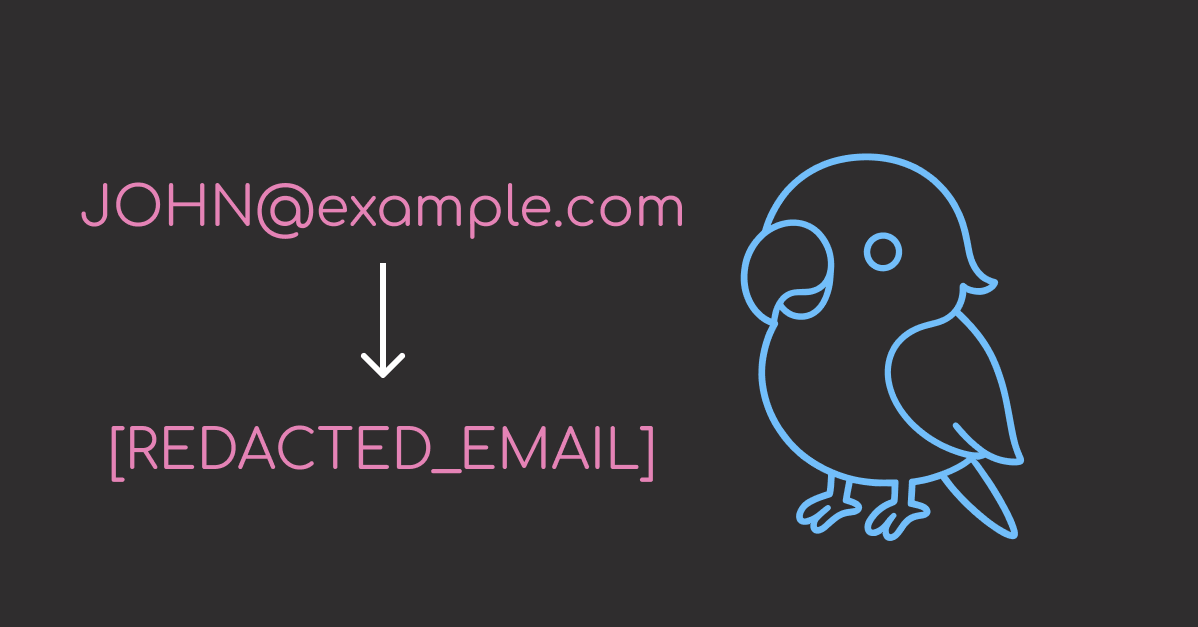
Email: Completely redacted to [REDACTED_EMAIL]
Phone: Masked to show only last 4 digits (****4567)
Account ID: Completely redacted to [REDACTED_ACCOUNT_ID]

Human-in-the-Loop
Autonomous agents can perform sensitive actions like processing refunds or modifying account settings. Executing these without human oversight creates risk of errors or abuse.
HumanInTheLoopMiddleware automates approval workflows by pausing execution and waiting for approval before proceeding:
from langchain.agents import create_agent
from langchain.agents.middleware import HumanInTheLoopMiddleware
from langchain_core.tools import tool
from langgraph.checkpoint.memory import MemorySaver

@tool
def process_refund(amount: float, reason: str) -> str:
"""Process a customer refund. Use this when a customer requests a refund."""
return f"Refund of ${amount} processed for reason: {reason}"

# Create memory checkpointer for state persistence
memory = MemorySaver()

agent = create_agent(
model="openai:gpt-4o",
tools=[process_refund],
middleware=[HumanInTheLoopMiddleware(interrupt_on={"process_refund": True})],
checkpointer=memory, # Required for state persistence
system_prompt="You are a customer support agent. Use the available tools to help customers. When a customer asks for a refund, use the process_refund tool.",
)

This configuration sets up an agent that:

Uses HumanInTheLoopMiddleware to pause execution before calling process_refund
Uses a checkpointer (MemorySaver) to save agent state during interruptions, allowing execution to resume after approval

Now let’s invoke the agent with a refund request:
# Agent pauses before executing sensitive tools
response = agent.invoke(
{"messages": [("user", "I need a refund of $100 for my damaged laptop")]},
config={"configurable": {"thread_id": "user-123"}},
)

The agent will pause when it tries to process the refund. To verify this happened, let’s define helper functions for interrupt detection.
def has_interrupt(response):
"""Check if response contains an interrupt."""
return "__interrupt__" in response

def display_action(action):
"""Display pending action details."""
print(f"Pending action: {action['name']}")
print(f"Arguments: {action['args']}")
print()

def get_user_approval():
"""Prompt user for approval and return decision."""
approval = input("Approve this action? (yes/no): ")
if approval.lower() == "yes":
print("✓ Action approved")
return True
else:
print("✗ Action rejected")
return False

Now use these helpers to check for interrupts and process approval:
if has_interrupt(response):
print("Execution interrupted – waiting for approval\n")

interrupts = response["__interrupt__"]
for interrupt in interrupts:
for action in interrupt.value["action_requests"]:
display_action(action)
approved = get_user_approval()

Output:
Execution interrupted – waiting for approval

Pending action: process_refund
Arguments: {'amount': 100, 'reason': 'Damaged Laptop'}

Approve this action? (yes/no): yes
✓ Action approved

The middleware successfully intercepted the process_refund tool call before execution, displaying all necessary details (action name and arguments) for human review. Only after explicit approval does the agent proceed with the sensitive operation.
Task Planning
Complex tasks like “refactor my codebase” or “analyze this dataset” require breaking down into smaller, manageable steps. Without explicit planning, agents often might jump between subtasks randomly or skip critical steps entirely.
TodoListMiddleware enables structured task management by:

Automatically providing a write_todos tool for task planning
Tracking completion status across multi-step workflows
Returning structured todo items in agent results

The benefits:

Better task decomposition through explicit step-by-step planning
Progress tracking to monitor complex workflow completion
Reduced errors from skipped or forgotten subtasks

Here’s how to enable planning for an agent:
from langchain.agents import create_agent
from langchain.agents.middleware import TodoListMiddleware
from langchain_core.tools import tool

@tool
def analyze_code(file_path: str) -> str:
"""Analyze code quality and find issues."""
return f"Analyzed {file_path}: Found 3 code smells, 2 security issues"

@tool
def refactor_code(file_path: str, changes: str) -> str:
"""Refactor code with specified changes."""
return f"Refactored {file_path}: {changes}"

agent = create_agent(
model="openai:gpt-4o",
tools=[analyze_code, refactor_code],
middleware=[TodoListMiddleware()]
)

This configuration automatically injects planning capabilities into the agent.
Now let’s ask the agent to perform a multi-step refactoring task:
from langchain_core.messages import HumanMessage

response = agent.invoke({
"messages": [HumanMessage("I need to refactor my authentication module. First analyze it, then suggest improvements, and finally implement the changes.")]
})

Check the agent’s todo list to see how it planned the work:
# Access the structured todo list from the response
if "todos" in response:
print("Agent's Task Plan:")
for i, todo in enumerate(response["todos"], 1):
status = todo.get("status", "pending")
print(f"{i}. [{status}] {todo['content']}")

Output:
Agent's Task Plan:
1. [in_progress] Analyze the authentication module code to identify quality issues and areas for improvement.
2. [pending] Suggest improvements based on the analysis of the authentication module.
3. [pending] Implement the suggested improvements in the authentication module code.

Nice! The agent automatically decomposed the multi-step refactoring request into 3 distinct tasks, with 1 in progress and 2 pending. This structured approach ensures systematic execution without skipping critical steps.
Intelligent Tool Selection
Agents with many tools (10+) face a scaling problem: sending all tool descriptions with every request wastes tokens and degrades performance. The model must process irrelevant options, increasing latency and cost.
LLMToolSelectorMiddleware solves this by using a smaller model to pre-filter relevant tools:

Uses a secondary LLM (separate from the main agent model) to pre-filter and limit tools sent to main model
Allows critical tools to always be included in selection
Analyzes queries to select only relevant tools

The benefits:

Lower costs from sending fewer tool descriptions per request
Faster responses with smaller tool context
Better accuracy when model isn’t distracted by irrelevant options

Let’s create an agent with many tools for a customer support scenario:
from langchain.agents import create_agent
from langchain.agents.middleware import LLMToolSelectorMiddleware
from langchain_core.tools import tool

# Define multiple tools for different support scenarios
@tool
def lookup_order(order_id: str) -> str:
"""Look up order details and shipping status."""
return f"Order {order_id}: Shipped on 2025-01-15"

@tool
def process_refund(order_id: str, amount: float) -> str:
"""Process a customer refund."""
return f"Refund of ${amount} processed for order {order_id}"

@tool
def check_inventory(product_id: str) -> str:
"""Check product inventory levels."""
return f"Product {product_id}: 42 units in stock"

@tool
def update_address(order_id: str, new_address: str) -> str:
"""Update shipping address for an order."""
return f"Address updated for order {order_id}"

@tool
def cancel_order(order_id: str) -> str:
"""Cancel an existing order."""
return f"Order {order_id} cancelled"

@tool
def track_shipment(tracking_number: str) -> str:
"""Track package location."""
return f"Package {tracking_number}: Out for delivery"

@tool
def apply_discount(order_id: str, code: str) -> str:
"""Apply discount code to order."""
return f"Discount {code} applied to order {order_id}"

@tool
def schedule_delivery(order_id: str, date: str) -> str:
"""Schedule delivery for specific date."""
return f"Delivery scheduled for {date}"

Configure the agent with intelligent tool selection:
agent = create_agent(
model="openai:gpt-4o",
tools=[
lookup_order, process_refund, check_inventory,
update_address, cancel_order, track_shipment,
apply_discount, schedule_delivery
],
middleware=[
LLMToolSelectorMiddleware(
model="openai:gpt-4o-mini", # Use cheaper model for selection
max_tools=3, # Limit to 3 most relevant tools
always_include=["lookup_order"], # Always include order lookup
)
]
)

This configuration creates an efficient filtering system:

model="openai:gpt-4o-mini" – Uses a smaller, faster model for tool selection
max_tools=3 – Limits to 3 most relevant tools per query
always_include=["lookup_order"] – Ensures order lookup is always available

Now test the agent with different customer requests:
First, define a helper function to display tool usage:
def show_tools_used(response):
"""Display which tools were called during agent execution."""
tools_used = []
for msg in response["messages"]:
if hasattr(msg, "tool_calls") and msg.tool_calls:
for tool_call in msg.tool_calls:
tools_used.append(tool_call["name"])

if tools_used:
print(f"Tools used: {', '.join(tools_used)}")
print(f"Response: {response['messages'][-1].content}\n")

Test with a package tracking query:
# Example 1: Package tracking query
response = agent.invoke({
"messages": [HumanMessage("Where is my package? Tracking number is 1Z999AA10123456784")]
})
show_tools_used(response)

Output:
Tools used: track_shipment
Response: Your package with tracking number 1Z999AA10123456784 is currently out for delivery.

Test with a refund request:
# Example 2: Refund request
response = agent.invoke({
"messages": [HumanMessage("I need a refund of $50 for order ORD-12345")]
})
show_tools_used(response)

Output:
Tools used: lookup_order, process_refund
Response: The refund of $50 for order ORD-12345 has been successfully processed.

Test with an inventory check:
# Example 3: Inventory check
response = agent.invoke({
"messages": [HumanMessage("Do you have product SKU-789 in stock?")]
})
show_tools_used(response)

Output:
Tools used: check_inventory
Response: Yes, we currently have 42 units of product SKU-789 in stock.

The middleware demonstrated precise tool selection across different query types:

track_shipment for tracking numbers
lookup_order + process_refund for refund requests
check_inventory for stock queries

Each request filtered out 5+ irrelevant tools, sending only what was needed to the main model.
Building a Production Agent with Multiple Middleware
Let’s combine three middleware components to build a production-ready customer support agent that handles a realistic scenario: a customer with a long conversation history requesting a refund and sharing their email address.
from langchain.agents import create_agent
from langchain.agents.middleware import (
SummarizationMiddleware,
PIIMiddleware,
HumanInTheLoopMiddleware
)
from langchain_core.tools import tool
from langgraph.checkpoint.memory import MemorySaver

@tool
def process_refund(amount: float, reason: str) -> str:
"""Process a customer refund."""
return f"Refund of ${amount} processed for reason: {reason}"

# Create agent with three middleware components
agent = create_agent(
model="openai:gpt-4o",
tools=[process_refund],
middleware=[
SummarizationMiddleware(
model="openai:gpt-4o-mini",
max_tokens_before_summary=400,
messages_to_keep=5
),
PIIMiddleware("email", strategy="redact", apply_to_input=True),
HumanInTheLoopMiddleware(interrupt_on={"process_refund": True})
],
checkpointer=MemorySaver()
)

Now test with a realistic customer interaction, processing each message to show how middleware handles them.
First, define a helper function to track middleware behavior using the helper functions defined earlier:
def process_message_with_tracking(agent, messages, thread_id, turn_num):
"""Process messages and show middleware behavior."""
print(f"\n— Turn {turn_num} —")
print(f"User: {messages[-1][1]}")

response = agent.invoke(
{"messages": messages},
config={"configurable": {"thread_id": thread_id}}
)

# Check for interrupts (human-in-the-loop)
if has_interrupt(response):
print("⏸ Execution paused for approval")
else:
# Show agent response
agent_message = response["messages"][-1].content
print(f"Agent: {agent_message}")

# Check for PII redaction
full_response = str(response["messages"])
if "[REDACTED_EMAIL]" in full_response:
print("🔒 PII detected and redacted")

return response

Now simulate a customer conversation that demonstrates all three middleware components:

Turns 1-3: Normal conversation flow about a damaged laptop
Turn 4: Customer shares email and asks for confirmation (tests PIIMiddleware redaction)
Turn 5: Customer requests $1200 refund (triggers HumanInTheLoopMiddleware approval)

messages = []

# Turn 1: Initial complaint
messages.append(("user", "I ordered a laptop but it arrived damaged."))
process_message_with_tracking(agent, messages, "customer-456", 1)

# Turn 2: Additional details
messages.append(("user", "I already tried troubleshooting but it won't turn on."))
process_message_with_tracking(agent, messages, "customer-456", 2)

# Turn 3: More context
messages.append(("user", "The screen is cracked and there's a dent on the corner."))
process_message_with_tracking(agent, messages, "customer-456", 3)

# Turn 4: PII exposure – test if middleware hides email from model
messages.append(("user", "My email is customer@example.com. Can you confirm my email address?"))
response = process_message_with_tracking(agent, messages, "customer-456", 4)

# Turn 5: Sensitive action request – triggers human approval
messages.append(("user", "Can I get a full refund of $1200?"))
response = process_message_with_tracking(agent, messages, "customer-456", 5)

# If interrupted, show approval flow
if has_interrupt(response):
interrupts = response["__interrupt__"]
for interrupt in interrupts:
for action in interrupt.value["action_requests"]:
display_action(action)
approved = get_user_approval()

Output:
— Turn 1 —
User: I ordered a laptop but it arrived damaged.
Agent: I'm sorry to hear that your laptop arrived damaged. To resolve this issue, I can assist you in processing a refund. Could you please provide the amount of the purchase and any specific reason you would like to include for the refund?

— Turn 2 —
User: I already tried troubleshooting but it won't turn on.
Agent: Thank you for sharing that information. I'll proceed with processing a refund for the damaged laptop. Could you please provide the purchase amount, so I can include it in the refund request?

— Turn 3 —
User: The screen is cracked and there's a dent on the corner.
Agent: I'm sorry to hear about the condition of your laptop. I will help you process a refund. Could you please let me know the purchase amount, so I can proceed with the refund request?

— Turn 4 —
User: My email is customer@example.com. Can you confirm my email address?
Agent: I'm sorry, but I'm unable to confirm or access email addresses for privacy and security reasons. However, I can assist you with processing a refund. Could you please provide the amount you paid for the laptop so that I can proceed with the refund request?
🔒 PII detected and redacted

— Turn 5 —
User: Can I get a full refund of $1200?
⏸ Execution paused for approval

Pending action: process_refund
Arguments: {'amount': 1200, 'reason': 'Laptop arrived damaged with a cracked screen and dent on the corner, and it will not turn on after troubleshooting.'}

Approve this action? (yes/no): yes
✓ Action approved

The output demonstrates proper security controls:

Turn 4: Agent states it “cannot confirm or access email addresses,” confirming PIIMiddleware successfully redacted customer@example.com to [REDACTED_EMAIL]
Email protection: Model never saw the actual address, preventing data leaks or logging
Refund approval: $1200 transaction didn’t execute until human approval was granted

For coordinating multiple agents with shared state and workflows, explore our LangGraph tutorial.

Final Thoughts
Building production LLM agents with LangChain 1.0 middleware requires minimal infrastructure code. Each component handles one concern: managing context windows, protecting sensitive data, controlling execution flow, or structuring complex tasks.
The best approach is incremental. Add one middleware at a time, test its behavior, then combine it with others. This modular design lets you start simple and expand as your agent’s requirements evolve.
Related Tutorials

Structured Outputs: Enforce Structured Outputs from LLMs with PydanticAI for type-safe agent responses
RAG Implementation: Build a Complete RAG System with 5 Open-Source Tools for question-answering agents
Vector Storage: Implement Semantic Search in Postgres Using pgvector and Ollama for production-grade embedding storage

📚 Want to go deeper? Learning new techniques is the easy part. Knowing how to structure, test, and deploy them is what separates side projects from real work. My book shows you how to build data science projects that actually make it to production. Get the book →

Favorite

Build Production-Ready LLM Agents with LangChain 1.0 Middleware Read More »

Choose the Right Text Pattern Tool: Regex, Pregex, or Pyparsing

Table of Contents

Introduction
Dataset Generation
Simple Regex: Basic Pattern Extraction
pregex: Build Readable Patterns
pyparsing: Parse Structured Ticket Headers
Conclusion

Introduction
Imagine you’re analyzing customer support tickets to extract contact information and error details. Tickets contain customer messages with email addresses in various formats, phone numbers with inconsistent formatting (some (555) 123-4567, others 555-123-4567).

ticket_id
message

0
Contact me at nichole70@kemp.com or (798)034-325 to resolve this issue.

1
You can reach me by phone (970-295-1452) or email (russellbrandon@simon-rogers.org) anytime.

2
My contact details: ehamilton@silva.io and 242 844 7293.

3
Feel free to call 901.794.1337 or email ogarcia@howell-chavez.net for assistance.

How do you extract the email addresses and phone numbers from the tickets?
This article shows three approaches to text pattern matching: regex, pregex, and pyparsing.
Key Takeaways
Here’s what you’ll learn:

Understand when regex patterns are sufficient and when they fall short
Write maintainable text extraction code using pregex’s readable components
Parse structured text with inconsistent formatting using pyparsing

💻 Get the Code: The complete source code and Jupyter notebook for this tutorial are available on GitHub. Clone it to follow along!

Dataset Generation
Let’s create sample datasets that will be used throughout the article. We’ll generate customer support ticket data using the Faker library:
Install Faker:
pip install faker

First, let’s generate customer support tickets with simple contact information:
from faker import Faker
import csv
import pandas as pd
import random

fake = Faker()
Faker.seed(40)

# Define phone patterns
phone_patterns = ["(###)###-####", "###-###-####", "### ### ####", "###.###.####"]

# Define email TLDs
email_tlds = [".com", ".org", ".io", ".net"]

# Generate phone numbers and emails
phones = []
emails = []

for i in range(4):
# Generate phone with specific pattern
phone = fake.numerify(text=phone_patterns[i])
phones.append(phone)

# Generate email with specific TLD
email = fake.user_name() + "@" + fake.domain_word() + email_tlds[i]
emails.append(email)

# Define sentence structures
sentence_structures = [
lambda p, e: f"Contact me at {e} or {p} to resolve this issue.",
lambda p, e: f"You can reach me by phone ({p}) or email ({e}) anytime.",
lambda p, e: f"My contact details: {e} and {p}.",
lambda p, e: f"Feel free to call {p} or email {e} for assistance."
]

# Create CSV with 4 rows
with open("data/tickets.csv", "w", newline="") as f:
writer = csv.writer(f)
writer.writerow(["ticket_id", "message"])

for i in range(4):
message = sentence_structures[i](phones[i], emails[i])
writer.writerow([i, message])

Set the display option to show the full width of the columns:
pd.set_option("display.max_colwidth", None)

Load and preview the tickets dataset:
df_tickets = pd.read_csv("data/tickets.csv")
df_tickets.head()

ticket_id
message

0
Contact me at nichole70@kemp.com or (798)034-325 to resolve this issue.

1
You can reach me by phone (970-295-1452) or email (russellbrandon@simon-rogers.org) anytime.

2
My contact details: ehamilton@silva.io and 242 844 7293.

3
Feel free to call 901.794.1337 or email ogarcia@howell-chavez.net for assistance.

Simple Regex: Basic Pattern Extraction
Regular expressions (regex) are patterns that match text based on rules. They excel at finding structured data like emails, phone numbers, and dates in unstructured text.
Extract Email Addresses
Start with a simple pattern that matches basic email formats, including:

Username: [a-z]+ – One or more lowercase letters (e.g. maria95)
Separator: @ – Literal @ symbol
Domain: [a-z]+ – One or more lowercase letters (e.g. gmail or outlook)
Dot: \. – Literal dot (escaped)
Extension: (?:org|net|com|io) – Match specific extensions (e.g. .com, .org, .io, .net)

import re

# Match basic email format: letters@domain.extension
email_pattern = r'[a-z]+@[a-z]+\.(?:org|net|com|io)'

df_tickets['emails'] = df_tickets['message'].apply(
lambda x: re.findall(email_pattern, x)
)

df_tickets[['message', 'emails']].head()

message
emails

0
Contact me at nichole70@kemp.com or (798)034-325 to resolve this issue.

1
You can reach me by phone (970-295-1452) or email (russellbrandon@simon-rogers.org) anytime.

2
My contact details: ehamilton@silva.io and 242 844 7293.

3
Feel free to call 901.794.1337 or email ogarcia@howell-chavez.net for assistance.

This pattern works for simple emails but misses variations with:

Other characters in the username such as numbers, dots, underscores, plus signs, or hyphens
Other characters in the domain such as numbers, dots, or hyphens
Other extensions that are not .com, .org, .io, or .net

Let’s expand the pattern to handle more formats:
# Handle emails with numbers, dots, underscores, hyphens, plus signs
improved_email = r'[a-zA-Z0-9._%+-]+@[a-zA-Z0-9.-]+\.[a-zA-Z]{2,}'

df_tickets['emails_improved'] = df_tickets['message'].apply(
lambda x: re.findall(improved_email, x)
)

df_tickets[['message', 'emails_improved']].head()

message
emails_improved

0
Contact me at nichole70@kemp.com or (798)034-325 to resolve this issue.

1
You can reach me by phone (970-295-1452) or email (russellbrandon@simon-rogers.org) anytime.

2
My contact details: ehamilton@silva.io and 242 844 7293.

3
Feel free to call 901.794.1337 or email ogarcia@howell-chavez.net for assistance.

The improved pattern successfully extracts all emails from the tickets! Let’s move on to extracting phone numbers.
Extract Phone Numbers
Common phone number formats are:

(XXX)XXX-XXXX – With parentheses
XXX-XXX-XXXX – Without parentheses
XXX XXX XXXX – With spaces
XXX.XXX.XXXX – With dots

To handle all four phone formats, we can use the following pattern:

\(? – Optional opening parenthesis
\d{3} – Exactly 3 digits (area code)
[-.\s]? – Optional hyphen, dot, or space
\)? – Optional closing parenthesis
\d{3} – Exactly 3 digits (prefix)
[-.\s]? – Optional hyphen, dot, or space
\d{3,4} – Exactly 3 or 4 digits

# Define phone pattern
phone_pattern = r'\(?\d{3}\)?[-.\s]?\d{3}[-.\s]\d{4}'

df_tickets['phones'] = df_tickets['message'].apply(
lambda x: re.findall(phone_pattern, x)
)

df_tickets[['message', 'phones']].head()

message
phones

0
Contact me at hfuentes@anderson.com or (798)034-3254 to resolve this issue.

1
You can reach me by phone (702-951-4528) or email (russellbrandon@simon-rogers.org) anytime.

2
My contact details: ehamilton@silva.io and 242 844 7293.

3
Feel free to call 901.794.1337 or email ogarcia@howell-chavez.net for assistance.

Awesome! We are able to extract all phone numbers from the tickets!
While these patterns works, they are difficult to understand and modify for someone who is not familiar with regex.

📖 Readable code reduces maintenance burden and improves team productivity. Check out Production-Ready Data Science for detailed guidance on writing production-quality code.

In the next section, we will use pregex to build more readable patterns.
pregex: Build Readable Patterns
pregex is a Python library that lets you build regex patterns using readable Python syntax instead of regex symbols. It breaks complex patterns into self-documenting components that clearly express validation logic.
Install pregex:
pip install pregex

Extract Email Addresses
Let’s extract emails using pregex’s readable components.
In the code, we will use the following components:

Username: OneOrMore(AnyButWhitespace()) – Any letters but whitespace (maria95)
Separator: @ – Literal @ symbol
Domain name: OneOrMore(AnyButWhitespace()) – Any letters but whitespace (gmail or outlook)
Extension: Either(".com", ".org", ".io", ".net") – Match specific extensions (.com, .org, .io, .net)

from pregex.core.classes import AnyButWhitespace
from pregex.core.quantifiers import OneOrMore
from pregex.core.operators import Either

username = OneOrMore(AnyButWhitespace())
at_symbol = "@"
domain_name = OneOrMore(AnyButWhitespace())
extension = Either(".com", ".org", ".io", ".net")

email_pattern = username + at_symbol + domain_name + extension

# Extract emails
df_tickets["emails_pregex"] = df_tickets["message"].apply(
lambda x: email_pattern.get_matches(x)
)

df_tickets[["message", "emails_pregex"]].head()

message
emails_pregex

0
Contact me at hfuentes@anderson.com or (798)034-3254 to resolve this issue.
[hfuentes@anderson.com]

1
You can reach me by phone (702-951-4528) or email (russellbrandon@simon-rogers.org) anytime.
[(russellbrandon@simon-rogers.org]

2
My contact details: ehamilton@silva.io and 242 844 7293.
[ehamilton@silva.io]

3
Feel free to call 901.794.1337 or email ogarcia@howell-chavez.net for assistance.
[ogarcia@howell-chavez.net]

The output shows that we are able to extract the emails from the tickets!
pregex transforms pattern matching from symbol decoding into readable code. OneOrMore(username_chars) communicates intent more clearly than [a-zA-Z0-9._%+-]+, reducing the time teammates spend understanding and modifying validation logic.
Extract Phone Numbers
Now extract phone numbers with multiple components:

First three digits: Optional("(") + Exactly(AnyDigit(), 3) + Optional(")")
Separator: Either(" ", "-", ".")
Second three digits: Exactly(AnyDigit(), 3)
Last four digits: Exactly(AnyDigit(), 4)

from pregex.core.classes import AnyDigit
from pregex.core.quantifiers import Optional, Exactly
from pregex.core.operators import Either

# Build phone pattern using pregex
first_three = Optional("(") + Exactly(AnyDigit(), 3) + Optional(")")
separator = Either(" ", "-", ".")
second_three = Exactly(AnyDigit(), 3)
last_four = Exactly(AnyDigit(), 4)

phone_pattern = first_three + Optional(separator) + second_three + separator + last_four

# Extract phone numbers
df_tickets['phones_pregex'] = df_tickets['message'].apply(
lambda x: phone_pattern.get_matches(x)
)

df_tickets[['message', 'phones_pregex']].head()

message
phones_pregex

0
Contact me at hfuentes@anderson.com or (798)034-3254 to resolve this issue.
[(798)034-3254]

1
You can reach me by phone (702-951-4528) or email (russellbrandon@simon-rogers.org) anytime.
[(702-951-4528]

2
My contact details: ehamilton@silva.io and 242 844 7293.
[242 844 7293]

3
Feel free to call 901.794.1337 or email ogarcia@howell-chavez.net for assistance.
[901.794.1337]

If your system requires the raw regex pattern, you can get it with get_compiled_pattern():
print("Compiled email pattern:", email_pattern.get_compiled_pattern().pattern)
print("Compiled phone pattern:", phone_pattern.get_compiled_pattern().pattern)

Compiled email pattern: \S+@\S+(?:\.com|\.org|\.io|\.net)
Compiled phone pattern: \(?\d{3}\)?(?: |-|\.)?\d{3}(?: |-|\.)\d{4}

For more pregex examples including URLs and time patterns, see PRegEx: Write Human-Readable Regular Expressions in Python.

Parse Structured Ticket Headers
Now let’s tackle a more complex task: parsing structured ticket headers that contain multiple fields:
Ticket: 1000 | Priority: High | Assigned: John Doe # escalated

We will use Capture to extract just the values we need from each ticket:
from pregex.core.quantifiers import OneOrMore
from pregex.core.classes import AnyDigit, AnyLetter, AnyWhitespace
from pregex.core.groups import Capture

sample_ticket = "Ticket: 1000 | Priority: High | Assigned: John Doe # escalated"

# Define patterns with Capture to extract just the values
whitespace = AnyWhitespace()
ticket_id_pattern = "Ticket:" + whitespace + Capture(OneOrMore(AnyDigit()))
priority_pattern = "Priority:" + whitespace + Capture(OneOrMore(AnyLetter()))
name_pattern = (
"Assigned:"
+ whitespace
+ Capture(OneOrMore(AnyLetter()) + " " + OneOrMore(AnyLetter()))
)

# Define separator pattern (whitespace around pipe)
separator = whitespace + "|" + whitespace

# Combine all patterns with separators
ticket_pattern = (
ticket_id_pattern
+ separator
+ priority_pattern
+ separator
+ name_pattern
)
“`text
Next, define a function to extract the ticket components from the captured components:

“`python
def get_ticket_components(ticket_string, ticket_pattern):
"""Extract ticket components from a ticket string."""
try:
captures = ticket_pattern.get_captures(ticket_string)[0]
return pd.Series(
{
"ticket_id": captures[0],
"priority": captures[1],
"assigned": captures[2],
}
)
except IndexError:
return pd.Series(
{"ticket_id": None, "priority": None, "assigned": None}
)

Apply the function with the pattern defined above to the sample ticket.

components = get_ticket_components(sample_ticket, ticket_pattern)
print(components.to_dict())

{'ticket_id': '1000', 'priority': 'High', 'assigned': 'John Doe'}

This looks good! Let’s apply to ticket headers with inconsistent whitespace around the separators. Start by creating the dataset:
import pandas as pd

# Create tickets with embedded comments and variable whitespace
tickets = [
"Ticket: 1000 | Priority: High | Assigned: John Doe # escalated",
"Ticket: 1001 | Priority: Medium | Assigned: Maria Garcia # team lead",
"Ticket:1002| Priority:Low |Assigned:Alice Smith # non-urgent",
"Ticket: 1003 | Priority: High | Assigned: Bob Johnson # on-call"
]

df_tickets = pd.DataFrame({'ticket': tickets})
df_tickets.head()

ticket

0

1

2

3

# Extract individual components using the function
df_pregex = df_tickets.copy()
components_df = df_pregex["ticket"].apply(get_ticket_components, ticket_pattern=ticket_pattern)

df_pregex = df_pregex.assign(**components_df)

df_pregex[["ticket_id", "priority", "assigned"]].head()

ticket_id
priority
assigned

0
1000
High
John Doe

1
None
None
None

2
None
None
None

3
1003
High
Bob Johnson

We can see that pregex misses Tickets 1 and 2 because AnyWhitespace() only matches a single space, while those rows use inconsistent spacing around the separators.
Making pregex patterns flexible enough for variable formatting requires adding optional quantifiers to the whitespace pattern so that it can match zero or more spaces around the separators.
As these fixes accumulate, pregex’s readability advantage diminishes, and you end up with code that’s as hard to understand as raw regex but more verbose.
When parsing structured data with consistent patterns but varying details, pyparsing provides more robust handling than regex.
pyparsing: Parse Structured Ticket Headers
Unlike regex’s pattern matching approach, pyparsing lets you define grammar rules using Python classes, making parsing logic explicit and maintainable.
Install pyparsing:
pip install pyparsing

Let’s parse the complete structure with pyparsing, including:

Ticket ID: Word(nums) – One or more digits (e.g. 1000)
Priority: Word(alphas) – One or more letters (e.g. High)
Name: Word(alphas) + Word(alphas) – First and last name (e.g. John Doe)

We will also use the pythonStyleComment to ignore Python-style comments throughout parsing.
from pyparsing import Word, alphas, nums, Literal, pythonStyleComment

# Define grammar components
ticket_num = Word(nums)
priority = Word(alphas)
name = Word(alphas) + Word(alphas)

# Define complete structure
ticket_grammar = (
"Ticket:"
+ ticket_num
+ "|"
+ "Priority:"
+ priority
+ "|"
+ "Assigned:"
+ name
)

# Automatically ignore Python-style comments throughout parsing
ticket_grammar.ignore(pythonStyleComment)

sample_ticket = "Ticket: 1000 | Priority: High | Assigned: John Doe # escalated"
sample_result = ticket_grammar.parse_string(sample_ticket)
print(sample_result)

['Ticket:', '1000', '|', 'Priority:', 'High', '|', 'Assigned:', 'John', 'Doe']

Awesome! We are able to extract the ticket components from the ticket with a much simpler pattern!
Compare this to the pregex implementation:
ticket_pattern = (
"Ticket:" + whitespace + Capture(OneOrMore(AnyDigit()))
+ whitespace + "|" + whitespace
+ "Priority:" + whitespace + Capture(OneOrMore(AnyLetter()))
+ whitespace + "|" + whitespace
+ "Assigned:"
+ whitespace
+ Capture(OneOrMore(AnyLetter()) + " " + OneOrMore(AnyLetter()))
)

We can see that pyparsing handles structured data better than pregex for the following reasons:

No whitespace boilerplate: pyparsing handles spacing automatically while pregex requires + whitespace + between every component
Self-documenting: Word(alphas) clearly means “letters” while pregex’s nested Capture(OneOrMore(AnyLetter())) is less readable

To extract ticket components, assign names using () syntax and access them via dot notation:
# Define complete structure
ticket_grammar = (
"Ticket:"
+ ticket_num("ticket_id")
+ "|"
+ "Priority:"
+ priority("priority")
+ "|"
+ "Assigned:"
+ name("assigned")
)

# Automatically ignore Python-style comments throughout parsing
ticket_grammar.ignore(pythonStyleComment)

sample_ticket = "Ticket: 1000 | Priority: High | Assigned: John Doe # escalated"
sample_result = ticket_grammar.parse_string(sample_ticket)

# Access the components by name
print(
f"Ticket ID: {sample_result.ticket_id}",
f"Priority: {sample_result.priority}",
f"Assigned: {' '.join(sample_result.assigned)}",
)

Ticket ID: 1000 Priority: High Assigned: John Doe

Let’s apply this to the entire dataset.
# Parse all tickets and create columns
def parse_ticket(ticket, ticket_grammar):
result = ticket_grammar.parse_string(ticket)
return pd.Series(
{
"ticket_id": result.ticket_id,
"priority": result.priority,
"assigned": " ".join(result.assigned),
}
)

df_pyparsing = df_tickets.copy()
components_df_pyparsing = df_pyparsing["ticket"].apply(parse_ticket, ticket_grammar=ticket_grammar)
df_pyparsing = df_pyparsing.assign(**components_df_pyparsing)

df_pyparsing[["ticket_id", "priority", "assigned"]].head()

ticket_id
priority
assigned

0
1000
High
John Doe

1
1001
Medium
Maria Garcia

2
1002
Low
Alice Smith

3
1003
High
Bob Johnson

The output looks good!
Let’s try to parse some more structured data with pyparsing.
Extract Code Blocks from Markdown
Use SkipTo to extract Python code between code block markers without complex regex patterns like r'“`python(.*?)“`':
from pyparsing import Literal, SkipTo

code_start = Literal("“`python")
code_end = Literal("“`")

code_block = code_start + SkipTo(code_end)("code") + code_end

markdown = """“`python
def hello():
print("world")
“`"""

result = code_block.parse_string(markdown)
print(result.code)

def hello():
print("world")

Parse Nested Structures
nested_expr handles arbitrary nesting depth, which regex fundamentally cannot parse:
from pyparsing import nested_expr

# Default: parentheses
nested_list = nested_expr()
result = nested_list.parse_string("((2 + 3) * (4 – 1))")
print(result.as_list())

[[['2', '+', '3'], '*', ['4', '-', '1']]]

Conclusion
So how do you know when to use each tool? Choose your tool based on your needs:
Use simple regex when:

Extracting simple, well-defined patterns (emails, phone numbers with consistent format)
Pattern won’t need frequent modifications

Use pregex when:

Pattern has multiple variations (different phone number formats)
Need to document pattern logic through readable code

Use pyparsing when:

Need to extract multiple fields from structured text (ticket headers, configuration files)
Must handle variable formatting (inconsistent whitespace, embedded comments)

In summary, start with simple regex, adopt pregex when readability matters, and switch to pyparsing when structure becomes complex.
Related Tutorials
Here are some related text processing tools:

Text similarity matching: 4 Text Similarity Tools: When Regex Isn’t Enough compares regex preprocessing, difflib, RapidFuzz, and Sentence Transformers for matching product names and handling data variations
Business entity extraction: langextract vs spaCy: AI-Powered vs Rule-Based Entity Extraction evaluates regex, spaCy, GLiNER, and langextract for extracting structured information from financial documents

📚 Want to go deeper? Learning new techniques is the easy part. Knowing how to structure, test, and deploy them is what separates side projects from real work. My book shows you how to build data science projects that actually make it to production. Get the book →

Favorite

Choose the Right Text Pattern Tool: Regex, Pregex, or Pyparsing Read More »

Hacker News Semantic Search: Production RAG with CloudQuery and Postgres

Table of Contents

Introduction
Introduction to CloudQuery
Install CloudQuery and Prepare PostgreSQL
Sync Hacker News to PostgreSQL
Add pgvector Embeddings
Semantic Search with LangChain Postgres
Other CloudQuery Features
What You’ve Built

Introduction
Building RAG pipelines typically involves moving data from APIs to vector stores, which can be complicated and diverts AI engineers from their core work of building intelligent applications. Teams spend weeks debugging connection timeouts and API failures instead of improving model performance.
CloudQuery eliminates this complexity so AI teams can spend time building intelligent applications instead of debugging data pipelines. The same RAG pipeline that takes weeks to build and maintain with custom code becomes a 10-line YAML configuration that runs reliably in production.
This guide demonstrates how to replace custom Python scripts with CloudQuery’s declarative YAML configuration to build production-ready RAG pipelines with pgvector integration.
Key Takeaways
Here’s what you’ll learn:

Configure CloudQuery to sync Hacker News stories and generate OpenAI embeddings in a single YAML workflow
Set up pgvector extension in PostgreSQL for storing 1536-dimensional vectors with automatic indexing
Query semantic similarities using LangChain Postgres similarity_search across embedded content chunks
Leverage CloudQuery’s write modes, batching, and time-based incremental syncing for production deployments

Introduction to CloudQuery
CloudQuery operates as a high-performance data movement framework with intelligent batching, state persistence, and automatic error recovery. Its plugin ecosystem includes 100+ source connectors and supports advanced features like pgvector integration for AI applications.
Key features:

10x Faster Development: Configure complex data pipelines in minutes with pre-built connectors for AWS, GCP, Azure, and 100+ SaaS platforms instead of months of custom code
Production Data Management: Sync state persistence with resume capability, incremental processing for delta detection, and automatic schema evolution eliminate manual maintenance
Built-in Data Governance: Native transformers for column obfuscation, PII removal, and data cleaning ensure compliance without custom code
Optimized Resource Usage: Intelligent batching (100MB default), connection pooling, and adaptive scheduling maximize database performance while respecting API limits
Built for Modern AI: Native pgvector integration with automated text splitting, embedding generation, and semantic indexing for production RAG applications

Install CloudQuery and Prepare PostgreSQL
To install CloudQuery, run the following command:
# macOS
brew install cloudquery/tap/cloudquery

# or download a release (Linux example)
curl -L https://github.com/cloudquery/cloudquery/releases/download/cli-v6.29.2/cloudquery_linux_amd64 -o cloudquery
chmod +x cloudquery

For other installation methods (Windows, Docker, or package managers), visit the CloudQuery installation guide.
Create a database that will be used for this tutorial:
createdb cloudquery

Export the credentials that will be used for the later steps:
export POSTGRESQL_CONNECTION_STRING="postgresql://user:pass@localhost:5432/database"
export OPENAI_API_KEY=sk-…

Here are how to get the credentials:

PostgreSQL: Replace user:pass@localhost:5432/database with your actual database connection details
OpenAI API Key: Get your API key from the OpenAI platform

Sync Hacker News to PostgreSQL
To sync Hacker News to PostgreSQL, start by authenticating with CloudQuery Hub:
cloudquery login

Then run the following command to create a YAML file that syncs Hacker News to PostgreSQL:
cloudquery init –source hackernews –destination postgresql

This command will create a YAML file called hackernews_to_postgresql.yaml:
kind: source
spec:
name: "hackernews"
path: "cloudquery/hackernews"
registry: "cloudquery"
version: "v3.8.2"
tables: ["*"]
backend_options:
table_name: "cq_state_hackernews"
connection: "@@plugins.postgresql.connection"
destinations:
– "postgresql"
spec:
item_concurrency: 100
start_time: 3 hours ago

kind: destination
spec:
name: "postgresql"
path: "cloudquery/postgresql"
registry: "cloudquery"
version: "v8.12.1"
write_mode: "overwrite-delete-stale"
spec:
connection_string: "${POSTGRESQL_CONNECTION_STRING}"

We can now sync the Hacker News data to PostgreSQL by running the following command:
cloudquery sync hackernews_to_postgresql.yaml

Output:
Loading spec(s) from hackernews_to_postgresql.yaml
Starting sync for: hackernews (cloudquery/hackernews@v3.8.2) -> [postgresql (cloudquery/postgresql@v8.12.1)]
Sync completed successfully. Resources: 9168, Errors: 0, Warnings: 0, Time: 26s

Let’s check if the data was ingested successfully by connecting to the CloudQuery database:
psql -U postgres -d cloudquery

Then inspect the available tables:
\dt

Schema | Name | Type | Owner
——–+—————————–+——-+————
public | cq_state_hackernews | table | khuyentran
public | hackernews_items | table | khuyentran

CloudQuery automatically creates two tables:

cq_state_hackernews: tracks sync state for incremental updates
hackernews_items: contains the actual Hacker News data

View the schema of the hackernews_items table:
\d hackernews_items

Output:
Table "public.hackernews_items"
Column | Type | Collation | Nullable | Default
—————–+—————————–+———–+———-+———
_cq_sync_time | timestamp without time zone | | |
_cq_source_name | text | | |
_cq_id | uuid | | not null |
_cq_parent_id | uuid | | |
id | bigint | | not null |
deleted | boolean | | |
type | text | | |
by | text | | |
time | timestamp without time zone | | |
text | text | | |
dead | boolean | | |
parent | bigint | | |
kids | bigint[] | | |
url | text | | |
score | bigint | | |
title | text | | |
parts | bigint[] | | |
descendants | bigint | | |

Check the first 5 rows with type story:
SELECT id, type, score, title FROM hackernews_items WHERE type='story' LIMIT 5;

id | type | score | title
———-+——-+——-+———————————————————————–
45316982 | story | 3 | Ask HN: Why don't Americans hire human assistants for everyday tasks?
45317015 | story | 2 | Streaming Live: San Francisco Low Riders Festival
45316989 | story | 1 | The Collapse of Coliving Operators, and Why the Solution Is Upstream
45317092 | story | 0 |
45317108 | story | 1 | Patrick McGovern was the maven of ancient tipples

Add pgvector Embeddings
pgvector is a PostgreSQL extension that adds vector similarity search capabilities, perfect for RAG applications. For a complete guide on implementing RAG with pgvector, see our semantic search tutorial.
CloudQuery provides built-in pgvector support, automatically generating embeddings alongside your data sync. First, enable the pgvector extension in PostgreSQL:
psql -d cloudquery -c "CREATE EXTENSION IF NOT EXISTS vector;"

Now add the pgvector configuration to the hackernews_to_postgresql.yaml:
kind: source
spec:
name: "hackernews"
path: "cloudquery/hackernews"
registry: "cloudquery"
version: "v3.8.2"
tables: ["*"]
backend_options:
table_name: "cq_state_hackernews"
connection: "@@plugins.postgresql.connection"
destinations:
– "postgresql"
spec:
item_concurrency: 100
start_time: 3 hours ago

kind: destination
spec:
name: "postgresql"
path: "cloudquery/postgresql"
registry: "cloudquery"
version: "v8.12.1"
write_mode: "overwrite-delete-stale"
spec:
connection_string: "${POSTGRESQL_CONNECTION_STRING}"

pgvector_config:
tables:
– source_table_name: "hackernews_items"
target_table_name: "hackernews_items_embeddings"
embed_columns: ["title"]
metadata_columns: ["id", "type", "url", "by"]
filter_condition: "type = 'story' AND title IS NOT NULL AND title != ''"
text_splitter:
recursive_text:
chunk_size: 200
chunk_overlap: 0
openai_embedding:
api_key: "${OPENAI_API_KEY}"
model_name: "text-embedding-3-small"
dimensions: 1536

Explanation of pgvector configuration:

source_table_name: The original CloudQuery table to read data from
target_table_name: New table where embeddings and metadata will be stored
embed_columns: Which columns to convert into vector embeddings (only non-empty text is processed)
metadata_columns: Additional columns to preserve alongside embeddings for filtering and context
filter_condition: SQL WHERE clause to only embed specific rows (stories with non-empty titles)
chunk_size: Maximum characters per text chunk (short titles become single chunks)
chunk_overlap: Overlapping characters between chunks to preserve context across boundaries
model_name: OpenAI embedding model (text-embedding-3-small offers 5x cost savings vs ada-002)

Since we’ve already synced the data, let’s clean up the existing tables before running the sync again:
psql -U postgres -d cloudquery -c 'DROP TABLE IF EXISTS cq_state_hackernews'

Run the enhanced sync:
cloudquery sync hackernews_to_postgresql.yaml

CloudQuery now produces an embeddings table alongside the source data:
psql -U postgres -d cloudquery

List the available tables:
\dt

Output:
Schema | Name | Type | Owner
——–+—————————–+——-+————
public | cq_state_hackernews | table | khuyentran
public | hackernews_items | table | khuyentran
public | hackernews_items_embeddings | table | khuyentran

Inspect the embeddings table structure:
— Check table structure and vector dimensions
\d hackernews_items_embeddings;

Output:
cloudquery=# \d hackernews_items_embeddings;
Table "public.hackernews_items_embeddings"
Column | Type | Collation | Nullable | Default
—————+—————————–+———–+———-+———
_cq_id | uuid | | |
id | bigint | | not null |
type | text | | |
url | text | | |
_cq_sync_time | timestamp without time zone | | |
chunk | text | | |
embedding | vector(1536) | | |

Sample a few records to see the data:
— Sample a few records to see the data
SELECT id, type, url, by, chunk
FROM hackernews_items_embeddings
LIMIT 5;

Output:
type | by | chunk
——-+—————–+——————————————————–
story | Kaibeezy | Autonomous Airport Ground Support Equipment
story | drankl | Dining across the divide: 'We disagreed on…
story | wjSgoWPm5bWAhXB | World's First AI-designed viruses a step towards…
story | Brajeshwar | Banned in the U.S. and Europe, Huawei aims for…
story | danielfalbo | Zig Z-ant: run ML models on microcontrollers

Check for NULL embeddings:
SELECT COUNT(*) as rows_without_embeddings
FROM hackernews_items_embeddings
WHERE embedding IS NULL;

Output:
rows_without_embeddings
———————-
0

Great! There is no NULL embeddings.
Check the chunk sizes and content distribution:
— Check chunk sizes and content distribution
SELECT
type,
COUNT(*) as count,
AVG(LENGTH(chunk)) as avg_chunk_length,
MIN(LENGTH(chunk)) as min_chunk_length,
MAX(LENGTH(chunk)) as max_chunk_length
FROM hackernews_items_embeddings
GROUP BY type;

Output:
type | count | avg_chunk_length | min_chunk_length | max_chunk_length
——-+——-+———————+——————+——————
story | 695 | 52.1366906474820144 | 4 | 86

The 52-character average chunk length confirms that most Hacker News titles fit comfortably within the configured 200-character chunk_size limit, validating the text splitter settings.
Semantic Search with LangChain Postgres
Now that we have embeddings stored in PostgreSQL, let’s use LangChain Postgres to handle vector operations.
Start with installing the necessary packages:
pip install langchain-postgres langchain-openai psycopg[binary] greenlet

Next, set up the embedding service that will convert text queries into vector representations for similarity matching. In this example, we’ll use the OpenAI embedding model.
import os
from langchain_postgres import PGEngine, PGVectorStore
from langchain_openai import OpenAIEmbeddings

# Initialize embeddings (requires OPENAI_API_KEY environment variable)
embeddings = OpenAIEmbeddings(
model="text-embedding-3-small",
openai_api_key=os.getenv("OPENAI_API_KEY")
)

Connect to the hackernews_items_embeddings table generated by CloudQuery containing the pre-computed embeddings.
# Initialize connection engine
CONNECTION_STRING = "postgresql+asyncpg://khuyentran@localhost:5432/cloudquery"
engine = PGEngine.from_connection_string(url=CONNECTION_STRING)

# Connect to existing CloudQuery vector store table
vectorstore = PGVectorStore.create_sync(
engine=engine,
table_name="hackernews_items_embeddings",
embedding_service=embeddings,
content_column="chunk",
embedding_column="embedding",
id_column="id", # Map to CloudQuery's id column
metadata_columns=["type", "url", "by"], # Include story metadata
)

Finally, we can query the vector store to find semantically similar content.
# Semantic search for Apple-related stories
docs = vectorstore.similarity_search("Apple technology news", k=4)
for doc in docs:
print(f"Title: {doc.page_content}")

Output:
Title: Apple takes control of all core chips in iPhoneAir with new arch prioritizing AI
Title: Apple used AI to uncover new blood pressure notification
Title: Apple Losing Talent to OpenAI
Title: Standard iPhone 17 Outperforms Expectations as Apple Ramps Up Manufacturing

The vector search successfully identifies relevant Apple content beyond exact keyword matches, capturing stories about AI development, talent acquisition, and product development that share semantic meaning with the query.
Other CloudQuery Features
Let’s explore some of the other features of CloudQuery to enhance your pipeline.
Multi-Destination Support
CloudQuery can route the same source data to multiple destinations in a single sync operation:
destinations: ["postgresql", "bigquery", "s3"]

This capability means you can simultaneously:

Store operational data in PostgreSQL for real-time queries
Load analytical data into BigQuery for data warehousing
Archive raw data to S3 for compliance and backup

Write Modes
CloudQuery provides different write modes to control how data updates are handled:
Smart Incremental Updates:
Smart incremental updates is the default write mode and is recommended for most use cases. It updates existing records and removes any data that’s no longer present in the source. This is perfect for maintaining accurate, up-to-date datasets where items can be deleted or modified.
write_mode: "overwrite-delete-stale"

Append-Only Mode:
Append-only mode only adds new data without modifying existing records. Ideal for time-series data, logs, or when you want to preserve historical versions of records.
write_mode: "append"

Selective Overwrite:
Selective overwrite mode replaces existing records with matching primary keys but doesn’t remove stale data. Useful when you know the source data is complete but want to keep orphaned records.
write_mode: "overwrite"

Performance Batching
You can optimize memory usage and database performance by configuring the batch size and timeout:
spec:
batch_size: 1000 # Records per batch
batch_size_bytes: 4194304 # 4MB memory limit
batch_timeout: "20s" # Max wait between writes

Details of the parameters:

batch_size: Number of records grouped together before writing.
batch_size_bytes: Maximum memory size per batch in bytes.
batch_timeout: Time limit before writing partial batches.

Retry Handling
The max_retries parameter ensures reliable data delivery by automatically retrying failed write operations a specified number of times before marking them as permanently failed.
spec:
max_retries: 5 # Number of retry attempts

Time-Based Incremental Syncing
CloudQuery’s start_time configuration prevents unnecessary data reprocessing by only syncing records created after a specified timestamp, dramatically reducing sync time and resource usage:
spec:
start_time: "7 days ago" # Only sync recent data
# Alternative formats:
# start_time: "2024-01-15T10:00:00Z" # Specific timestamp
# start_time: "1 hour ago" # Relative time

See the source plugin configuration and destination plugin configuration documentation for all available options.
What You’ve Built
In this tutorial, you’ve created a production-ready RAG pipeline that:

Syncs live data from Hacker News with automatic retry and state persistence
Generates vector embeddings using OpenAI’s latest models
Enables semantic search across thousands of posts and comments
Scales to handle any CloudQuery-supported data source (100+ connectors)

All with zero custom ETL code and enterprise-grade reliability.
Next steps:

Explore the Hacker News source documentation for advanced filtering options (top, best, ask HN, etc.)
Add additional text sources (GitHub issues, Typeform surveys, Airtable notes) to the same pipeline
Schedule CloudQuery with cron, Airflow, or Kubernetes for continuous refresh
Integrate with LangChain PGVector or LlamaIndex PGVector in production RAG systems

Related Tutorials

Foundational Concepts: Implement Semantic Search in Postgres Using pgvector and Ollama for comprehensive pgvector fundamentals
Production Quality: Build Production-Ready RAG Systems with MLflow Quality Metrics for RAG evaluation and monitoring
Scaling Beyond PostgreSQL: Natural-Language Queries for Spark: Using LangChain to Run SQL on DataFrames for distributed processing with LangChain

📚 Want to go deeper? Learning new techniques is the easy part. Knowing how to structure, test, and deploy them is what separates side projects from real work. My book shows you how to build data science projects that actually make it to production. Get the book →

Favorite

Hacker News Semantic Search: Production RAG with CloudQuery and Postgres Read More »

Build a Complete RAG System with 5 Open-Source Tools

Table of Contents

Introduction to RAG Systems
Document Ingestion with MarkItDown
Intelligent Chunking with LangChain
Creating Searchable Embeddings with SentenceTransformers
Building Your Knowledge Database with ChromaDB
Enhanced Answer Generation with Open-Source LLMs
Building a Simple Application with Gradio
Conclusion

Introduction
Have you ever spent 30 minutes searching through Slack threads, email attachments, and shared drives just to find that one technical specification your colleague mentioned last week?
It is a common scenario that repeats daily across organizations worldwide. Knowledge workers spend valuable time searching for information that should be instantly accessible, leading to decreased productivity.
Retrieval-Augmented Generation (RAG) systems solve this problem by transforming your documents into an intelligent, queryable knowledge base. Ask questions in natural language and receive instant answers with source citations, eliminating time-consuming manual searches.
In this article, we’ll build a complete RAG pipeline that turns document collections into an AI-powered question-answering system.
Key Takeaways
Here’s what you’ll learn:

Convert documents with MarkItDown in 3 lines
Chunk text intelligently using LangChain RecursiveCharacterTextSplitter
Generate embeddings locally with SentenceTransformers model
Store vectors in ChromaDB persistent database
Generate answers using Ollama local LLMs
Deploy web interface with Gradio streaming

💻 Get the Code: The complete source code and Jupyter notebook for this tutorial are available on GitHub. Clone it to follow along!

Introduction to RAG Systems
RAG (Retrieval-Augmented Generation) combines document retrieval with language generation to create intelligent Q&A systems. Instead of relying solely on training data, RAG systems search through your documents to find relevant information, then use that context to generate accurate, source-backed responses.
Environment Setup
Install the required libraries for building your RAG pipeline:
pip install markitdown[pdf] sentence-transformers langchain-text-splitters chromadb gradio langchain-ollama ollama

These libraries provide:

markitdown: Microsoft’s document conversion tool that transforms PDFs, Word docs, and other formats into clean markdown
sentence-transformers: Local embedding generation for converting text into searchable vectors
langchain-text-splitters: Intelligent text chunking that preserves semantic meaning
chromadb: Self-hosted vector database for storing and querying document embeddings
gradio: Web interface builder for creating user-friendly Q&A applications
langchain-ollama: LangChain integration for local LLM inference

Install Ollama and download a model:
curl -fsSL https://ollama.com/install.sh | sh
ollama pull llama3.2

Next, create a project directory structure to organize your files:
mkdir processed_docs documents

These directories organize your project:

processed_docs: Stores converted markdown files
documents: Contains original source files (PDFs, Word docs, etc.)

Create these directories in your current working path with appropriate read/write permissions.
Dataset Setup: Python Technical Documentation
To demonstrate the RAG pipeline, we’ll use “Think Python” by Allen Downey, a comprehensive programming guide freely available under Creative Commons.
We’ll download the Python guide and save it in the documents directory.
import requests
from pathlib import Path

# Get the file path
output_folder = "documents"
filename = "think_python_guide.pdf"
url = "https://greenteapress.com/thinkpython/thinkpython.pdf"
file_path = Path(output_folder) / filename

def download_file(url: str, file_path: Path):
response = requests.get(url, stream=True, timeout=30)
response.raise_for_status()
file_path.write_bytes(response.content)

# Download the file if it doesn't exist
if not file_path.exists():
download_file(
url=url,
file_path=file_path,
)

Next, let’s convert this PDF into a format that our RAG system can process and search through.
Document Ingestion with MarkItDown
RAG systems need documents in a structured format that AI models can understand and process effectively.
MarkItDown solves this challenge by converting any document format into clean markdown while preserving the original structure and meaning.
Converting Your Python Guide
Start by converting the Python guide to understand how MarkItDown works:
from markitdown import MarkItDown

# Initialize the converter
md = MarkItDown()

# Convert the Python guide to markdown
result = md.convert(file_path)
python_guide_content = result.text_content

# Display the conversion results
print("First 300 characters:")
print(python_guide_content[:300] + "…")

In this code:

MarkItDown() creates a document converter that handles multiple file formats automatically
convert() processes the PDF and returns a result object containing the extracted text
text_content provides the clean markdown text ready for processing

Output:
First 300 characters:
Think Python

How to Think Like a Computer Scientist

Version 2.0.17

Think Python

How to Think Like a Computer Scientist

Version 2.0.17

Allen Downey

Green Tea Press

Needham, Massachusetts

Copyright © 2012 Allen Downey.

Green Tea Press
9 Washburn Ave
Needham MA 02492

Permission is granted…

MarkItDown automatically detects the PDF format and extracts clean text while preserving the book’s structure, including chapters, sections, and code examples.
Preparing Document for Processing
Now that you understand the basic conversion, let’s prepare the document content for processing. We’ll store the guide’s content with source information for later use in chunking and retrieval:
# Organize the converted document
processed_document = {
'source': file_path,
'content': python_guide_content
}

# Create a list containing our single document for consistency with downstream processing
documents = [processed_document]

# Document is now ready for chunking and embedding
print(f"Document ready: {len(processed_document['content']):,} characters")

Output:
Document ready: 460,251 characters

With our document successfully converted to markdown, the next step is breaking it into smaller, searchable pieces.
Intelligent Chunking with LangChain
AI models can’t process entire documents due to limited context windows. Chunking breaks documents into smaller, searchable pieces while preserving semantic meaning.
Understanding Text Chunking with a Simple Example
Let’s see how text chunking works with a simple document:
from langchain_text_splitters import RecursiveCharacterTextSplitter

# Create a simple example that will be split
sample_text = """
Machine learning transforms data processing. It enables pattern recognition without explicit programming.

Deep learning uses neural networks with multiple layers. These networks discover complex patterns automatically.

Natural language processing combines ML with linguistics. It helps computers understand human language effectively.
"""

# Apply chunking with smaller size to demonstrate splitting
demo_splitter = RecursiveCharacterTextSplitter(
chunk_size=150, # Small size to force splitting
chunk_overlap=30,
separators=["\n\n", "\n", ". ", " ", ""], # Split hierarchy
)

sample_chunks = demo_splitter.split_text(sample_text.strip())

print(f"Original: {len(sample_text.strip())} chars → {len(sample_chunks)} chunks")

# Show chunks
for i, chunk in enumerate(sample_chunks):
print(f"Chunk {i+1}: {chunk}")

Output:
Original: 336 chars → 3 chunks
Chunk 1: Machine learning transforms data processing. It enables pattern recognition without explicit programming.
Chunk 2: Deep learning uses neural networks with multiple layers. These networks discover complex patterns automatically.
Chunk 3: Natural language processing combines ML with linguistics. It helps computers understand human language effectively.

Notice how the text splitter:

Split the 336-character text into 3 chunks, each under the 150-character limit
Applied 30-character overlap between adjacent chunks
Separators prioritize semantic boundaries: paragraphs (\n\n) → sentences (.) → words () → characters

Processing Multiple Documents at Scale
Now let’s a text splitter with larger chunks and apply it to all our converted documents:
# Configure the text splitter with Q&A-optimized settings
text_splitter = RecursiveCharacterTextSplitter(
chunk_size=600, # Optimal chunk size for Q&A scenarios
chunk_overlap=120, # 20% overlap to preserve context
separators=["\n\n", "\n", ". ", " ", ""] # Split hierarchy
)

Next, use the text splitter to process all our documents:
def process_document(doc, text_splitter):
"""Process a single document into chunks."""
doc_chunks = text_splitter.split_text(doc["content"])
return [{"content": chunk, "source": doc["source"]} for chunk in doc_chunks]

# Process all documents and create chunks
all_chunks = []
for doc in documents:
doc_chunks = process_document(doc, text_splitter)
all_chunks.extend(doc_chunks)

Examine how the chunking process distributed content across our documents:
from collections import Counter

source_counts = Counter(chunk["source"] for chunk in all_chunks)
chunk_lengths = [len(chunk["content"]) for chunk in all_chunks]

print(f"Total chunks created: {len(all_chunks)}")
print(f"Chunk length: {min(chunk_lengths)}-{max(chunk_lengths)} characters")
print(f"Source document: {Path(documents[0]['source']).name}")

Output:
Total chunks created: 1007
Chunk length: 68-598 characters
Source document: think_python_guide.pdf

Our text chunks are ready. Next, we’ll transform them into a format that enables intelligent similarity search.
Creating Searchable Embeddings with SentenceTransformers
RAG systems need to understand text meaning, not just match keywords. SentenceTransformers converts your text into numerical vectors that capture semantic relationships, allowing the system to find truly relevant information even when exact words don’t match.
Generate Embeddings
Let’s generate embeddings for our text chunks:
from sentence_transformers import SentenceTransformer

# Load Q&A-optimized embedding model (downloads automatically on first use)
model = SentenceTransformer('multi-qa-mpnet-base-dot-v1')

# Extract documents and create embeddings
documents = [chunk["content"] for chunk in all_chunks]
embeddings = model.encode(documents)

print(f"Embedding generation results:")
print(f" – Embeddings shape: {embeddings.shape}")
print(f" – Vector dimensions: {embeddings.shape[1]}")

In this code:

SentenceTransformer() loads the Q&A-optimized model that converts text to 768-dimensional vectors
multi-qa-mpnet-base-dot-v1 is specifically trained on 215M question-answer pairs for superior Q&A performance
model.encode() transforms all text chunks into numerical embeddings in a single batch operation

The output shows 1007 chunks converted to 768-dimensional vectors:
Embedding generation results:
– Embeddings shape: (1007, 768)
– Vector dimensions: 768

Test Semantic Similarity
Let’s test semantic similarity by querying for Python programming concepts:
# Test how one query finds relevant Python programming content
from sentence_transformers import util

query = "How do you define functions in Python?"
document_chunks = [
"Variables store data values that can be used later in your program.",
"A function is a block of code that performs a specific task when called.",
"Loops allow you to repeat code multiple times efficiently.",
"Functions can accept parameters and return values to the calling code."
]

# Encode query and documents
query_embedding = model.encode(query)
doc_embeddings = model.encode(document_chunks)

Now we’ll calculate similarity scores and rank the results. The util.cos_sim() function computes cosine similarity between vectors, returning values from 0 (no similarity) to 1 (identical meaning):
# Calculate similarities using SentenceTransformers util
similarities = util.cos_sim(query_embedding, doc_embeddings)[0]

# Create ranked results
ranked_results = sorted(
zip(document_chunks, similarities),
key=lambda x: x[1],
reverse=True
)

print(f"Query: '{query}'")
print("Document chunks ranked by relevance:")
for i, (chunk, score) in enumerate(ranked_results, 1):
print(f"{i}. ({score:.3f}): '{chunk}'")

Output:
Query: 'How do you define functions in Python?'
Document chunks ranked by relevance:
1. (0.674): 'A function is a block of code that performs a specific task when called.'
2. (0.607): 'Functions can accept parameters and return values to the calling code.'
3. (0.461): 'Loops allow you to repeat code multiple times efficiently.'
4. (0.448): 'Variables store data values that can be used later in your program.'

The similarity scores demonstrate semantic understanding: function-related chunks achieve high scores (0.7+) while unrelated programming concepts score much lower (0.2-).
Building Your Knowledge Database with ChromaDB
These embeddings demonstrate semantic search capability, but memory storage has scalability limitations. Large vector collections quickly exhaust system resources.
Vector databases provide essential production capabilities:

Persistent storage: Data survives system restarts and crashes
Optimized indexing: Fast similarity search using HNSW algorithms
Memory efficiency: Handles millions of vectors without RAM exhaustion
Concurrent access: Multiple users query simultaneously
Metadata filtering: Search by document properties and attributes

ChromaDB delivers these features with a Python-native API that integrates seamlessly into your existing data pipeline.
Initialize Vector Database
First, we’ll set up the ChromaDB client and create a collection to store our document vectors.
import chromadb

# Create persistent client for data storage
client = chromadb.PersistentClient(path="./chroma_db")

# Create collection for business documents (or get existing)
collection = client.get_or_create_collection(
name="python_guide",
metadata={"description": "Python programming guide"}
)

print(f"Created collection: {collection.name}")
print(f"Collection ID: {collection.id}")

Created collection: python_guide
Collection ID: 42d23900-6c2a-47b0-8253-0a9b6dad4f41

In this code:

PersistentClient(path="./chroma_db") creates a local vector database that persists data to disk
get_or_create_collection() creates a new collection or returns an existing one with the same name

Store Documents with Metadata
Now we’ll store our document chunks with basic metadata in ChromaDB with the add() method.
# Prepare metadata and add documents to collection
metadatas = [{"document": Path(chunk["source"]).name} for chunk in all_chunks]

collection.add(
documents=documents,
embeddings=embeddings.tolist(), # Convert numpy array to list
metadatas=metadatas, # Metadata for each document
ids=[f"doc_{i}" for i in range(len(documents))], # Unique identifiers for each document
)

print(f"Collection count: {collection.count()}")

Output:
Collection count: 1007

The database now contains 1007 searchable document chunks with their vector embeddings. ChromaDB persists this data to disk, enabling instant queries without reprocessing documents on restart.
Query the Knowledge Base
Let’s search the vector database using natural language questions and retrieve relevant document chunks.
def format_query_results(question, query_embedding, documents, metadatas):
"""Format and print the search results with similarity scores"""
from sentence_transformers import util

print(f"Question: {question}\n")

for i, doc in enumerate(documents):
# Calculate accurate similarity using sentence-transformers util
doc_embedding = model.encode([doc])
similarity = util.cos_sim(query_embedding, doc_embedding)[0][0].item()
source = metadatas[i].get("document", "Unknown")

print(f"Result {i+1} (similarity: {similarity:.3f}):")
print(f"Document: {source}")
print(f"Content: {doc[:300]}…")
print()

def query_knowledge_base(question, n_results=2):
"""Query the knowledge base with natural language"""
# Encode the query using our SentenceTransformer model
query_embedding = model.encode([question])

results = collection.query(
query_embeddings=query_embedding.tolist(),
n_results=n_results,
include=["documents", "metadatas", "distances"],
)

# Extract results and format them
documents = results["documents"][0]
metadatas = results["metadatas"][0]

format_query_results(question, query_embedding, documents, metadatas)

In this code:

collection.query() performs vector similarity search using the question text as input
query_texts accepts a list of natural language questions for batch processing
n_results limits the number of most similar documents returned
include specifies which data to return: document text, metadata, and similarity distances

Let’s test the query function with a question:
query_knowledge_base("How do if-else statements work in Python?")

Output:
Question: How do if-else statements work in Python?

Result 1 (similarity: 0.636):
Document: think_python_guide.pdf
Content: 5.6 Chained conditionals

Sometimes there are more than two possibilities and we need more than two branches.
One way to express a computation like that is a chained conditional:

if x < y:
print

elif x > y:

print

x is less than y

x is greater than y

else:

print

x and y are equa…

Result 2 (similarity: 0.605):
Document: think_python_guide.pdf
Content: 5. An unclosed opening operator ((, {, or [) makes Python continue with the next line
as part of the current statement. Generally, an error occurs almost immediately in the
next line.

6. Check for the classic = instead of == inside a conditional.

7. Check the indentation to make sure it lines up the…

The search finds relevant content with strong similarity scores (0.636 and 0.605).
Enhanced Answer Generation with Open-Source LLMs
Vector similarity search retrieves related content, but the results may be scattered across multiple chunks without forming a complete answer.
LLMs solve this by weaving retrieved context into unified responses that directly address user questions.
In this section, we’ll integrate Ollama‘s local LLMs with our vector search to generate coherent answers from retrieved chunks.
Answer Generation Implementation
First, set up the components for LLM-powered answer generation:
from langchain_ollama import OllamaLLM
from langchain.prompts import PromptTemplate

# Initialize the local LLM
llm = OllamaLLM(model="llama3.2:latest", temperature=0.1)

Next, create a focused prompt template for technical documentation queries:
prompt_template = PromptTemplate(
input_variables=["context", "question"],
template="""You are a Python programming expert. Based on the provided documentation, answer the question clearly and accurately.

Documentation:
{context}

Question: {question}

Answer (be specific about syntax, keywords, and provide examples when helpful):"""
)

# Create the processing chain
chain = prompt_template | llm

Create a function to retrieve relevant context given a question:
def retrieve_context(question, n_results=5):
"""Retrieve relevant context using embeddings"""
query_embedding = model.encode([question])
results = collection.query(
query_embeddings=query_embedding.tolist(),
n_results=n_results,
include=["documents", "metadatas", "distances"],
)

documents = results["documents"][0]
context = "\n\n—SECTION—\n\n".join(documents)
return context, documents

def get_llm_answer(question, context):
"""Generate answer using retrieved context"""
answer = chain.invoke(
{
"context": context[:2000],
"question": question,
}
)
return answer

def format_response(question, answer, source_chunks):
"""Format the final response with sources"""
response = f"**Question:** {question}\n\n"
response += f"**Answer:** {answer}\n\n"
response += "**Sources:**\n"

for i, chunk in enumerate(source_chunks[:3], 1):
preview = chunk[:100].replace("\n", " ") + "…"
response += f"{i}. {preview}\n"

return response

def enhanced_query_with_llm(question, n_results=5):
"""Query function combining retrieval with LLM generation"""
context, documents = retrieve_context(question, n_results)
answer = get_llm_answer(question, context)
return format_response(question, answer, documents)

Testing Enhanced Answer Generation
Let’s test the enhanced system with our challenging question:
# Test the enhanced query system
enhanced_response = enhanced_query_with_llm("How do if-else statements work in Python?")
print(enhanced_response)

Output:
**Question:** How do if-else statements work in Python?

**Answer:** If-else statements in Python are used for conditional execution of code. Here's a breakdown of how they work:

**Syntax**

The basic syntax of an if-else statement is as follows:
“`text
if condition:
# code to execute if condition is true
elif condition2:
# code to execute if condition1 is false and condition2 is true
else:
# code to execute if both conditions are false
“`text
**Keywords**

The keywords used in an if-else statement are:

* `if`: used to check a condition
* `elif` (short for "else if"): used to check another condition if the first one is false
* `else`: used to specify code to execute if all conditions are false

**How it works**

Here's how an if-else statement works:

1. The interpreter evaluates the condition inside the `if` block.
2. If the condition is true, the code inside the `if` block is executed.
3. If the condition is false, the interpreter moves on to the next line and checks the condition in the `elif` block.
4. If the condition in the `elif` block is true, the code inside that block is executed.
5. If both conditions are false, the interpreter executes the code inside the `else` block.

**Sources:**
1. 5.6 Chained conditionals Sometimes there are more than two possibilities and we need more than two …
2. 5. An unclosed opening operator ((, {, or [) makes Python continue with the next line as part of the c…
3. if x == y: print else: ’ x and y are equal ’ if x < y: 44 Chapter 5. Conditionals and recur…

Notice how the LLM organizes multiple chunks into logical sections with syntax examples and step-by-step explanations. This transformation turns raw retrieval into actionable programming guidance.
Streaming Interface Implementation
Users now expect the real-time streaming experience from ChatGPT and Claude. Static responses that appear all at once feel outdated and create an impression of poor performance.
Token-by-token streaming bridges this gap by creating the familiar typing effect that signals active processing.
To implement a streaming interface, we’ll use the chain.stream() method to generate tokens one at a time.
def stream_llm_answer(question, context):
"""Stream LLM answer generation token by token"""
for chunk in chain.stream({
"context": context[:2000],
"question": question,
}):
yield getattr(chunk, "content", str(chunk))

Let’s see how streaming works by combining our modular functions:
import time

# Test the streaming functionality
question = "What are Python loops?"
context, documents = retrieve_context(question, n_results=3)

print("Question:", question)
print("Answer: ", end="", flush=True)

# Stream the answer token by token
for token in stream_llm_answer(question, context):
print(token, end="", flush=True)
time.sleep(0.05) # Simulate real-time typing effect

Output:
Question: What are Python loops?
Answer: Python → loops → are → structures → that → repeat → code…

[Each token appears with typing animation]
Final: "Python loops are structures that repeat code blocks."

This creates the familiar ChatGPT-style typing animation where tokens appear progressively.
Building a Simple Application with Gradio
Now that we have a complete RAG system with enhanced answer generation, let’s make it accessible through a web interface.
Your RAG system needs an intuitive interface that non-technical users can access easily. Gradio provides this solution with:

Zero web development required: Create interfaces directly from Python functions
Automatic UI generation: Input fields and buttons generated automatically
Instant deployment: Launch web apps with a single line of code

Interface Function
Let’s create the complete Gradio interface that combines the functions we’ve built into a streaming RAG system:
import gradio as gr

def rag_interface(question):
"""Gradio interface reusing existing format_response function"""
if not question.strip():
yield "Please enter a question."
return

# Use modular retrieval and streaming
context, documents = retrieve_context(question, n_results=5)

response_start = f"**Question:** {question}\n\n**Answer:** "
answer = ""

# Stream the answer progressively
for token in stream_llm_answer(question, context):
answer += token
yield response_start + answer

# Use existing formatting function for final response
yield format_response(question, answer, documents)

Application Setup and Launch
Now, we’ll configure the Gradio web interface with sample questions and launch the application for user access.
# Create Gradio interface with streaming support
demo = gr.Interface(
fn=rag_interface,
inputs=gr.Textbox(
label="Ask a question about Python programming",
placeholder="How do if-else statements work in Python?",
lines=2,
),
outputs=gr.Markdown(label="Answer"),
title="Intelligent Document Q&A System",
description="Ask questions about Python programming concepts and get instant answers with source citations.",
examples=[
"How do if-else statements work in Python?",
"What are the different types of loops in Python?",
"How do you handle errors in Python?",
],
allow_flagging="never",
)

# Launch the interface with queue enabled for streaming
if __name__ == "__main__":
demo.queue().launch(share=True)

In this code:

gr.Interface() creates a clean web application with automatic UI generation
fn specifies the function called when users submit questions (includes streaming output)
inputs/outputs define UI components (textbox for questions, markdown for formatted answers)
examples provides clickable sample questions that demonstrate system capabilities
demo.queue().launch(share=True) enables streaming output and creates both local and public URLs

Running the application produces the following output:
* Running on local URL: http://127.0.0.1:7861
* Running on public URL: https://bb9a9fc06531d49927.gradio.live

Test the interface locally or share the public URL to demonstrate your RAG system’s capabilities.

The public URL expires in 72 hours. For persistent access, deploy to Hugging Face Spaces:
gradio deploy

You now have a complete, streaming-enabled RAG system ready for production use with real-time token generation and source citations.
Conclusion
In this article, we’ve built a complete RAG pipeline that turns your documents into an AI-powered question-answering system.
We’ve used the following tools:

MarkItDown for document conversion
LangChain for text chunking and embedding generation
ChromaDB for vector storage
Ollama for local LLM inference
Gradio for web interface

Since all of these tools are open-source, you can easily deploy this system in your own infrastructure.

📚 For comprehensive production deployment practices including configuration management, logging, and data validation, check out Production-Ready Data Science.

The best way to learn is to build, so go ahead and try it out!
Related Tutorials

Alternative Vector Database: Implement Semantic Search in Postgres Using pgvector and Ollama for PostgreSQL-based vector storage
Advanced Document Processing: Transform Any PDF into Searchable AI Data with Docling for specialized PDF parsing and RAG optimization
LangChain Fundamentals: Run Private AI Workflows with LangChain and Ollama for comprehensive LangChain and Ollama integration guide

📚 Want to go deeper? Learning new techniques is the easy part. Knowing how to structure, test, and deploy them is what separates side projects from real work. My book shows you how to build data science projects that actually make it to production. Get the book →

Favorite

Build a Complete RAG System with 5 Open-Source Tools Read More »

4 Text Similarity Tools: When Regex Isn’t Enough

Table of Contents

Introduction
Text Preprocessing with regex
difflib: Python’s Built-in Sequence Matching
RapidFuzz: High-Performance Fuzzy String Matching
Sentence Transformers: AI-Powered Semantic Similarity
When to Use Each Tool
Final Thoughts

Introduction
Text similarity is a fundamental challenge in data science. Whether you’re detecting duplicates, clustering content, or building search systems, the core question remains: how do you determine when different text strings represent the same concept?
Traditional exact matching fails with real-world data. Consider these common text similarity challenges:

Formatting variations: “iPhone® 14 Pro Max” vs “IPHONE 14 pro max” – identical products with different capitalization and symbols.
Missing spaces: “iPhone14ProMax” vs “iPhone 14 Pro Max” – same product name, completely different character sequences.
Extra information: “Apple iPhone 14 Pro Max 256GB” vs “iPhone 14 Pro Max” – additional details that obscure the core product.
Semantic equivalence: “wireless headphones” vs “bluetooth earbuds” – different words describing similar concepts.

These challenges require different approaches:

Regex preprocessing cleans formatting inconsistencies
difflib provides character-level similarity scoring
RapidFuzz handles fuzzy matching at scale
Sentence Transformers understands semantic relationships

Key Takeaways
Here’s what you’ll learn:

Handle 90% of text variations with regex preprocessing and RapidFuzz matching
Achieve 5× faster fuzzy matching compared to difflib with production-grade algorithms
Unlock semantic understanding with Sentence Transformers for conceptual similarity
Navigate decision trees from simple string matching to AI-powered text analysis
Implement scalable text similarity pipelines for real-world data challenges

Text Preprocessing with regex
Raw text data contains special characters, inconsistent capitalization, and formatting variations. Regular expressions provide the first line of defense by normalizing text.
These pattern-matching tools, accessed through Python’s re module, excel at finding and replacing text patterns like symbols, whitespace, and formatting inconsistencies.
Let’s start with a realistic dataset that demonstrates common text similarity challenges:
import re

# Sample messy text data
messy_products = [
"iPhone® 14 Pro Max",
"IPHONE 14 pro max",
"Apple iPhone 14 Pro Max 256GB",
"iPhone14ProMax",
"i-Phone 14 Pro Max",
"Samsung Galaxy S23 Ultra",
"SAMSUNG Galaxy S23 Ultra 5G",
"Galaxy S23 Ultra (512GB)",
"Samsung S23 Ultra",
"wireless headphones",
"bluetooth earbuds",
"Sony WH-1000XM4 Headphones",
"WH-1000XM4 Wireless Headphones",
]

With our test data established, we can build a comprehensive preprocessing function to handle these variations:
def preprocess_product_name(text):
"""Clean product names for better similarity matching."""
# Convert to lowercase
text = text.lower()

# Remove special characters and symbols
text = re.sub(r"[®™©]", "", text)
text = re.sub(r"[^\w\s-]", " ", text)

# Normalize spaces and hyphens
text = re.sub(r"[-_]+", " ", text)
text = re.sub(r"\s+", " ", text)

# Remove size/capacity info in parentheses
text = re.sub(r"\([^)]*\)", "", text)

return text.strip()

> 📖 **Related**: These regex patterns use traditional syntax for maximum compatibility. For more readable pattern construction, explore [PRegEx for human-friendly regex syntax](https://codecut.ai/pregex-write-human-readable-regular-expressions-in-python-2/).

# Apply preprocessing to sample data
print("Before and after preprocessing:")
print("-" * 50)
for product in messy_products[:8]:
cleaned = preprocess_product_name(product)
print(f"Original: {product}")
print(f"Cleaned: {cleaned}")
print()

Output:
Before and after preprocessing:
————————————————–
Original: iPhone® 14 Pro Max
Cleaned: iphone 14 pro max

Original: IPHONE 14 pro max
Cleaned: iphone 14 pro max

Original: Apple iPhone 14 Pro Max 256GB
Cleaned: apple iphone 14 pro max 256gb

Original: iPhone14ProMax
Cleaned: iphone14promax

Original: i-Phone 14 Pro Max
Cleaned: i phone 14 pro max

Original: Samsung Galaxy S23 Ultra
Cleaned: samsung galaxy s23 ultra

Original: SAMSUNG Galaxy S23 Ultra 5G
Cleaned: samsung galaxy s23 ultra 5g

Original: Galaxy S23 Ultra (512GB)
Cleaned: galaxy s23 ultra

Perfect matches emerge after cleaning formatting inconsistencies. Products 1 and 2 now match exactly, demonstrating regex’s power for standardization.
However, regex preprocessing fails with critical variations. Let’s test exact matching after preprocessing:
# Test exact matching after regex preprocessing
test_cases = [
("iPhone® 14 Pro Max", "IPHONE 14 pro max", "Case + symbols"),
("iPhone® 14 Pro Max", "Apple iPhone 14 Pro Max 256GB", "Extra words"),
("iPhone® 14 Pro Max", "iPhone14ProMax", "Missing spaces"),
("Apple iPhone 14 Pro Max", "iPhone 14 Pro Max Apple", "Word order"),
("wireless headphones", "bluetooth earbuds", "Semantic gap")
]

# Test each case
for product1, product2, issue_type in test_cases:
cleaned1 = preprocess_product_name(product1)
cleaned2 = preprocess_product_name(product2)
is_match = cleaned1 == cleaned2
result = "✓" if is_match else "✗"
print(f"{result} {issue_type}: {is_match}")

Output:
✓ Case + symbols: True
✗ Extra words: False
✗ Missing spaces: False
✗ Word order: False
✗ Semantic gap: False

Regex achieves only 1/5 exact matches despite preprocessing. Success: case and symbol standardization. Failures:

Extra words: “apple iphone” vs “iphone” remain different
Missing spaces: “iphone14promax” vs “iphone 14 pro max” fail matching
Word reordering: Different arrangements of identical words don’t match
Semantic gaps: No shared text patterns between conceptually similar products

These limitations require character-level similarity measurement instead of exact matching. Python’s built-in difflib module provides the solution by analyzing character sequences and calculating similarity ratios.
difflib: Python’s Built-in Sequence Matching
difflib is a Python built-in module that provides similarity ratios. It analyzes character sequences to calculate similarity scores between text strings.
from difflib import SequenceMatcher

def calculate_similarity(text1, text2):
"""Calculate similarity ratio between two strings."""
return SequenceMatcher(None, text1, text2).ratio()

# Test difflib on key similarity challenges
test_cases = [
("iphone 14 pro max", "iphone 14 pro max", "Exact match"),
("iphone 14 pro max", "i phone 14 pro max", "Spacing variation"),
("iphone 14 pro max", "apple iphone 14 pro max 256gb", "Extra words"),
("iphone 14 pro max", "iphone14promax", "Missing spaces"),
("iphone 14 pro max", "iphone 14 prro max", "Typo"),
("apple iphone 14 pro max", "iphone 14 pro max apple", "Word order"),
("wireless headphones", "bluetooth earbuds", "Semantic gap")
]

for text1, text2, test_type in test_cases:
score = calculate_similarity(text1, text2)
result = "✓" if score >= 0.85 else "✗"
print(f"{result} {test_type}: {score:.3f}")

Output:
✓ Exact match: 1.000
✓ Spacing variation: 0.971
✗ Extra words: 0.739
✓ Missing spaces: 0.903
✓ Typo: 0.971
✗ Word order: 0.739
✗ Semantic gap: 0.333

difflib achieves 4/7 successful matches (≥0.85 threshold). Successes: exact matches, spacing variations, typos, and missing spaces. Failures:

Word reordering: “Apple iPhone” vs “iPhone Apple” drops to 0.739
Extra content: Additional words reduce scores to 0.739
Semantic gaps: Different words for same concept score only 0.333

These results highlight difflib’s core limitation: sensitivity to word order and poor handling of extra content. RapidFuzz tackles word reordering and extra content issues with sophisticated matching algorithms that understand token relationships beyond simple character comparison.
RapidFuzz: High-Performance Fuzzy String Matching
RapidFuzz is a high-performance fuzzy string matching library with C++ optimization. It addresses word reordering and complex text variations that difflib cannot handle effectively.
To install RapidFuzz, run:
pip install rapidfuzz

Let’s test RapidFuzz on the same test cases:
from rapidfuzz import fuzz

# Test RapidFuzz using WRatio algorithm
test_cases = [
("iphone 14 pro max", "iphone 14 pro max", "Exact match"),
("iphone 14 pro max", "i phone 14 pro max", "Spacing variation"),
("iphone 14 pro max", "apple iphone 14 pro max 256gb", "Extra words"),
("iphone 14 pro max", "iphone14promax", "Missing spaces"),
("iphone 14 pro max", "iphone 14 prro max", "Typo"),
("apple iphone 14 pro max", "iphone 14 pro max apple", "Word order"),
("wireless headphones", "bluetooth earbuds", "Semantic gap"),
("macbook pro", "laptop computer", "Conceptual gap")
]

for text1, text2, test_type in test_cases:
score = fuzz.WRatio(text1, text2) / 100 # Convert to 0-1 scale
result = "✓" if score >= 0.85 else "✗"
print(f"{result} {test_type}: {score:.3f}")

Output:
✓ Exact match: 1.000
✓ Spacing variation: 0.971
✓ Extra words: 0.900
✓ Missing spaces: 0.903
✓ Typo: 0.971
✓ Word order: 0.950
✗ Semantic gap: 0.389
✗ Conceptual gap: 0.385

RapidFuzz achieves 6/8 successful matches (≥0.85 threshold). Successes: exact matches, spacing, extra words, missing spaces, typos, and word order. Failures:

Semantic gaps: “wireless headphones” vs “bluetooth earbuds” scores only 0.389
Conceptual relationships: “macbook pro” vs “laptop computer” achieves just 0.385
Pattern-only matching: Cannot understand that different words describe same products

These failures reveal RapidFuzz’s fundamental limitation: it excels at text-level variations but cannot understand meaning. When products serve identical purposes using different terminology, we need semantic understanding rather than pattern matching.
Sentence Transformers addresses this gap through neural language models that comprehend conceptual relationships.
Sentence Transformers: AI-Powered Semantic Similarity
Surface-level text matching misses semantic relationships. Sentence Transformers, a library built on transformer neural networks, can understand that “wireless headphones” and “bluetooth earbuds” serve identical purposes by analyzing meaning rather than just character patterns.
To install Sentence Transformers, run:
pip install sentence-transformers

Let’s test Sentence Transformers on the same test cases:
from sentence_transformers import SentenceTransformer
from sklearn.metrics.pairwise import cosine_similarity

# Test semantic understanding capabilities
model = SentenceTransformer('all-MiniLM-L6-v2')

test_cases = [
("iphone 14 pro max", "iphone 14 pro max", "Exact match"),
("iphone 14 pro max", "i phone 14 pro max", "Spacing variation"),
("iphone 14 pro max", "apple iphone 14 pro max 256gb", "Extra words"),
("apple iphone 14 pro max", "iphone 14 pro max apple", "Word order"),
("wireless headphones", "bluetooth earbuds", "Semantic match"),
("macbook pro", "laptop computer", "Conceptual match"),
("gaming console", "video game system", "Synonym match"),
("smartphone", "feature phone", "Related concepts")
]

for text1, text2, test_type in test_cases:
embeddings = model.encode([text1, text2])
score = cosine_similarity([embeddings[0]], [embeddings[1]])[0][0]
result = "✓" if score >= 0.65 else "✗"
print(f"{result} {test_type}: {score:.3f}")

Output:
✓ Exact match: 1.000
✓ Spacing variation: 0.867
✓ Extra words: 0.818
✓ Word order: 0.988
✗ Semantic match: 0.618
✓ Conceptual match: 0.652
✓ Synonym match: 0.651
✗ Related concepts: 0.600

Sentence Transformers achieves 7/8 successful matches (≥0.65 threshold). Successes: all text variations plus semantic relationships. Failures:

Edge case semantics: “smartphone” vs “feature phone” scores only 0.600
Processing overhead: Neural inference requires significantly more computation than string algorithms
Memory requirements: Models need substantial RAM (100MB+ for basic models, GBs for advanced ones)
Resource scaling: Large datasets may require GPU acceleration for reasonable performance

Sentence Transformers unlocks semantic understanding at computational cost. The decision depends on whether conceptual relationships provide sufficient business value to justify resource overhead.
For implementing semantic search at production scale, see our pgvector and Ollama integration guide.
When to Use Each Tool
Data Preprocessing (Always Start Here)
Use regex for:

Removing special characters and symbols
Standardizing case and formatting
Cleaning messy product names
Preparing text for similarity analysis

Character-Level Similarity
Use difflib when:

Learning text similarity concepts
Working with small datasets (<1000 records)
External dependencies not allowed
Simple typo detection is sufficient

Production Fuzzy Matching
Use RapidFuzz when:

Processing thousands of records
Need fast approximate matching
Handling abbreviations and variations
Text-level similarity is sufficient

Semantic Understanding
Use Sentence Transformers when:

Conceptual relationships matter
“wireless headphones” should match “bluetooth earbuds”
Building recommendation systems
Multilingual content similarity
Compute resources are available

Performance vs Accuracy Tradeoff

Requirement
Recommended Tool

Speed > Accuracy
RapidFuzz

Accuracy > Speed
Sentence Transformers

No Dependencies
difflib

Preprocessing Only
regex

Decision Tree
When facing a new text similarity project, use this visual guide to navigate from problem requirements to the optimal tool selection:

Final Thoughts
When facing complex challenges, start with the most basic solution first, identify where it fails through testing, then strategically upgrade the failing component. This article demonstrates exactly this progression – from simple regex preprocessing to sophisticated semantic understanding.
Build complexity incrementally based on real limitations, not anticipated ones.

📚 For comprehensive production-ready data science practices, check out Production-Ready Data Science.

📚 Want to go deeper? Learning new techniques is the easy part. Knowing how to structure, test, and deploy them is what separates side projects from real work. My book shows you how to build data science projects that actually make it to production. Get the book →

Favorite

4 Text Similarity Tools: When Regex Isn’t Enough Read More »

0
    0
    Your Cart
    Your cart is empty
    Scroll to Top

    Work with Khuyen Tran

    Work with Khuyen Tran