


Table of Contents
- Introduction
- The Test Document
- Runtime Setup
- olmOCR-2: Qwen2.5-VL Fine-Tune
- PaddleOCR-VL 1.6: Pipeline VLM
- Summary
- Try It Yourself
Introduction
In a previous article, we tested three Python tools for PDF table extraction: Docling, Marker, and LlamaParse. None of them handled the test document perfectly: Docling hallucinated values, Marker merged columns on borderless rows, and LlamaParse added a duplicate empty column.
After publishing part 1, I came across two more tools that target the same problem and wanted to see how they perform compared to the ones we already tested:
- olmOCR-2 from Allen Institute for AI, a 7B fine-tune of Qwen2.5-VL
- PaddleOCR-VL 1.6 from Baidu, a 1B model with a layout-detection pipeline
Both claim state-of-the-art table extraction. We’ll test them on a Mac (Apple M5 Pro), using the same PDF as part 1, to see if they fix the failures we saw there.
💻 Get the Code: Open the notebook in Google Colab to run it in your browser, or grab the source from GitHub.
Stay Current with CodeCut
Easy-to-digest articles on Python, AI, and open-source tools. Delivered twice a week.
The Test Document
For a fair comparison, we will use the same PDF as part 1: the Docling Technical Report from arXiv:
import urllib.request

source = "https://arxiv.org/pdf/2408.09869"
local_pdf = "docling_report.pdf"
urllib.request.urlretrieve(source, local_pdf)
Runtime Setup
Neither olmOCR-2 nor PaddleOCR-VL ships with native Apple Silicon support in its official Python package. Both rely on CUDA-only inference stacks. To run them on a Mac, we have two options:
- Rent a cloud GPU (RunPod, Modal, Lambda) and use the official inference path
- Use community GGUF quantizations with llama.cpp. GGUF is a file format that packages compressed model weights into a single file.
llama.cppis an inference engine that can load GGUF files and run them on Apple Silicon’s GPU, bypassing the CUDA dependency entirely.
In this article, we will use the GGUF + llama.cpp path for the rest of this article because the compressed model files fit on a laptop and the setup runs free on Apple Silicon.
Install llama.cpp:
brew install llama.cpp
This article uses llama.cpp build 9380.
olmOCR-2: Qwen2.5-VL Fine-Tune
olmOCR-2 is Allen AI’s open-weight OCR model. It stands out for three reasons:
- A 7B fine-tune of Qwen2.5-VL reads each PDF page as an image
- Cheap to run at scale: on a rented NVIDIA H100, olmOCR-2 processes a few pages per second, working out to about $2 per 10,000 pages in cloud costs
- Strongest table benchmark: scores 84.9 on tables on its own olmOCR-Bench, the highest among open VLM-OCR models at release
olmOCR-2 takes the whole PDF page as an image and produces structured output in a single step. This is the same architecture as Docling’s VLM pipeline from part 1, just with a different model.
PDF page rendered as image
┌─────────────────────┐
│ Text paragraph...   │
│ Name  Score         │
│ Alice  92           │
│ Bob    85           │
└─────────────────────┘
         │
         ▼
One model reads the page
and writes the output
         │
         ▼
| Name  | Score |
|-------|-------|
| Alice | 92    |
| Bob   | 85    |
Download the GGUF and vision projector
To use olmOCR-2 with llama.cpp, download two files: the model weights and the vision projector (mmproj).
# Language model (Q8_0, ~8 GB)
curl -L -O https://huggingface.co/lmstudio-community/olmOCR-2-7B-1025-GGUF/resolve/main/olmOCR-2-7B-1025-Q8_0.gguf

# Vision projector (F16, ~1.4 GB)
curl -L -O https://huggingface.co/lmstudio-community/olmOCR-2-7B-1025-GGUF/resolve/main/mmproj-olmOCR-2-7B-1025-F16.gguf
Table extraction
olmOCR-2 reads images, not PDFs, so we’ll extract tables in three steps:
- Convert each PDF page to an image
- Run olmOCR-2 on each image and collect the output
- Extract the tables from the combined output with a regex
For step 1, we will use pdf2image, which depends on the poppler system binary. Install both:
brew install poppler
pip install pdf2image
Now convert each page to a JPEG:
import subprocess
from pathlib import Path
from pdf2image import convert_from_path

images_dir = Path("images")
images_dir.mkdir(exist_ok=True)

pages = convert_from_path(local_pdf, dpi=200)
for i, page in enumerate(pages):
    page.save(images_dir / f"page_{i}.jpg")
olmOCR-2 doesn’t have a pure-Python API that runs on Apple Silicon, so we shell out to llama-mtmd-cli via subprocess for each page. The command for one page looks like this:
llama-mtmd-cli \
  -m olmOCR-2-7B-1025-Q8_0.gguf \
  --mmproj mmproj-olmOCR-2-7B-1025-F16.gguf \
  --image page_0.jpg \
  -p "Convert this page to markdown. Preserve tables exactly. Output tables in HTML format." \
  --n-predict 3072
What each flag does:
-m: the language model weights (the.ggufwe downloaded)--mmproj: the vision encoder (themmprojwe downloaded)--image: the input image to process-p: the prompt sent to the model--n-predict: the maximum number of tokens to generate (3072 is enough for most table-heavy pages)
Wrap it in a Python helper so we can loop over pages:
import re

def extract_with_olmocr(page_path: str) -> str:
    result = subprocess.run(
        [
            "llama-mtmd-cli",
            "-m", "olmOCR-2-7B-1025-Q8_0.gguf",
            "--mmproj", "mmproj-olmOCR-2-7B-1025-F16.gguf",
            "--image", page_path,
            "-p", "Convert this page to markdown. Preserve tables exactly. Output tables in HTML format.",
            "--n-predict", "3072",
        ],
        capture_output=True,
        text=True,
    )
    return result.stdout
Run the helper on every page and combine the outputs:
%%time
olmocr_output = "\n".join(
    extract_with_olmocr(str(images_dir / f"page_{i}.jpg")) for i in range(len(pages))
)
olmOCR-2’s output is mostly Markdown but tables come out as HTML blocks. Extract them with a regex:
all_tables = re.findall(r"<table>.*?</table>", olmocr_output, re.DOTALL)
print(f"Items tagged as table: {len(all_tables)}")
Not every block tagged <table> is actually a table. olmOCR-2 misreads the author block on the title page as a table and outputs two copies of it. We filter both out:
incorrect_table_indices = (1, 2)

tables = [t for i, t in enumerate(all_tables) if i not in incorrect_table_indices]
print(f"Actual tables: {len(tables)}")
The output is HTML, so use IPython.display.HTML to see it rendered:
from IPython.display import display, HTML
Let’s look at the first table. Here’s the original from the PDF:
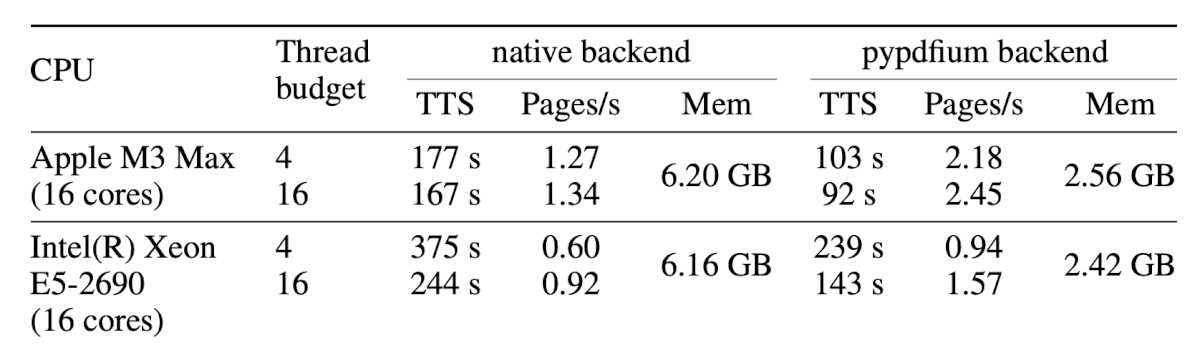
And here’s what olmOCR-2 extracted:
display(HTML(tables[0]))
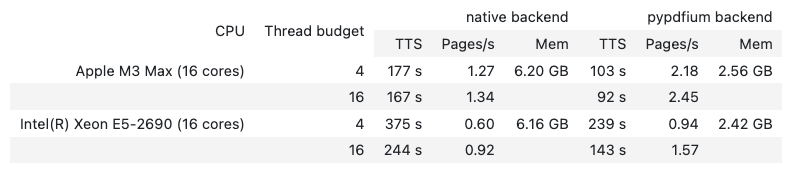
Worked:
- The two-tier header matches the original: “native backend” and “pypdfium backend” each sit above their three sub-columns (TTS, Pages/s, Mem)
- All numeric values match the original
- CPU names like “Apple M3 Max (16 cores)” stay in a single cell
Didn’t work:
- Merged cells (
6.20 GB,6.16 GB, and the CPU names) only appear in the first row of each CPU group, leaving the continuation row blank. The original PDF shows these values spanning both rows.
Now the second table. Here’s the original:
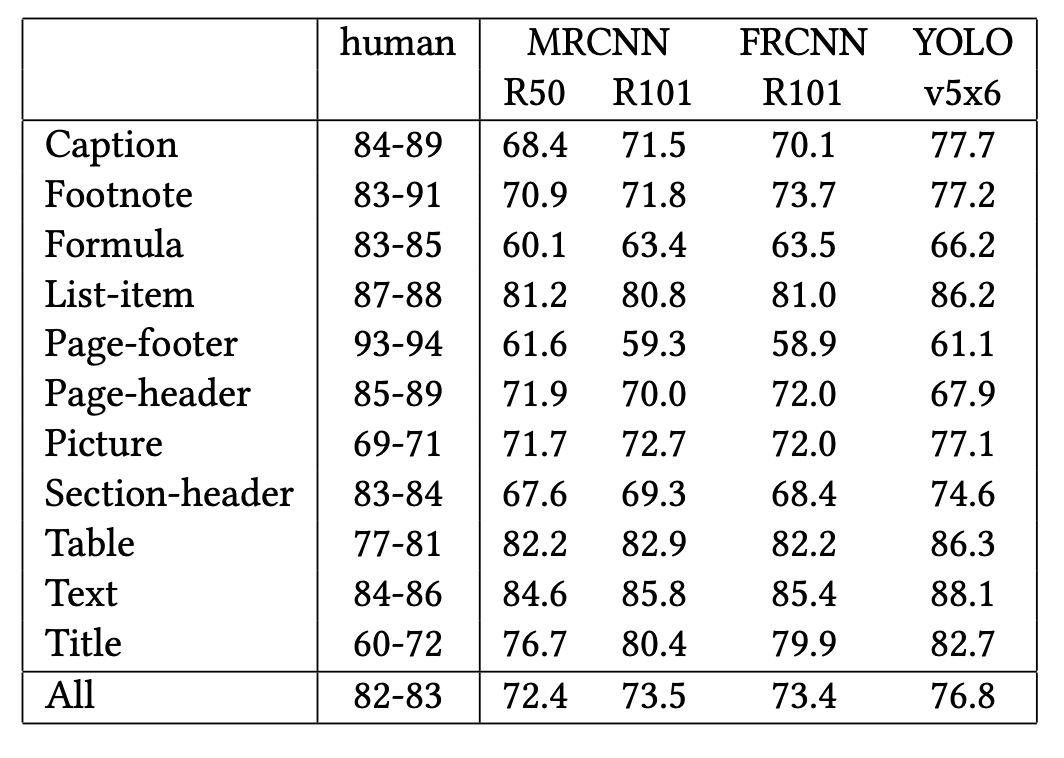
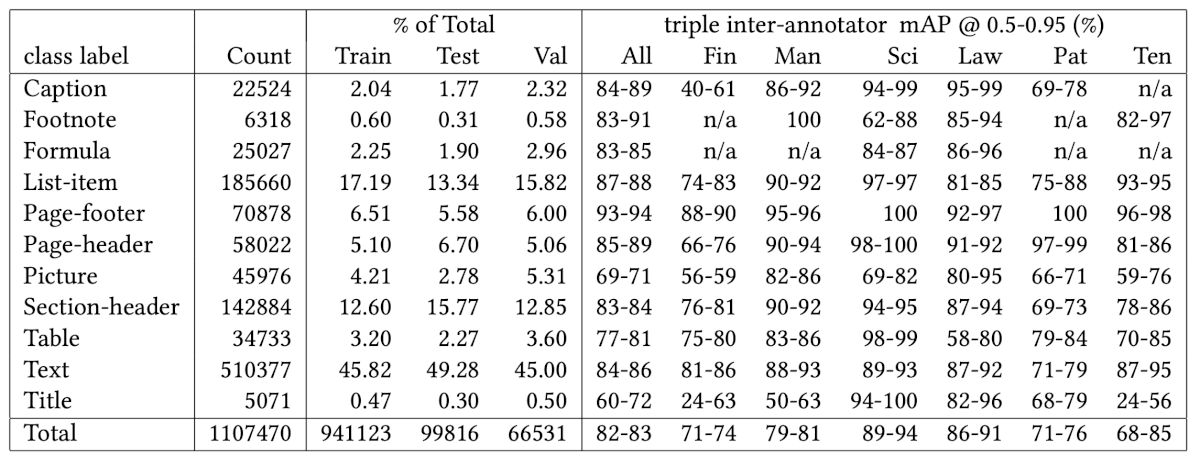
This is the hardest table in the document: 12 rows of similar-looking numbers and no cell borders to mark column boundaries. And here’s what olmOCR-2 extracted:
display(HTML(tables[1]))
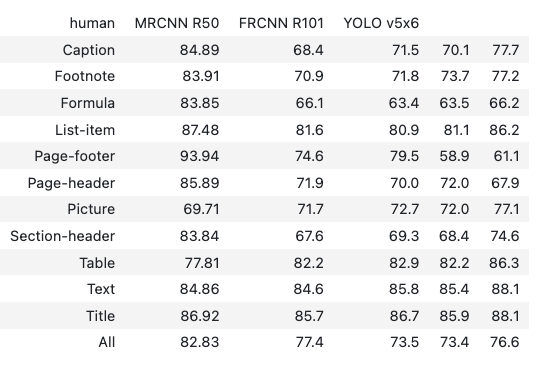
Worked:
- All 12 row labels (Caption, Footnote, …, All) preserved
- 12 data rows extracted with one numeric value per cell
Didn’t work:
- Two column headers are missing: Only 4 of the 6 columns have headers, so the class-label column and one of the model columns appear unlabeled.
MRCNN R101is dropped from the header row: The numeric values in that column still appear, but they sit under the wrong header name.- Hyphenated ranges become decimals: Every entry in the “human” range column is wrong:
84-89becomes84.89,83-91becomes83.91, and so on. - Numeric values drift in several cells: Most rows have at least one digit substitution (Page-footer
61.6→74.6, List-item81.2→81.6, All-row72.4→77.4).
Conclusion: olmOCR-2’s output looks clean but can be quietly wrong. It handles structured tables with merged cells correctly (table 1), but introduces character-level errors on dense numeric tables (table 2). Verify numeric values before trusting them.
Performance
olmOCR-2 took 5 min 34 s for the 9-page PDF on an Apple M5 Pro (64 GB RAM), about 37 seconds per page through GGUF + llama.cpp.
For production on a Mac, switch to the native MLX build (mlx-community/olmOCR-2-7B-1025-8bit), which runs about 20% faster than GGUF.
PaddleOCR-VL 1.6: Pipeline VLM
PaddleOCR-VL is Baidu’s open-weight document parser. It stands out for three reasons:
- A 1B fine-tune of ERNIE-4.5, the smallest model of the new VLM-OCR generation
- Strong multilingual support including Chinese ancient documents, scans, and stamps (not tested in this article)
- Mature ecosystem: PaddleOCR has 78.9k stars on GitHub and a long history of production deployment
Unlike olmOCR-2’s single-pass approach, PaddleOCR-VL splits table extraction into two stages:
- Layout detection locates each text block, table, and figure on the page
- Element-level VL recognition reads each detected region and converts it to text or structured Markdown
PDF page
┌─────────────────────┐
│ Text paragraph...   │
│ Name  Score         │
│ Alice  92           │
│ Bob    85           │
└─────────────────────┘
         │
         ▼
1. Layout detection identifies [TABLE] region
         │
         ▼
2. Element-level VL reads only the table region
         │
         ▼
| Name  | Score |
|-------|-------|
| Alice | 92    |
| Bob   | 85    |
Install
Pick the install that matches your hardware.
Apple Silicon (Mac):
pip install paddlepaddle
pip install -U "paddleocr[doc-parser]>=3.6.0"
Linux / Windows (NVIDIA):
pip install paddlepaddle-gpu==3.2.1
pip install -U "paddleocr[doc-parser]>=3.6.0"
This article uses PaddleOCR v3.6.0.
Table extraction
Unlike olmOCR-2, PaddleOCR-VL accepts a PDF path directly and returns a result object per page. No PDF-to-image conversion or subprocess loop required:
from paddleocr import PaddleOCRVL

pipeline = PaddleOCRVL(pipeline_version="v1.6")
Run the pipeline on the PDF:
%%time
results = pipeline.predict(local_pdf)
Each entry in results corresponds to one page of the PDF. Loop through them and collect the tables:
# Create an output directory for the per-page markdown files
paddle_output_dir = Path("paddle_output")
paddle_output_dir.mkdir(exist_ok=True)

# Save each page's markdown to disk
for res in results:
    res.save_to_markdown(save_path=str(paddle_output_dir))

# Find every HTML table block
all_paddle_tables = []
for md_file in sorted(paddle_output_dir.glob("*.md")):
    content = md_file.read_text()
    all_paddle_tables.extend(re.findall(r"<table[^>]*>.*?</table>", content, re.DOTALL))

print(f"Items tagged as table: {len(all_paddle_tables)}")
Not every block PaddleOCR-VL tagged as a table is a unique table. The third item is a malformed near-duplicate of the second. Let’s filter it out:
incorrect_table_indices = (2,)

paddle_tables = [t for i, t in enumerate(all_paddle_tables) if i not in incorrect_table_indices]
print(f"Actual tables: {len(paddle_tables)}")
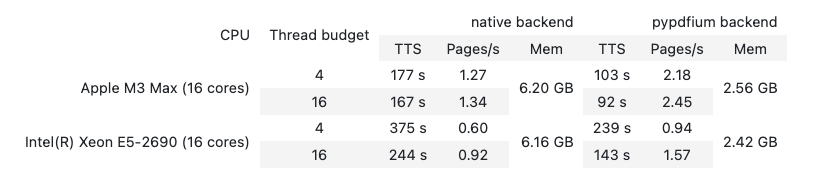
Let’s look at the first table. Here’s the original from the PDF:
And here’s what PaddleOCR-VL extracted:
display(HTML(paddle_tables[0]))
Worked:
- The two-tier header matches the original: “native backend” and “pypdfium backend” each sit above their three sub-columns, with CPU and Thread budget extending across both header rows
- Merged cells appear correctly: “Apple M3 Max (16 cores)” spans both of its thread-budget rows, and “6.20 GB” spans both Mem rows (no blank continuation rows like olmOCR-2 had)
- All numeric values match the source
Didn’t work:
- Multi-line column labels (
CPUnames,Thread budget) render on a single line; the original PDF had them on two lines
Now the second table. Here’s the original from the PDF:
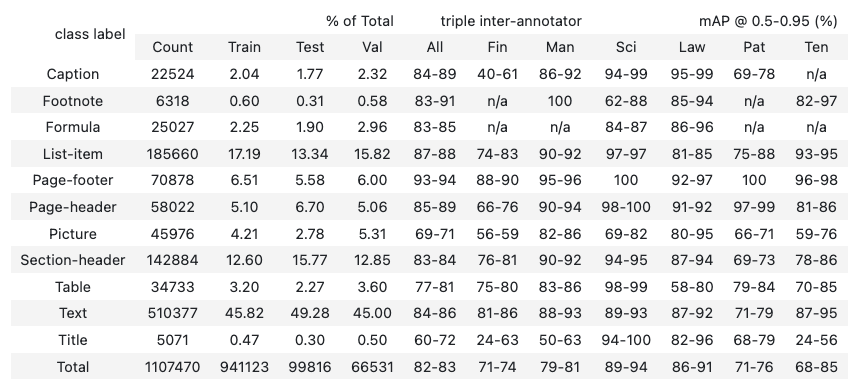
And here’s what PaddleOCR-VL extracted:
display(HTML(paddle_tables[1]))
Worked:
- All 12 class-label rows plus the Total row are present (truncated above for space)
- Hyphenated ranges preserved correctly as “84-89”, “40-61”, exactly where olmOCR-2 misread them as decimals
- “n/a” entries preserved
- All numeric values match the source
Didn’t work:
- Header grouping is wrong: The two parent headers in the original PDF get split into three in the extraction: “Count” is absorbed into “% of Total”, and “triple inter-annotator mAP @ 0.5-0.95 (%)” is split into two separate parents.
Conclusion: PaddleOCR-VL is 7x smaller than olmOCR-2 (1B vs 7B parameters) and still more accurate on this PDF. All numeric values match the source, merged cells render correctly, and the only real flaw is the mis-grouped multi-tier headers.
Performance
PaddleOCR-VL 1.6 took about 7 min 56 s for the full 9-page PDF on an Apple M5 Pro running CPU PaddlePaddle, roughly 53 seconds per page.
Even though the model is smaller than olmOCR-2, the pipeline overhead (layout detection plus element-level recognition) makes it slower per page than olmOCR-2 on this hardware.
Summary
Stack-ranking all five tools tested across both articles on the same PDF:
| Feature | Docling | Marker | LlamaParse | olmOCR-2 | PaddleOCR-VL 1.6 |
|---|---|---|---|---|---|
| Approach | Vision-language model (local) | Pipeline (local) | LLM agent (cloud) | Vision-language model (local) | Pipeline (local) |
| Tables detected (3 in PDF) | 2 | 3 | 3 | 3 | 2 |
| Accuracy overall | Poor: hallucinates values on dense tables | Mixed: column collapse on borderless tables | High: values correct, structure flattened | Mixed: silent character errors (digit drift, hyphen→decimal) | High: values correct, header grouping mis-aligned |
| Speed (M5 Pro, 9-page PDF) | ~1 min 50s | ~47s | ~8.54s | ~5 min 34s | ~7 min 56s |
| Pricing | Free (MIT) | Free (GPL-3.0) | Free tier (10k credits/month) | Free (Apache 2.0) | Free (Apache 2.0) |
In short, neither of the new VLM-OCR tools beats LlamaParse on this PDF:
- LlamaParse: all 3 tables, all values correct
- olmOCR-2: all 3 tables, but silent character errors on the dense numeric grid
- PaddleOCR-VL 1.6: clean merged cells on 2 of 3 tables, missed the dense numeric one
Try It Yourself
These benchmarks are based on a single academic PDF tested on an Apple M5 Pro (64 GB RAM) using GGUF Q8_0 quantizations via llama.cpp. Table complexity, document language, scan quality, and hardware all affect the results. The best way to pick the right tool is to run each one on a sample of your own PDFs.
Related Tutorials
- PDF Table Extraction: Docling vs Marker vs LlamaParse Compared: Part 1 of this comparison, covering three earlier tools on the same test PDF
- Transform Any PDF into Searchable AI Data with Docling: Docling’s full document processing capabilities including chunking and RAG integration
- Turn Receipt Images into Spreadsheets with LlamaIndex: Extracting structured data from images using the same LlamaIndex ecosystem
Stay Current with CodeCut
Easy-to-digest articles on Python, AI, and open-source tools. Delivered twice a week.
1 thought on “olmOCR-2 vs PaddleOCR-VL: Which Extracts PDF Tables Better?”
Hãy thử với Chandra, với các dạng bảng và chữ viết tay tôi thấy nó xử lý khá tốt, tuy nhiên nó cần GPU khoảng 12GB VRAM thì phải