Generic selectors
Exact matches only
Search in title
Search in content
Post Type Selectors
Filter by Categories
About Article
Analyze Data
Archive
Best Practices
Better Outputs
Blog
Code Optimization
Code Quality
Command Line
Course
Daily tips
Dashboard
Data Analysis & Manipulation
Data Engineer
Data Visualization
DataFrame
Delta Lake
DevOps
DuckDB
Environment Management
Feature Engineer
Git
Jupyter Notebook
LLM
LLM Tools
Machine Learning
Machine Learning & AI
Machine Learning Tools
Manage Data
MLOps
Natural Language Processing
Newsletter Archive
NumPy
Pandas
Polars
PySpark
Python Helpers
Python Tips
Python Utilities
Scrape Data
SQL
Testing
Time Series
Tools
Visualization
Visualization & Reporting
Workflow & Automation
Workflow Automation

python

Auto-created tag for python

Great Tables: Publication-Ready Tables from Polars and Pandas DataFrames

Table of Contents

Introduction
Introduction to Great Tables
Setup
Value Formatting
Table Structure
Data Coloring
Nanoplots
Conditional Styling
Conclusion

Introduction
Data scientists spend significant time analyzing data, but presenting results professionally remains a challenge.
Raw DataFrames with unformatted numbers, ISO dates, and no visual hierarchy make reports hard to read.
The common workaround is exporting to CSV and formatting in Excel. This is slow, error-prone, and breaks with every data update.
Great Tables solves this problem by letting you create publication-ready tables directly in Python with a single, reproducible script.

💻 Get the Code: The complete source code and Jupyter notebook for this tutorial are available on GitHub. Clone it to follow along!

Stay Current with CodeCut
Actionable Python tips, curated for busy data pros. Skim in under 2 minutes, three times a week.

.codecut-subscribe-form .codecut-input {
background: #2F2D2E !important;
border: 1px solid #72BEFA !important;
color: #FFFFFF !important;
}
.codecut-subscribe-form .codecut-input::placeholder {
color: #999999 !important;
}
.codecut-subscribe-form .codecut-subscribe-btn {
background: #72BEFA !important;
color: #2F2D2E !important;
}
.codecut-subscribe-form .codecut-subscribe-btn:hover {
background: #5aa8e8 !important;
}

.codecut-subscribe-form {
max-width: 650px;
display: flex;
flex-direction: column;
gap: 8px;
}

.codecut-input {
-webkit-appearance: none;
-moz-appearance: none;
appearance: none;
background: #FFFFFF;
border-radius: 8px !important;
padding: 8px 12px;
font-family: ‘Comfortaa’, sans-serif !important;
font-size: 14px !important;
color: #333333;
border: none !important;
outline: none;
width: 100%;
box-sizing: border-box;
}

input[type=”email”].codecut-input {
border-radius: 8px !important;
}

.codecut-input::placeholder {
color: #666666;
}

.codecut-email-row {
display: flex;
align-items: stretch;
height: 36px;
gap: 8px;
}

.codecut-email-row .codecut-input {
flex: 1;
}

.codecut-subscribe-btn {
background: #72BEFA;
color: #2F2D2E;
border: none;
border-radius: 8px;
padding: 8px 14px;
font-family: ‘Comfortaa’, sans-serif;
font-size: 14px;
font-weight: 500;
cursor: pointer;
text-decoration: none;
display: flex;
align-items: center;
justify-content: center;
transition: background 0.3s ease;
}

.codecut-subscribe-btn:hover {
background: #5aa8e8;
}

.codecut-subscribe-btn:disabled {
background: #999;
cursor: not-allowed;
}

.codecut-message {
font-family: ‘Comfortaa’, sans-serif;
font-size: 12px;
padding: 8px;
border-radius: 6px;
display: none;
}

.codecut-message.success {
background: #d4edda;
color: #155724;
display: block;
}

/* Mobile responsive */
@media (max-width: 480px) {
.codecut-email-row {
flex-direction: column;
height: auto;
gap: 8px;
}

.codecut-input {
border-radius: 8px;
height: 36px;
}

.codecut-subscribe-btn {
width: 100%;
text-align: center;
border-radius: 8px;
height: 36px;
}
}

Subscribe

Introduction to Great Tables
Great Tables is a Python library for creating publication-quality tables from pandas or Polars DataFrames. It provides:

Value formatting: Transform raw numbers into currencies, percentages, dates, and more
Table structure: Add headers, column spanners, row labels, and source notes
Data-driven coloring: Apply color scales based on cell values
Inline visualizations: Embed sparklines (nanoplots) directly in table cells
Conditional styling: Style cells based on data conditions

Let’s dive deeper into each of these features in the next sections.
Setup
Great Tables works with both pandas and Polars DataFrames. We’ll use Polars in this tutorial:
pip install great_tables polars selenium

Selenium is required for exporting tables as PNG images.

New to Polars? See our Polars vs. Pandas comparison for an introduction.

Great Tables includes built-in sample datasets. We’ll use the sp500 dataset containing historical S&P 500 stock data:
from great_tables import GT
from great_tables.data import sp500
import polars as pl

# Preview the raw data
sp500_df = pl.from_pandas(sp500)
print(sp500_df.head(5))

date
open
high
low
close
volume
adj_close

2015-12-31
2060.5901
2062.54
2043.62
2043.9399
2.6553e9
2043.9399

2015-12-30
2077.3401
2077.3401
2061.97
2063.3601
2.3674e9
2063.3601

2015-12-29
2060.54
2081.5601
2060.54
2078.3601
2.5420e9
2078.3601

2015-12-28
2057.77
2057.77
2044.2
2056.5
2.4925e9
2056.5

2015-12-24
2063.52
2067.3601
2058.73
2060.99
1.4119e9
2060.99

The raw output shows:

Unformatted decimals (e.g., 2060.5901)
Large integers without separators (e.g., 2.6553e9)
Dates as plain strings (e.g., “2015-12-31”)

Let’s transform this into a readable table.
Value Formatting
Great Tables provides fmt_* methods to format values. Here’s how to format currencies, numbers, and dates:
from great_tables import GT
from great_tables.data import sp500

# Filter to a specific date range
start_date = "2010-06-07"
end_date = "2010-06-14"
sp500_mini = sp500[(sp500["date"] >= start_date) & (sp500["date"] <= end_date)]

stock_price_table = (
GT(sp500_mini)
.fmt_currency(columns=["open", "high", "low", "close"])
.fmt_date(columns="date", date_style="wd_m_day_year")
.fmt_number(columns="volume", compact=True)
.cols_hide(columns="adj_close")
)
stock_price_table

In this example:

fmt_currency() adds dollar signs and formats decimals (e.g., $1,065.84)
fmt_date() converts date strings to readable format (e.g., “Mon, Jun 7, 2010”)
fmt_number() with compact=True converts large numbers to compact format (e.g., 5.47B)
cols_hide() removes the redundant adj_close column

To export the table for reports, use the save() method:
stock_price_table.save("stock_price_table.png") # Supports .png, .bmp, .pdf

Formatting Percentages
Use fmt_percent() to display decimal values as percentages. Here’s some sample data with decimal values:
import polars as pl
from great_tables import GT

performance_data = pl.DataFrame({
"metric": ["Revenue Growth", "Profit Margin", "Market Share"],
"q1": [0.12, 0.08, 0.23],
"q2": [0.15, 0.09, 0.25],
"q3": [0.11, 0.07, 0.24]
})
performance_data

The raw decimals are hard to read at a glance. Let’s format them as percentages:
percent_table = (
GT(performance_data, rowname_col="metric")
.fmt_percent(columns=["q1", "q2", "q3"], decimals=1)
)
percent_table

The percentages are now much more readable! Values like 0.12 become “12.0%” automatically.
Table Structure
Professional tables need clear headers, grouped columns, and source attribution. Great Tables provides methods for each structural component.
Adding Headers and Source Notes
Use tab_header() for titles and tab_source_note() for attribution. Let’s start with our S&P 500 data:
from great_tables import GT, md
from great_tables.data import sp500
import polars as pl

sp500_pl = pl.from_pandas(sp500)
sp500_mini = sp500_pl.filter(
(pl.col("date") >= "2010-06-07") & (pl.col("date") <= "2010-06-14")
)
print(sp500_mini)

date
open
high
low
close
volume
adj_close

2010-06-14
1095.0
1105.91
1089.03
1089.63
4.4258e9
1089.63

2010-06-11
1082.65
1092.25
1077.12
1091.6
4.0593e9
1091.6

2010-06-10
1058.77
1087.85
1058.77
1086.84
5.1448e9
1086.84

2010-06-09
1062.75
1077.74
1052.25
1055.6899
5.9832e9
1055.6899

2010-06-08
1050.8101
1063.15
1042.17
1062.0
6.1928e9
1062.0

2010-06-07
1065.84
1071.36
1049.86
1050.47
5.4676e9
1050.47

The table lacks context about what the data represents. Let’s add a title and source:
header_table = (
GT(sp500_mini)
.tab_header(
title="S&P 500 Daily Performance",
subtitle="June 7-14, 2010"
)
.fmt_currency(columns=["open", "high", "low", "close"])
.fmt_date(columns="date", date_style="wd_m_day_year")
.fmt_number(columns="volume", compact=True)
.cols_hide(columns="adj_close")
.tab_source_note(source_note=md("**Source**: Historical market data"))
)
header_table

In this example:

tab_header() adds “S&P 500 Daily Performance” as the title and “June 7-14, 2010” as the subtitle
tab_source_note() adds “Source: Historical market data” at the bottom
md() enables markdown formatting for bold text

Grouping Columns with Spanners
Column spanners group related columns under a shared label. Here’s some quarterly sales data:
import polars as pl
from great_tables import GT

sales_data = pl.DataFrame({
"product": ["Laptop", "Phone", "Tablet"],
"q1_rev": [125000, 89000, 45000],
"q2_rev": [132000, 95000, 48000],
"q1_units": [450, 1200, 380],
"q2_units": [475, 1350, 410]
})
print(sales_data)

product
q1_rev
q2_rev
q1_units
q2_units

Laptop
125000
132000
450
475

Phone
89000
95000
1200
1350

Tablet
45000
48000
380
410

The column names like q1_rev and q1_units don’t clearly show their relationship. Let’s group them with spanners:
spanner_table = (
GT(sales_data, rowname_col="product")
.tab_header(title="Quarterly Sales Report")
.tab_spanner(label="Revenue ($)", columns=["q1_rev", "q2_rev"])
.tab_spanner(label="Units Sold", columns=["q1_units", "q2_units"])
.fmt_currency(columns=["q1_rev", "q2_rev"], decimals=0)
.fmt_number(columns=["q1_units", "q2_units"], use_seps=True)
.cols_label(
q1_rev="Q1",
q2_rev="Q2",
q1_units="Q1",
q2_units="Q2"
)
.tab_stubhead(label="Product")
)
spanner_table

In this example:

tab_spanner() creates “Revenue ($)” and “Units Sold” headers that span multiple columns
cols_label() renames columns like q1_rev to “Q1”
tab_stubhead() labels the row name column as “Product”

Data Coloring
The data_color() method applies color scales to cells based on their values, creating heatmap-style visualizations. Here’s some regional performance data:
import polars as pl
from great_tables import GT

performance = pl.DataFrame({
"region": ["North", "South", "East", "West"],
"revenue": [125000, 98000, 145000, 112000],
"growth": [0.15, -0.05, 0.22, 0.08]
})
print(performance)

region
revenue
growth

North
125000
0.15

South
98000
-0.05

East
145000
0.22

West
112000
0.08

The raw numbers make it hard to spot which regions are performing well. Let’s add color scales:
color_table = (
GT(performance, rowname_col="region")
.fmt_currency(columns="revenue", decimals=0)
.fmt_percent(columns="growth", decimals=1)
.data_color(
columns="revenue",
palette="Blues"
)
.data_color(
columns="growth",
palette=["red", "white", "green"],
domain=[-0.1, 0.25]
)
)
color_table

Now high performers stand out immediately! In this example:

palette="Blues" applies a blue gradient to revenue (darker = higher values like $145,000)
palette=["red", "white", "green"] creates a diverging scale for growth (red for -5.0%, green for 22.0%)
domain=[-0.1, 0.25] sets the min/max range for the color scale

Nanoplots
Nanoplots embed small visualizations directly in table cells. They’re useful for showing trends without creating separate charts.
Creating Line Nanoplots
To use nanoplots, your data column must contain space-separated numeric values:
import polars as pl
from great_tables import GT

# Create data with trend values as space-separated strings
kpi_data = pl.DataFrame({
"metric": ["Revenue", "Users", "Conversion Rate"],
"current": [125000.0, 45000.0, 3.2],
"trend": [
"95 102 98 115 125",
"38 40 42 43 45",
"2.8 2.9 3.0 3.1 3.2"
]
})

kpi_table = (
GT(kpi_data, rowname_col="metric")
.fmt_nanoplot(columns="trend", plot_type="line")
.fmt_number(columns="current", compact=True)
.tab_header(title="Weekly KPI Dashboard")
)
kpi_table

The sparklines make trends instantly visible! fmt_nanoplot() transforms space-separated values like “95 102 98 115 125” into inline charts.
Hover over the chart to see individual data points.
Adding Reference Lines
Reference lines provide context by showing averages, medians, or custom thresholds:
import polars as pl
from great_tables import GT

trend_data = pl.DataFrame({
"stock": ["AAPL", "GOOGL", "MSFT"],
"prices": [
"150 155 148 160 165 158 170",
"120 118 122 125 128 130 127",
"280 285 275 290 295 288 300"
]
})

stock_trend_table = (
GT(trend_data, rowname_col="stock")
.fmt_nanoplot(
columns="prices",
plot_type="line",
reference_line="mean"
)
.tab_header(title="Weekly Stock Prices")
)
stock_trend_table

The reference_line="mean" parameter adds a horizontal line at the average value. Other options include "median", "min", "max", "q1", and "q3".
Bar Nanoplots
Use plot_type="bar" for comparing discrete values:
import polars as pl
from great_tables import GT

monthly_data = pl.DataFrame({
"category": ["Electronics", "Clothing", "Food"],
"sales": [
"45 52 48 55 60 58",
"30 28 35 32 38 40",
"20 22 21 25 24 26"
]
})

bar_chart_table = (
GT(monthly_data, rowname_col="category")
.fmt_nanoplot(columns="sales", plot_type="bar")
.tab_header(title="Monthly Sales by Category")
)
bar_chart_table

Customizing Nanoplot Appearance
Pass styling options via nanoplot_options():

Line: data_line_stroke_color (e.g., “steelblue”)
Points: data_point_fill_color, data_point_stroke_color
Area: data_area_fill_color (e.g., “lightblue”)

from great_tables import GT, nanoplot_options
import polars as pl

trend_data = pl.DataFrame({
"metric": ["Growth", "Engagement"],
"values": ["10 15 12 18 22 20", "5 8 6 9 11 10"]
})

styled_nanoplot_table = (
GT(trend_data, rowname_col="metric")
.fmt_nanoplot(
columns="values",
plot_type="line",
reference_line="mean",
options=nanoplot_options(
data_line_stroke_color="steelblue",
data_point_fill_color="white",
data_point_stroke_color="steelblue",
data_area_fill_color="lightblue"
)
)
)
styled_nanoplot_table

Conditional Styling
The tab_style() method applies formatting to cells based on conditions. Combined with Polars expressions, you can create data-driven styling rules.
Basic Conditional Styling
Here’s some product sales data with mixed growth values:
from great_tables import GT, style, loc
import polars as pl

sales = pl.DataFrame({
"product": ["Laptop", "Phone", "Tablet", "Monitor"],
"revenue": [125000, 89000, 45000, 32000],
"growth": [0.15, -0.05, 0.22, -0.08]
})
print(sales)

product
revenue
growth

Laptop
125000
0.15

Phone
89000
-0.05

Tablet
45000
0.22

Monitor
32000
-0.08

Some products have positive growth, others negative. Let’s use tab_style() with Polars expressions to apply conditional colors:
conditional_table = (
GT(sales, rowname_col="product")
.fmt_currency(columns="revenue", decimals=0)
.fmt_percent(columns="growth", decimals=1)
.tab_style(
style=[
style.fill(color="lightgreen"),
style.text(weight="bold")
],
locations=loc.body(
columns="growth",
rows=pl.col("growth") > 0
)
)
.tab_style(
style=[
style.fill(color="lightcoral"),
style.text(weight="bold")
],
locations=loc.body(
columns="growth",
rows=pl.col("growth") < 0
)
)
)
conditional_table

The styling makes values immediately visible:

pl.col("growth") > 0 – selects rows with positive growth
pl.col("growth") < 0 – selects rows with negative growth

Conclusion
Great Tables transforms how data scientists present tabular data. Instead of manual formatting in spreadsheets, you can:

Format currencies, percentages, and dates automatically
Structure tables with headers, column groups, and source notes
Highlight patterns with automatic color scales
Show trends with inline sparkline charts
Apply conditional styling based on data values

The key advantage is reproducibility. When your data updates, you can re-run the script to regenerate the formatted table with consistent styling.

📚 For comprehensive guidance on building reproducible data workflows, check out Production-Ready Data Science.

Great Tables is particularly useful for:

Financial reports with currency and percentage formatting
Performance dashboards with trend indicators
Research papers requiring publication-quality tables
Automated reporting pipelines

For more features including custom themes, image embedding, and interactive outputs, see the Great Tables documentation.
Related Tutorials

Top 6 Python Libraries for Visualization: Compare interactive and static data visualization libraries in Python
Marimo: A Modern Notebook for Reproducible Data Science: Build reproducible notebook workflows with reactive execution

📚 Want to go deeper? Learning new techniques is the easy part. Knowing how to structure, test, and deploy them is what separates side projects from real work. My book shows you how to build data science projects that actually make it to production. Get the book →

Stay Current with CodeCut
Actionable Python tips, curated for busy data pros. Skim in under 2 minutes, three times a week.

.codecut-subscribe-form .codecut-input {
background: #2F2D2E !important;
border: 1px solid #72BEFA !important;
color: #FFFFFF !important;
}
.codecut-subscribe-form .codecut-input::placeholder {
color: #999999 !important;
}
.codecut-subscribe-form .codecut-subscribe-btn {
background: #72BEFA !important;
color: #2F2D2E !important;
}
.codecut-subscribe-form .codecut-subscribe-btn:hover {
background: #5aa8e8 !important;
}

.codecut-subscribe-form {
max-width: 650px;
display: flex;
flex-direction: column;
gap: 8px;
}

.codecut-input {
-webkit-appearance: none;
-moz-appearance: none;
appearance: none;
background: #FFFFFF;
border-radius: 8px !important;
padding: 8px 12px;
font-family: ‘Comfortaa’, sans-serif !important;
font-size: 14px !important;
color: #333333;
border: none !important;
outline: none;
width: 100%;
box-sizing: border-box;
}

input[type=”email”].codecut-input {
border-radius: 8px !important;
}

.codecut-input::placeholder {
color: #666666;
}

.codecut-email-row {
display: flex;
align-items: stretch;
height: 36px;
gap: 8px;
}

.codecut-email-row .codecut-input {
flex: 1;
}

.codecut-subscribe-btn {
background: #72BEFA;
color: #2F2D2E;
border: none;
border-radius: 8px;
padding: 8px 14px;
font-family: ‘Comfortaa’, sans-serif;
font-size: 14px;
font-weight: 500;
cursor: pointer;
text-decoration: none;
display: flex;
align-items: center;
justify-content: center;
transition: background 0.3s ease;
}

.codecut-subscribe-btn:hover {
background: #5aa8e8;
}

.codecut-subscribe-btn:disabled {
background: #999;
cursor: not-allowed;
}

.codecut-message {
font-family: ‘Comfortaa’, sans-serif;
font-size: 12px;
padding: 8px;
border-radius: 6px;
display: none;
}

.codecut-message.success {
background: #d4edda;
color: #155724;
display: block;
}

/* Mobile responsive */
@media (max-width: 480px) {
.codecut-email-row {
flex-direction: column;
height: auto;
gap: 8px;
}

.codecut-input {
border-radius: 8px;
height: 36px;
}

.codecut-subscribe-btn {
width: 100%;
text-align: center;
border-radius: 8px;
height: 36px;
}
}

Subscribe
Great Tables: Publication-Ready Tables from Polars and Pandas DataFrames Read More »

Newsletter #258: Great Tables: Transform DataFrames into Publication-Ready Reports

📅 Today’s Picks

dataclass vs Pydantic Field(): Declarative Constraints

Problem
dataclass requires manual validation in __post_init__, separating validation rules from field definitions.
As your data model grows, the __post_init__ method fills with if-else statements, becoming harder to read and maintain.
Solution
Pydantic Field() puts constraints directly on field definitions, making your model self-documenting and easier to maintain.
What you can specify with Field():

Numeric bounds (e.g., age must be >= 0 and

Newsletter #258: Great Tables: Transform DataFrames into Publication-Ready Reports Read More »

Newsletter #257: Delta Lake: Sync DataFrames with One Line of Code

📅 Today’s Picks

Delta Lake: Sync DataFrames with One Line of Code

Problem
Updating an entire table with millions of rows just to fix a handful of records is costly and unnecessary.
Solution
Delta Lake’s when_matched_update() modifies only the matching rows, leaving unchanged data untouched.
Delta Lake also gives you:

Atomic updates that fully succeed or fully roll back
Partial file rewrites instead of full dataset copies
Time travel to restore previous versions

📖 View Full Article

🧪 Run code

⭐ View GitHub

📢 ANNOUNCEMENTS

New Way to Explore Python Tools on CodeCut
CodeCut just became a lot more searchable! ☕️
Most developers stick to the same 5-10 Python libraries. Not because others aren’t useful, but because finding them is hard.
CodeCut now organizes 69 tools into eight categories on the homepage:

Developer tools
AI frameworks
Data processing
Databases
Python builtins
Visualization
Utilities
Text processing

Each tool links directly to blogs and code snippets. Browse a new category today. You might find something that changes how you work.
What would make CodeCut more useful for you? Reply and let me know. I’m always looking for ways to improve it.

Explore Tools

☕️ Weekly Finds

deepdoctection
[ML]
– Python library for document extraction and layout analysis using deep learning models

postgresus
[Data Engineer]
– Self-hosted PostgreSQL backup and monitoring tool with web UI

ffn
[Data Processing]
– Financial functions library for quantitative finance in Python

Looking for a specific tool? Explore 70+ Python tools →

Stay Current with CodeCut

Actionable Python tips, curated for busy data pros. Skim in under 2 minutes, three times a week.

.codecut-subscribe-form .codecut-input {
background: #2F2D2E !important;
border: 1px solid #72BEFA !important;
color: #FFFFFF !important;
}
.codecut-subscribe-form .codecut-input::placeholder {
color: #999999 !important;
}
.codecut-subscribe-form .codecut-subscribe-btn {
background: #72BEFA !important;
color: #2F2D2E !important;
}
.codecut-subscribe-form .codecut-subscribe-btn:hover {
background: #5aa8e8 !important;
}

.codecut-subscribe-form {
max-width: 650px;
display: flex;
flex-direction: column;
gap: 8px;
}
.codecut-input {
-webkit-appearance: none;
-moz-appearance: none;
appearance: none;
background: #FFFFFF;
border-radius: 8px !important;
padding: 8px 12px;
font-family: ‘Comfortaa’, sans-serif !important;
font-size: 14px !important;
color: #333333;
border: none !important;
outline: none;
width: 100%;
box-sizing: border-box;
}
input[type=”email”].codecut-input {
border-radius: 8px !important;
}
.codecut-input::placeholder {
color: #666666;
}
.codecut-email-row {
display: flex;
align-items: stretch;
height: 36px;
gap: 8px;
}
.codecut-email-row .codecut-input {
flex: 1;
}
.codecut-subscribe-btn {
background: #72BEFA;
color: #2F2D2E;
border: none;
border-radius: 8px;
padding: 8px 14px;
font-family: ‘Comfortaa’, sans-serif;
font-size: 14px;
font-weight: 500;
cursor: pointer;
text-decoration: none;
display: flex;
align-items: center;
justify-content: center;
transition: background 0.3s ease;
}
.codecut-subscribe-btn:hover {
background: #5aa8e8;
}
.codecut-subscribe-btn:disabled {
background: #999;
cursor: not-allowed;
}
.codecut-message {
font-family: ‘Comfortaa’, sans-serif;
font-size: 12px;
padding: 8px;
border-radius: 6px;
display: none;
}
.codecut-message.success {
background: #d4edda;
color: #155724;
display: block;
}
@media (max-width: 480px) {
.codecut-email-row {
flex-direction: column;
height: auto;
gap: 8px;
}
.codecut-input {
border-radius: 8px;
height: 36px;
}
.codecut-subscribe-btn {
width: 100%;
text-align: center;
border-radius: 8px;
height: 36px;
}
}

Subscribe
Newsletter #257: Delta Lake: Sync DataFrames with One Line of Code Read More »

The Hidden Cost of Python Dictionaries (And 3 Safer Alternatives)

Table of Contents

Introduction
What Are Typed Data Containers?
Using Dictionaries
Using NamedTuple
Using dataclass
Using Pydantic
Final Thoughts
Related Tutorials

Introduction
Imagine you’re processing customer records. The pipeline runs without errors, but customers never receive their welcome emails. After digging through the code, you discover the issue is a simple typo in a dictionary key.
def load_customer(row):
return {"customer_id": row[0], "name": row[1], "emial": row[2]} # Typo

def send_welcome_email(customer):
email = customer.get("email") # Returns None silently
if email:
print(f"Sending email to {email}")
# No email sent, no error raised

customer = load_customer(["C001", "Alice", "alice@example.com"])
send_welcome_email(customer) # Nothing happens

Since .get() returns None for a missing key, the bug stays hidden.
This is exactly the type of issue we want to catch earlier. In this article, we’ll look at how typed data containers like NamedTuple, dataclass, and Pydantic help surface these bugs at runtime.

Interactive Course: Master Python data containers with hands-on exercises in our interactive Python data containers course.

What Are Typed Data Containers?
Python offers several ways to structure data, each adding more safety than the last:

dict: No protection. Bugs surface only when you access a missing key.
NamedTuple: Basic safety. Catches typos at write time in your IDE and at runtime.
dataclass: Static analysis support. Tools like mypy catch errors before your code runs.
Pydantic: Full protection. Validates data the moment you create an instance.

Let’s see how each tool handles the same customer data:
Using Dictionaries
Dictionaries are quick to create but provide no safety:
customer = {
"customer_id": "C001",
"name": "Alice Smith",
"email": "alice@example.com",
"age": 28,
"is_premium": True,
}

print(customer["name"])

Alice Smith

Typo Bugs
A typo in the key name causes a KeyError at runtime:
customer["emial"] # Typo: should be "email"

KeyError: 'emial'

The error tells you what went wrong but not where. When dictionaries pass through multiple functions, finding the source of a typo can take significant debugging time:
def load_customer(row):
return {"customer_id": row[0], "name": row[1], "emial": row[2]} # Typo here

def validate_customer(customer):
return customer # Passes through unchanged

def send_email(customer):
return customer["email"] # KeyError raised here

customer = load_customer(["C001", "Alice", "alice@example.com"])
validated = validate_customer(customer)
send_email(validated) # Error points here, but bug is in load_customer

KeyError Traceback (most recent call last)
13 customer = load_customer(["C001", "Alice", "alice@example.com"])
14 validated = validate_customer(customer)
—> 15 send_email(validated) # Error points here, but bug is in load_customer

Cell In[6], line 10, in send_email(customer)
9 def send_email(customer):
—> 10 return customer["email"]

KeyError: 'email'

The stack trace shows where the KeyError was raised, not where "emial" was written. The bug and its symptom are 13 lines apart here, but in production code, they could be in different files entirely.
Using .get() makes it worse by returning None silently:
email = customer.get("email") # Returns None – key is "emial" not "email"
print(f"Sending email to: {email}")

Sending email to: None

This silent failure is dangerous: your notification system might skip thousands of customers, or worse, your code could write None to a database column, corrupting your data pipeline.
Type Confusion
Typos cause crashes, but wrong types can corrupt your data silently. Since dictionaries have no schema, nothing stops you from assigning the wrong type to a field:
customer = {
"customer_id": "C001",
"name": 123, # Should be a string
"age": "twenty-eight", # Should be an integer
}

total_age = customer["age"] + 5

TypeError: can only concatenate str (not "int") to str

The error message is misleading: it says “concatenate str” but the real problem is that age should never have been a string in the first place.
Using NamedTuple
NamedTuple is a lightweight way to define a fixed structure with named fields and type hints, like a dictionary with a schema:
from typing import NamedTuple

class Customer(NamedTuple):
customer_id: str
name: str
email: str
age: int
is_premium: bool

customer = Customer(
customer_id="C001",
name="Alice Smith",
email="alice@example.com",
age=28,
is_premium=True,
)

print(customer.name)

Alice Smith

IDE Autocomplete Catches Typos
Your IDE can’t autocomplete dictionary keys, so typing customer[" shows no suggestions. With NamedTuple, typing customer. displays all available fields: customer_id, name, email, age, is_premium.
Even if you skip autocomplete and type manually, typos are flagged instantly with squiggly lines:
customer.emial
~~~~~

Running the code will raise an error:
customer.emial

AttributeError: 'Customer' object has no attribute 'emial'

The error names the exact object and missing attribute, so you know immediately what to fix.
Immutability Prevents Accidental Changes
NamedTuples are immutable, meaning once created, their values cannot be changed:
customer.name = "Bob" # Raises an error

AttributeError: can't set attribute

This prevents bugs where data is accidentally modified during processing.
Limitations: No Runtime Type Validation
Type hints in NamedTuple are not enforced at runtime, so you can still pass in wrong types:
# Wrong types are accepted without error
customer = Customer(
customer_id="C001",
name=123, # Should be str, but int is accepted
email="alice@example.com",
age="twenty-eight", # Should be int, but str is accepted
is_premium=True,
)

print(f"Name: {customer.name}, Age: {customer.age}")

Name: 123, Age: twenty-eight

The code runs, but with incorrect data types. The bug surfaces later when you try to use the data.
Using dataclass
dataclass reduces the boilerplate of writing classes that mainly hold data. Instead of manually writing __init__ and other methods, you just declare your fields.
It provides the same IDE support as NamedTuple, plus three additional features:

Mutable objects: You can change field values after creation
Mutable defaults: Safe defaults for lists and dicts with field(default_factory=list)
Post-init logic: Run custom validation or compute derived fields with __post_init__

from dataclasses import dataclass

@dataclass
class Customer:
customer_id: str
name: str
email: str
age: int
is_premium: bool = False # Default value

customer = Customer(
customer_id="C001",
name="Alice Smith",
email="alice@example.com",
age=28,
)

print(f"{customer.name}, Premium: {customer.is_premium}")

Alice Smith, Premium: False

Mutability Allows Updates
Dataclass trades NamedTuple’s immutability protection for flexibility. You can modify fields after creation:
customer.name = "Alice Johnson" # Changed after marriage
customer.is_premium = True # Upgraded their account

print(f"{customer.name}, Premium: {customer.is_premium}")

Alice Johnson, Premium: True

For extra safety, use @dataclass(slots=True) to prevent accidentally adding new attributes:
@dataclass(slots=True)
class Customer:
customer_id: str
name: str
email: str
age: int
is_premium: bool = False

customer = Customer(
customer_id="C001",
name="Alice",
email="alice@example.com",
age=28,
)

customer.nmae = "Bob" # Typo

AttributeError: 'Customer' object has no attribute 'nmae'

Mutable Defaults with default_factory
Mutable defaults like lists don’t work as expected. You might think each instance gets its own empty list, but Python creates the default [] once and all instances share it:
from typing import NamedTuple

class Order(NamedTuple):
order_id: str
items: list = []

order1 = Order("001")
order2 = Order("002")

order1.items.append("apple")
print(f"Order 1: {order1.items}")
print(f"Order 2: {order2.items}") # Also has "apple"!

Order 1: ['apple']
Order 2: ['apple']

Order 2 has “apple” even though we only added it to Order 1. Modifying one order’s items affects every order.
Dataclass prevents this mistake by rejecting mutable defaults:
@dataclass
class Order:
items: list = []

ValueError: mutable default <class 'list'> for field items is not allowed: use default_factory

Dataclass offers field(default_factory=…) as the solution. The factory function runs at instance creation, not class definition, so each object gets its own list:
from dataclasses import dataclass, field

@dataclass
class Order:
order_id: str
items: list = field(default_factory=list) # Each instance gets its own list

order1 = Order("001")
order2 = Order("002")

order1.items.append("apple")
print(f"Order 1: {order1.items}")
print(f"Order 2: {order2.items}") # Not affected by order1

Order 1: ['apple']
Order 2: []

Unlike the NamedTuple example, Order 2 stays empty because it has its own list.
Post-Init Validation with __post_init__
Without validation, invalid data passes through silently:
@dataclass
class Customer:
customer_id: str
name: str
email: str
age: int
is_premium: bool = False

customer = Customer(
customer_id="C001",
name="", # Empty name
email="invalid",
age=-100,
)
print(f"Created: {customer}") # No error – bad data is in your system

Created: Customer(customer_id='C001', name='', email='invalid', age=-100, is_premium=False)

Dataclass provides __post_init__ to catch these issues at creation time so you can validate fields before the object is used:
@dataclass
class Customer:
customer_id: str
name: str
email: str
age: int
is_premium: bool = False

def __post_init__(self):
if self.age < 0:
raise ValueError(f"Age cannot be negative: {self.age}")
if "@" not in self.email:
raise ValueError(f"Invalid email: {self.email}")

customer = Customer(
customer_id="C001",
name="Alice",
email="invalid-email",
age=28,
)

ValueError: Invalid email: invalid-email

The error message tells you exactly what’s wrong, making the bug easy to fix.
Limitations: Manual Validation Only
__post_init__ requires you to write every validation rule yourself. If you forget to check a field, bad data can still slip through.
In this example, __post_init__ only validates email format, so wrong types for name and age pass undetected:
@dataclass
class Customer:
customer_id: str
name: str
email: str
age: int
is_premium: bool = False

def __post_init__(self):
if "@" not in self.email:
raise ValueError(f"Invalid email: {self.email}")

customer = Customer(
customer_id="C001",
name=123, # No validation for name type
email="alice@example.com",
age="twenty-eight", # No validation for age type
)

print(f"Name: {customer.name}, Age: {customer.age}")

Name: 123, Age: twenty-eight

Type hints alone don’t enforce types at runtime. For automatic validation, you need a library that actually checks types when objects are created.

📚 For comprehensive coverage of dataclasses and Pydantic in production workflows, check out Production-Ready Data Science.

Using Pydantic
Pydantic is a data validation library that enforces type hints at runtime. Unlike NamedTuple and dataclass, it actually checks that values match their declared types when objects are created. Install it with:
pip install pydantic

To create a Pydantic model, inherit from BaseModel and declare your fields with type hints:
from pydantic import BaseModel

class Customer(BaseModel):
customer_id: str
name: str
email: str
age: int
is_premium: bool = False

customer = Customer(
customer_id="C001",
name="Alice Smith",
email="alice@example.com",
age=28,
)

print(f"{customer.name}, Age: {customer.age}")

Alice Smith, Age: 28

For using Pydantic to enforce structured outputs from AI models, see our PydanticAI tutorial.
Runtime Validation
Remember how dataclass accepted name=123 without complaint? Pydantic catches this automatically with a ValidationError:
from pydantic import BaseModel, ValidationError

class Customer(BaseModel):
customer_id: str
name: str
email: str
age: int
is_premium: bool = False

try:
customer = Customer(
customer_id="C001",
name=123,
email="alice@example.com",
age="thirty",
)
except ValidationError as e:
print(e)

2 validation errors for Customer
name
Input should be a valid string [type=string_type, input_value=123, input_type=int]
age
Input should be a valid integer, unable to parse string as an integer [type=int_parsing, input_value='thirty', input_type=str]

The error message shows:

Which fields failed validation (name, age)
What was expected (valid string, valid integer)
What was received (123 as int, 'thirty' as str)

This tells you everything you need to fix the bug in one place, instead of digging through stack traces.
Type Coercion
Unlike dataclass which stores whatever you pass, Pydantic automatically converts compatible types to match your type hints:
customer = Customer(
customer_id="C001",
name="Alice Smith",
email="alice@example.com",
age="28", # String "28" is converted to int 28
is_premium="true", # String "true" is converted to bool True
)

print(f"Age: {customer.age} (type: {type(customer.age).__name__})")
print(f"Premium: {customer.is_premium} (type: {type(customer.is_premium).__name__})")

Age: 28 (type: int)
Premium: True (type: bool)

This is useful when reading data from CSV files or APIs where everything comes as strings.
Constraint Validation
Beyond types, you often need business rules: age must be positive, names can’t be empty, customer IDs must follow a pattern.
In dataclass, you define fields in one place and validate them in __post_init__. The validation logic grows with each constraint:
@dataclass
class Customer:
customer_id: str
name: str
email: str
age: int
is_premium: bool = False

def __post_init__(self):
if not self.customer_id:
raise ValueError("Customer ID cannot be empty")
if not self.name or len(self.name) < 1:
raise ValueError("Name cannot be empty")
if "@" not in self.email:
raise ValueError(f"Invalid email: {self.email}")
if self.age < 0 or self.age > 150:
raise ValueError(f"Age must be between 0 and 150: {self.age}")

Pydantic puts constraints directly in Field(), keeping rules next to the data they validate:
from pydantic import BaseModel, Field, ValidationError

class Customer(BaseModel):
customer_id: str
name: str = Field(min_length=1)
email: str
age: int = Field(ge=0, le=150) # Age must be between 0 and 150
is_premium: bool = False

try:
customer = Customer(
customer_id="C001",
name="", # Empty name
email="alice@example.com",
age=-5, # Negative age
)
except ValidationError as e:
print(e)

2 validation errors for Customer
name
String should have at least 1 character [type=string_too_short, input_value='', input_type=str]
age
Input should be greater than or equal to 0 [type=greater_than_equal, input_value=-5, input_type=int]

Nested Validation
Data structures are rarely flat. A customer has an address, an order contains items. When something is wrong inside a nested object, you need to know exactly where.
Pydantic validates each level and reports the full path to any error:
from pydantic import BaseModel, Field, ValidationError

class Address(BaseModel):
street: str
city: str
zip_code: str = Field(pattern=r"^\d{5}$") # Must be 5 digits

class Customer(BaseModel):
customer_id: str
name: str
address: Address

try:
customer = Customer(
customer_id="C001",
name="Alice Smith",
address={
"street": "123 Main St",
"city": "New York",
"zip_code": "invalid", # Invalid zip code
},
)
except ValidationError as e:
print(e)

1 validation error for Customer
address.zip_code
String should match pattern '^\d{5}$' [type=string_pattern_mismatch, input_value='invalid', input_type=str]

The error message shows address.zip_code, pinpointing the exact location in the nested structure.
For extracting structured data from documents using Pydantic, see our LlamaIndex data extraction guide.
Final Thoughts
To summarize what each tool provides:

dict: Quick to create. No structure or validation.
NamedTuple: Fixed structure with IDE autocomplete. Immutable.
dataclass: Mutable fields, safe defaults, custom logic via __post_init__.
Pydantic: Runtime type enforcement, automatic type coercion, built-in constraints.

Personally, I use dict for quick prototyping:
stats = {"rmse": 0.234, "mae": 0.189, "r2": 0.91}

Then Pydantic when the code moves to production. For example, a training config should reject invalid values like negative learning rates:
from pydantic import BaseModel, Field

class TrainingConfig(BaseModel):
epochs: int = Field(ge=1)
batch_size: int = Field(ge=1)
learning_rate: float = Field(gt=0)

config = TrainingConfig(epochs=10, batch_size=32, learning_rate=0.001)

Pick the level of protection that matches your needs. A notebook experiment doesn’t need Pydantic, but a production API does.
Related Tutorials

SQLModel vs psycopg2: Combine Pydantic-style validation with database integration
Pytest for Data Scientists: Test your data containers and processing pipelines
Hydra for Python Configuration: Manage validated configuration with YAML-based pipelines

📚 Want to go deeper? Learning new techniques is the easy part. Knowing how to structure, test, and deploy them is what separates side projects from real work. My book shows you how to build data science projects that actually make it to production. Get the book →
💻 Get the Code: The complete source code and Jupyter notebook for this tutorial are available on GitHub. Clone it to follow along!

Stay Current with CodeCut
Actionable Python tips, curated for busy data pros. Skim in under 2 minutes, three times a week.

.codecut-subscribe-form .codecut-input {
background: #2F2D2E !important;
border: 1px solid #72BEFA !important;
color: #FFFFFF !important;
}
.codecut-subscribe-form .codecut-input::placeholder {
color: #999999 !important;
}
.codecut-subscribe-form .codecut-subscribe-btn {
background: #72BEFA !important;
color: #2F2D2E !important;
}
.codecut-subscribe-form .codecut-subscribe-btn:hover {
background: #5aa8e8 !important;
}

.codecut-subscribe-form {
max-width: 650px;
display: flex;
flex-direction: column;
gap: 8px;
}

.codecut-input {
-webkit-appearance: none;
-moz-appearance: none;
appearance: none;
background: #FFFFFF;
border-radius: 8px !important;
padding: 8px 12px;
font-family: ‘Comfortaa’, sans-serif !important;
font-size: 14px !important;
color: #333333;
border: none !important;
outline: none;
width: 100%;
box-sizing: border-box;
}

input[type=”email”].codecut-input {
border-radius: 8px !important;
}

.codecut-input::placeholder {
color: #666666;
}

.codecut-email-row {
display: flex;
align-items: stretch;
height: 36px;
gap: 8px;
}

.codecut-email-row .codecut-input {
flex: 1;
}

.codecut-subscribe-btn {
background: #72BEFA;
color: #2F2D2E;
border: none;
border-radius: 8px;
padding: 8px 14px;
font-family: ‘Comfortaa’, sans-serif;
font-size: 14px;
font-weight: 500;
cursor: pointer;
text-decoration: none;
display: flex;
align-items: center;
justify-content: center;
transition: background 0.3s ease;
}

.codecut-subscribe-btn:hover {
background: #5aa8e8;
}

.codecut-subscribe-btn:disabled {
background: #999;
cursor: not-allowed;
}

.codecut-message {
font-family: ‘Comfortaa’, sans-serif;
font-size: 12px;
padding: 8px;
border-radius: 6px;
display: none;
}

.codecut-message.success {
background: #d4edda;
color: #155724;
display: block;
}

/* Mobile responsive */
@media (max-width: 480px) {
.codecut-email-row {
flex-direction: column;
height: auto;
gap: 8px;
}

.codecut-input {
border-radius: 8px;
height: 36px;
}

.codecut-subscribe-btn {
width: 100%;
text-align: center;
border-radius: 8px;
height: 36px;
}
}

Subscribe

The Hidden Cost of Python Dictionaries (And 3 Safer Alternatives) Read More »

Newsletter #256: Build Scalable Pipelines with DuckDB Memory Spilling

📅 Today’s Picks

Marimo: Keep All Notebook Cells in Sync Without Manual Reruns

Problem
In Jupyter notebooks, changing an input value doesn’t automatically update dependent cells.
Forget to rerun one cell, and you might make decisions based on outdated results without realizing anything is wrong.
Solution
Marimo automatically detects changes and re-executes all dependent cells.
When you change a variable like threshold from 50 to 30, every downstream cell that uses it updates immediately.

📖 Learn more

🧪 Run code

⭐ View GitHub

Build Scalable Pipelines with DuckDB Memory Spilling

Problem
When datasets exceed available RAM, most tools crash mid-operation.
This forces manual data chunking or expensive hardware upgrades just to complete basic queries.
Solution
DuckDB automatically spills intermediate results to temporary files when data exceeds configured memory limits.
Key benefits:

Process datasets larger than RAM without code changes
Configure memory limits to prevent system crashes
Automatic disk spillover when memory fills
No manual chunking or batching required

📖 View Full Article

🧪 Run code

⭐ View GitHub

📢 ANNOUNCEMENTS

Cyber Monday: 30% Off Production-Ready Data Science
My book Production-Ready Data Science is on sale for Cyber Monday.
Get 58% off the ebook or 10% off the paperback through December 8th.
The book covers everything I’ve learned about taking data science from prototype to production: dependency management, testing, CI/CD, and workflow automation.

Get 58% Off Now

☕️ Weekly Finds

Nano-PDF
[LLM]
– Natural language PDF editing using Gemini with multi-page parallel processing

Codon
[Python Utils]
– High-performance Python compiler that generates native machine code for 10-100x speedups

lm-evaluation-harness
[LLM]
– Unified framework for few-shot evaluation of language models across 200+ tasks

Looking for a specific tool? Explore 70+ Python tools →

Stay Current with CodeCut

Actionable Python tips, curated for busy data pros. Skim in under 2 minutes, three times a week.

.codecut-subscribe-form .codecut-input {
background: #2F2D2E !important;
border: 1px solid #72BEFA !important;
color: #FFFFFF !important;
}
.codecut-subscribe-form .codecut-input::placeholder {
color: #999999 !important;
}
.codecut-subscribe-form .codecut-subscribe-btn {
background: #72BEFA !important;
color: #2F2D2E !important;
}
.codecut-subscribe-form .codecut-subscribe-btn:hover {
background: #5aa8e8 !important;
}

.codecut-subscribe-form {
max-width: 650px;
display: flex;
flex-direction: column;
gap: 8px;
}
.codecut-input {
-webkit-appearance: none;
-moz-appearance: none;
appearance: none;
background: #FFFFFF;
border-radius: 8px !important;
padding: 8px 12px;
font-family: ‘Comfortaa’, sans-serif !important;
font-size: 14px !important;
color: #333333;
border: none !important;
outline: none;
width: 100%;
box-sizing: border-box;
}
input[type=”email”].codecut-input {
border-radius: 8px !important;
}
.codecut-input::placeholder {
color: #666666;
}
.codecut-email-row {
display: flex;
align-items: stretch;
height: 36px;
gap: 8px;
}
.codecut-email-row .codecut-input {
flex: 1;
}
.codecut-subscribe-btn {
background: #72BEFA;
color: #2F2D2E;
border: none;
border-radius: 8px;
padding: 8px 14px;
font-family: ‘Comfortaa’, sans-serif;
font-size: 14px;
font-weight: 500;
cursor: pointer;
text-decoration: none;
display: flex;
align-items: center;
justify-content: center;
transition: background 0.3s ease;
}
.codecut-subscribe-btn:hover {
background: #5aa8e8;
}
.codecut-subscribe-btn:disabled {
background: #999;
cursor: not-allowed;
}
.codecut-message {
font-family: ‘Comfortaa’, sans-serif;
font-size: 12px;
padding: 8px;
border-radius: 6px;
display: none;
}
.codecut-message.success {
background: #d4edda;
color: #155724;
display: block;
}
@media (max-width: 480px) {
.codecut-email-row {
flex-direction: column;
height: auto;
gap: 8px;
}
.codecut-input {
border-radius: 8px;
height: 36px;
}
.codecut-subscribe-btn {
width: 100%;
text-align: center;
border-radius: 8px;
height: 36px;
}
}

Subscribe
Newsletter #256: Build Scalable Pipelines with DuckDB Memory Spilling Read More »

pandas vs Polars vs DuckDB: A Data Scientist’s Guide to Choosing the Right Tool

Table of Contents

Introduction
Tool Strengths at a Glance
Setup
Syntax Comparison
Data Loading Performance
Query Optimization
GroupBy Performance
Memory Efficiency
Join Operations
Interoperability
Decision Matrix
Final Thoughts

Introduction
pandas has been the standard tool for working with tabular data in Python for over a decade. But as datasets grow larger and performance requirements increase, two modern alternatives have emerged: Polars, a DataFrame library written in Rust, and DuckDB, an embedded SQL database optimized for analytics.
Each tool excels in different scenarios:

Tool
Backend
Execution Model
Best For

pandas
C/Python
Eager, single-threaded
Small datasets, prototyping, ML integration

Polars
Rust
Lazy/Eager, multi-threaded
Large-scale analytics, data pipelines

DuckDB
C++
SQL-first, multi-threaded
SQL workflows, embedded analytics, file queries

This guide compares all three tools with practical examples, helping you choose the right one for your workflow.

💻 Get the Code: The complete source code and Jupyter notebook for this tutorial are available on GitHub. Clone it to follow along!

Stay Current with CodeCut
Actionable Python tips, curated for busy data pros. Skim in under 2 minutes, three times a week.

.codecut-subscribe-form .codecut-input {
background: #2F2D2E !important;
border: 1px solid #72BEFA !important;
color: #FFFFFF !important;
}
.codecut-subscribe-form .codecut-input::placeholder {
color: #999999 !important;
}
.codecut-subscribe-form .codecut-subscribe-btn {
background: #72BEFA !important;
color: #2F2D2E !important;
}
.codecut-subscribe-form .codecut-subscribe-btn:hover {
background: #5aa8e8 !important;
}

.codecut-subscribe-form {
max-width: 650px;
display: flex;
flex-direction: column;
gap: 8px;
}

.codecut-input {
-webkit-appearance: none;
-moz-appearance: none;
appearance: none;
background: #FFFFFF;
border-radius: 8px !important;
padding: 8px 12px;
font-family: ‘Comfortaa’, sans-serif !important;
font-size: 14px !important;
color: #333333;
border: none !important;
outline: none;
width: 100%;
box-sizing: border-box;
}

input[type=”email”].codecut-input {
border-radius: 8px !important;
}

.codecut-input::placeholder {
color: #666666;
}

.codecut-email-row {
display: flex;
align-items: stretch;
height: 36px;
gap: 8px;
}

.codecut-email-row .codecut-input {
flex: 1;
}

.codecut-subscribe-btn {
background: #72BEFA;
color: #2F2D2E;
border: none;
border-radius: 8px;
padding: 8px 14px;
font-family: ‘Comfortaa’, sans-serif;
font-size: 14px;
font-weight: 500;
cursor: pointer;
text-decoration: none;
display: flex;
align-items: center;
justify-content: center;
transition: background 0.3s ease;
}

.codecut-subscribe-btn:hover {
background: #5aa8e8;
}

.codecut-subscribe-btn:disabled {
background: #999;
cursor: not-allowed;
}

.codecut-message {
font-family: ‘Comfortaa’, sans-serif;
font-size: 12px;
padding: 8px;
border-radius: 6px;
display: none;
}

.codecut-message.success {
background: #d4edda;
color: #155724;
display: block;
}

/* Mobile responsive */
@media (max-width: 480px) {
.codecut-email-row {
flex-direction: column;
height: auto;
gap: 8px;
}

.codecut-input {
border-radius: 8px;
height: 36px;
}

.codecut-subscribe-btn {
width: 100%;
text-align: center;
border-radius: 8px;
height: 36px;
}
}

Subscribe
Tool Strengths at a Glance
pandas
pandas is the original DataFrame library for Python that excels at interactive data exploration and integrates seamlessly with the ML ecosystem. Key capabilities include:

Direct compatibility with scikit-learn, statsmodels, and visualization libraries
Rich ecosystem of extensions (pandas-profiling, pandasql, etc.)
Mature time series functionality
Familiar syntax that most data scientists already know

Polars
Polars is a Rust-powered DataFrame library designed for speed that brings multi-threaded execution and query optimization to Python. Key capabilities include:

Speeds up operations by using all available CPU cores by default
Builds a query plan first, then executes only what’s needed
Streaming mode for processing datasets larger than RAM
Expressive method chaining with a pandas-like API

DuckDB
DuckDB is an embedded SQL database optimized for analytics that brings database-level query optimization to local files. Key capabilities include:

Native SQL syntax with full analytical query support
Queries CSV, Parquet, and JSON files directly without loading
Uses disk storage automatically when data exceeds available memory
Zero-configuration embedded database requiring no server setup

Setup
Install all three libraries:
pip install pandas polars duckdb

Generate sample data for benchmarking:
import pandas as pd
import numpy as np

np.random.seed(42)
n_rows = 5_000_000

data = {
"category": np.random.choice(["Electronics", "Clothing", "Food", "Books"], size=n_rows),
"region": np.random.choice(["North", "South", "East", "West"], size=n_rows),
"amount": np.random.rand(n_rows) * 1000,
"quantity": np.random.randint(1, 100, size=n_rows),
}

df_pandas = pd.DataFrame(data)
df_pandas.to_csv("sales_data.csv", index=False)
print(f"Created sales_data.csv with {n_rows:,} rows")

Created sales_data.csv with 5,000,000 rows

Syntax Comparison
All three tools can perform the same operations with different syntax. Here’s a side-by-side comparison of common tasks.
Filtering Rows
pandas:
Uses bracket notation with boolean conditions, which requires repeating the DataFrame name for each condition:
import pandas as pd

df_pd = pd.read_csv("sales_data.csv")
result_bracket = df_pd[(df_pd["amount"] > 500) & (df_pd["category"] == "Electronics")]
result_bracket.head()

category
region
amount
quantity

7
Electronics
West
662.803066
80

15
Electronics
North
826.004963
25

30
Electronics
North
766.081832
7

31
Electronics
West
772.084261
36

37
Electronics
East
527.967145
35

Alternatively, you can use the query() method, which provides cleaner SQL-like syntax:
result_query = df_pd.query("amount > 500 and category == 'Electronics'")

However, since query() is string-based, there’s no IDE autocomplete. Complex operations like string methods still require brackets:
result_str = df_pd[df_pd["category"].str.startswith("Elec")]
result_str.head()

category
region
amount
quantity

2
Electronics
North
450.941022
93

6
Electronics
West
475.843957
61

7
Electronics
West
662.803066
80

15
Electronics
North
826.004963
25

21
Electronics
South
292.399383
13

Polars:
Unlike pandas, Polars uses one syntax for all filters. The pl.col() expressions are type-safe with IDE autocomplete, and handle both simple comparisons and complex operations like string methods:
import polars as pl

df_pl = pl.read_csv("sales_data.csv")
result_pl = df_pl.filter(
(pl.col("amount") > 500) & (pl.col("category") == "Electronics")
)
result_pl.head()

category
region
amount
quantity

str
str
f64
i64

“Electronics”
“West”
662.803066
80

“Electronics”
“North”
826.004963
25

“Electronics”
“North”
766.081832
7

“Electronics”
“West”
772.084261
36

“Electronics”
“East”
527.967145
35

DuckDB:
Uses standard SQL with a WHERE clause, which is more readable by those who know SQL.
import duckdb

result_duckdb = duckdb.sql("""
SELECT * FROM 'sales_data.csv'
WHERE amount > 500 AND category = 'Electronics'
""").df()
result_duckdb.head()

category
region
amount
quantity

0
Electronics
West
662.803066
80

1
Electronics
North
826.004963
25

2
Electronics
North
766.081832
7

3
Electronics
West
772.084261
36

4
Electronics
East
527.967145
35

Selecting Columns
pandas:
Double brackets return a DataFrame with selected columns.
result_pd = df_pd[["category", "amount"]]
result_pd.head()

category
amount

0
Food
516.653322

1
Books
937.337226

2
Electronics
450.941022

3
Food
674.488081

4
Food
188.847906

Polars:
The select() method clearly communicates column selection intent.
result_pl = df_pl.select(["category", "amount"])
result_pl.head()

category
amount

str
f64

“Food”
516.653322

“Books”
937.337226

“Electronics”
450.941022

“Food”
674.488081

“Food”
188.847906

DuckDB:
SQL’s SELECT clause makes column selection intuitive for SQL users.
result_duckdb = duckdb.sql("""
SELECT category, amount FROM 'sales_data.csv'
""").df()
result_duckdb.head()

category
amount

0
Food
516.653322

1
Books
937.337226

2
Electronics
450.941022

3
Food
674.488081

4
Food
188.847906

GroupBy Aggregation
pandas:
Uses a dictionary to specify aggregations, but returns multi-level column headers that often require flattening before further use.
result_pd = df_pd.groupby("category").agg({
"amount": ["sum", "mean"],
"quantity": "sum"
})
result_pd.head()

amount

quantity

sum
mean
sum

Books
6.247506e+08
499.998897
62463285

Clothing
6.253924e+08
500.139837
62505224

Electronics
6.244453e+08
499.938189
62484265

Food
6.254034e+08
499.916417
62577943

Polars:
Uses explicit alias() calls for each aggregation, producing flat column names directly without post-processing.
result_pl = df_pl.group_by("category").agg([
pl.col("amount").sum().alias("amount_sum"),
pl.col("amount").mean().alias("amount_mean"),
pl.col("quantity").sum().alias("quantity_sum"),
])
result_pl.head()

category
amount_sum
amount_mean
quantity_sum

str
f64
f64
i64

“Clothing”
6.2539e8
500.139837
62505224

“Books”
6.2475e8
499.998897
62463285

“Electronics”
6.2445e8
499.938189
62484265

“Food”
6.2540e8
499.916417
62577943

DuckDB:
Standard SQL aggregation with column aliases produces clean, flat output ready for downstream use.
result_duckdb = duckdb.sql("""
SELECT
category,
SUM(amount) as amount_sum,
AVG(amount) as amount_mean,
SUM(quantity) as quantity_sum
FROM 'sales_data.csv'
GROUP BY category
""").df()
result_duckdb.head()

category
amount_sum
amount_mean
quantity_sum

0
Food
6.254034e+08
499.916417
62577943.0

1
Electronics
6.244453e+08
499.938189
62484265.0

2
Clothing
6.253924e+08
500.139837
62505224.0

3
Books
6.247506e+08
499.998897
62463285.0

Adding Columns
pandas:
The assign() method creates new columns with repeated DataFrame references like df_pd["amount"].
result_pd = df_pd.assign(
amount_with_tax=df_pd["amount"] * 1.1,
high_value=df_pd["amount"] > 500
)
result_pd.head()

category
region
amount
quantity
amount_with_tax
high_value

0
Food
South
516.653322
40
568.318654
True

1
Books
East
937.337226
45
1031.070948
True

2
Electronics
North
450.941022
93
496.035124
False

3
Food
East
674.488081
46
741.936889
True

4
Food
East
188.847906
98
207.732697
False

Polars:
The with_columns() method uses composable expressions that chain naturally without repeating the DataFrame name.
result_pl = df_pl.with_columns([
(pl.col("amount") * 1.1).alias("amount_with_tax"),
(pl.col("amount") > 500).alias("high_value")
])
result_pl.head()

category
region
amount
quantity
amount_with_tax
high_value

str
str
f64
i64
f64
bool

“Food”
“South”
516.653322
40
568.318654
true

“Books”
“East”
937.337226
45
1031.070948
true

“Electronics”
“North”
450.941022
93
496.035124
false

“Food”
“East”
674.488081
46
741.936889
true

“Food”
“East”
188.847906
98
207.732697
false

DuckDB:
SQL’s SELECT clause defines new columns directly in the query, keeping transformations readable.
result_duckdb = duckdb.sql("""
SELECT *,
amount * 1.1 as amount_with_tax,
amount > 500 as high_value
FROM df_pd
""").df()
result_duckdb.head()

category
region
amount
quantity
amount_with_tax
high_value

0
Food
South
516.653322
40
568.318654
True

1
Books
East
937.337226
45
1031.070948
True

2
Electronics
North
450.941022
93
496.035124
False

3
Food
East
674.488081
46
741.936889
True

4
Food
East
188.847906
98
207.732697
False

Conditional Logic
pandas:
Each additional condition in np.where() adds another nesting level. With three tiers, the final value is buried two levels deep:
import numpy as np

# Hard to read: "low" is nested inside two np.where() calls
result_np = df_pd.assign(
value_tier=np.where(
df_pd["amount"] > 700, "high",
np.where(df_pd["amount"] > 300, "medium", "low")
)
)
result_np[["category", "amount", "value_tier"]].head()

category
amount
value_tier

0
Food
516.653322
medium

1
Books
937.337226
high

2
Electronics
450.941022
medium

3
Food
674.488081
medium

4
Food
188.847906
low

For numeric binning, pd.cut() is cleaner:
result_pd = df_pd.assign(
value_tier=pd.cut(
df_pd["amount"],
bins=[-np.inf, 300, 700, np.inf],
labels=["low", "medium", "high"]
)
)
result_pd[["category", "amount", "value_tier"]].head()

category
amount
value_tier

0
Food
516.653322
medium

1
Books
937.337226
high

2
Electronics
450.941022
medium

3
Food
674.488081
medium

4
Food
188.847906
low

However, pd.cut() has drawbacks:

Only works for numeric ranges
Requires thinking in boundaries ([-inf, 300, 700, inf]) instead of conditions (amount > 700)
Needs numpy for open-ended bins

For non-numeric or mixed conditions, you’re back to np.where():
# "premium" if Electronics AND amount > 500 – pd.cut() can't do this
result = df_pd.assign(
tier=np.where(
(df_pd["category"] == "Electronics") & (df_pd["amount"] > 500),
"premium", "standard"
)
)
result.head()

category
region
amount
quantity
tier

0
Food
South
516.653322
40
standard

1
Books
East
937.337226
45
standard

2
Electronics
North
450.941022
93
standard

3
Food
East
674.488081
46
standard

4
Food
East
188.847906
98
standard

Polars:
The when().then().otherwise() chain solves both pandas problems: no nesting like np.where(), and works for any condition (not just numeric ranges like pd.cut()). The same syntax handles simple binning and complex mixed conditions:
result_pl = df_pl.with_columns(
pl.when(pl.col("amount") > 700).then(pl.lit("high"))
.when(pl.col("amount") > 300).then(pl.lit("medium"))
.otherwise(pl.lit("low"))
.alias("value_tier")
)
result_pl.select(["category", "amount", "value_tier"]).head()

category
amount
value_tier

str
f64
str

“Food”
516.653322
“medium”

“Books”
937.337226
“high”

“Electronics”
450.941022
“medium”

“Food”
674.488081
“medium”

“Food”
188.847906
“low”

DuckDB:
Standard SQL CASE WHEN syntax is more readable by those who know SQL.
result_duckdb = duckdb.sql("""
SELECT category, amount,
CASE
WHEN amount > 700 THEN 'high'
WHEN amount > 300 THEN 'medium'
ELSE 'low'
END as value_tier
FROM df_pd
""").df()
result_duckdb.head()

category
amount
value_tier

0
Food
516.653322
medium

1
Books
937.337226
high

2
Electronics
450.941022
medium

3
Food
674.488081
medium

4
Food
188.847906
low

Window Functions
pandas:
Uses groupby().transform() which requires repeating the groupby clause for each calculation.
result_pd = df_pd.assign(
category_avg=df_pd.groupby("category")["amount"].transform("mean"),
category_rank=df_pd.groupby("category")["amount"].rank(ascending=False)
)
result_pd[["category", "amount", "category_avg", "category_rank"]].head()

category
amount
category_avg
category_rank

0
Food
516.653322
499.916417
604342.0

1
Books
937.337226
499.998897
78423.0

2
Electronics
450.941022
499.938189
685881.0

3
Food
674.488081
499.916417
407088.0

4
Food
188.847906
499.916417
1015211.0

Polars:
The over() expression appends the partition to any calculation, avoiding repeated group definitions.
result_pl = df_pl.with_columns([
pl.col("amount").mean().over("category").alias("category_avg"),
pl.col("amount").rank(descending=True).over("category").alias("category_rank")
])
result_pl.select(["category", "amount", "category_avg", "category_rank"]).head()

category
amount
category_avg
category_rank

str
f64
f64
f64

“Food”
516.653322
499.916417
604342.0

“Books”
937.337226
499.998897
78423.0

“Electronics”
450.941022
499.938189
685881.0

“Food”
674.488081
499.916417
407088.0

“Food”
188.847906
499.916417
1015211.0

DuckDB:
SQL window functions with OVER (PARTITION BY …) are the industry standard for this type of calculation.
result_duckdb = duckdb.sql("""
SELECT category, amount,
AVG(amount) OVER (PARTITION BY category) as category_avg,
RANK() OVER (PARTITION BY category ORDER BY amount DESC) as category_rank
FROM df_pd
""").df()
result_duckdb.head()

category
amount
category_avg
category_rank

0
Clothing
513.807166
500.139837
608257

1
Clothing
513.806596
500.139837
608258

2
Clothing
513.806515
500.139837
608259

3
Clothing
513.806063
500.139837
608260

4
Clothing
513.806056
500.139837
608261

Data Loading Performance
pandas reads CSV files on a single CPU core. Polars and DuckDB use multi-threaded execution, distributing the work across all available cores to read different parts of the file simultaneously.
pandas
Single-threaded CSV parsing loads data sequentially.
┌─────────────────────────────────────────────┐
│ CPU Core 1 │
│ ┌─────────────────────────────────────────┐ │
│ │ Chunk 1 → Chunk 2 → Chunk 3 → … → End │ │
│ └─────────────────────────────────────────┘ │
│ CPU Core 2 [idle] │
│ CPU Core 3 [idle] │
│ CPU Core 4 [idle] │
└─────────────────────────────────────────────┘

pandas_time = %timeit -o pd.read_csv("sales_data.csv")

1.05 s ± 26.9 ms per loop (mean ± std. dev. of 7 runs, 1 loop each)

Polars
Multi-threaded parsing distributes file reading across all available cores.
┌─────────────────────────────────────────────┐
│ CPU Core 1 ┌────────────────┐ │
│ │ ████████████ │ │
│ CPU Core 2 ┌────────────────┐ │
│ │ ████████████ │ │
│ CPU Core 3 ┌────────────────┐ │
│ │ ████████████ │ │
│ CPU Core 4 ┌────────────────┐ │
│ │ ████████████ │ │
└─────────────────────────────────────────────┘

polars_time = %timeit -o pl.read_csv("sales_data.csv")

137 ms ± 34 ms per loop (mean ± std. dev. of 7 runs, 1 loop each)

DuckDB
Similar to Polars, file reading is distributed across all available cores.
┌─────────────────────────────────────────────┐
│ CPU Core 1 ┌────────────────┐ │
│ │ ████████████ │ │
│ CPU Core 2 ┌────────────────┐ │
│ │ ████████████ │ │
│ CPU Core 3 ┌────────────────┐ │
│ │ ████████████ │ │
│ CPU Core 4 ┌────────────────┐ │
│ │ ████████████ │ │
└─────────────────────────────────────────────┘

duckdb_time = %timeit -o duckdb.sql("SELECT * FROM 'sales_data.csv'").df()

762 ms ± 77.8 ms per loop (mean ± std. dev. of 7 runs, 1 loop each)

print(f"Polars is {pandas_time.average / polars_time.average:.1f}× faster than pandas")
print(f"DuckDB is {pandas_time.average / duckdb_time.average:.1f}× faster than pandas")

Polars is 7.7× faster than pandas
DuckDB is 1.4× faster than pandas

While Polars leads with a 7.7× speedup in CSV reading, DuckDB’s 1.4× improvement shows parsing isn’t its focus. DuckDB shines when querying files directly or running complex analytical queries.
Query Optimization
pandas: No Optimization
pandas executes operations eagerly, creating intermediate DataFrames at each step. This wastes memory and prevents optimization.
┌─────────────────────────────────────────────────────────────┐
│ Step 1: Load ALL rows → 10M rows in memory │
│ Step 2: Filter (amount > 100) → 5M rows in memory │
│ Step 3: GroupBy → New DataFrame │
│ Step 4: Mean → Final result │
└─────────────────────────────────────────────────────────────┘
Memory: ████████████████████████████████ (high – stores all intermediates)

def pandas_query():
return (
pd.read_csv("sales_data.csv")
.query('amount > 100')
.groupby('category')['amount']
.mean()
)

pandas_opt_time = %timeit -o pandas_query()

1.46 s ± 88.9 ms per loop (mean ± std. dev. of 7 runs, 1 loop each)

This approach has three problems:

Full CSV load: All rows are read before filtering
No predicate pushdown: Rows are filtered after loading the entire file into memory
No projection pushdown: All columns are loaded, even unused ones

You can manually add usecols to load fewer columns:
def pandas_query_optimized():
return (
pd.read_csv("sales_data.csv", usecols=["category", "amount"])
.query('amount > 100')
.groupby('category')['amount']
.mean()
)

pandas_usecols_time = %timeit -o pandas_query_optimized()

1.06 s ± 48.2 ms per loop (mean ± std. dev. of 7 runs, 1 loop each)

This is faster, but has two drawbacks:

Manual tracking: You must specify columns yourself; change the query, update usecols
No row filtering: All rows still load before the filter applies

Polars and DuckDB handle both automatically by analyzing your query before execution.
Polars: Lazy Evaluation
Polars supports lazy evaluation, which builds a query plan and optimizes it before execution:
┌─────────────────────────────────────────────────────────────┐
│ Query Plan Built: │
│ scan_csv → filter → group_by → agg │
│ │
│ Optimizations Applied: │
│ • Predicate pushdown (filter during scan) │
│ • Projection pushdown (read only needed columns) │
│ • Multi-threaded execution (parallel across CPU cores) │
└─────────────────────────────────────────────────────────────┘
Memory: ████████ (low – no intermediate DataFrames)

query_pl = (
pl.scan_csv("sales_data.csv")
.filter(pl.col("amount") > 100)
.group_by("category")
.agg(pl.col("amount").mean().alias("avg_amount"))
)

# View the optimized query plan
print(query_pl.explain())

AGGREGATE[maintain_order: false]
[col("amount").mean().alias("avg_amount")] BY [col("category")]
FROM
Csv SCAN [sales_data.csv] [id: 4687118704]
PROJECT 2/4 COLUMNS
SELECTION: [(col("amount")) > (100.0)]

The query plan shows these optimizations:

Predicate pushdown: SELECTION filters during scan, not after loading
Projection pushdown: PROJECT 2/4 COLUMNS reads only what’s needed
Operation reordering: Aggregate runs on filtered data, not the full dataset

Execute the optimized query:
def polars_query():
return (
pl.scan_csv("sales_data.csv")
.filter(pl.col("amount") > 100)
.group_by("category")
.agg(pl.col("amount").mean().alias("avg_amount"))
.collect()
)

polars_opt_time = %timeit -o polars_query()

148 ms ± 32.3 ms per loop (mean ± std. dev. of 7 runs, 1 loop each)

DuckDB: SQL Optimizer
DuckDB’s SQL optimizer applies similar optimizations automatically:
┌─────────────────────────────────────────────────────────────┐
│ Query Plan Built: │
│ SQL → Parser → Optimizer → Execution Plan │
│ │
│ Optimizations Applied: │
│ • Predicate pushdown (WHERE during scan) │
│ • Projection pushdown (SELECT only needed columns) │
│ • Vectorized execution (process 1024 rows per batch) │
└─────────────────────────────────────────────────────────────┘
Memory: ████████ (low – streaming execution)

def duckdb_query():
return duckdb.sql("""
SELECT category, AVG(amount) as avg_amount
FROM 'sales_data.csv'
WHERE amount > 100
GROUP BY category
""").df()

duckdb_opt_time = %timeit -o duckdb_query()

245 ms ± 12.1 ms per loop (mean ± std. dev. of 7 runs, 1 loop each)

Let’s compare the performance of the optimized queries:
print(f"Polars is {pandas_opt_time.average / polars_opt_time.average:.1f}× faster than pandas")
print(f"DuckDB is {pandas_opt_time.average / duckdb_opt_time.average:.1f}× faster than pandas")

Polars is 9.9× faster than pandas
DuckDB is 6.0× faster than pandas

Polars outperforms DuckDB (9.9× vs 6.0×) in this benchmark because its Rust-based engine handles the filter-then-aggregate pattern efficiently. DuckDB’s strength lies in complex SQL queries with joins and subqueries.
GroupBy Performance
Computing aggregates requires scanning every row, a workload that scales linearly with CPU cores. This makes groupby operations the clearest test of parallel execution.
Let’s load the data for the groupby benchmarks:
# Load data for fair comparison
df_pd = pd.read_csv("sales_data.csv")
df_pl = pl.read_csv("sales_data.csv")

pandas: Single-Threaded
pandas processes groupby operations on a single CPU core, which becomes a bottleneck on large datasets.
┌─────────────────────────────────────────────────────────────┐
│ CPU Core 1 │
│ ┌─────────────────────────────────────────────────────────┐ │
│ │ Group A → Group B → Group C → Group D → … → Aggregate │ │
│ └─────────────────────────────────────────────────────────┘ │
│ CPU Core 2 [idle] │
│ CPU Core 3 [idle] │
│ CPU Core 4 [idle] │
└─────────────────────────────────────────────────────────────┘

def pandas_groupby():
return df_pd.groupby("category")["amount"].mean()

pandas_groupby_time = %timeit -o pandas_groupby()

271 ms ± 135 ms per loop (mean ± std. dev. of 7 runs, 1 loop each)

Polars: Multi-Threaded
Polars splits data across cores, computes partial aggregates in parallel, then merges the results.
┌─────────────────────────────────────────────────────────────┐
│ CPU Core 1 ┌──────────────┐ │
│ │ ████████████ │ → Partial Aggregate │
│ CPU Core 2 ┌──────────────┐ │
│ │ ████████████ │ → Partial Aggregate │
│ CPU Core 3 ┌──────────────┐ │
│ │ ████████████ │ → Partial Aggregate │
│ CPU Core 4 ┌──────────────┐ │
│ │ ████████████ │ → Partial Aggregate │
│ ↓ │
│ Final Merge → Result │
└─────────────────────────────────────────────────────────────┘

def polars_groupby():
return df_pl.group_by("category").agg(pl.col("amount").mean())

polars_groupby_time = %timeit -o polars_groupby()

31.1 ms ± 3.65 ms per loop (mean ± std. dev. of 7 runs, 10 loops each)

DuckDB: Multi-Threaded
Similar to Polars, DuckDB splits data across cores, computes partial aggregates in parallel, then merges the results.
┌─────────────────────────────────────────────────────────────┐
│ CPU Core 1 ┌──────────────┐ │
│ │ ████████████ │ → Partial Aggregate │
│ CPU Core 2 ┌──────────────┐ │
│ │ ████████████ │ → Partial Aggregate │
│ CPU Core 3 ┌──────────────┐ │
│ │ ████████████ │ → Partial Aggregate │
│ CPU Core 4 ┌──────────────┐ │
│ │ ████████████ │ → Partial Aggregate │
│ ↓ │
│ Final Merge → Result │
└─────────────────────────────────────────────────────────────┘

def duckdb_groupby():
return duckdb.sql("""
SELECT category, AVG(amount)
FROM df_pd
GROUP BY category
""").df()

duckdb_groupby_time = %timeit -o duckdb_groupby()

29 ms ± 3.33 ms per loop (mean ± std. dev. of 7 runs, 10 loops each)

print(f"Polars is {pandas_groupby_time.average / polars_groupby_time.average:.1f}× faster than pandas")
print(f"DuckDB is {pandas_groupby_time.average / duckdb_groupby_time.average:.1f}× faster than pandas")

Polars is 8.7× faster than pandas
DuckDB is 9.4× faster than pandas

DuckDB and Polars perform similarly (9.4× vs 8.7×), both leveraging parallel execution. DuckDB’s slight edge comes from late materialization and vector-at-a-time pipelined execution, which avoids creating intermediate results that Polars may still materialize for some operations.
Memory Efficiency
pandas: Full Memory Load
pandas loads the entire dataset into RAM:
┌─────────────────────────────────────────────────────────────┐
│ RAM │
│ ┌────────────────────────────────────────────────────────┐ │
│ │████████████████████████████████████████████████████████│ │
│ │██████████████████ ALL 10M ROWS ████████████████████████│ │
│ │████████████████████████████████████████████████████████│ │
│ └────────────────────────────────────────────────────────┘ │
│ Usage: 707,495 KB (entire dataset in memory) │
└─────────────────────────────────────────────────────────────┘

df_pd_mem = pd.read_csv("sales_data.csv")
pandas_mem = df_pd_mem.memory_usage(deep=True).sum() / 1e3
print(f"pandas memory usage: {pandas_mem:,.0f} KB")

pandas memory usage: 707,495 KB

For larger-than-RAM datasets, pandas throws an out-of-memory error.
Polars: Streaming Mode
Polars can process data in streaming mode, handling chunks without loading everything:
┌─────────────────────────────────────────────────────────────┐
│ RAM │
│ ┌────────────────────────────────────────────────────────┐ │
│ │█ │ │
│ │ (result only) │ │
│ │ │ │
│ └────────────────────────────────────────────────────────┘ │
│ Usage: 0.06 KB (streams chunks, keeps only result) │
└─────────────────────────────────────────────────────────────┘

result_pl_stream = (
pl.scan_csv("sales_data.csv")
.group_by("category")
.agg(pl.col("amount").mean())
.collect(streaming=True)
)

polars_mem = result_pl_stream.estimated_size() / 1e3
print(f"Polars result memory: {polars_mem:.2f} KB")

Polars result memory: 0.06 KB

For larger-than-RAM files, use sink_parquet instead of collect(). It writes results directly to disk as chunks are processed, never holding the full dataset in memory:
(
pl.scan_csv("sales_data.csv")
.filter(pl.col("amount") > 500)
.sink_parquet("filtered_sales.parquet")
)

DuckDB: Automatic Spill-to-Disk
DuckDB automatically writes intermediate results to temporary files when data exceeds available RAM:
┌─────────────────────────────────────────────────────────────┐
│ RAM Disk (if needed) │
│ ┌──────────────────────────┐ ┌──────────────────────┐ │
│ │█ │ │░░░░░░░░░░░░░░░░░░░░░░│ │
│ │ (up to 500MB) │ → │ (overflow here) │ │
│ │ │ │ │ │
│ └──────────────────────────┘ └──────────────────────┘ │
│ Usage: 0.42 KB (spills to disk when RAM full) │
└─────────────────────────────────────────────────────────────┘

# Configure memory limit and temp directory
duckdb.sql("SET memory_limit = '500MB'")
duckdb.sql("SET temp_directory = '/tmp/duckdb_temp'")

# DuckDB handles larger-than-RAM automatically
result_duckdb_mem = duckdb.sql("""
SELECT category, AVG(amount) as avg_amount
FROM 'sales_data.csv'
GROUP BY category
""").df()

duckdb_mem = result_duckdb_mem.memory_usage(deep=True).sum() / 1e3
print(f"DuckDB result memory: {duckdb_mem:.2f} KB")

DuckDB result memory: 0.42 KB

DuckDB’s out-of-core processing makes it ideal for embedded analytics where memory is limited.
print(f"pandas: {pandas_mem:,.0f} KB (full dataset)")
print(f"Polars: {polars_mem:.2f} KB (result only)")
print(f"DuckDB: {duckdb_mem:.2f} KB (result only)")
print(f"\nPolars uses {pandas_mem / polars_mem:,.0f}× less memory than pandas")
print(f"DuckDB uses {pandas_mem / duckdb_mem:,.0f}× less memory than pandas")

pandas: 707,495 KB (full dataset)
Polars: 0.06 KB (result only)
DuckDB: 0.42 KB (result only)

Polars uses 11,791,583× less memory than pandas
DuckDB uses 1,684,512× less memory than pandas

The million-fold reduction comes from streaming: Polars and DuckDB process data in chunks and only keep the 4-row result in memory, while pandas must hold all 10 million rows to compute the same aggregation.
Join Operations
Joining tables is one of the most common operations in data analysis. Let’s compare how each tool handles a left join between 1 million orders and 100K customers.
Let’s create two tables for join benchmarking:
# Create orders table (1M rows)
orders_pd = pd.DataFrame({
"order_id": range(1_000_000),
"customer_id": np.random.randint(1, 100_000, size=1_000_000),
"amount": np.random.rand(1_000_000) * 500
})

# Create customers table (100K rows)
customers_pd = pd.DataFrame({
"customer_id": range(100_000),
"region": np.random.choice(["North", "South", "East", "West"], size=100_000)
})

# Convert to Polars
orders_pl = pl.from_pandas(orders_pd)
customers_pl = pl.from_pandas(customers_pd)

pandas: Single-Threaded
pandas processes the join on a single CPU core.
┌─────────────────────────────────────────────┐
│ CPU Core 1 │
│ ┌─────────────────────────────────────────┐ │
│ │ Row 1 → Row 2 → Row 3 → … → Row 1M │ │
│ └─────────────────────────────────────────┘ │
│ CPU Core 2 [idle] │
│ CPU Core 3 [idle] │
│ CPU Core 4 [idle] │
└─────────────────────────────────────────────┘

def pandas_join():
return orders_pd.merge(customers_pd, on="customer_id", how="left")

pandas_join_time = %timeit -o pandas_join()

60.4 ms ± 6.98 ms per loop (mean ± std. dev. of 7 runs, 10 loops each)

Polars: Multi-Threaded
Polars distributes the join across all available CPU cores.
┌─────────────────────────────────────────────┐
│ CPU Core 1 ┌────────────────┐ │
│ │ ████████████ │ │
│ CPU Core 2 ┌────────────────┐ │
│ │ ████████████ │ │
│ CPU Core 3 ┌────────────────┐ │
│ │ ████████████ │ │
│ CPU Core 4 ┌────────────────┐ │
│ │ ████████████ │ │
└─────────────────────────────────────────────┘

def polars_join():
return orders_pl.join(customers_pl, on="customer_id", how="left")

polars_join_time = %timeit -o polars_join()

11.8 ms ± 6.42 ms per loop (mean ± std. dev. of 7 runs, 10 loops each)

DuckDB: Multi-Threaded
Similar to Polars, DuckDB distributes the join across all available CPU cores.
┌─────────────────────────────────────────────┐
│ CPU Core 1 ┌────────────────┐ │
│ │ ████████████ │ │
│ CPU Core 2 ┌────────────────┐ │
│ │ ████████████ │ │
│ CPU Core 3 ┌────────────────┐ │
│ │ ████████████ │ │
│ CPU Core 4 ┌────────────────┐ │
│ │ ████████████ │ │
└─────────────────────────────────────────────┘

def duckdb_join():
return duckdb.sql("""
SELECT o.*, c.region
FROM orders_pd o
LEFT JOIN customers_pd c ON o.customer_id = c.customer_id
""").df()

duckdb_join_time = %timeit -o duckdb_join()

55.7 ms ± 1.14 ms per loop (mean ± std. dev. of 7 runs, 10 loops each)

Let’s compare the performance of the joins:
print(f"Polars is {pandas_join_time.average / polars_join_time.average:.1f}× faster than pandas")
print(f"DuckDB is {pandas_join_time.average / duckdb_join_time.average:.1f}× faster than pandas")

Polars is 5.1× faster than pandas
DuckDB is 1.1× faster than pandas

Polars delivers a 5.1× speedup while DuckDB shows only 1.1× improvement. Both tools use multi-threading, but Polars’ join algorithm and native DataFrame output avoid the conversion overhead that DuckDB incurs when returning results via .df().
Interoperability
All three tools work together seamlessly. Use each tool for what it does best in a single pipeline.
pandas DataFrame to DuckDB
Query pandas DataFrames directly with SQL:
df = pd.DataFrame({
"product": ["A", "B", "C"],
"sales": [100, 200, 150]
})

# DuckDB queries pandas DataFrames by variable name
result = duckdb.sql("SELECT * FROM df WHERE sales > 120").df()
print(result)

product sales
0 B 200
1 C 150

Polars to pandas
Convert Polars DataFrames when ML libraries require pandas:
df_polars = pl.DataFrame({
"feature1": [1, 2, 3],
"feature2": [4, 5, 6],
"target": [0, 1, 0]
})

# Convert to pandas for scikit-learn
df_pandas = df_polars.to_pandas()
print(type(df_pandas))

<class 'pandas.core.frame.DataFrame'>

DuckDB to Polars
Get query results as Polars DataFrames:
result = duckdb.sql("""
SELECT category, SUM(amount) as total
FROM 'sales_data.csv'
GROUP BY category
""").pl()

print(type(result))
print(result)

<class 'polars.dataframe.frame.DataFrame'>
shape: (4, 2)
┌─────────────┬──────────┐
│ category ┆ total │
│ — ┆ — │
│ str ┆ f64 │
╞═════════════╪══════════╡
│ Electronics ┆ 6.2445e8 │
│ Food ┆ 6.2540e8 │
│ Clothing ┆ 6.2539e8 │
│ Books ┆ 6.2475e8 │
└─────────────┴──────────┘

Combined Pipeline Example
Each tool has a distinct strength: DuckDB optimizes SQL queries, Polars parallelizes transformations, and pandas integrates with ML libraries. Combine them in a single pipeline to leverage all three:
# Step 1: DuckDB for initial SQL query
aggregated = duckdb.sql("""
SELECT category, region,
SUM(amount) as total_amount,
COUNT(*) as order_count
FROM 'sales_data.csv'
GROUP BY category, region
""").pl()

# Step 2: Polars for additional transformations
enriched = (
aggregated
.with_columns([
(pl.col("total_amount") / pl.col("order_count")).alias("avg_order_value"),
pl.col("category").str.to_uppercase().alias("category_upper")
])
.filter(pl.col("order_count") > 100000)
)

# Step 3: Convert to pandas for visualization or ML
final_df = enriched.to_pandas()
print(final_df.head())

category region total_amount order_count avg_order_value category_upper
0 Food East 1.563586e+08 312918 499.679004 FOOD
1 Food North 1.563859e+08 312637 500.215456 FOOD
2 Clothing North 1.560532e+08 311891 500.345286 CLOTHING
3 Clothing East 1.565054e+08 312832 500.285907 CLOTHING
4 Food West 1.560994e+08 312662 499.259318 FOOD

📖 Related: For writing functions that work across pandas, Polars, and PySpark without conversion, see Unified DataFrame Functions.

Decision Matrix
No single tool wins in every scenario. Use these tables to choose the right tool for your workflow.
Performance Summary
Benchmark results from 10 million rows on a single machine:

Operation
pandas
Polars
DuckDB

CSV Read (10M rows)
1.05s
137ms
762ms

GroupBy
271ms
31ms
29ms

Join (1M rows)
60ms
12ms
56ms

Memory Usage
707 MB
0.06 KB (streaming)
0.42 KB (spill-to-disk)

Polars leads in CSV reading (7.7× faster than pandas) and joins (5× faster). DuckDB matches Polars in groupby performance and uses the least memory with automatic spill-to-disk.
Feature Comparison
Each tool makes different trade-offs between speed, memory, and ecosystem integration:

Feature
pandas
Polars
DuckDB

Multi-threading
No
Yes
Yes

Lazy evaluation
No
Yes
N/A (SQL)

Query optimization
No
Yes
Yes

Larger-than-RAM
No
Streaming
Spill-to-disk

SQL interface
No
Limited
Native

ML integration
Excellent
Good
Limited

pandas lacks the performance features that make Polars and DuckDB fast, but remains essential for ML workflows. Choose between Polars and DuckDB based on whether you prefer DataFrame chaining or SQL syntax.
Recommendations
The best tool depends on your data size, workflow preferences, and constraints:

Small data (<1M rows): Use pandas for simplicity
Large data (1M-100M rows): Use Polars or DuckDB for 5-10× speedup
SQL-preferred workflow: Use DuckDB
DataFrame-preferred workflow: Use Polars
Memory-constrained: Use Polars (streaming) or DuckDB (spill-to-disk)
ML pipeline integration: Use pandas (convert from Polars/DuckDB as needed)
Production data pipelines: Use Polars (DataFrame) or DuckDB (SQL) based on team preference

Final Thoughts
If your code is all written in pandas, you don’t need to rewrite it all. You can migrate where it matters:

Profile first: Find which pandas operations are slow
Replace with Polars: CSV reads, groupbys, and joins see the biggest gains
Add DuckDB: When SQL is cleaner than chained DataFrame operations

Keep pandas for final ML steps. Convert with df.to_pandas() when needed.
Related Tutorials

Polars vs. Pandas: A Fast, Multi-Core Alternative for DataFrames: Deep comparison of Polars and pandas performance and API differences
A Deep Dive into DuckDB for Data Scientists: Explore DuckDB’s SQL-native analytics with Python integration
Scaling Pandas Workflows with PySpark’s Pandas API: Scale existing pandas code to distributed processing with PySpark
Delta Lake: Transform pandas Prototypes into Production: Add ACID transactions and versioning to your pandas data pipelines

📚 Want to go deeper? Learning new techniques is the easy part. Knowing how to structure, test, and deploy them is what separates side projects from real work. My book shows you how to build data science projects that actually make it to production. Get the book →

Stay Current with CodeCut
Actionable Python tips, curated for busy data pros. Skim in under 2 minutes, three times a week.

.codecut-subscribe-form .codecut-input {
background: #2F2D2E !important;
border: 1px solid #72BEFA !important;
color: #FFFFFF !important;
}
.codecut-subscribe-form .codecut-input::placeholder {
color: #999999 !important;
}
.codecut-subscribe-form .codecut-subscribe-btn {
background: #72BEFA !important;
color: #2F2D2E !important;
}
.codecut-subscribe-form .codecut-subscribe-btn:hover {
background: #5aa8e8 !important;
}

.codecut-subscribe-form {
max-width: 650px;
display: flex;
flex-direction: column;
gap: 8px;
}

.codecut-input {
-webkit-appearance: none;
-moz-appearance: none;
appearance: none;
background: #FFFFFF;
border-radius: 8px !important;
padding: 8px 12px;
font-family: ‘Comfortaa’, sans-serif !important;
font-size: 14px !important;
color: #333333;
border: none !important;
outline: none;
width: 100%;
box-sizing: border-box;
}

input[type=”email”].codecut-input {
border-radius: 8px !important;
}

.codecut-input::placeholder {
color: #666666;
}

.codecut-email-row {
display: flex;
align-items: stretch;
height: 36px;
gap: 8px;
}

.codecut-email-row .codecut-input {
flex: 1;
}

.codecut-subscribe-btn {
background: #72BEFA;
color: #2F2D2E;
border: none;
border-radius: 8px;
padding: 8px 14px;
font-family: ‘Comfortaa’, sans-serif;
font-size: 14px;
font-weight: 500;
cursor: pointer;
text-decoration: none;
display: flex;
align-items: center;
justify-content: center;
transition: background 0.3s ease;
}

.codecut-subscribe-btn:hover {
background: #5aa8e8;
}

.codecut-subscribe-btn:disabled {
background: #999;
cursor: not-allowed;
}

.codecut-message {
font-family: ‘Comfortaa’, sans-serif;
font-size: 12px;
padding: 8px;
border-radius: 6px;
display: none;
}

.codecut-message.success {
background: #d4edda;
color: #155724;
display: block;
}

/* Mobile responsive */
@media (max-width: 480px) {
.codecut-email-row {
flex-direction: column;
height: auto;
gap: 8px;
}

.codecut-input {
border-radius: 8px;
height: 36px;
}

.codecut-subscribe-btn {
width: 100%;
text-align: center;
border-radius: 8px;
height: 36px;
}
}

Subscribe
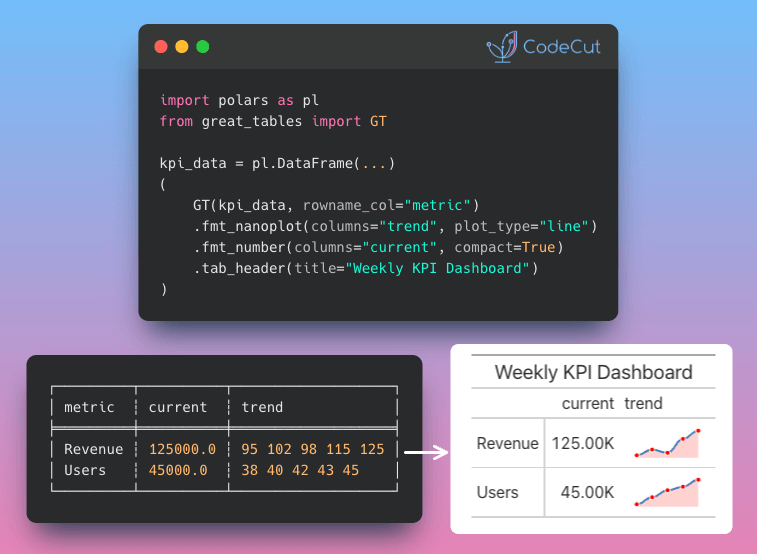
pandas vs Polars vs DuckDB: A Data Scientist’s Guide to Choosing the Right Tool Read More »

Newsletter #255: Polars v1.35: Native Rolling Rank for Time Series

📅 Today’s Picks

Polars v1.35: Native Rolling Rank for Time Series

Problem
How do you rank values within a rolling window?
For example, you might want to compare today’s sales to the last 3 days to answer: “How does today’s sales compare to the last 3 days?”
Solution
Polars v1.35 introduces rolling_rank() for native window ranking operations.
How it works:

Define a window size (e.g., last 3 values)
Each value gets ranked against others in its window
Rank 1 = lowest, Rank N = highest

This method is useful for tracking performance over time, detecting anomalies, or alerting when metrics underperform.

📖 View Full Article

🧪 Run code

⭐ View GitHub

Coiled: Run Python in the Cloud with One Decorator (Sponsored)

Problem
Imagine you need to run data processing on a file that is larger than your laptop’s RAM. What should you do?
Traditional solutions require buying more RAM, renting expensive cloud VMs, or learning Kubernetes. All of these add complexity and cost.
Solution
Coiled’s serverless functions let you run your Python code on cloud VMs with the memory you need by simply adding a decorator.
Key capabilities:

Use any data framework: pandas, Polars, DuckDB, Dask, and more
Process multiple files in parallel with .map()
Sync local packages to cloud without Docker
Cut costs with spot instances and auto-fallback

📖 View Full Article

🌐 Visit website

📢 ANNOUNCEMENTS

Cyber Monday: 58% Off Production-Ready Data Science
My book Production-Ready Data Science is on sale for Cyber Monday.
Get 58% off the ebook or 10% off the paperback through December 8th.
The book covers everything I’ve learned about taking data science from prototype to production: dependency management, testing, CI/CD, and workflow automation.

Get 58% Off Now

☕️ Weekly Finds

codon
[Python Utils]
– A high-performance, zero-overhead, extensible Python compiler with built-in NumPy support

khoj
[LLM]
– Your AI second brain. Self-hostable personal assistant with RAG, semantic search, and support for PDFs, Markdown, Notion, and more

lm-evaluation-harness
[MLOps]
– A framework for few-shot evaluation of language models. Powers Hugging Face’s Open LLM Leaderboard

Looking for a specific tool? Explore 70+ Python tools →

Stay Current with CodeCut

Actionable Python tips, curated for busy data pros. Skim in under 2 minutes, three times a week.

.codecut-subscribe-form .codecut-input {
background: #2F2D2E !important;
border: 1px solid #72BEFA !important;
color: #FFFFFF !important;
}
.codecut-subscribe-form .codecut-input::placeholder {
color: #999999 !important;
}
.codecut-subscribe-form .codecut-subscribe-btn {
background: #72BEFA !important;
color: #2F2D2E !important;
}
.codecut-subscribe-form .codecut-subscribe-btn:hover {
background: #5aa8e8 !important;
}

.codecut-subscribe-form {
max-width: 650px;
display: flex;
flex-direction: column;
gap: 8px;
}
.codecut-input {
-webkit-appearance: none;
-moz-appearance: none;
appearance: none;
background: #FFFFFF;
border-radius: 8px !important;
padding: 8px 12px;
font-family: ‘Comfortaa’, sans-serif !important;
font-size: 14px !important;
color: #333333;
border: none !important;
outline: none;
width: 100%;
box-sizing: border-box;
}
input[type=”email”].codecut-input {
border-radius: 8px !important;
}
.codecut-input::placeholder {
color: #666666;
}
.codecut-email-row {
display: flex;
align-items: stretch;
height: 36px;
gap: 8px;
}
.codecut-email-row .codecut-input {
flex: 1;
}
.codecut-subscribe-btn {
background: #72BEFA;
color: #2F2D2E;
border: none;
border-radius: 8px;
padding: 8px 14px;
font-family: ‘Comfortaa’, sans-serif;
font-size: 14px;
font-weight: 500;
cursor: pointer;
text-decoration: none;
display: flex;
align-items: center;
justify-content: center;
transition: background 0.3s ease;
}
.codecut-subscribe-btn:hover {
background: #5aa8e8;
}
.codecut-subscribe-btn:disabled {
background: #999;
cursor: not-allowed;
}
.codecut-message {
font-family: ‘Comfortaa’, sans-serif;
font-size: 12px;
padding: 8px;
border-radius: 6px;
display: none;
}
.codecut-message.success {
background: #d4edda;
color: #155724;
display: block;
}
@media (max-width: 480px) {
.codecut-email-row {
flex-direction: column;
height: auto;
gap: 8px;
}
.codecut-input {
border-radius: 8px;
height: 36px;
}
.codecut-subscribe-btn {
width: 100%;
text-align: center;
border-radius: 8px;
height: 36px;
}
}

Subscribe
Newsletter #255: Polars v1.35: Native Rolling Rank for Time Series Read More »

Newsletter #254: Pydantic v2.12: Skip Computed Fields During Serialization

📅 Today’s Picks

Pydantic v2.12: Skip Computed Fields During Serialization

Problem
By default, Pydantic’s model_dump() serializes computed fields alongside the base fields used to derive them.
This duplicates data and increases API response sizes.
Solution
Pydantic v2.12 adds the exclude_computed_fields parameter to model_dump().
This lets you keep computed fields for internal use while excluding them from API responses.

🧪 Run code

⭐ View GitHub

☕️ Weekly Finds

llm-council
[LLM]
– Query multiple LLMs in parallel, anonymize responses, and have them rank each other for better answers

skweak
[ML]
– Build NER models without labeled data using weak supervision for NLP tasks

wrapt
[Python Utils]
– Create transparent decorators, wrappers, and monkey patches in Python

Looking for a specific tool? Explore 70+ Python tools →

Stay Current with CodeCut

Actionable Python tips, curated for busy data pros. Skim in under 2 minutes, three times a week.

.codecut-subscribe-form .codecut-input {
background: #2F2D2E !important;
border: 1px solid #72BEFA !important;
color: #FFFFFF !important;
}
.codecut-subscribe-form .codecut-input::placeholder {
color: #999999 !important;
}
.codecut-subscribe-form .codecut-subscribe-btn {
background: #72BEFA !important;
color: #2F2D2E !important;
}
.codecut-subscribe-form .codecut-subscribe-btn:hover {
background: #5aa8e8 !important;
}

.codecut-subscribe-form {
max-width: 650px;
display: flex;
flex-direction: column;
gap: 8px;
}
.codecut-input {
-webkit-appearance: none;
-moz-appearance: none;
appearance: none;
background: #FFFFFF;
border-radius: 8px !important;
padding: 8px 12px;
font-family: ‘Comfortaa’, sans-serif !important;
font-size: 14px !important;
color: #333333;
border: none !important;
outline: none;
width: 100%;
box-sizing: border-box;
}
input[type=”email”].codecut-input {
border-radius: 8px !important;
}
.codecut-input::placeholder {
color: #666666;
}
.codecut-email-row {
display: flex;
align-items: stretch;
height: 36px;
gap: 8px;
}
.codecut-email-row .codecut-input {
flex: 1;
}
.codecut-subscribe-btn {
background: #72BEFA;
color: #2F2D2E;
border: none;
border-radius: 8px;
padding: 8px 14px;
font-family: ‘Comfortaa’, sans-serif;
font-size: 14px;
font-weight: 500;
cursor: pointer;
text-decoration: none;
display: flex;
align-items: center;
justify-content: center;
transition: background 0.3s ease;
}
.codecut-subscribe-btn:hover {
background: #5aa8e8;
}
.codecut-subscribe-btn:disabled {
background: #999;
cursor: not-allowed;
}
.codecut-message {
font-family: ‘Comfortaa’, sans-serif;
font-size: 12px;
padding: 8px;
border-radius: 6px;
display: none;
}
.codecut-message.success {
background: #d4edda;
color: #155724;
display: block;
}
@media (max-width: 480px) {
.codecut-email-row {
flex-direction: column;
height: auto;
gap: 8px;
}
.codecut-input {
border-radius: 8px;
height: 36px;
}
.codecut-subscribe-btn {
width: 100%;
text-align: center;
border-radius: 8px;
height: 36px;
}
}

Subscribe
Newsletter #254: Pydantic v2.12: Skip Computed Fields During Serialization Read More »

Newsletter #253: Docling: Auto-Annotate PDF Images Locally

📅 Today’s Picks

Docling: Auto-Annotate PDF Images Locally

Problem
Images in PDFs like charts, diagrams, and figures are invisible to search and analysis. Manually writing descriptions for hundreds of figures is impractical.
You could use cloud APIs like Gemini or ChatGPT, but that means API costs at scale and your documents leaving your infrastructure.
Solution
Docling runs local vision language models (Granite Vision, SmolVLM) to automatically generate descriptive annotations for every picture in your documents, keeping data private.
Key benefits:

Privacy: Data stays local, works offline
Cost: No per-image API fees
Flexibility: Customizable prompts, any HuggingFace model

📖 View Full Article

🧪 Run code

⭐ View GitHub

Rembg: Remove Image Backgrounds in 2 Lines of Python

Problem
Removing backgrounds from images typically requires Photoshop, online tools, or AI assistants like ChatGPT.
But these options come with subscription costs, upload limits, or privacy concerns with your images on external servers.
Solution
Rembg uses AI models to remove backgrounds locally with just 2 lines of Python.
It’s also open source and compatible with common Python imaging libraries.

🧪 Run code

⭐ View GitHub

☕️ Weekly Finds

label-studio
[MLOps]
– Multi-type data labeling and annotation tool with standardized output format

reflex
[Python Utils]
– Build full-stack web apps in pure Python – no JavaScript required

TradingAgents
[LLM]
– Multi-agent LLM financial trading framework

Looking for a specific tool? Explore 70+ Python tools →

Stay Current with CodeCut

Actionable Python tips, curated for busy data pros. Skim in under 2 minutes, three times a week.

.codecut-subscribe-form .codecut-input {
background: #2F2D2E !important;
border: 1px solid #72BEFA !important;
color: #FFFFFF !important;
}
.codecut-subscribe-form .codecut-input::placeholder {
color: #999999 !important;
}
.codecut-subscribe-form .codecut-subscribe-btn {
background: #72BEFA !important;
color: #2F2D2E !important;
}
.codecut-subscribe-form .codecut-subscribe-btn:hover {
background: #5aa8e8 !important;
}

.codecut-subscribe-form {
max-width: 650px;
display: flex;
flex-direction: column;
gap: 8px;
}
.codecut-input {
-webkit-appearance: none;
-moz-appearance: none;
appearance: none;
background: #FFFFFF;
border-radius: 8px !important;
padding: 8px 12px;
font-family: ‘Comfortaa’, sans-serif !important;
font-size: 14px !important;
color: #333333;
border: none !important;
outline: none;
width: 100%;
box-sizing: border-box;
}
input[type=”email”].codecut-input {
border-radius: 8px !important;
}
.codecut-input::placeholder {
color: #666666;
}
.codecut-email-row {
display: flex;
align-items: stretch;
height: 36px;
gap: 8px;
}
.codecut-email-row .codecut-input {
flex: 1;
}
.codecut-subscribe-btn {
background: #72BEFA;
color: #2F2D2E;
border: none;
border-radius: 8px;
padding: 8px 14px;
font-family: ‘Comfortaa’, sans-serif;
font-size: 14px;
font-weight: 500;
cursor: pointer;
text-decoration: none;
display: flex;
align-items: center;
justify-content: center;
transition: background 0.3s ease;
}
.codecut-subscribe-btn:hover {
background: #5aa8e8;
}
.codecut-subscribe-btn:disabled {
background: #999;
cursor: not-allowed;
}
.codecut-message {
font-family: ‘Comfortaa’, sans-serif;
font-size: 12px;
padding: 8px;
border-radius: 6px;
display: none;
}
.codecut-message.success {
background: #d4edda;
color: #155724;
display: block;
}
@media (max-width: 480px) {
.codecut-email-row {
flex-direction: column;
height: auto;
gap: 8px;
}
.codecut-input {
border-radius: 8px;
height: 36px;
}
.codecut-subscribe-btn {
width: 100%;
text-align: center;
border-radius: 8px;
height: 36px;
}
}

Subscribe
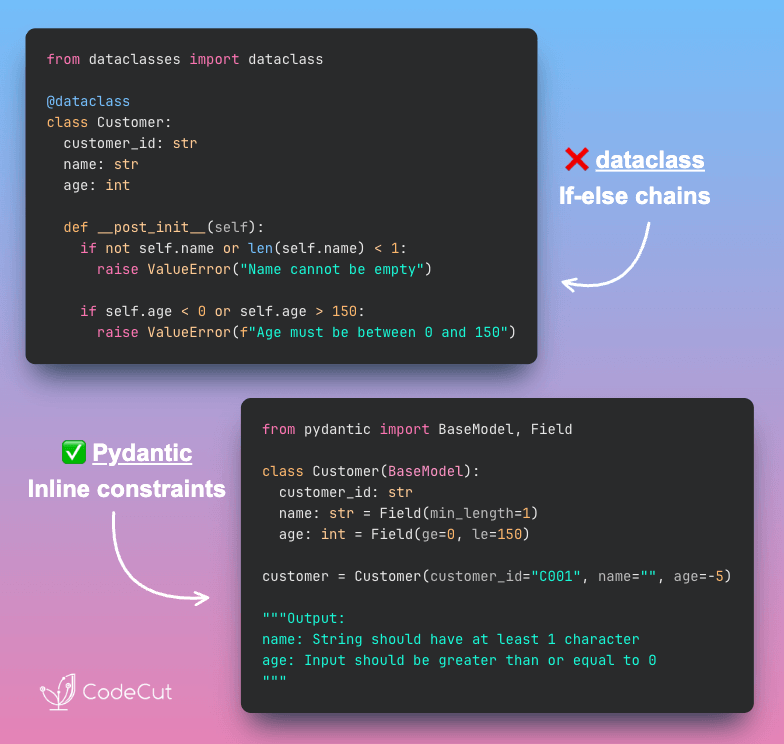
Newsletter #253: Docling: Auto-Annotate PDF Images Locally Read More »

Newsletter #252: Build Fast Recommendations with Annoy’s Memory-Mapped Indexes

📅 Today’s Picks

Build Fast Recommendations with Annoy’s Memory-Mapped Indexes

Problem
sklearn loads all your item vectors into memory and compares your search vector against every single item in your dataset.
This can take seconds or minutes when you have millions of items.
Solution
Annoy (Approximate Nearest Neighbors Oh Yeah), built by Spotify, speeds up similarity search by organizing your vectors into a searchable tree structure.
How it works:

Pre-builds indexes with “build(n_trees)”, creating multiple trees by recursively splitting your vector space with random hyperplanes
Traverses tree splits to find the n nearest neighbors using “get_nns_by_item(i, n)”
Checks only items in the final region instead of scanning everything

As a result, you can query millions of items in milliseconds instead of seconds.

🧪 Run code

⭐ View GitHub

Build Reliable DataFrame Tests with assert_frame_equal

Problem
Testing numerical code with regular assertions can lead to false failures from floating-point precision.
Your perfectly correct function fails tests because 0.1 + 0.2 doesn’t exactly equal 0.3 in computer arithmetic.
Solution
Use numpy.testing and pandas.testing utilities for robust numerical comparisons.
Key approaches:

assert_array_almost_equal for NumPy arrays with decimal precision control
pd.testing.assert_frame_equal for DataFrame comparisons with tolerance
Handle floating-point arithmetic limitations properly
Get reliable test results for numerical data processing

Professional data science requires proper numerical testing methods.

📖 Learn more

🧪 Run code

☕️ Weekly Finds

sympy
[Python Utils]
– A computer algebra system written in pure Python for symbolic mathematics

qdrant
[LLM]
– High-performance, massive-scale Vector Database and Vector Search Engine for the next generation of AI

mindsdb
[ML]
– Federated query engine for AI – connect to hundreds of data sources and generate intelligent responses using built-in agents

Looking for a specific tool? Explore 70+ Python tools →

Stay Current with CodeCut

Actionable Python tips, curated for busy data pros. Skim in under 2 minutes, three times a week.

.codecut-subscribe-form .codecut-input {
background: #2F2D2E !important;
border: 1px solid #72BEFA !important;
color: #FFFFFF !important;
}
.codecut-subscribe-form .codecut-input::placeholder {
color: #999999 !important;
}
.codecut-subscribe-form .codecut-subscribe-btn {
background: #72BEFA !important;
color: #2F2D2E !important;
}
.codecut-subscribe-form .codecut-subscribe-btn:hover {
background: #5aa8e8 !important;
}

.codecut-subscribe-form {
max-width: 650px;
display: flex;
flex-direction: column;
gap: 8px;
}
.codecut-input {
-webkit-appearance: none;
-moz-appearance: none;
appearance: none;
background: #FFFFFF;
border-radius: 8px !important;
padding: 8px 12px;
font-family: ‘Comfortaa’, sans-serif !important;
font-size: 14px !important;
color: #333333;
border: none !important;
outline: none;
width: 100%;
box-sizing: border-box;
}
input[type=”email”].codecut-input {
border-radius: 8px !important;
}
.codecut-input::placeholder {
color: #666666;
}
.codecut-email-row {
display: flex;
align-items: stretch;
height: 36px;
gap: 8px;
}
.codecut-email-row .codecut-input {
flex: 1;
}
.codecut-subscribe-btn {
background: #72BEFA;
color: #2F2D2E;
border: none;
border-radius: 8px;
padding: 8px 14px;
font-family: ‘Comfortaa’, sans-serif;
font-size: 14px;
font-weight: 500;
cursor: pointer;
text-decoration: none;
display: flex;
align-items: center;
justify-content: center;
transition: background 0.3s ease;
}
.codecut-subscribe-btn:hover {
background: #5aa8e8;
}
.codecut-subscribe-btn:disabled {
background: #999;
cursor: not-allowed;
}
.codecut-message {
font-family: ‘Comfortaa’, sans-serif;
font-size: 12px;
padding: 8px;
border-radius: 6px;
display: none;
}
.codecut-message.success {
background: #d4edda;
color: #155724;
display: block;
}
@media (max-width: 480px) {
.codecut-email-row {
flex-direction: column;
height: auto;
gap: 8px;
}
.codecut-input {
border-radius: 8px;
height: 36px;
}
.codecut-subscribe-btn {
width: 100%;
text-align: center;
border-radius: 8px;
height: 36px;
}
}

Subscribe
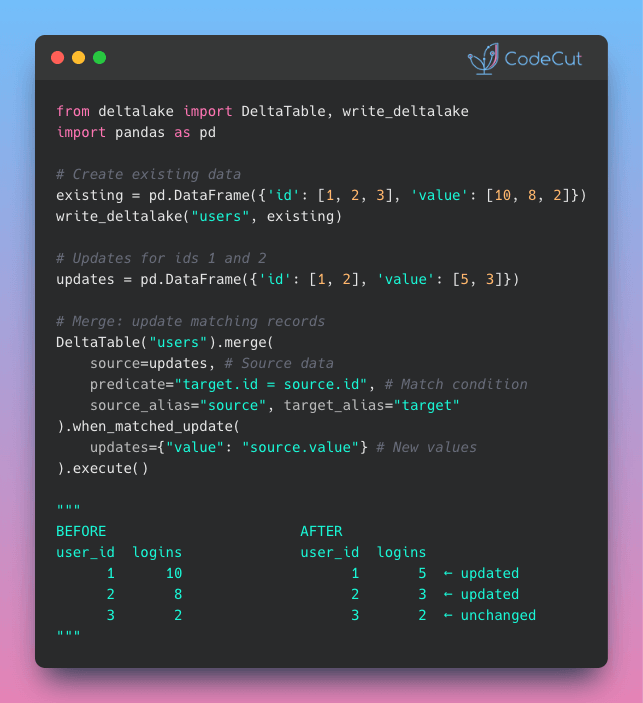
Newsletter #252: Build Fast Recommendations with Annoy’s Memory-Mapped Indexes Read More »

Scroll to Top

Work with Khuyen Tran

Work with Khuyen Tran