Generic selectors
Exact matches only
Search in title
Search in content
Post Type Selectors
Filter by Categories
About Article
Analyze Data
Archive
Best Practices
Better Outputs
Blog
Code Optimization
Code Quality
Command Line
Course
Daily tips
Dashboard
Data Analysis & Manipulation
Data Engineer
Data Visualization
DataFrame
Delta Lake
DevOps
DuckDB
Environment Management
Feature Engineer
Git
Jupyter Notebook
LLM
LLM Tools
Machine Learning
Machine Learning & AI
Machine Learning Tools
Manage Data
MLOps
Natural Language Processing
Newsletter Archive
NumPy
Pandas
Polars
PySpark
Python Helpers
Python Tips
Python Utilities
Scrape Data
SQL
Testing
Time Series
Tools
Visualization
Visualization & Reporting
Workflow & Automation
Workflow Automation

python

Auto-created tag for python

Coiled: Scale Python Data Pipeline to the Cloud in Minutes

Table of Contents

Introduction
What is Coiled?
Setup
Serverless Functions: Process Data with Any Framework
When You Need More: Distributed Clusters with Dask
Cost Optimization
Environment Synchronization
Conclusion

Introduction
A common challenge data scientists face is that local machines simply can’t handle large-scale datasets. Once your analysis reaches the 50GB+ range, you’re pushed into difficult choices:

Sample your data and hope patterns hold
Buy more RAM or rent expensive cloud VMs
Learn Kubernetes and spend days configuring clusters
Build Docker images and manage container registries

Each option adds complexity, cost, or compromises your analysis quality.
Coiled eliminates these tradeoffs. It provisions emphemeral compute clusters on AWS, GCP, or Azure using simple Python APIs. You get distributed computing power without DevOps expertise, automatic environment synchronization without Docker, and 70% cost savings through smart spot instance management.
In this article, you’ll learn how to scale Python data workflows to the cloud with Coiled:

Serverless functions: Run pandas, Polars, or DuckDB code on cloud VMs with a simple decorator
Parallel processing: Process multiple files simultaneously across cloud machines
Distributed clusters: Aggregate data across files using managed Dask clusters
Environment sync: Replicate your local packages to the cloud without Docker
Cost optimization: Reduce cloud spending with spot instances and auto-scaling

💻 Get the Code: The complete source code and Jupyter notebook for this tutorial are available on GitHub. Clone it to follow along!

Stay Current with CodeCut
Actionable Python tips, curated for busy data pros. Skim in under 2 minutes, three times a week.

.codecut-subscribe-form .codecut-input {
background: #2F2D2E !important;
border: 1px solid #72BEFA !important;
color: #FFFFFF !important;
}
.codecut-subscribe-form .codecut-input::placeholder {
color: #999999 !important;
}
.codecut-subscribe-form .codecut-subscribe-btn {
background: #72BEFA !important;
color: #2F2D2E !important;
}
.codecut-subscribe-form .codecut-subscribe-btn:hover {
background: #5aa8e8 !important;
}

.codecut-subscribe-form {
max-width: 650px;
display: flex;
flex-direction: column;
gap: 8px;
}

.codecut-input {
-webkit-appearance: none;
-moz-appearance: none;
appearance: none;
background: #FFFFFF;
border-radius: 8px !important;
padding: 8px 12px;
font-family: ‘Comfortaa’, sans-serif !important;
font-size: 14px !important;
color: #333333;
border: none !important;
outline: none;
width: 100%;
box-sizing: border-box;
}

input[type=”email”].codecut-input {
border-radius: 8px !important;
}

.codecut-input::placeholder {
color: #666666;
}

.codecut-email-row {
display: flex;
align-items: stretch;
height: 36px;
gap: 8px;
}

.codecut-email-row .codecut-input {
flex: 1;
}

.codecut-subscribe-btn {
background: #72BEFA;
color: #2F2D2E;
border: none;
border-radius: 8px;
padding: 8px 14px;
font-family: ‘Comfortaa’, sans-serif;
font-size: 14px;
font-weight: 500;
cursor: pointer;
text-decoration: none;
display: flex;
align-items: center;
justify-content: center;
transition: background 0.3s ease;
}

.codecut-subscribe-btn:hover {
background: #5aa8e8;
}

.codecut-subscribe-btn:disabled {
background: #999;
cursor: not-allowed;
}

.codecut-message {
font-family: ‘Comfortaa’, sans-serif;
font-size: 12px;
padding: 8px;
border-radius: 6px;
display: none;
}

.codecut-message.success {
background: #d4edda;
color: #155724;
display: block;
}

/* Mobile responsive */
@media (max-width: 480px) {
.codecut-email-row {
flex-direction: column;
height: auto;
gap: 8px;
}

.codecut-input {
border-radius: 8px;
height: 36px;
}

.codecut-subscribe-btn {
width: 100%;
text-align: center;
border-radius: 8px;
height: 36px;
}
}

Subscribe

What is Coiled?
Coiled is a lightweight cloud platform that runs Python code on powerful cloud infrastructure without requiring Docker or Kubernetes knowledge. It supports four main capabilities:

Batch Jobs: Submit and run Python scripts asynchronously on cloud infrastructure
Serverless Functions: Execute Python functions (Pandas, Polars, PyTorch) on cloud VMs with decorators
Dask Clusters: Provision multi-worker clusters for distributed computing
Jupyter Notebooks: Launch interactive Jupyter servers directly on cluster schedulers

Key features across both:

Framework-Agnostic: Works with Pandas, Polars, Dask, or any Python library
Automatic Package Sync: Local packages replicate to cloud workers without Docker
Cost Optimization: Spot instances, adaptive scaling, and auto-shutdown reduce spending
Simple APIs: Decorate functions or create clusters with 2-3 lines of code

To install Coiled and Dask, run:
pip install coiled dask[complete]

Setup
First, create a free Coiled account by running this command in your terminal:
coiled login

This creates a free Coiled Hosted account with 200 CPU-hours per month. Your code runs on Coiled’s cloud infrastructure with no AWS/GCP/Azure account needed.
Note: For production workloads with your own cloud account, run coiled setup PROVIDER (setup guide).
Serverless Functions: Process Data with Any Framework
The simplest way to scale Python code to the cloud is with serverless functions. Decorate any function with @coiled.function, and Coiled handles provisioning cloud VMs, installing packages, and executing your code.
Scale Beyond Laptop Memory with Cloud VMs
Imagine you need to process a NYCTaxi dataset with 12GB compressed files (50GB+ expanded) on a laptop with only 16GB of RAM. Your machine simply doesn’t have enough memory to handle this workload.
With Coiled, you can run the exact same code on a cloud VM with 64GB of RAM by simply adding the @coiled.function decorator.
import coiled
import pandas as pd

@coiled.function(
memory="64 GiB",
region="us-east-1"
)
def process_month_with_pandas(month):
# Read 12GB file directly into pandas
df = pd.read_parquet(
f"https://d37ci6vzurychx.cloudfront.net/trip-data/yellow_tripdata_2024-{month:02d}.parquet"
)

# Compute tipping patterns by hour
df["hour"] = df["tpep_pickup_datetime"].dt.hour
result = df.groupby("hour")["tip_amount"].mean()

return result

# Run on cloud VM with 64GB RAM
january_tips = process_month_with_pandas(1)
print(january_tips)

Output:
hour
0 3.326543
1 2.933899
2 2.768246
3 2.816333
4 3.132973

Name: tip_amount, dtype: float64

This function runs on a cloud VM with 64GB RAM, processes the entire month in memory, and returns just the aggregated result to your laptop.
You can view the function’s execution progress and resource usage in the Coiled dashboard.

Parallel Processing with .map()
By default Coiled Functions will run sequentially, just like normal Python functions. However, they can also easily run in parallel by using the .map() method.
Process all 12 months in parallel using .map():
import coiled
import pandas as pd

@coiled.function(memory="64 GiB", region="us-east-1")
def process_month(month):
df = pd.read_parquet(
f"https://d37ci6vzurychx.cloudfront.net/trip-data/yellow_tripdata_2024-{month:02d}.parquet"
)
return df["tip_amount"].mean()

# Process 12 months in parallel on 12 cloud VMs
months = range(1, 13)
monthly_tips = list(process_month.map(months))

print("Average tips by month:", monthly_tips)

Output:
Average tips by month: [2.65, 2.58, 2.72, 2.68, 2.75, 2.81, 2.79, 2.73, 2.69, 2.71, 2.66, 2.62]

When you call .map() with 12 months, Coiled spins up 12 cloud VMs simultaneously, runs process_month() on each VM with a different month, then returns all results.
The execution flow:
VM 1: yellow_tripdata_2024-01.parquet → compute mean → 2.65
VM 2: yellow_tripdata_2024-02.parquet → compute mean → 2.58
VM 3: yellow_tripdata_2024-03.parquet → compute mean → 2.72
… (all running in parallel)
VM 12: yellow_tripdata_2024-12.parquet → compute mean → 2.62

Coiled collects: [2.65, 2.58, 2.72, …, 2.62]

Each VM works in complete isolation with no data sharing or coordination between them.

The dashboard confirms 12 tasks were executed, matching the 12 months we passed to .map().
Framework-Agnostic: Use Any Python Library
Coiled Functions aren’t limited to pandas. You can use any Python library (Polars, DuckDB, PyTorch, scikit-learn) without any additional configuration. The automatic package synchronization works for all dependencies.
Example with Polars:
Polars is a fast DataFrame library optimized for performance. It works seamlessly with Coiled:
import coiled
import polars as pl

@coiled.function(memory="64 GiB", region="us-east-1")
def process_with_polars(month):
df = pl.read_parquet(
f"https://d37ci6vzurychx.cloudfront.net/trip-data/yellow_tripdata_2024-{month:02d}.parquet"
)
return (
df
.filter(pl.col("tip_amount") > 0)
.group_by("PULocationID")
.agg(pl.col("tip_amount").mean())
.sort("tip_amount", descending=True)
.head(5)
)

result = process_with_polars(1)
print(result)

Output:
shape: (5, 2)
┌──────────────┬────────────┐
│ PULocationID ┆ tip_amount │
│ — ┆ — │
│ i64 ┆ f64 │
╞══════════════╪════════════╡
│ 138 ┆ 4.52 │
│ 230 ┆ 4.23 │
│ 161 ┆ 4.15 │
│ 234 ┆ 3.98 │
│ 162 ┆ 3.87 │
└──────────────┴────────────┘

Example with DuckDB:
DuckDB provides fast SQL analytics directly on Parquet files:
import coiled
import duckdb

@coiled.function(memory="64 GiB", region="us-east-1")
def query_with_duckdb(month):
con = duckdb.connect()
result = con.execute(f"""
SELECT
DATE_TRUNC('hour', tpep_pickup_datetime) as pickup_hour,
AVG(tip_amount) as avg_tip,
COUNT(*) as trip_count
FROM 'https://d37ci6vzurychx.cloudfront.net/trip-data/yellow_tripdata_2024-{month:02d}.parquet'
WHERE tip_amount > 0
GROUP BY pickup_hour
ORDER BY avg_tip DESC
LIMIT 5
""").fetchdf()
return result

result = query_with_duckdb(1)
print(result)

Output:
pickup_hour avg_tip trip_count
0 2024-01-15 14:00:00 4.23 15234
1 2024-01-20 18:00:00 4.15 18456
2 2024-01-08 12:00:00 3.98 12789
3 2024-01-25 16:00:00 3.87 14567
4 2024-01-12 20:00:00 3.76 16234

Coiled automatically detects your local Polars and DuckDB installations and replicates them to cloud VMs. No manual configuration needed.
When You Need More: Distributed Clusters with Dask
Serverless functions work great for independent file processing. However, when you need to combine and aggregate data across all your files into a single result, you need a Dask cluster.
For example, suppose you want to calculate total revenue by pickup location across all 12 months of data. With Coiled Functions, each VM processes one month independently:
@coiled.function(memory="64 GiB", region="us-east-1")
def get_monthly_revenue_by_location(month):
df = pd.read_parquet(
f"https://d37ci6vzurychx.cloudfront.net/trip-data/yellow_tripdata_2024-{month:02d}.parquet"
)
return df.groupby("PULocationID")["total_amount"].sum()

# This returns 12 separate DataFrames, one per month
results = list(get_monthly_revenue_by_location.map(range(1, 13)))
print(f'Number of DataFrames: {len(results)}')

Output:
Number of DataFrames: 12

The problem is that you get 12 separate DataFrames that you need to manually combine.
Here’s what happens: VM 1 processes January and returns a DataFrame like:
PULocationID total_amount
138 15000
230 22000

VM 2 processes February and returns:
PULocationID total_amount
138 18000
230 19000

Each VM works independently and has no knowledge of the other months’ data. To get yearly totals per location, you’d need to write code to merge these 12 DataFrames and sum the revenue for each location.
With a Dask cluster, workers coordinate to give you one global result:
import coiled
import dask.dataframe as dd

# For production workloads, you can scale to 50+ workers
cluster = coiled.Cluster(n_workers=3, region="us-east-1")

# Read all 12 months of 2024 data
files = [
f"https://d37ci6vzurychx.cloudfront.net/trip-data/yellow_tripdata_2024-{month:02d}.parquet"
for month in range(1, 13)
]
df = dd.read_parquet(files) # Lazy: builds a plan, doesn't load data yet

# This returns ONE DataFrame with total revenue per location across all months
total_revenue = (
df.groupby("PULocationID")["total_amount"].sum().compute()
) # Executes the plan

total_revenue.head()

Output:
PULocationID
1 563645.70
2 3585.80
3 67261.41
4 1687265.08
5 602.98
Name: total_amount, dtype: float64

You can see that we got a single DataFrame with the total revenue per location across all months.
Here is what happens under the hood:
When you call .compute(), Dask executes the plan in four steps:
Step 1: Data Distribution
├─ Worker 1: [Jan partitions 1-3, Apr partitions 1-2, Jul partitions 1-3]
├─ Worker 2: [Feb partitions 1-4, May partitions 1-3, Aug partitions 1-2]
└─ Worker 3: [Mar partitions 1-3, Jun partitions 1-2, Sep-Dec partitions]

Step 2: Local Aggregation (each worker groups its data)
├─ Worker 1: {location_138: $45,000, location_230: $63,000}
├─ Worker 2: {location_138: $38,000, location_230: $55,000}
└─ Worker 3: {location_138: $50,000, location_230: $62,000}

Step 3: Shuffle (redistribute so each location lives on one worker)
├─ Worker 1: All location_230 data → $63,000 + $55,000 + $62,000
├─ Worker 2: All location_138 data → $45,000 + $38,000 + $50,000
└─ Worker 3: All other locations…

Step 4: Final Result
location_138: $133,000 (yearly total)
location_230: $180,000 (yearly total)

This shuffle-and-combine process is what makes Dask different from Coiled Functions. Workers actively coordinate and share data to produce one unified result.
Cost Optimization
Cloud costs can spiral quickly. Coiled provides three mechanisms to reduce spending:
1. Spot Instances
You can reduce cloud costs by 60-90% using spot instances. These are discounted servers that cloud providers can reclaim when demand increases. When an interruption occurs, Coiled:

Gracefully shuts down the affected worker
Redistributes its work to healthy workers
Automatically launches a replacement worker

cluster = coiled.Cluster(
n_workers=50,
spot_policy="spot_with_fallback", # Use spot instances with on-demand backup
region="us-east-1"
)

Cost comparison for m5.xlarge instances:

On-demand: $0.192/hour
Spot: $0.05/hour
Savings: 74%

For a 100-worker cluster:

On-demand: $19.20/hour = $460/day
Spot: $5.00/hour = $120/day

2. Adaptive Scaling
Adaptive scaling automatically adds workers when you have more work and removes them when idle, so you only pay for what you need. Coiled enables this with the adapt() method:
cluster = coiled.Cluster(region="us-east-1")
cluster.adapt(minimum=10, maximum=50) # Scale between 10-50 workers

Serverless functions also support auto-scaling by specifying a worker range:
@coiled.function(n_workers=[10, 300])
def process_data(files):
return results

This saves money during light workloads while delivering performance during heavy computation. No manual monitoring required.
3. Automatic Shutdown
To prevent paying for unused resources, Coiled automatically shuts down clusters after 20 minutes of inactivity by default. You can customize this with the idle_timeout parameter:
cluster = coiled.Cluster(
n_workers=20,
region="us-east-1",
idle_timeout="1 hour" # Keep cluster alive for longer workloads
)

This prevents the common mistake of leaving clusters running overnight.
Environment Synchronization
The “Works on My Machine” Problem When Scaling to Cloud
Imagine this scenario: your pandas code works locally but fails on a cloud VM because the environment has different package versions or missing dependencies.
Docker solves this by packaging your environment into a container that runs identically on your laptop and cloud VMs. However, getting it running on cloud infrastructure involves a complex workflow:

Write a Dockerfile listing all dependencies and versions
Build the Docker image (wait 5-10 minutes)
Push to cloud container registry (AWS ECR, Google Container Registry)
Configure cloud VMs (EC2/GCE instances with proper networking and security)
Pull and run the image on cloud machines (3-5 minutes per VM)
Rebuild and redeploy every time you add a package (repeat steps 2-5)

This Docker + cloud workflow slows down development and requires expertise in both containerization and cloud infrastructure management.
Coiled’s Solution: Automatic Package Synchronization
Coiled eliminates Docker entirely through automatic package synchronization. Your local environment replicates to cloud workers with no Dockerfile required.
Instead of managing Docker images and cloud infrastructure, you simply add a decorator to your function:
import coiled
import pandas as pd

@coiled.function(memory="64 GiB", region="us-east-1")
def process_data():
df = pd.read_parquet("s3://my-bucket/data.parquet")
# Your analysis code here
return df.describe()

result = process_data() # Runs on cloud VM with your exact package versions

What Coiled does automatically:

Scans your local environment (pip, conda packages with exact versions)
Creates a dependency manifest (a list of all packages and their versions)
Installs packages on cloud workers with matching versions
Reuses built environments when your dependencies haven’t changed

This is faster than Docker builds in most cases thanks to intelligent caching, and requires zero configuration.
Conclusion
Coiled transforms cloud computing from a multi-day DevOps project into simple Python operations. Whether you’re processing a single large file with Pandas, querying multiple files with Polars, or running distributed aggregations with Dask clusters, Coiled provides the right scaling approach for your needs.
I recommend starting simple with serverless functions for single-file processing, then scale to Dask clusters when you need truly distributed computing. Coiled removes the infrastructure burden from data science workflows, letting you focus on analysis instead of operations.
Related Tutorials

Polars vs Pandas: Performance Benchmarks and When to Switch – Choose the right DataFrame library for your workloads
DuckDB: Fast SQL Analytics on Parquet Files – Master SQL techniques for processing data with DuckDB
PySpark Pandas API: Familiar Syntax at Scale – Explore Spark as an alternative to Dask for distributed processing

📚 Want to go deeper? Learning new techniques is the easy part. Knowing how to structure, test, and deploy them is what separates side projects from real work. My book shows you how to build data science projects that actually make it to production. Get the book →

Stay Current with CodeCut
Actionable Python tips, curated for busy data pros. Skim in under 2 minutes, three times a week.

.codecut-subscribe-form .codecut-input {
background: #2F2D2E !important;
border: 1px solid #72BEFA !important;
color: #FFFFFF !important;
}
.codecut-subscribe-form .codecut-input::placeholder {
color: #999999 !important;
}
.codecut-subscribe-form .codecut-subscribe-btn {
background: #72BEFA !important;
color: #2F2D2E !important;
}
.codecut-subscribe-form .codecut-subscribe-btn:hover {
background: #5aa8e8 !important;
}

.codecut-subscribe-form {
max-width: 650px;
display: flex;
flex-direction: column;
gap: 8px;
}

.codecut-input {
-webkit-appearance: none;
-moz-appearance: none;
appearance: none;
background: #FFFFFF;
border-radius: 8px !important;
padding: 8px 12px;
font-family: ‘Comfortaa’, sans-serif !important;
font-size: 14px !important;
color: #333333;
border: none !important;
outline: none;
width: 100%;
box-sizing: border-box;
}

input[type=”email”].codecut-input {
border-radius: 8px !important;
}

.codecut-input::placeholder {
color: #666666;
}

.codecut-email-row {
display: flex;
align-items: stretch;
height: 36px;
gap: 8px;
}

.codecut-email-row .codecut-input {
flex: 1;
}

.codecut-subscribe-btn {
background: #72BEFA;
color: #2F2D2E;
border: none;
border-radius: 8px;
padding: 8px 14px;
font-family: ‘Comfortaa’, sans-serif;
font-size: 14px;
font-weight: 500;
cursor: pointer;
text-decoration: none;
display: flex;
align-items: center;
justify-content: center;
transition: background 0.3s ease;
}

.codecut-subscribe-btn:hover {
background: #5aa8e8;
}

.codecut-subscribe-btn:disabled {
background: #999;
cursor: not-allowed;
}

.codecut-message {
font-family: ‘Comfortaa’, sans-serif;
font-size: 12px;
padding: 8px;
border-radius: 6px;
display: none;
}

.codecut-message.success {
background: #d4edda;
color: #155724;
display: block;
}

/* Mobile responsive */
@media (max-width: 480px) {
.codecut-email-row {
flex-direction: column;
height: auto;
gap: 8px;
}

.codecut-input {
border-radius: 8px;
height: 36px;
}

.codecut-subscribe-btn {
width: 100%;
text-align: center;
border-radius: 8px;
height: 36px;
}
}

Subscribe

Coiled: Scale Python Data Pipeline to the Cloud in Minutes Read More »

Newsletter #251: PySpark 4.0: Native Plotting API for DataFrames

📅 Today’s Picks

PySpark 4.0: Native Plotting API for DataFrames

Problem
Visualizing PySpark DataFrames typically requires converting to Pandas first, adding memory overhead and extra processing steps.
Solution
PySpark 4.0 adds native Plotly-powered plotting, enabling direct .plot() calls on DataFrames without Pandas conversion.

📖 View Full Article

🧪 Run code

⭐ View GitHub

☕️ Weekly Finds

rembg
[Python Utils]
– Rembg is a tool to remove images background

pyupgrade
[Python Utils]
– A tool (and pre-commit hook) to automatically upgrade syntax for newer versions of the language

py-shiny
[Data Viz]
– Shiny for Python is the best way to build fast, beautiful web applications in Python

Looking for a specific tool? Explore 70+ Python tools →

Stay Current with CodeCut

Actionable Python tips, curated for busy data pros. Skim in under 2 minutes, three times a week.

.codecut-subscribe-form .codecut-input {
background: #2F2D2E !important;
border: 1px solid #72BEFA !important;
color: #FFFFFF !important;
}
.codecut-subscribe-form .codecut-input::placeholder {
color: #999999 !important;
}
.codecut-subscribe-form .codecut-subscribe-btn {
background: #72BEFA !important;
color: #2F2D2E !important;
}
.codecut-subscribe-form .codecut-subscribe-btn:hover {
background: #5aa8e8 !important;
}

.codecut-subscribe-form {
max-width: 650px;
display: flex;
flex-direction: column;
gap: 8px;
}
.codecut-input {
-webkit-appearance: none;
-moz-appearance: none;
appearance: none;
background: #FFFFFF;
border-radius: 8px !important;
padding: 8px 12px;
font-family: ‘Comfortaa’, sans-serif !important;
font-size: 14px !important;
color: #333333;
border: none !important;
outline: none;
width: 100%;
box-sizing: border-box;
}
input[type=”email”].codecut-input {
border-radius: 8px !important;
}
.codecut-input::placeholder {
color: #666666;
}
.codecut-email-row {
display: flex;
align-items: stretch;
height: 36px;
gap: 8px;
}
.codecut-email-row .codecut-input {
flex: 1;
}
.codecut-subscribe-btn {
background: #72BEFA;
color: #2F2D2E;
border: none;
border-radius: 8px;
padding: 8px 14px;
font-family: ‘Comfortaa’, sans-serif;
font-size: 14px;
font-weight: 500;
cursor: pointer;
text-decoration: none;
display: flex;
align-items: center;
justify-content: center;
transition: background 0.3s ease;
}
.codecut-subscribe-btn:hover {
background: #5aa8e8;
}
.codecut-subscribe-btn:disabled {
background: #999;
cursor: not-allowed;
}
.codecut-message {
font-family: ‘Comfortaa’, sans-serif;
font-size: 12px;
padding: 8px;
border-radius: 6px;
display: none;
}
.codecut-message.success {
background: #d4edda;
color: #155724;
display: block;
}
@media (max-width: 480px) {
.codecut-email-row {
flex-direction: column;
height: auto;
gap: 8px;
}
.codecut-input {
border-radius: 8px;
height: 36px;
}
.codecut-subscribe-btn {
width: 100%;
text-align: center;
border-radius: 8px;
height: 36px;
}
}

Subscribe

Newsletter #251: PySpark 4.0: Native Plotting API for DataFrames Read More »

PySpark 4.0: 4 Features That Change How You Process Data

Table of Contents

Introduction
From Pandas UDFs to Arrow UDFs: Next-Gen Performance
Native Data Visualization (PySpark 4.0+)
Schema-Free JSON Handling with Variant Type (PySpark 4.0+)
Dynamic Schema Generation with UDTF analyze() (PySpark 4.0+)
Conclusion

Introduction
PySpark 4.0 introduces transformative improvements that enhance performance, streamline workflows, and enable flexible data transformations in distributed processing.
This release delivers four key enhancements:

Arrow-optimized UDFs accelerate custom transformations by operating directly on Arrow data structures, eliminating the serialization overhead of Pandas UDFs.
Native Plotly visualization enables direct DataFrame plotting without conversion, streamlining exploratory data analysis and reducing memory overhead.
Variant type for JSON enables schema-free JSON querying with JSONPath syntax, eliminating verbose StructType definitions for nested data.
Dynamic schema UDTFs adapt output columns to match input data at runtime, enabling flexible pivot tables and aggregations where column structure depends on data values.

For comprehensive coverage of core PySpark SQL functionality, see the Complete Guide to PySpark SQL.

Stay Current with CodeCut
Actionable Python tips, curated for busy data pros. Skim in under 2 minutes, three times a week.

.codecut-subscribe-form .codecut-input {
background: #2F2D2E !important;
border: 1px solid #72BEFA !important;
color: #FFFFFF !important;
}
.codecut-subscribe-form .codecut-input::placeholder {
color: #999999 !important;
}
.codecut-subscribe-form .codecut-subscribe-btn {
background: #72BEFA !important;
color: #2F2D2E !important;
}
.codecut-subscribe-form .codecut-subscribe-btn:hover {
background: #5aa8e8 !important;
}

.codecut-subscribe-form {
max-width: 650px;
display: flex;
flex-direction: column;
gap: 8px;
}

.codecut-input {
-webkit-appearance: none;
-moz-appearance: none;
appearance: none;
background: #FFFFFF;
border-radius: 8px !important;
padding: 8px 12px;
font-family: ‘Comfortaa’, sans-serif !important;
font-size: 14px !important;
color: #333333;
border: none !important;
outline: none;
width: 100%;
box-sizing: border-box;
}

input[type=”email”].codecut-input {
border-radius: 8px !important;
}

.codecut-input::placeholder {
color: #666666;
}

.codecut-email-row {
display: flex;
align-items: stretch;
height: 36px;
gap: 8px;
}

.codecut-email-row .codecut-input {
flex: 1;
}

.codecut-subscribe-btn {
background: #72BEFA;
color: #2F2D2E;
border: none;
border-radius: 8px;
padding: 8px 14px;
font-family: ‘Comfortaa’, sans-serif;
font-size: 14px;
font-weight: 500;
cursor: pointer;
text-decoration: none;
display: flex;
align-items: center;
justify-content: center;
transition: background 0.3s ease;
}

.codecut-subscribe-btn:hover {
background: #5aa8e8;
}

.codecut-subscribe-btn:disabled {
background: #999;
cursor: not-allowed;
}

.codecut-message {
font-family: ‘Comfortaa’, sans-serif;
font-size: 12px;
padding: 8px;
border-radius: 6px;
display: none;
}

.codecut-message.success {
background: #d4edda;
color: #155724;
display: block;
}

/* Mobile responsive */
@media (max-width: 480px) {
.codecut-email-row {
flex-direction: column;
height: auto;
gap: 8px;
}

.codecut-input {
border-radius: 8px;
height: 36px;
}

.codecut-subscribe-btn {
width: 100%;
text-align: center;
border-radius: 8px;
height: 36px;
}
}

Subscribe

From Pandas UDFs to Arrow UDFs: Next-Gen Performance
The pandas_udf function requires converting Arrow data to Pandas format and back again for each operation. This serialization cost becomes significant when processing large datasets.
PySpark 3.5+ introduces Arrow-optimized UDFs via the useArrow=True parameter, which operates directly on Arrow data structures, avoiding the Pandas conversion entirely and improving performance.
Let’s compare the performance with a weighted sum calculation across multiple columns on 100,000 rows:
import pandas as pd
import pyarrow.compute as pc
from pyspark.sql import SparkSession
from pyspark.sql.functions import pandas_udf, udf
from pyspark.sql.types import DoubleType

spark = SparkSession.builder.appName("UDFComparison").getOrCreate()

# Create test data with multiple numeric columns
data = [(float(i), float(i*2), float(i*3)) for i in range(100000)]
df = spark.createDataFrame(data, ["val1", "val2", "val3"])

Create a timing decorator to measure the execution time of the functions:
import time
from functools import wraps

# Timing decorator
def timer(func):
@wraps(func)
def wrapper(*args, **kwargs):
start = time.time()
result = func(*args, **kwargs)
elapsed = time.time() – start
print(f"{func.__name__}: {elapsed:.2f}s")
wrapper.elapsed_time = elapsed
return result

return wrapper

Use the timing decorator to measure the execution time of the pandas_udf function:
@pandas_udf(DoubleType())
def weighted_sum_pandas(v1: pd.Series, v2: pd.Series, v3: pd.Series) -> pd.Series:
return v1 * 0.5 + v2 * 0.3 + v3 * 0.2

@timer
def run_pandas_udf():
result = df.select(
weighted_sum_pandas(df.val1, df.val2, df.val3).alias("weighted")
)
result.count() # Trigger computation
return result

result_pandas = run_pandas_udf()
pandas_time = run_pandas_udf.elapsed_time

run_pandas_udf: 1.33s

Use the timing decorator to measure the execution time of the Arrow-optimized UDF using useArrow:
from pyspark.sql.functions import udf
from pyspark.sql.types import DoubleType

@udf(DoubleType(), useArrow=True)
def weighted_sum_arrow(v1, v2, v3):
term1 = pc.multiply(v1, 0.5)
term2 = pc.multiply(v2, 0.3)
term3 = pc.multiply(v3, 0.2)
return pc.add(pc.add(term1, term2), term3)

@timer
def run_arrow_udf():
result = df.select(
weighted_sum_arrow(df.val1, df.val2, df.val3).alias("weighted")
)
result.count() # Trigger computation
return result

result_arrow = run_arrow_udf()
arrow_time = run_arrow_udf.elapsed_time

run_arrow_udf: 0.43s

Measure the speedup:
speedup = pandas_time / arrow_time
print(f"Speedup: {speedup:.2f}x faster")

Speedup: 3.06x faster

The output shows that the Arrow-optimized version is 3.06x faster than the pandas_udf version!
The performance gain comes from avoiding serialization. Arrow-optimized UDFs use PyArrow compute functions like pc.multiply() and pc.add() directly on Arrow data, while pandas_udf must convert each column to Pandas and back.
Trade-off: The 3.06x performance improvement comes at the cost of using PyArrow’s less familiar compute API instead of Pandas operations. However, this becomes increasingly valuable as dataset size and column count grow.
Native Data Visualization (PySpark 4.0+)
Visualizing PySpark DataFrames traditionally requires converting to Pandas first, then using external libraries like matplotlib or plotly. This adds memory overhead and extra processing steps.
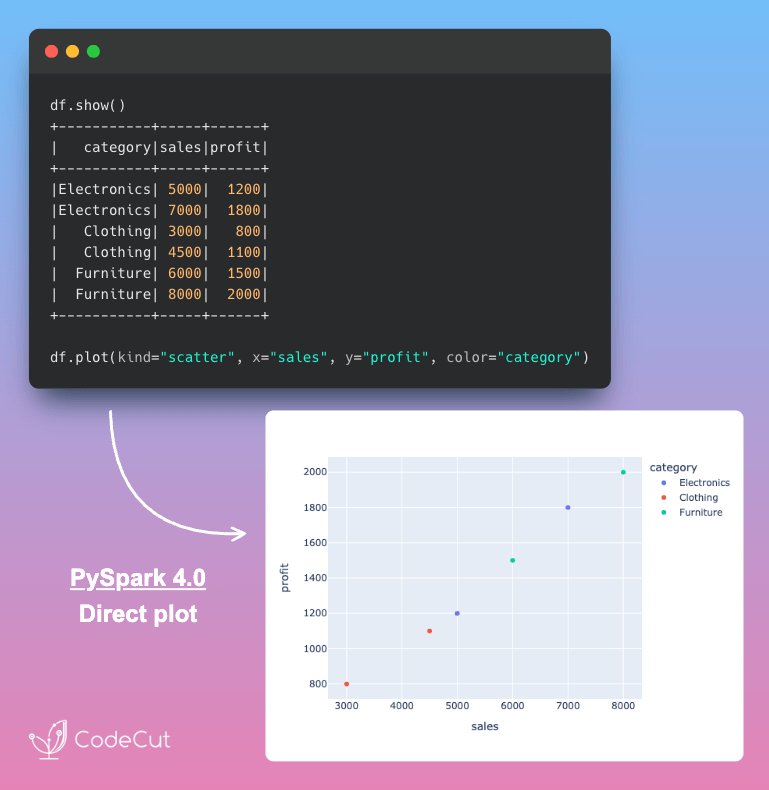
PySpark 4.0 introduces a native plotting API powered by Plotly, enabling direct visualization from PySpark DataFrames without any conversion.
Let’s visualize sales data across product categories:
from pyspark.sql import SparkSession

spark = SparkSession.builder.appName("Visualization").getOrCreate()

# Create sample sales data
sales_data = [
("Electronics", 5000, 1200),
("Electronics", 7000, 1800),
("Clothing", 3000, 800),
("Clothing", 4500, 1100),
("Furniture", 6000, 1500),
("Furniture", 8000, 2000),
]

sales_df = spark.createDataFrame(sales_data, ["category", "sales", "profit"])
sales_df.show()

+———–+—–+——+
| category|sales|profit|
+———–+—–+——+
|Electronics| 5000| 1200|
|Electronics| 7000| 1800|
| Clothing| 3000| 800|
| Clothing| 4500| 1100|
| Furniture| 6000| 1500|
| Furniture| 8000| 2000|
+———–+—–+——+

Create a scatter plot directly from the PySpark DataFrame using the .plot() method:
# Direct plotting without conversion
sales_df.plot(kind="scatter", x="sales", y="profit", color="category")

You can also use shorthand methods such as plot.scatter() and plot.bar() for specific chart types:
# Scatter plot with shorthand
sales_df.plot.scatter(x="sales", y="profit", color="category")

# Bar chart by category
category_totals = sales_df.groupBy("category").agg({"sales": "sum"}).withColumnRenamed("sum(sales)", "total_sales")
category_totals.plot.bar(x="category", y="total_sales")

The native plotting API supports 8 chart types:

scatter: Scatter plots with color grouping
bar: Bar charts for categorical comparisons
line: Line plots for time series
area: Area charts for cumulative values
pie: Pie charts for proportions
box: Box plots for distributions
histogram: Histograms for frequency analysis
kde/density: Density plots for probability distributions

By default, PySpark visualizes up to 1,000 rows. For larger datasets, configure the limit:
# Increase visualization row limit
spark.conf.set("spark.sql.pyspark.plotting.max_rows", 5000)

Schema-Free JSON Handling with Variant Type (PySpark 4.0+)
Extracting nested JSON in PySpark requires defining StructType schemas that mirror your data structure. This creates verbose code that breaks whenever your JSON changes.
Let’s extract data from a 3-level nested JSON structure using the traditional approach:
from pyspark.sql import SparkSession
from pyspark.sql.types import StructType, StructField, StringType

spark = SparkSession.builder.appName("json_schema").getOrCreate()

# 3 levels of nested StructType – verbose and hard to maintain
schema = StructType([
StructField("user", StructType([
StructField("name", StringType()),
StructField("profile", StructType([
StructField("settings", StructType([
StructField("theme", StringType())
]))
]))
]))
])

json_data = [
'{"user": {"name": "Alice", "profile": {"settings": {"theme": "dark"}}}}',
'{"user": {"name": "Bob", "profile": {"settings": {"theme": "light"}}}}'
]

rdd = spark.sparkContext.parallelize(json_data)
df = spark.read.schema(schema).json(rdd)
df.select("user.name", "user.profile.settings.theme").show()

+—–+—–+
| name|theme|
+—–+—–+
|Alice| dark|
| Bob|light|
+—–+—–+

PySpark 4.0 introduces the Variant type, which lets you skip schema definitions entirely. To work with the Variant type:

Use parse_json() to load JSON data
Use variant_get() to extract fields with JSONPath syntax

from pyspark.sql import SparkSession
from pyspark.sql.functions import parse_json, variant_get

spark = SparkSession.builder.appName("json_variant").getOrCreate()

json_data = [
('{"user": {"name": "Alice", "profile": {"settings": {"theme": "dark"}}}}',),
('{"user": {"name": "Bob", "profile": {"settings": {"theme": "light"}}}}',)
]

df = spark.createDataFrame(json_data, ["json_str"])
df_variant = df.select(parse_json("json_str").alias("data"))

# No schema needed – just use JSONPath
result = df_variant.select(
variant_get("data", "$.user.name", "string").alias("name"),
variant_get("data", "$.user.profile.settings.theme", "string").alias("theme")
)
result.show()

+—–+—–+
| name|theme|
+—–+—–+
|Alice| dark|
| Bob|light|
+—–+—–+

The Variant type provides several advantages:

No upfront schema definition: Handle any JSON structure without verbose StructType definitions
JSONPath syntax: Access nested paths using $.path.to.field notation regardless of depth
Schema flexibility: JSON structure changes don’t break your code
Type safety: variant_get() lets you specify the expected type when extracting fields

Dynamic Schema Generation with UDTF analyze() (PySpark 4.0+)
Python UDTFs (User-Defined Table Functions) generate multiple rows from a single input row, but they come with a critical limitation: you must define the output schema upfront. When your output columns depend on the input data itself (like creating pivot tables or dynamic aggregations where column names come from data values), this rigid schema requirement becomes a problem.
For example, a word-counting UDTF requires you to specify all output columns upfront, even though the words themselves are unknown until runtime.
from pyspark.sql.functions import udtf, lit
from pyspark.sql.types import StructType, StructField, IntegerType

# Schema must be defined upfront with fixed column names
@udtf(returnType=StructType([
StructField("hello", IntegerType()),
StructField("world", IntegerType()),
StructField("spark", IntegerType())
]))
class StaticWordCountUDTF:
def eval(self, text: str):
words = text.split(" ")
yield tuple(words.count(word) for word in ["hello", "world", "spark"])

# Only works for exactly these three words
result = StaticWordCountUDTF(lit("hello world hello spark"))
result.show()

+—–+—–+—–+
|hello|world|spark|
+—–+—–+—–+
| 2| 1| 1|
+—–+—–+—–+

If the input text contains a different set of words, the output won’t contain the count of the new words.
result = StaticWordCountUDTF(lit("hi world hello spark"))
result.show()

+—–+—–+—–+
|hello|world|spark|
+—–+—–+—–+
| 1| 1| 1|
+—–+—–+—–+

PySpark 4.0 introduces the analyze() method for UDTFs, enabling dynamic schema determination based on input data. Instead of hardcoding your output schema, analyze() inspects the input and generates the appropriate columns at runtime.
from pyspark.sql.functions import udtf, lit
from pyspark.sql.types import StructType, IntegerType
from pyspark.sql.udtf import AnalyzeArgument, AnalyzeResult

@udtf
class DynamicWordCountUDTF:
@staticmethod
def analyze(text: AnalyzeArgument) -> AnalyzeResult:
"""Dynamically create schema based on input text"""
schema = StructType()
# Create one column per unique word in the input
for word in sorted(set(text.value.split(" "))):
schema = schema.add(word, IntegerType())
return AnalyzeResult(schema=schema)

def eval(self, text: str):
"""Generate counts for each word"""
words = text.split(" ")
# Use same logic as analyze() to determine column order
unique_words = sorted(set(words))
yield tuple(words.count(word) for word in unique_words)

# Schema adapts to any input text
result = DynamicWordCountUDTF(lit("hello world hello spark"))
result.show()

+—–+—–+—–+
|hello|spark|world|
+—–+—–+—–+
| 2| 1| 1|
+—–+—–+—–+

Now try with completely different words:
# Different words – schema adapts automatically
result2 = DynamicWordCountUDTF(lit("python data science"))
result2.show()

+—-+——+——-+
|data|python|science|
+—-+——+——-+
| 1| 1| 1|
+—-+——+——-+

The columns change from hello, spark, world to data, python, science without any code modifications.
Conclusion
PySpark 4.0 makes distributed computing faster and easier to use. Arrow-optimized UDFs speed up custom transformations, the Variant type simplifies JSON handling, native visualization removes conversion steps, and dynamic UDTFs handle flexible data structures.
These improvements address real bottlenecks without requiring major code changes, making PySpark more practical for everyday data engineering tasks.

📚 Want to go deeper? Learning new techniques is the easy part. Knowing how to structure, test, and deploy them is what separates side projects from real work. My book shows you how to build data science projects that actually make it to production. Get the book →

Stay Current with CodeCut
Actionable Python tips, curated for busy data pros. Skim in under 2 minutes, three times a week.

.codecut-subscribe-form .codecut-input {
background: #2F2D2E !important;
border: 1px solid #72BEFA !important;
color: #FFFFFF !important;
}
.codecut-subscribe-form .codecut-input::placeholder {
color: #999999 !important;
}
.codecut-subscribe-form .codecut-subscribe-btn {
background: #72BEFA !important;
color: #2F2D2E !important;
}
.codecut-subscribe-form .codecut-subscribe-btn:hover {
background: #5aa8e8 !important;
}

.codecut-subscribe-form {
max-width: 650px;
display: flex;
flex-direction: column;
gap: 8px;
}

.codecut-input {
-webkit-appearance: none;
-moz-appearance: none;
appearance: none;
background: #FFFFFF;
border-radius: 8px !important;
padding: 8px 12px;
font-family: ‘Comfortaa’, sans-serif !important;
font-size: 14px !important;
color: #333333;
border: none !important;
outline: none;
width: 100%;
box-sizing: border-box;
}

input[type=”email”].codecut-input {
border-radius: 8px !important;
}

.codecut-input::placeholder {
color: #666666;
}

.codecut-email-row {
display: flex;
align-items: stretch;
height: 36px;
gap: 8px;
}

.codecut-email-row .codecut-input {
flex: 1;
}

.codecut-subscribe-btn {
background: #72BEFA;
color: #2F2D2E;
border: none;
border-radius: 8px;
padding: 8px 14px;
font-family: ‘Comfortaa’, sans-serif;
font-size: 14px;
font-weight: 500;
cursor: pointer;
text-decoration: none;
display: flex;
align-items: center;
justify-content: center;
transition: background 0.3s ease;
}

.codecut-subscribe-btn:hover {
background: #5aa8e8;
}

.codecut-subscribe-btn:disabled {
background: #999;
cursor: not-allowed;
}

.codecut-message {
font-family: ‘Comfortaa’, sans-serif;
font-size: 12px;
padding: 8px;
border-radius: 6px;
display: none;
}

.codecut-message.success {
background: #d4edda;
color: #155724;
display: block;
}

/* Mobile responsive */
@media (max-width: 480px) {
.codecut-email-row {
flex-direction: column;
height: auto;
gap: 8px;
}

.codecut-input {
border-radius: 8px;
height: 36px;
}

.codecut-subscribe-btn {
width: 100%;
text-align: center;
border-radius: 8px;
height: 36px;
}
}

Subscribe

PySpark 4.0: 4 Features That Change How You Process Data Read More »

Newsletter #250: Extract Text from Any Document Format with Docling

📅 Today’s Picks

Build Schema-Flexible Pipelines with Polars Selectors

Problem
Hard-coding column names can break your code when the schema changes.
When columns of the same type are added or removed, you must update your code manually.
Solution
Polars col() function accepts data types to select all matching columns automatically.
This keeps your code flexible and robust to schema changes.

📖 View Full Article

🧪 Run code

⭐ View GitHub

Extract Text from Any Document Format with Docling

Problem
Have you ever needed to pull text from PDFs, Word files, slide decks, or images for a project? Writing a different parser for each format is slow and error-prone.
Solution
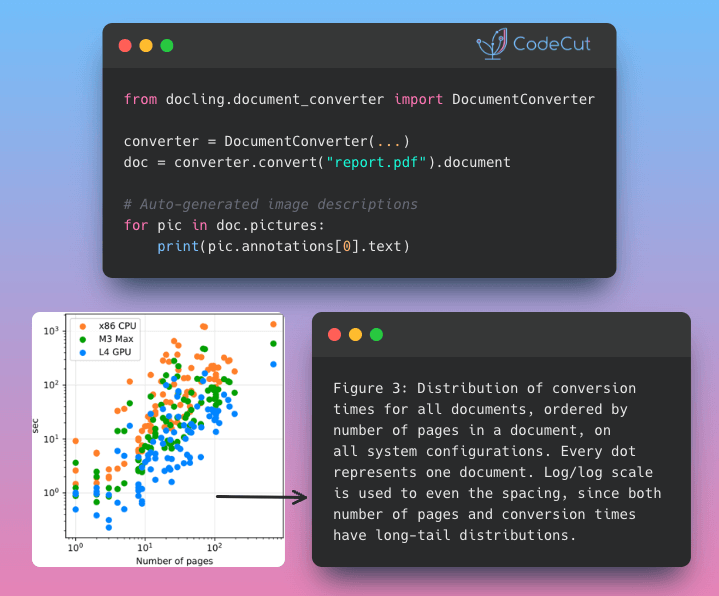
Docling’s DocumentConverter takes care of that by detecting the file type and applying the right parsing method for PDF, DOCX, PPTX, HTML, and images.
Other features of Docling:

AI-powered image descriptions for searchable diagrams
Export to pandas DataFrames, JSON, or Markdown
Structure-preserving output optimized for RAG pipelines
Built-in chunking strategies for vector databases
Parallel processing handles large document batches efficiently

📖 View Full Article

🧪 Run code

⭐ View GitHub

☕️ Weekly Finds

evals
[LLM]
– Framework for evaluating large language models (LLMs) or systems built using LLMs with existing registry of evals and ability to write custom evals

sklearn-bayes
[ML]
– Python package for Bayesian Machine Learning with scikit-learn API

databonsai
[Data Processing]
– Python library that uses LLMs to perform data cleaning tasks for categorization, transformation and curation

Looking for a specific tool? Explore 70+ Python tools →

Stay Current with CodeCut

Actionable Python tips, curated for busy data pros. Skim in under 2 minutes, three times a week.

.codecut-subscribe-form .codecut-input {
background: #2F2D2E !important;
border: 1px solid #72BEFA !important;
color: #FFFFFF !important;
}
.codecut-subscribe-form .codecut-input::placeholder {
color: #999999 !important;
}
.codecut-subscribe-form .codecut-subscribe-btn {
background: #72BEFA !important;
color: #2F2D2E !important;
}
.codecut-subscribe-form .codecut-subscribe-btn:hover {
background: #5aa8e8 !important;
}

.codecut-subscribe-form {
max-width: 650px;
display: flex;
flex-direction: column;
gap: 8px;
}
.codecut-input {
-webkit-appearance: none;
-moz-appearance: none;
appearance: none;
background: #FFFFFF;
border-radius: 8px !important;
padding: 8px 12px;
font-family: ‘Comfortaa’, sans-serif !important;
font-size: 14px !important;
color: #333333;
border: none !important;
outline: none;
width: 100%;
box-sizing: border-box;
}
input[type=”email”].codecut-input {
border-radius: 8px !important;
}
.codecut-input::placeholder {
color: #666666;
}
.codecut-email-row {
display: flex;
align-items: stretch;
height: 36px;
gap: 8px;
}
.codecut-email-row .codecut-input {
flex: 1;
}
.codecut-subscribe-btn {
background: #72BEFA;
color: #2F2D2E;
border: none;
border-radius: 8px;
padding: 8px 14px;
font-family: ‘Comfortaa’, sans-serif;
font-size: 14px;
font-weight: 500;
cursor: pointer;
text-decoration: none;
display: flex;
align-items: center;
justify-content: center;
transition: background 0.3s ease;
}
.codecut-subscribe-btn:hover {
background: #5aa8e8;
}
.codecut-subscribe-btn:disabled {
background: #999;
cursor: not-allowed;
}
.codecut-message {
font-family: ‘Comfortaa’, sans-serif;
font-size: 12px;
padding: 8px;
border-radius: 6px;
display: none;
}
.codecut-message.success {
background: #d4edda;
color: #155724;
display: block;
}
@media (max-width: 480px) {
.codecut-email-row {
flex-direction: column;
height: auto;
gap: 8px;
}
.codecut-input {
border-radius: 8px;
height: 36px;
}
.codecut-subscribe-btn {
width: 100%;
text-align: center;
border-radius: 8px;
height: 36px;
}
}

Subscribe

Newsletter #250: Extract Text from Any Document Format with Docling Read More »

Newsletter #249: prek: Faster, Leaner Pre-Commit Hooks (Rust-Powered)

📅 Today’s Picks

LangChain v1.0: Automate Tool Selection for Faster Agents

Problem
Agents with many tools waste tokens by sending all tool descriptions with every request.
This wastes tokens on irrelevant tool descriptions, making responses slower and more expensive.
Solution
LangChain v1.0 introduces LLMToolSelectorMiddleware that pre-filters relevant tools using a smaller model.
Key features:

Pre-filter tools using cheaper models like GPT-4o-mini
Limit tools sent to main agent (e.g., 3 most relevant)
Preserve critical tools with always_include parameter

📖 View Full Article

🧪 Run code

⭐ View GitHub

prek: Faster, Leaner Pre-Commit Hooks (Rust-Powered)

Problem
pre-commit is a framework for managing Git hooks that automatically run code quality checks before commits.
However, installing these hook environments (linters, formatters, etc.) can be slow and disk-intensive, especially in CI/CD pipelines where speed matters.
Solution
prek is a drop-in replacement for pre-commit that installs hook environments significantly faster while using 50% less disk space.
Built with Rust for maximum performance, prek reduces cache storage from 1.6GB to 810MB (benchmarked on Apache Airflow repository) without changing your workflow.
Key benefits:

Uses your existing .pre-commit-config.yaml files
Commands mirror pre-commit syntax (prek install-hooks, prek run)
Monorepo support with selector syntax for targeting specific projects or hooks
Install as a single binary with no dependencies

No configuration changes needed – just replace the command.

⭐ View GitHub

☕️ Weekly Finds

deepagents
[LLM]
– Build advanced AI agents with context isolation through sub-agent delegation. Features virtual file system for context offloading, specialized sub-agents with focused tool sets, and sophisticated agent architecture for real-world research and analysis tasks.

mcp-gateway
[MLOps]
– Docker MCP CLI plugin / MCP Gateway for production-grade AI agent stack. Enables multi-agent orchestration, intelligent interceptors, and enterprise security with Docker integration.

nbQA
[Python Utils]
– Run ruff, isort, pyupgrade, mypy, pylint, flake8, and more on Jupyter Notebooks. Command-line tool to run linters and formatters over Python code in Jupyter notebooks.

Looking for a specific tool? Explore 70+ Python tools →

Stay Current with CodeCut

Actionable Python tips, curated for busy data pros. Skim in under 2 minutes, three times a week.

.codecut-subscribe-form .codecut-input {
background: #2F2D2E !important;
border: 1px solid #72BEFA !important;
color: #FFFFFF !important;
}
.codecut-subscribe-form .codecut-input::placeholder {
color: #999999 !important;
}
.codecut-subscribe-form .codecut-subscribe-btn {
background: #72BEFA !important;
color: #2F2D2E !important;
}
.codecut-subscribe-form .codecut-subscribe-btn:hover {
background: #5aa8e8 !important;
}

.codecut-subscribe-form {
max-width: 650px;
display: flex;
flex-direction: column;
gap: 8px;
}
.codecut-input {
-webkit-appearance: none;
-moz-appearance: none;
appearance: none;
background: #FFFFFF;
border-radius: 8px !important;
padding: 8px 12px;
font-family: ‘Comfortaa’, sans-serif !important;
font-size: 14px !important;
color: #333333;
border: none !important;
outline: none;
width: 100%;
box-sizing: border-box;
}
input[type=”email”].codecut-input {
border-radius: 8px !important;
}
.codecut-input::placeholder {
color: #666666;
}
.codecut-email-row {
display: flex;
align-items: stretch;
height: 36px;
gap: 8px;
}
.codecut-email-row .codecut-input {
flex: 1;
}
.codecut-subscribe-btn {
background: #72BEFA;
color: #2F2D2E;
border: none;
border-radius: 8px;
padding: 8px 14px;
font-family: ‘Comfortaa’, sans-serif;
font-size: 14px;
font-weight: 500;
cursor: pointer;
text-decoration: none;
display: flex;
align-items: center;
justify-content: center;
transition: background 0.3s ease;
}
.codecut-subscribe-btn:hover {
background: #5aa8e8;
}
.codecut-subscribe-btn:disabled {
background: #999;
cursor: not-allowed;
}
.codecut-message {
font-family: ‘Comfortaa’, sans-serif;
font-size: 12px;
padding: 8px;
border-radius: 6px;
display: none;
}
.codecut-message.success {
background: #d4edda;
color: #155724;
display: block;
}
@media (max-width: 480px) {
.codecut-email-row {
flex-direction: column;
height: auto;
gap: 8px;
}
.codecut-input {
border-radius: 8px;
height: 36px;
}
.codecut-subscribe-btn {
width: 100%;
text-align: center;
border-radius: 8px;
height: 36px;
}
}

Subscribe

Newsletter #249: prek: Faster, Leaner Pre-Commit Hooks (Rust-Powered) Read More »

Code example: Build Mathematical Animations with Manim in Python

Newsletter #248: Build Mathematical Animations with Manim in Python – Fixed

📅 Today’s Picks

Build Mathematical Animations with Manim in Python

Problem
Static slides can only go so far when you’re explaining complex concepts.
Dynamic visuals make abstract ideas clearer, more engaging, and easier to understand.
Solution
Manim gives you the power to create professional mathematical animations in Python, just like the ones you see in 3Blue1Brown’s videos.
In the code below, Manim transforms equations into smooth visual steps:

Define equation steps using MathTex with LaTeX notation
Animate equation transformations with the Transform class
Control animation flow with play() and wait() methods
Render output with simple command: manim -p -ql script.py

📖 View Full Article

⭐ View GitHub

☕️ Weekly Finds

fast-langdetect
[Python Utils]
– 80x faster and 95% accurate language identification with Fasttext

FuncToWeb
[Python Utils]
– Transform any Python function into a web interface automatically

graphic-walker
[Data Viz]
– An open source alternative to Tableau for data exploration and visualization

Looking for a specific tool? Explore 70+ Python tools →

Stay Current with CodeCut

Actionable Python tips, curated for busy data pros. Skim in under 2 minutes, three times a week.

.codecut-subscribe-form .codecut-input {
background: #2F2D2E !important;
border: 1px solid #72BEFA !important;
color: #FFFFFF !important;
}
.codecut-subscribe-form .codecut-input::placeholder {
color: #999999 !important;
}
.codecut-subscribe-form .codecut-subscribe-btn {
background: #72BEFA !important;
color: #2F2D2E !important;
}
.codecut-subscribe-form .codecut-subscribe-btn:hover {
background: #5aa8e8 !important;
}

.codecut-subscribe-form {
max-width: 650px;
display: flex;
flex-direction: column;
gap: 8px;
}
.codecut-input {
-webkit-appearance: none;
-moz-appearance: none;
appearance: none;
background: #FFFFFF;
border-radius: 8px !important;
padding: 8px 12px;
font-family: ‘Comfortaa’, sans-serif !important;
font-size: 14px !important;
color: #333333;
border: none !important;
outline: none;
width: 100%;
box-sizing: border-box;
}
input[type=”email”].codecut-input {
border-radius: 8px !important;
}
.codecut-input::placeholder {
color: #666666;
}
.codecut-email-row {
display: flex;
align-items: stretch;
height: 36px;
gap: 8px;
}
.codecut-email-row .codecut-input {
flex: 1;
}
.codecut-subscribe-btn {
background: #72BEFA;
color: #2F2D2E;
border: none;
border-radius: 8px;
padding: 8px 14px;
font-family: ‘Comfortaa’, sans-serif;
font-size: 14px;
font-weight: 500;
cursor: pointer;
text-decoration: none;
display: flex;
align-items: center;
justify-content: center;
transition: background 0.3s ease;
}
.codecut-subscribe-btn:hover {
background: #5aa8e8;
}
.codecut-subscribe-btn:disabled {
background: #999;
cursor: not-allowed;
}
.codecut-message {
font-family: ‘Comfortaa’, sans-serif;
font-size: 12px;
padding: 8px;
border-radius: 6px;
display: none;
}
.codecut-message.success {
background: #d4edda;
color: #155724;
display: block;
}
@media (max-width: 480px) {
.codecut-email-row {
flex-direction: column;
height: auto;
gap: 8px;
}
.codecut-input {
border-radius: 8px;
height: 36px;
}
.codecut-subscribe-btn {
width: 100%;
text-align: center;
border-radius: 8px;
height: 36px;
}
}

Subscribe

Newsletter #248: Build Mathematical Animations with Manim in Python – Fixed Read More »

Manim: Create Mathematical Animations Like 3Blue1Brown Using Python

Table of Contents

Motivation
What is Manim?
Create a Blue Square that Grows from the Center
Turn a Square into a Circle
Customize Manim
Write Mathematical Equations with a Moving Frame
Moving and Zooming Camera
Graph
Move Objects Together
Trace Path
Recap

Motivation
Have you ever struggled with math concepts in a machine learning algorithm and turned to 3Blue1Brown as a learning resource? 3Blue1Brown is a popular math YouTube channel created by Grant Sanderson, known for exceptional explanations and stunning animations.
What if you could create similar animations to explain data science concepts to your teammates, managers, or followers?
Grant developed a Python package called Manim that enables you to create mathematical animations or pictures using Python. In this article, you will learn how to create beautiful mathematical animations using Manim.

💻 Get the Code: The complete source code and Jupyter notebook for this tutorial are available on GitHub. Clone it to follow along!

Stay Current with CodeCut
Actionable Python tips, curated for busy data pros. Skim in under 2 minutes, three times a week.

.codecut-subscribe-form .codecut-input {
background: #2F2D2E !important;
border: 1px solid #72BEFA !important;
color: #FFFFFF !important;
}
.codecut-subscribe-form .codecut-input::placeholder {
color: #999999 !important;
}
.codecut-subscribe-form .codecut-subscribe-btn {
background: #72BEFA !important;
color: #2F2D2E !important;
}
.codecut-subscribe-form .codecut-subscribe-btn:hover {
background: #5aa8e8 !important;
}

.codecut-subscribe-form {
max-width: 650px;
display: flex;
flex-direction: column;
gap: 8px;
}

.codecut-input {
-webkit-appearance: none;
-moz-appearance: none;
appearance: none;
background: #FFFFFF;
border-radius: 8px !important;
padding: 8px 12px;
font-family: ‘Comfortaa’, sans-serif !important;
font-size: 14px !important;
color: #333333;
border: none !important;
outline: none;
width: 100%;
box-sizing: border-box;
}

input[type=”email”].codecut-input {
border-radius: 8px !important;
}

.codecut-input::placeholder {
color: #666666;
}

.codecut-email-row {
display: flex;
align-items: stretch;
height: 36px;
gap: 8px;
}

.codecut-email-row .codecut-input {
flex: 1;
}

.codecut-subscribe-btn {
background: #72BEFA;
color: #2F2D2E;
border: none;
border-radius: 8px;
padding: 8px 14px;
font-family: ‘Comfortaa’, sans-serif;
font-size: 14px;
font-weight: 500;
cursor: pointer;
text-decoration: none;
display: flex;
align-items: center;
justify-content: center;
transition: background 0.3s ease;
}

.codecut-subscribe-btn:hover {
background: #5aa8e8;
}

.codecut-subscribe-btn:disabled {
background: #999;
cursor: not-allowed;
}

.codecut-message {
font-family: ‘Comfortaa’, sans-serif;
font-size: 12px;
padding: 8px;
border-radius: 6px;
display: none;
}

.codecut-message.success {
background: #d4edda;
color: #155724;
display: block;
}

/* Mobile responsive */
@media (max-width: 480px) {
.codecut-email-row {
flex-direction: column;
height: auto;
gap: 8px;
}

.codecut-input {
border-radius: 8px;
height: 36px;
}

.codecut-subscribe-btn {
width: 100%;
text-align: center;
border-radius: 8px;
height: 36px;
}
}

Subscribe

What is Manim?
Manim is an animation engine for creating precise, explanatory math videos. Note that there are two versions of Manim:

The original version created by Grant Sanderson
The community-maintained version

Since the Manim Community version is updated more frequently and better tested, we’ll use it for this tutorial.
To install the dependencies for the package, visit the Documentation. After the dependencies are installed, run:
pip install manim

Create a Blue Square that Grows from the Center
We’ll start by creating a blue square that grows from the center:
from manim import *

class GrowingSquare(Scene):
def construct(self):
square = Square(color=BLUE, fill_opacity=0.5)
self.play(GrowFromCenter(square))
self.wait()

The code leverages four key Manim elements to produce the animation.

Scene: Base class providing animation infrastructure via construct() and play() methods
Square(color, fill_opacity): Mobject for creating squares with specified stroke color and fill transparency
GrowFromCenter: Growth animation starting from the object’s center
wait(): 1-second pause in animation timeline

Save the script above as start.py. Now run the command below to generate a video for the script:
manim -p -ql start.py GrowingSquare

A video called GrowingSquare.mp4 will be saved in your local directory. You should see a blue square growing from the center.

Explanation of the options:

-p: play the video once it finishes generating
-ql: generate a video with low quality

To generate a video with high quality, use -qh instead.
To create a GIF instead of a video, add –format=gif to the command:
manim -p -ql –format=gif start.py GrowingSquare

Turn a Square into a Circle
Creating a square alone is not that exciting. Let’s transform the square into a circle using the Transform animation.
from manim import *

class SquareToCircle(Scene):
def construct(self):
circle = Circle()
circle.set_fill(PINK, opacity=0.5)

square = Square()
square.rotate(PI / 4)

self.play(Create(square))
self.play(Transform(square, circle))
self.play(FadeOut(square))

This code demonstrates creating shapes, styling them, and applying different animation effects.

Circle: Creates a circular shape
set_fill(color, opacity): Sets the fill color and transparency (0.5 = 50% transparent)
rotate(angle): Rotates the object by an angle (PI/4 = 45 degrees)
Create: Animation that draws the shape onto the screen
Transform: Smoothly morphs one shape into another
FadeOut: Makes the object gradually disappear

Find a comprehensive list of shapes in the Manim geometry documentation.
Customize Manim
If you don’t want the background to be black, you can change it to white using self.camera.background_color:
from manim import *

class CustomBackground(Scene):
def construct(self):
self.camera.background_color = WHITE

square = Square(color=BLUE, fill_opacity=0.5)
circle = Circle(color=RED, fill_opacity=0.5)

self.play(Create(square))
self.wait()
self.play(Transform(square, circle))
self.wait()

Find other ways to customize Manim in the configuration documentation.
Write Mathematical Equations with a Moving Frame
You can create animations that write mathematical equations using the MathTex class:
from manim import *

class WriteEquation(Scene):
def construct(self):
equation = MathTex(r"e^{i\pi} + 1 = 0")

self.play(Write(equation))
self.wait()

This code demonstrates writing mathematical equations using LaTeX.

MathTex: Creates mathematical equations using LaTeX notation (the r prefix indicates a raw string for LaTeX commands)
Write: Animation that makes text appear as if being written by hand

Or show step-by-step solutions to equations:
from manim import *

class EquationSteps(Scene):
def construct(self):
step1 = MathTex(r"2x + 5 = 13")
step2 = MathTex(r"2x = 8")
step3 = MathTex(r"x = 4")

self.play(Write(step1))
self.wait()
self.play(Transform(step1, step2))
self.wait()
self.play(Transform(step1, step3))
self.wait()

Let’s break down this code:

Three equation stages: Separate MathTex objects for each step of the solution
Progressive transformation: Transform morphs the first equation through intermediate and final stages
Timed pauses: wait() creates natural breaks between steps for a teaching pace

You can also highlight specific parts of equations using frames:
from manim import *

class MovingFrame(Scene):
def construct(self):
# Write equations
equation = MathTex("2x^2-5x+2", "=", "(x-2)(2x-1)")

# Create animation
self.play(Write(equation))

# Add moving frames
framebox1 = SurroundingRectangle(equation[0], buff=.1)
framebox2 = SurroundingRectangle(equation[2], buff=.1)

# Create animations
self.play(Create(framebox1))

self.wait()
# Replace frame 1 with frame 2
self.play(ReplacementTransform(framebox1, framebox2))

self.wait()

In this code, we use the following elements:

MathTex with multiple arguments: Breaks the equation into separate parts that can be individually accessed and highlighted
SurroundingRectangle(mobject, buff): Creates a box around an equation part (buff=0.1 sets the space between the box and the content)
ReplacementTransform: Smoothly moves and morphs one frame into another, replacing the first frame with the second

Moving and Zooming Camera
You can adjust the camera and select which part of the equations to zoom in using a class inherited from MovingCameraScene:
from manim import *

class MovingCamera(MovingCameraScene):
def construct(self):
equation = MathTex(
r"\frac{d}{dx}(x^2) = 2x"
)

self.play(Write(equation))
self.wait()

# Zoom in on the derivative
self.play(
self.camera.frame.animate.scale(0.5).move_to(equation[0])
)
self.wait()

This code shows how to zoom in on specific parts of your animation.

MovingCameraScene: A special scene type that allows the camera to move and zoom
self.camera.frame: Represents the camera’s view that you can move and zoom
animate.scale(0.5): Zooms in by making the camera view 50% smaller (objects appear twice as big)
move_to(equation[0]): Centers the camera on the first part of the equation

Graph
You can use Manim to create annotated graphs:
from manim import *

class Graph(Scene):
def construct(self):
axes = Axes(
x_range=[-3, 3, 1],
y_range=[-5, 5, 1],
x_length=6,
y_length=6,
)

# Add labels
axes_labels = axes.get_axis_labels(x_label="x", y_label="f(x)")

# Create a function graph
graph = axes.plot(lambda x: x**2, color=BLUE)
graph_label = axes.get_graph_label(graph, label="x^2")

self.add(axes, axes_labels)
self.play(Create(graph))
self.play(Write(graph_label))
self.wait()

This code shows how to create mathematical function graphs with labeled axes.

Axes: Creates a coordinate grid with specified ranges (e.g., x from -3 to 3, y from -5 to 5) and sizes
get_axis_labels: Adds “x” and “f(x)” labels to the coordinate axes
plot(lambda x: x2)**: Plots a mathematical function (here, x squared) as a curve on the axes
get_graph_label: Adds a label showing the function’s equation next to the plotted curve
self.add: Instantly displays objects on screen without animating them in

If you want to get an image of the last frame of a scene, add -s to the command:
manim -p -qh -s more.py Graph

You can also animate the process of setting up the axes:
manim -p -qh more.py Graph

Move Objects Together
You can use VGroup to group different Manim objects and move them together:
from manim import *

class MoveObjectsTogether(Scene):
def construct(self):
square = Square(color=BLUE)
circle = Circle(color=RED)

# Group objects
group = VGroup(square, circle)
group.arrange(RIGHT, buff=1)

self.play(Create(group))
self.wait()

# Move the entire group
self.play(group.animate.shift(UP * 2))
self.wait()

This code shows how to group objects and move them together as one unit.

VGroup: Groups multiple objects together so you can control them all at once (like selecting multiple items)
arrange(RIGHT, buff=1): Lines up the objects horizontally from left to right with 1 unit of space between them
shift(UP * 2): Moves the entire group upward by 2 units (multiplying by 2 makes it move twice as far)

You can also create multiple groups and manipulate them independently or together:
from manim import *

class GroupCircles(Scene):
def construct(self):
# Create circles
circle_green = Circle(color=GREEN)
circle_blue = Circle(color=BLUE)
circle_red = Circle(color=RED)

# Set initial positions
circle_green.shift(LEFT)
circle_blue.shift(RIGHT)

# Create 2 different groups
gr = VGroup(circle_green, circle_red)
gr2 = VGroup(circle_blue)
self.add(gr, gr2)
self.wait()

# Shift 2 groups down
self.play((gr + gr2).animate.shift(DOWN))

# Move only 1 group
self.play(gr.animate.shift(RIGHT))
self.play(gr.animate.shift(UP))

# Shift 2 groups to the right
self.play((gr + gr2).animate.shift(RIGHT))
self.play(circle_red.animate.shift(RIGHT))
self.wait()

Trace Path
You can use TracedPath to create a trace of a moving object:
from manim import *

class TracePath(Scene):
def construct(self):
dot = Dot(color=RED)

# Create traced path
path = TracedPath(dot.get_center, stroke_color=BLUE, stroke_width=4)
self.add(path, dot)

# Move the dot in a circular pattern
self.play(
MoveAlongPath(dot, Circle(radius=2)),
rate_func=linear,
run_time=4
)
self.wait()

This code shows how to create a trail that follows a moving object.

Dot: A small circular point that you can move around
TracedPath(dot.get_center): Creates a line that draws itself following the dot’s path (like a pen trail)
get_center: Gets the current position of the dot so TracedPath knows where to draw
MoveAlongPath(dot, Circle(radius=2)): Moves the dot along a circular path with radius 2
rate_func=linear: Makes the dot move at a constant speed (no speeding up or slowing down)
run_time=4: The animation takes 4 seconds to complete

For a more complex example, you can create a rolling circle that traces a cycloid pattern:
from manim import *

class RollingCircleTrace(Scene):
def construct(self):
# Create circle and dot
circ = Circle(color=BLUE).shift(4*LEFT)
dot = Dot(color=BLUE).move_to(circ.get_start())

# Group dot and circle
rolling_circle = VGroup(circ, dot)
trace = TracedPath(circ.get_start)

# Rotate the circle
rolling_circle.add_updater(lambda m: m.rotate(-0.3))

# Add trace and rolling circle to the scene
self.add(trace, rolling_circle)

# Shift the circle to 8*RIGHT
self.play(rolling_circle.animate.shift(8*RIGHT), run_time=4, rate_func=linear)

This code creates a rolling wheel animation that draws a curved pattern as it moves.

Setup: Creates a blue circle at the left side and places a blue dot at the circle’s edge
Grouping: Uses VGroup to combine the circle and dot so they move together
Path tracking: TracedPath watches the circle’s starting point and draws a line following it
Continuous rotation: add_updater makes the circle rotate automatically every frame, creating the rolling effect
Rolling motion: As the group shifts right, the rotation updater makes it look like a wheel rolling across the screen
Cycloid pattern: The traced path creates a wave-like curve showing the mathematical path a point on a rolling wheel makes

Recap
Congratulations! You have just learned how to use Manim and what it can do. To recap, there are three kinds of objects that Manim provides:

Mobjects: Objects that can be displayed on the screen, such as Circle, Square, Matrix, Angle, etc.
Scenes: Canvas for animations such as Scene, MovingCameraScene, etc.
Animations: Animations applied to Mobjects such as Write, Create, GrowFromCenter, Transform, etc.

There is so much more Manim can do that I cannot cover here. The best way to learn is through practice, so I encourage you to try the examples in this article and check out Manim’s tutorial.

📚 Want to go deeper? Learning new techniques is the easy part. Knowing how to structure, test, and deploy them is what separates side projects from real work. My book shows you how to build data science projects that actually make it to production. Get the book →

Stay Current with CodeCut
Actionable Python tips, curated for busy data pros. Skim in under 2 minutes, three times a week.

.codecut-subscribe-form .codecut-input {
background: #2F2D2E !important;
border: 1px solid #72BEFA !important;
color: #FFFFFF !important;
}
.codecut-subscribe-form .codecut-input::placeholder {
color: #999999 !important;
}
.codecut-subscribe-form .codecut-subscribe-btn {
background: #72BEFA !important;
color: #2F2D2E !important;
}
.codecut-subscribe-form .codecut-subscribe-btn:hover {
background: #5aa8e8 !important;
}

.codecut-subscribe-form {
max-width: 650px;
display: flex;
flex-direction: column;
gap: 8px;
}

.codecut-input {
-webkit-appearance: none;
-moz-appearance: none;
appearance: none;
background: #FFFFFF;
border-radius: 8px !important;
padding: 8px 12px;
font-family: ‘Comfortaa’, sans-serif !important;
font-size: 14px !important;
color: #333333;
border: none !important;
outline: none;
width: 100%;
box-sizing: border-box;
}

input[type=”email”].codecut-input {
border-radius: 8px !important;
}

.codecut-input::placeholder {
color: #666666;
}

.codecut-email-row {
display: flex;
align-items: stretch;
height: 36px;
gap: 8px;
}

.codecut-email-row .codecut-input {
flex: 1;
}

.codecut-subscribe-btn {
background: #72BEFA;
color: #2F2D2E;
border: none;
border-radius: 8px;
padding: 8px 14px;
font-family: ‘Comfortaa’, sans-serif;
font-size: 14px;
font-weight: 500;
cursor: pointer;
text-decoration: none;
display: flex;
align-items: center;
justify-content: center;
transition: background 0.3s ease;
}

.codecut-subscribe-btn:hover {
background: #5aa8e8;
}

.codecut-subscribe-btn:disabled {
background: #999;
cursor: not-allowed;
}

.codecut-message {
font-family: ‘Comfortaa’, sans-serif;
font-size: 12px;
padding: 8px;
border-radius: 6px;
display: none;
}

.codecut-message.success {
background: #d4edda;
color: #155724;
display: block;
}

/* Mobile responsive */
@media (max-width: 480px) {
.codecut-email-row {
flex-direction: column;
height: auto;
gap: 8px;
}

.codecut-input {
border-radius: 8px;
height: 36px;
}

.codecut-subscribe-btn {
width: 100%;
text-align: center;
border-radius: 8px;
height: 36px;
}
}

Subscribe

Manim: Create Mathematical Animations Like 3Blue1Brown Using Python Read More »

Newsletter #247: whenever: Simple Python Timezone Conversion

🤝 COLLABORATION

Build Safer APIs with Buf – Free Workshop
Building APIs is simple. Scaling them across teams and systems isn’t. Ensuring consistency, compatibility, and reliability quickly becomes a challenge as projects grow.
Buf provides a toolkit that makes working with Protocol Buffers faster, safer, and more consistent.
Join Buf for a live, one-hour workshop on building safer, more consistent APIs.
When: Nov 19, 2025 • 9 AM PDT | 12 PM EDT | 5 PM BST
What you’ll learn:

How Protobuf makes API development safer and simpler
API design best practices for real-world systems
How to extend Protobuf to data pipelines and streaming systems

Register for the workshop

📅 Today’s Picks

whenever: Simple Python Timezone Conversion

Problem
Adding 8 hours to 10pm shouldn’t give you the wrong morning time, but with Python’s datetime, it can.
The standard library fails during DST transitions, returning incorrect offsets when clocks change for daylight saving.
Solution
Whenever provides simple, explicit timezone conversion methods with clear semantics.
Key benefits:

DST-safe arithmetic with automatic offset adjustment
Type safety prevents naive/aware datetime bugs
Clean timezone conversions with .to_tz()
Nanosecond precision for deltas and timestamps
Pydantic integration for serialization

🧪 Run code

⭐ View GitHub

Build Readable Scatter Plots with adjustText Auto-Positioning

Problem
Text labels in matplotlib scatter plots frequently overlap with each other and data points, creating unreadable visualizations.
Manually repositioning each label to avoid overlaps is tedious and time-consuming.
Solution
adjustText automatically repositions labels to eliminate overlaps while connecting them to data points with arrows.
All you need is to collect your text objects and call adjust_text() with optional arrow styling.

🧪 Run code

⭐ View GitHub

📢 ANNOUNCEMENTS

Featured on LeanPub: Production-Ready Data Science
My book Production-Ready Data Science was featured on the LeanPub home page!
LeanPub is a leading platform for publishing and selling self-published technical books, so it’s truly an honor to see my work highlighted there.
The book shares everything I’ve learned about turning data science prototypes into reliable, production-ready systems, from managing dependencies to automating workflows.
Thank you to everyone who has purchased or shared it. Your support means everything.
The book is currently on sale for 58% off until November 16.

Get Your Copy Now (58% Off)

☕️ Weekly Finds

featuretools
[ML]
– An open source python library for automated feature engineering

datachain
[Data Processing]
– ETL, Analytics, Versioning for Unstructured Data – AI-data warehouse to enrich, transform and analyze data from cloud storages

logfire
[Python Utils]
– Uncomplicated Observability for Python and beyond – an observability platform built on OpenTelemetry from the team behind Pydantic

Looking for a specific tool? Explore 70+ Python tools →

Stay Current with CodeCut

Actionable Python tips, curated for busy data pros. Skim in under 2 minutes, three times a week.

.codecut-subscribe-form .codecut-input {
background: #2F2D2E !important;
border: 1px solid #72BEFA !important;
color: #FFFFFF !important;
}
.codecut-subscribe-form .codecut-input::placeholder {
color: #999999 !important;
}
.codecut-subscribe-form .codecut-subscribe-btn {
background: #72BEFA !important;
color: #2F2D2E !important;
}
.codecut-subscribe-form .codecut-subscribe-btn:hover {
background: #5aa8e8 !important;
}

.codecut-subscribe-form {
max-width: 650px;
display: flex;
flex-direction: column;
gap: 8px;
}
.codecut-input {
-webkit-appearance: none;
-moz-appearance: none;
appearance: none;
background: #FFFFFF;
border-radius: 8px !important;
padding: 8px 12px;
font-family: ‘Comfortaa’, sans-serif !important;
font-size: 14px !important;
color: #333333;
border: none !important;
outline: none;
width: 100%;
box-sizing: border-box;
}
input[type=”email”].codecut-input {
border-radius: 8px !important;
}
.codecut-input::placeholder {
color: #666666;
}
.codecut-email-row {
display: flex;
align-items: stretch;
height: 36px;
gap: 8px;
}
.codecut-email-row .codecut-input {
flex: 1;
}
.codecut-subscribe-btn {
background: #72BEFA;
color: #2F2D2E;
border: none;
border-radius: 8px;
padding: 8px 14px;
font-family: ‘Comfortaa’, sans-serif;
font-size: 14px;
font-weight: 500;
cursor: pointer;
text-decoration: none;
display: flex;
align-items: center;
justify-content: center;
transition: background 0.3s ease;
}
.codecut-subscribe-btn:hover {
background: #5aa8e8;
}
.codecut-subscribe-btn:disabled {
background: #999;
cursor: not-allowed;
}
.codecut-message {
font-family: ‘Comfortaa’, sans-serif;
font-size: 12px;
padding: 8px;
border-radius: 6px;
display: none;
}
.codecut-message.success {
background: #d4edda;
color: #155724;
display: block;
}
@media (max-width: 480px) {
.codecut-email-row {
flex-direction: column;
height: auto;
gap: 8px;
}
.codecut-input {
border-radius: 8px;
height: 36px;
}
.codecut-subscribe-btn {
width: 100%;
text-align: center;
border-radius: 8px;
height: 36px;
}
}

Subscribe

Newsletter #247: whenever: Simple Python Timezone Conversion Read More »

Newsletter #246: Faster Polars Queries with Programmatic Expressions

🤝 COLLABORATION

Build Safer APIs with Buf – Free Workshop
Building APIs is simple. Scaling them across teams and systems isn’t. Ensuring consistency, compatibility, and reliability quickly becomes a challenge as projects grow.
Buf provides a toolkit that makes working with Protocol Buffers faster, safer, and more consistent.
Join Buf for a live, one-hour workshop on building safer, more consistent APIs.
When: Nov 19, 2025 • 9 AM PDT | 12 PM EDT | 5 PM BST
What you’ll learn:

How Protobuf makes API development safer and simpler
API design best practices for real-world systems
How to extend Protobuf to data pipelines and streaming systems

Register for the workshop

📅 Today’s Picks

Faster Polars Queries with Programmatic Expressions

Problem
When you want to use for loops to apply similar transformations, each Polars with_columns() call processes sequentially.
This prevents the optimizer from seeing the full computation plan.
Solution
Instead, generate all Polars expressions programmatically before applying them together.
This enables Polars to:

See the complete computation plan upfront
Optimize across all expressions simultaneously
Parallelize operations across CPU cores

📖 View Full Article

🧪 Run code

⭐ View GitHub

itertools.chain: Merge Lists Without Intermediate Copies

Problem
Standard list merging with extend() or concatenation creates intermediate copies.
This memory overhead becomes significant when processing large lists.
Solution
itertools.chain() lazily merges multiple iterables without creating intermediate lists.

📖 View Full Article

🧪 Run code

☕️ Weekly Finds

fiftyone
[ML]
– Open-source tool for building high-quality datasets and computer vision models

llama-stack
[LLM]
– Composable building blocks to build Llama Apps with unified API for inference, RAG, agents, and more

grip
[Python Utils]
– Preview GitHub README.md files locally before committing them using GitHub’s markdown API

Looking for a specific tool? Explore 70+ Python tools →

Stay Current with CodeCut

Actionable Python tips, curated for busy data pros. Skim in under 2 minutes, three times a week.

.codecut-subscribe-form .codecut-input {
background: #2F2D2E !important;
border: 1px solid #72BEFA !important;
color: #FFFFFF !important;
}
.codecut-subscribe-form .codecut-input::placeholder {
color: #999999 !important;
}
.codecut-subscribe-form .codecut-subscribe-btn {
background: #72BEFA !important;
color: #2F2D2E !important;
}
.codecut-subscribe-form .codecut-subscribe-btn:hover {
background: #5aa8e8 !important;
}

.codecut-subscribe-form {
max-width: 650px;
display: flex;
flex-direction: column;
gap: 8px;
}
.codecut-input {
-webkit-appearance: none;
-moz-appearance: none;
appearance: none;
background: #FFFFFF;
border-radius: 8px !important;
padding: 8px 12px;
font-family: ‘Comfortaa’, sans-serif !important;
font-size: 14px !important;
color: #333333;
border: none !important;
outline: none;
width: 100%;
box-sizing: border-box;
}
input[type=”email”].codecut-input {
border-radius: 8px !important;
}
.codecut-input::placeholder {
color: #666666;
}
.codecut-email-row {
display: flex;
align-items: stretch;
height: 36px;
gap: 8px;
}
.codecut-email-row .codecut-input {
flex: 1;
}
.codecut-subscribe-btn {
background: #72BEFA;
color: #2F2D2E;
border: none;
border-radius: 8px;
padding: 8px 14px;
font-family: ‘Comfortaa’, sans-serif;
font-size: 14px;
font-weight: 500;
cursor: pointer;
text-decoration: none;
display: flex;
align-items: center;
justify-content: center;
transition: background 0.3s ease;
}
.codecut-subscribe-btn:hover {
background: #5aa8e8;
}
.codecut-subscribe-btn:disabled {
background: #999;
cursor: not-allowed;
}
.codecut-message {
font-family: ‘Comfortaa’, sans-serif;
font-size: 12px;
padding: 8px;
border-radius: 6px;
display: none;
}
.codecut-message.success {
background: #d4edda;
color: #155724;
display: block;
}
@media (max-width: 480px) {
.codecut-email-row {
flex-direction: column;
height: auto;
gap: 8px;
}
.codecut-input {
border-radius: 8px;
height: 36px;
}
.codecut-subscribe-btn {
width: 100%;
text-align: center;
border-radius: 8px;
height: 36px;
}
}

Subscribe

Newsletter #246: Faster Polars Queries with Programmatic Expressions Read More »

Newsletter #245: PySpark: Avoid Double Conversions with applyInArrow

📅 Today’s Picks

PySpark: Avoid Double Conversions with applyInArrow

Problem
applyInPandas lets you apply Pandas functions in PySpark by converting data from Arrow→Pandas→Arrow for each operation.
This double conversion adds serialization overhead that slows down your transformations.
Solution
applyInArrow (introduced in PySpark 4.0.0) works directly with PyArrow tables, eliminating the Pandas conversion step entirely.
This keeps data in Arrow’s columnar format throughout the pipeline, making operations significantly faster.
Trade-off: PyArrow’s syntax is less intuitive than Pandas, but it’s worth it if you’re processing large datasets where performance matters.

📖 View Full Article

🧪 Run code

⭐ View GitHub

☕️ Weekly Finds

causal-learn
[ML]
– Python package for causal discovery that implements both classical and state-of-the-art causal discovery algorithms

POT
[ML]
– Python Optimal Transport library providing solvers for optimization problems related to signal, image processing and machine learning

qdrant
[MLOps]
– High-performance, massive-scale Vector Database and Vector Search Engine for the next generation of AI

Looking for a specific tool? Explore 70+ Python tools →

Stay Current with CodeCut

Actionable Python tips, curated for busy data pros. Skim in under 2 minutes, three times a week.

.codecut-subscribe-form .codecut-input {
background: #2F2D2E !important;
border: 1px solid #72BEFA !important;
color: #FFFFFF !important;
}
.codecut-subscribe-form .codecut-input::placeholder {
color: #999999 !important;
}
.codecut-subscribe-form .codecut-subscribe-btn {
background: #72BEFA !important;
color: #2F2D2E !important;
}
.codecut-subscribe-form .codecut-subscribe-btn:hover {
background: #5aa8e8 !important;
}

.codecut-subscribe-form {
max-width: 650px;
display: flex;
flex-direction: column;
gap: 8px;
}
.codecut-input {
-webkit-appearance: none;
-moz-appearance: none;
appearance: none;
background: #FFFFFF;
border-radius: 8px !important;
padding: 8px 12px;
font-family: ‘Comfortaa’, sans-serif !important;
font-size: 14px !important;
color: #333333;
border: none !important;
outline: none;
width: 100%;
box-sizing: border-box;
}
input[type=”email”].codecut-input {
border-radius: 8px !important;
}
.codecut-input::placeholder {
color: #666666;
}
.codecut-email-row {
display: flex;
align-items: stretch;
height: 36px;
gap: 8px;
}
.codecut-email-row .codecut-input {
flex: 1;
}
.codecut-subscribe-btn {
background: #72BEFA;
color: #2F2D2E;
border: none;
border-radius: 8px;
padding: 8px 14px;
font-family: ‘Comfortaa’, sans-serif;
font-size: 14px;
font-weight: 500;
cursor: pointer;
text-decoration: none;
display: flex;
align-items: center;
justify-content: center;
transition: background 0.3s ease;
}
.codecut-subscribe-btn:hover {
background: #5aa8e8;
}
.codecut-subscribe-btn:disabled {
background: #999;
cursor: not-allowed;
}
.codecut-message {
font-family: ‘Comfortaa’, sans-serif;
font-size: 12px;
padding: 8px;
border-radius: 6px;
display: none;
}
.codecut-message.success {
background: #d4edda;
color: #155724;
display: block;
}
@media (max-width: 480px) {
.codecut-email-row {
flex-direction: column;
height: auto;
gap: 8px;
}
.codecut-input {
border-radius: 8px;
height: 36px;
}
.codecut-subscribe-btn {
width: 100%;
text-align: center;
border-radius: 8px;
height: 36px;
}
}

Subscribe

Newsletter #245: PySpark: Avoid Double Conversions with applyInArrow Read More »

Scroll to Top

Work with Khuyen Tran

Work with Khuyen Tran